Adding balance to your UpCloud account using PayPal
In addition to the usual credit card options, you can also make secure payments using PayPal! PayPal is a fast and safe way to send money and make online payments. Adding balance to your UpCloud account using PayPal is quick and easy.
One of the benefits of using PayPal is the many payment methods they support such as Visa, Mastercard, American Express, and more. However, the payment method accepted by PayPal may vary depending on your region. You can always check their supported countries and regions on their website.
In this guide, we explain the steps to make a payment using your PayPal account or the PayPal guest checkout. Refer to the following documentation about other accepted payment mechanisms and general information about adding balance to your account.
Making a one-time transfer using PayPal
To add balance to your account using PayPal, start by logging into your UpCloud Control Panel and going to the Billing tab on your Account page.
In the One-time payment section, click Make a payment.
Enter the amount you wish to add to your account, select the currency you want to pay in, and click Continue.
Under Select a payment method, choose PayPal. The dialog shows the total to pay, including VAT if applicable. If you pay in a currency other than your account's currency, it also shows the amount that will be deposited to your account in your account's currency and the exchange rate used.
Next, click the PayPal Checkout button. This opens the PayPal interface in a new window.
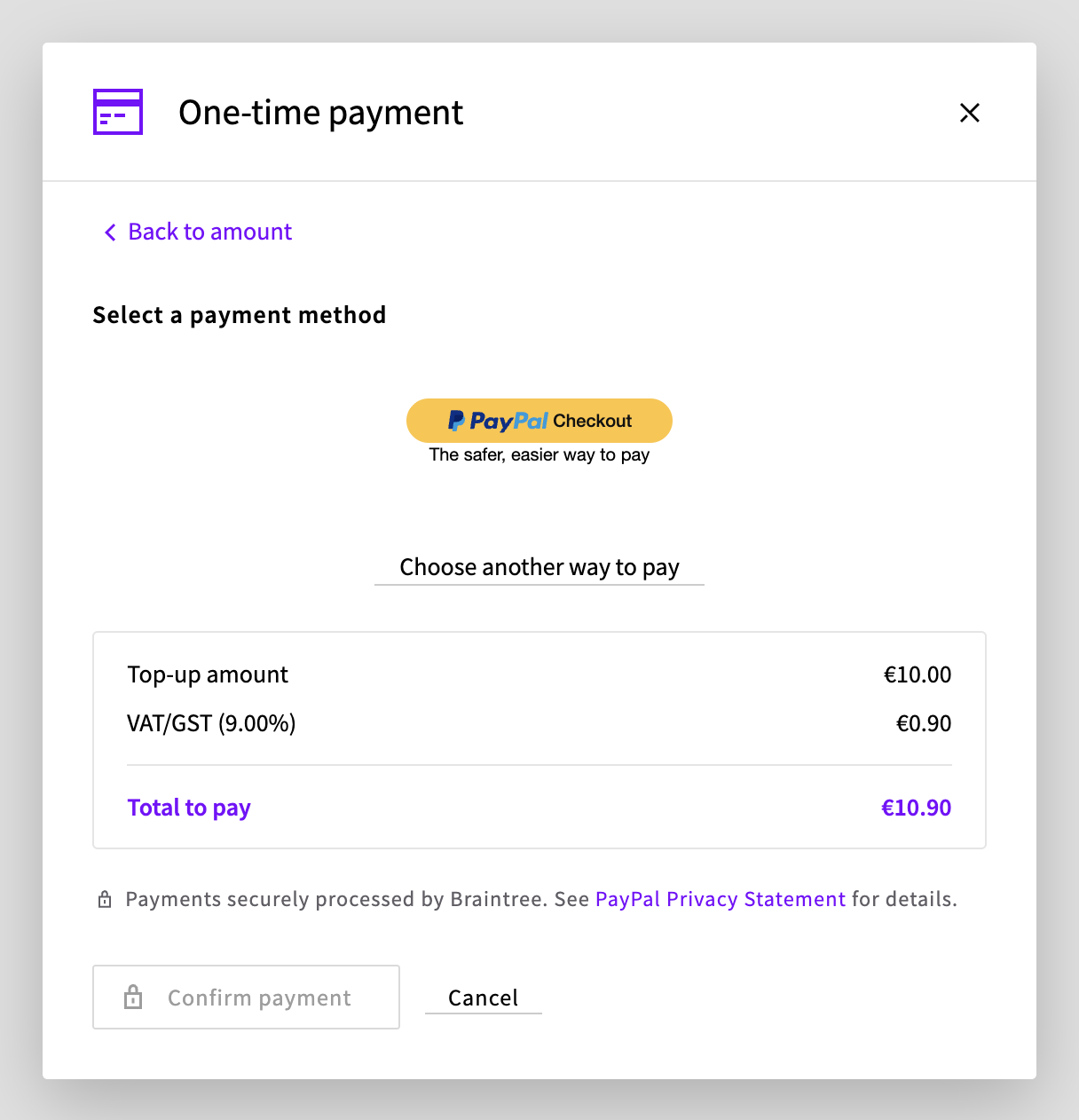
Then follow the instructions below to complete the balance transfer by either signing into your PayPal account or by proceeding as a guest without an account.
Existing PayPal users
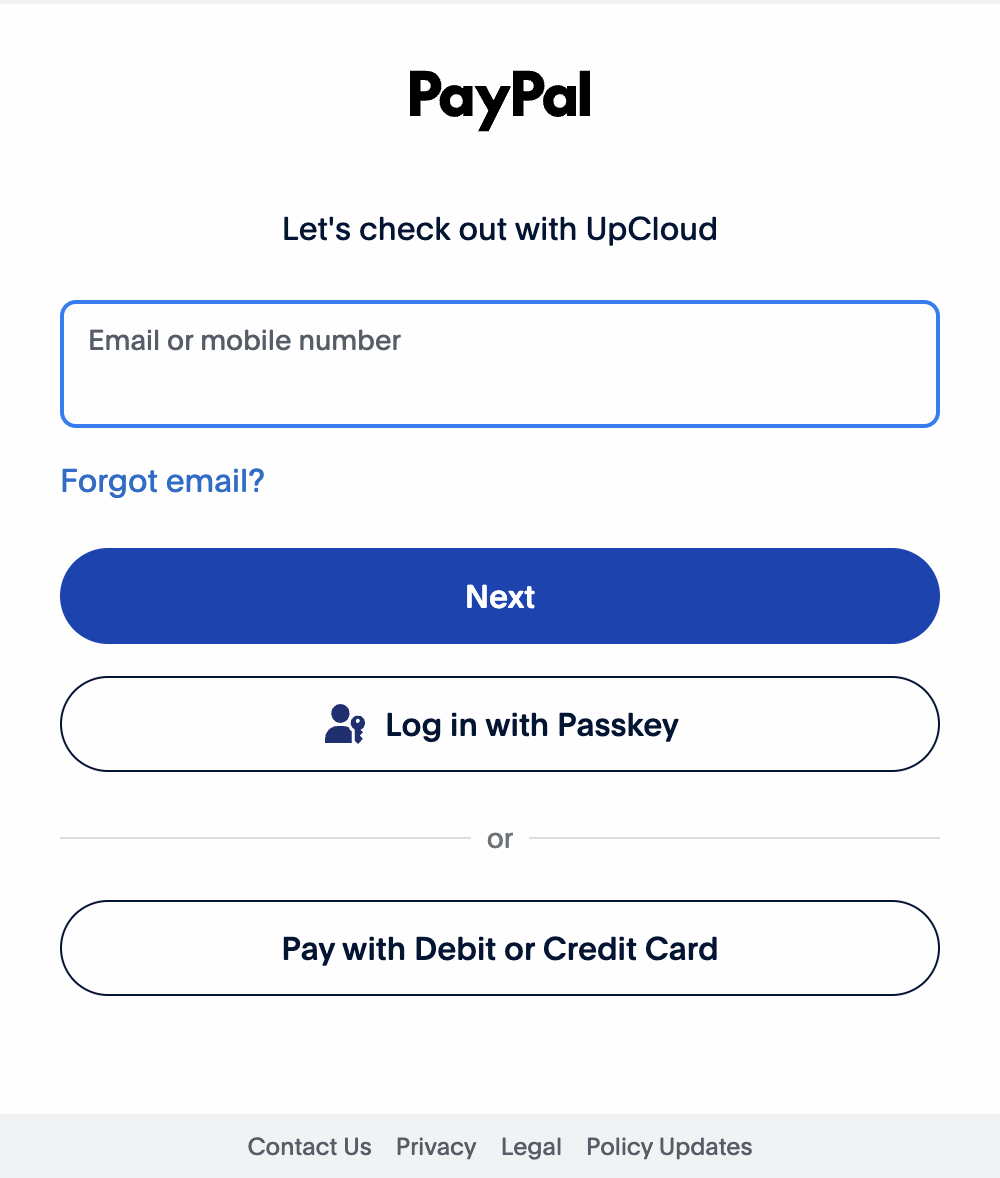
Continue by logging into your PayPal account.
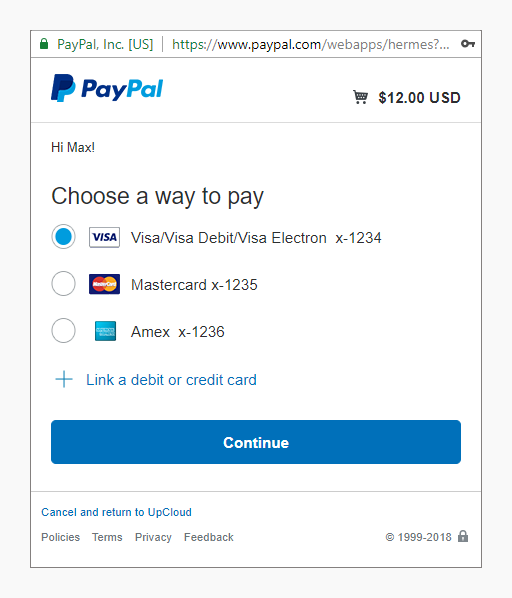
Once logged in, you will see the payment methods you have saved on your account.
Choose the payment method you want to use. You can also add a new payment method to your PayPal account by clicking the plus sign and following the displayed instructions.
When ready, click the Continue button at the bottom to confirm the selection.
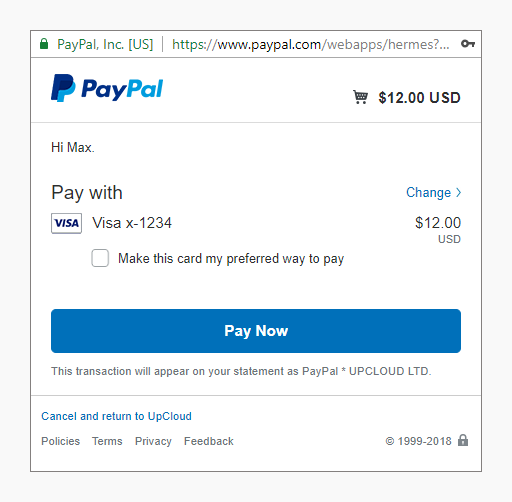
In the next screen, check that the transaction details shown are correct.
If everything is in order, confirm the payment by clicking the Pay Now button.
Once the payment has been processed, the PayPal window will close. You will then see a confirmation notification of the transaction in your UpCloud control panel and your new account balance.
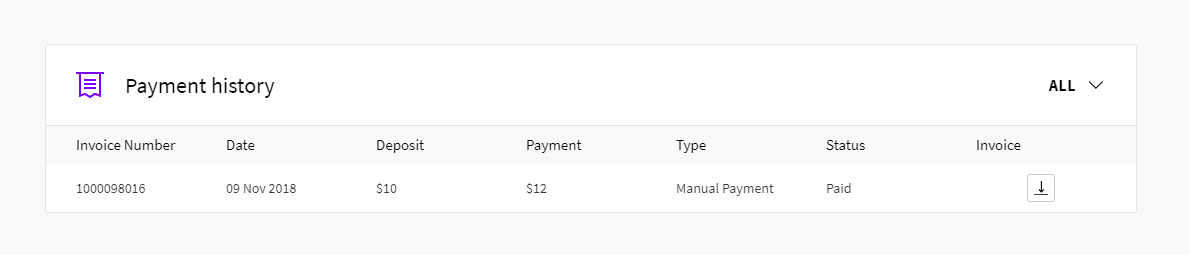
Each payment will show on the Payment history list. You can also download previous invoices from the Billing page for your own records.
If this payment was your first time adding balance to your UpCloud account, your account will then also have been upgraded for full access.
PayPal Guest Checkout
Optionally you can use PayPal Guest Checkout without an account.
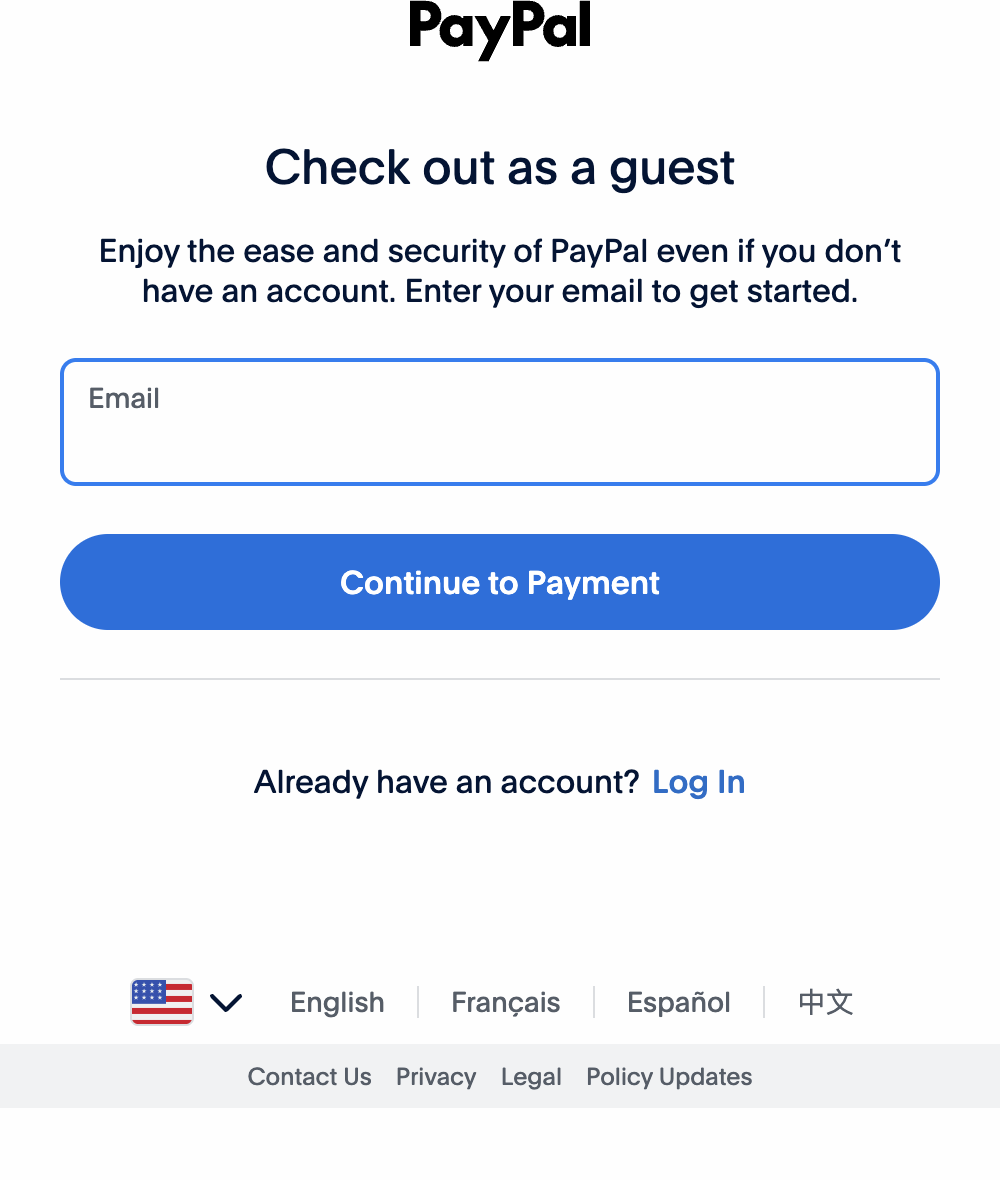
Start the guest checkout by clicking Pay with Debit or Credit Card in the PayPal window. Enter your email address and click Continue to Payment to go to the PayPal credit card form for guest checkouts.
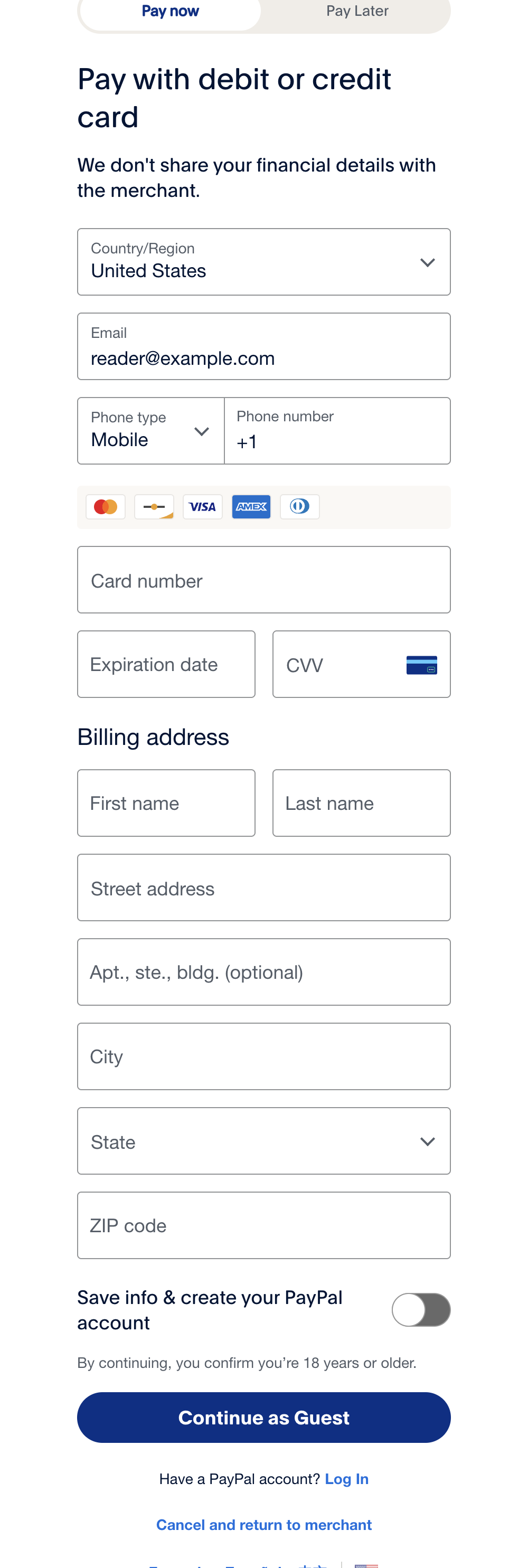
On the card form, as with any other online payment, you will need to enter the following information to make the payment:
contact information
payment method details
billing address
PayPal also offers to save your information and create a PayPal account. To pay without creating an account, switch off Save info & create your PayPal account and click Continue as Guest to confirm the payment. The payment will then be processed.
When completed, the PayPal window will close. You will then see a confirmation notification of the transaction in your UpCloud control panel and your new account balance.
The funds have then been credited to your UpCloud account and are ready to be used as you wish. If this payment was your first time adding balance to your UpCloud account, your account will then also have been upgraded for full access.
Important notes
Although adding balance to your UpCloud account using PayPal is easy and convenient, it does, however, include some limitations.
- Only one-time transfers are supported using PayPal.
- Configuring a recurring payment requires the use of an accepted credit card.
The funds are credited to your account in your account's currency. If you pay in another currency, the amount is converted at UpCloud's daily exchange rate, which the payment dialog shows before you confirm the payment.