While Workspaces is fully functional, we are still fine-tuning the experience under the hood. It is not yet recommended for production environments, and standard UpCloud SLAs do not apply.
Workspaces
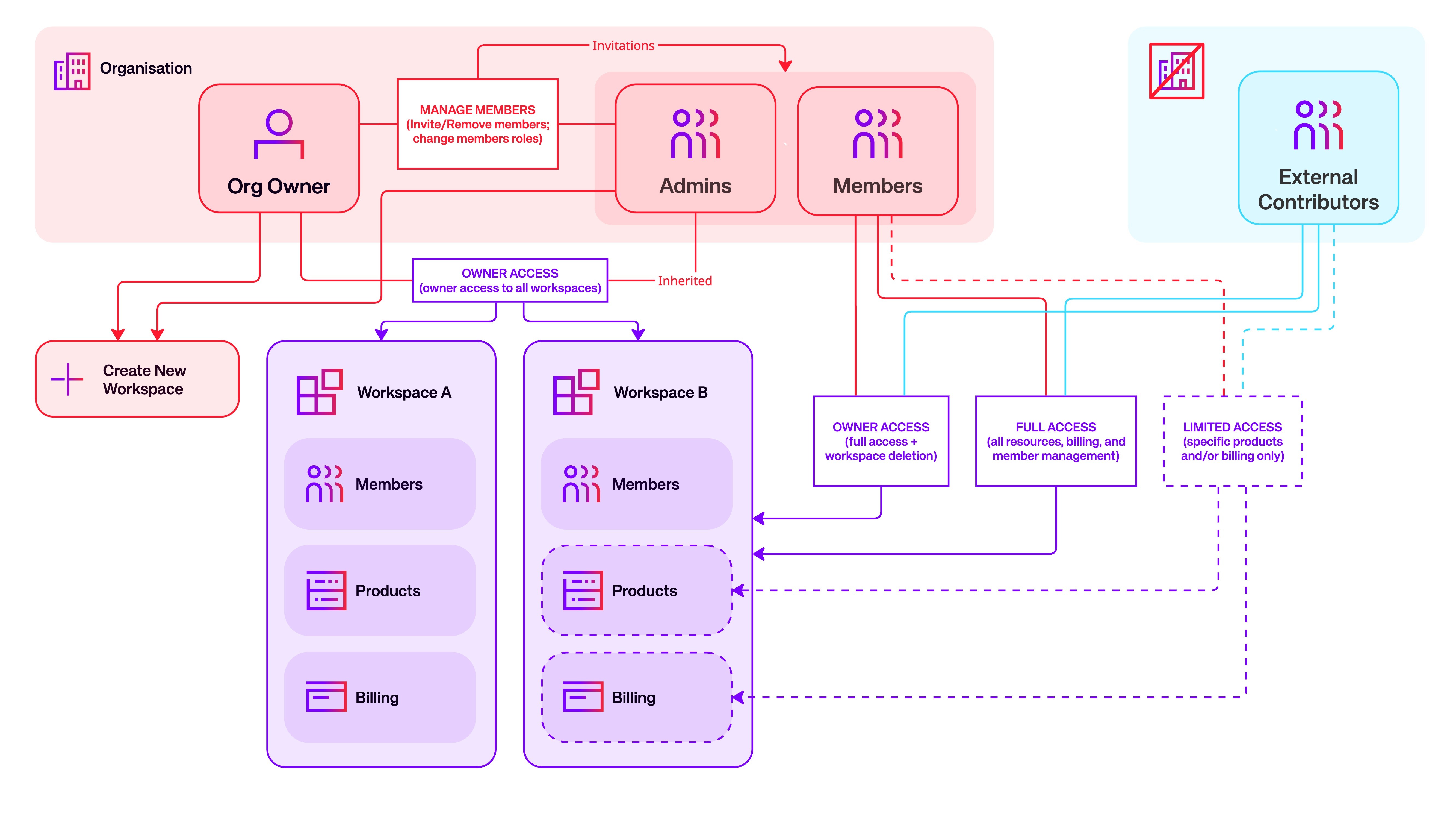
Workspaces are a modern way to manage cloud resources across one or more users within an organization of any size. This page explains the core concepts - Users, Workspaces, Organizations, and Billing - and then how roles, access levels, and access management work in practice.
If you only read one section, read How organization roles affect workspace access - it's the part that surprises people most often.

Core concepts
User
A user is a personal account: your details and the credentials you use to sign in. Every user owns an organization - one is created for you when you sign up, and you're its owner. During Open Beta this is also a limit: you can't create more organizations yourself, and there's no self-serve way to add one (see Current limitations). Beyond your own, you can belong to any number of other organizations and workspaces, which you join through invitations. When you join an organization you're given an organization role; when you join a workspace you're given a workspace access level.
Workspace
A workspace holds resources, credits, and billing information. In other words, it works like a standalone account, but with built-in member management. A workspace always belongs to exactly one organization.
Once created, a workspace has one or more members. Each member has a workspace access level that determines what they can do in the workspace. Members can be invited, removed, and have their access level changed by anyone with a sufficient access level.
Organization
An organization is the top-level entity that holds zero or more workspaces. It has members, and each member has an organization role that determines what they can do at the organization level. Members can be invited, removed, and re-roled by anyone with a sufficient role.
Organization members with the owner or admin role also inherit access to every workspace in the organization. An organization can be set up to use OpenID Connect (OIDC) so members sign in through your own single sign-on. There are no self-serve actions to create or delete an organization today - an organization is set up for you, and removing one means contacting support (see Current limitations).
Billing
Each workspace has its own billing. See Billing and credits below for the details.
Current limitations
A few things about how accounts and organizations work today:
- You own one organization, and can't create more. Every user owns a single organization, created for them at sign-up - you can't have an account without one, and there are no self-serve actions to create another or delete one. (You can still be invited into other people's organizations.) To remove an organization, contact support.
- Coming from an older account? Resources don't migrate automatically. If you used UpCloud before workspaces, accepting a workspace invitation and signing in through the new login won't bring your old resources with you, and you may find them missing at first. Contact support - they'll set up your organization and migrate your existing resources into the workspace.
- Billing and quotas are per workspace. Each workspace has its own billing, credits, and resource quotas. Nothing is shared between workspaces or rolled up at the organization level.
- Workspace access is granted per workspace. Organization owners and admins automatically have access to every workspace, but members don't - a member must be added to each workspace individually, and can be given any access level there, up to Owner.
Organization roles
There are three organization roles. You define a person's role when you invite them, and you can change it at any time afterward.
| What you can do | Owner | Admin | Member |
|---|---|---|---|
| View basic organization info | |||
| See the member list | |||
| Invite people | |||
| Remove members and admins | |||
| Change members' and admins' roles | |||
| Promote to owner, or change/remove owners | |||
| Create and delete workspaces | |||
| Manage workspace access | |||
| Set up, delete and view OIDC | |||
| View Partners Portal | |||
| Inherit access to workspaces |
Owner has complete control of the organization, including managing people and roles, and configuring single sign-on. An organization must always have at least one owner. (Creating and deleting organizations isn't a self-serve action - see Current limitations.)
Admin runs day-to-day operations and can do almost everything an owner can, including inviting people and changing members' and admins' roles. What's reserved for owners is anything involving the owner role - promoting someone to owner, or changing or removing an existing owner - and setting up single sign-on.
Member is the most basic organization role, with no management authority. Members can sign in and see basic information about the organization, but they can't see the member list, invite people, browse workspaces, or change roles. Members get their working access from the workspaces they're added to. A member's organization role doesn't limit their workspace access - once added to a workspace, a member can hold any access level, up to and including Owner.
Workspace access levels
Each workspace has its own access levels, applied per member.
| What you can do | Owner | Full Access | Limited Access |
|---|---|---|---|
| View the workspace | |||
| See the member list | |||
| Add members | |||
| Remove members | |||
| Change members' access levels | |||
| Promote to owner, or change/remove owners | |||
| Create new resources | |||
| Work with the workspace's resources | via access customization | ||
| View billing and usage | via access customization | ||
| Delete the workspace |
Owner has full control of the workspace, including changing access levels and deleting the workspace.
Full Access is for active operators and DevOps managers. They manage members and admins, change other members' access levels, work with everything in the workspace, and can view billing. They can't delete the workspace.
Limited Access is for contractors, individual developers, or focused teams. They can sign in to the workspace and create resources, but they can't manage access, view billing or the workspace's other resources, or delete anything - unless specific items are granted to them through access customization.
External contributors - people from outside your organization brought in for a specific job - are typically added as Limited Access members, with access scoped to only the resources or billing they need (see Limited Access customization).
Limited Access customization
A Limited Access member can be granted extra access individually, without moving them up to Full Access:
- Billing access and billing emails - allows access to billing views and sends them billing-related emails.
- Technical emails - sends them notifications about resource deletions, the Fair Transfer Policy, and incidents.
- Specific resources - grants access only to selected resources (for example, specific databases or servers) while keeping the member on Limited Access. This lets members work only with the resources they need, without giving them broader account access.
These settings can be configured after a user has accepted their invitation by editing their workspace access. For the steps, see Managing Workspace Members.
How organization roles affect workspace access
This is the most important rule to understand.
If you are an organization owner or admin, you automatically have access to every workspace in the organization - including workspaces you were never explicitly added to. This exists so that the people responsible for the organization can always administer what's inside it.
You can lower an organization owner's or admin's access from within a workspace by inviting them with Limited Access. However, as long as the user remains an admin or owner in the organization, they will be able to remove their own restrictions at the workspace level. In practice:
- To reliably reduce an organization admin's access to a workspace, change their organization role, not their workspace access level.
- Limited Access only behaves as a true restriction for people who are not organization owners or admins.
Managing members
Inviting people
Anyone with a sufficient role or access level can invite people by email and assign them an organization role or workspace access level. Invited people receive a link, sign in or create an account, and join at the level you chose. For the step-by-step instructions, see Managing Workspace Members and Managing Organization Members.
Changing access
Within an organization, owners can change any role. Admins can change members' and admins' roles too, but not the owner role - they can't promote anyone to owner or change an existing owner. Within a workspace, owners can change the access of any member, and members with Full Access can change the access of other Full Access and Limited Access members.
Removing someone
When you remove someone from the organization, they lose all access that came from their organization role - including every workspace they could reach only because they were an owner or admin. They keep access to any workspace where they were added as a direct member in their own right. If you want to revoke everything, remove them from those workspaces too.
The at-least-one-owner rule
An organization must always have at least one owner. If you're the only owner, you can't remove yourself, step down, or delete the organization until you've made someone else an owner first.
Single sign-on (OIDC)
You can connect your own identity provider so people sign in through your single sign-on instead of with a password.
- Only organization owners can set up, change, or remove single sign-on.
- Once enabled, members of your organization can sign in through your identity provider.
If you need single sign-on configured and you're not an owner, ask one of your organization's owners. For the setup steps, see Setting up Workspaces.
Billing and credits
Billing is per workspace. Each workspace works like its own account for payment and credits.
- Each workspace needs its own payment information. The exception is customers who pay by invoice - their additional workspaces are simply added to their existing invoice.
- Credits are per workspace. Credits topped up to one workspace can't be used in another.
- Quotas are per workspace. Resource quotas apply to each workspace on its own and aren't shared or pooled across workspaces.
- Usage and billing are always shown for your current workspace. The dashboard shows current credit usage, the billing page shows credit details, and the billing log lists charges - all for the workspace you're currently in.
Who can see a workspace's billing: its owner and Full Access members, any organization owner or admin (through inherited access), and any Limited Access member who has been granted billing access.
The dashboard displays current credit usage for your workspace:

The billing page shows credit details for your workspace, and the billing log lists its charges: