Manage your organization
Organization owners and admins can invite and remove the organization's members and change their roles. Only owners can make someone an owner or change an owner's role. For what each role allows, see Organization roles.
Open the organization settings
- Click the workspace menu at the top left of the Control Panel, under the UpCloud logo.
- Under Organisations, hover over the organization and click its Settings icon.
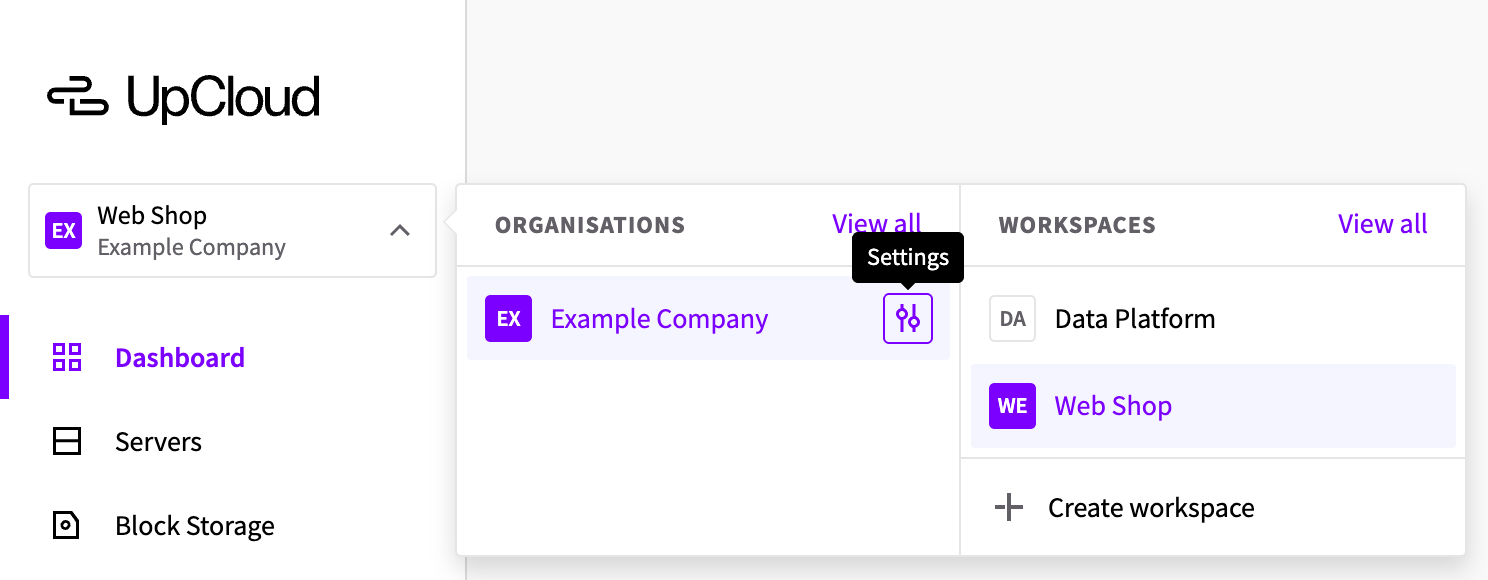
You can also select Organisations in your profile menu at the top right, and then select the organization.
The organization settings have three tabs: Overview, with the organization's name, Members, with its members and invitations, and Authentication, for single sign-on.
Rename the organization
Your organization is called My Organisation until you rename it. Organization owners can rename it.
- In the organization settings, on the Overview tab, click Edit (the pencil icon) next to the name.
- Enter the new name and click Save.
Invite someone to the organization
Before you invite someone, check whether they need to be in the organization. If they only work in some of your workspaces, you can add them to those workspaces instead.
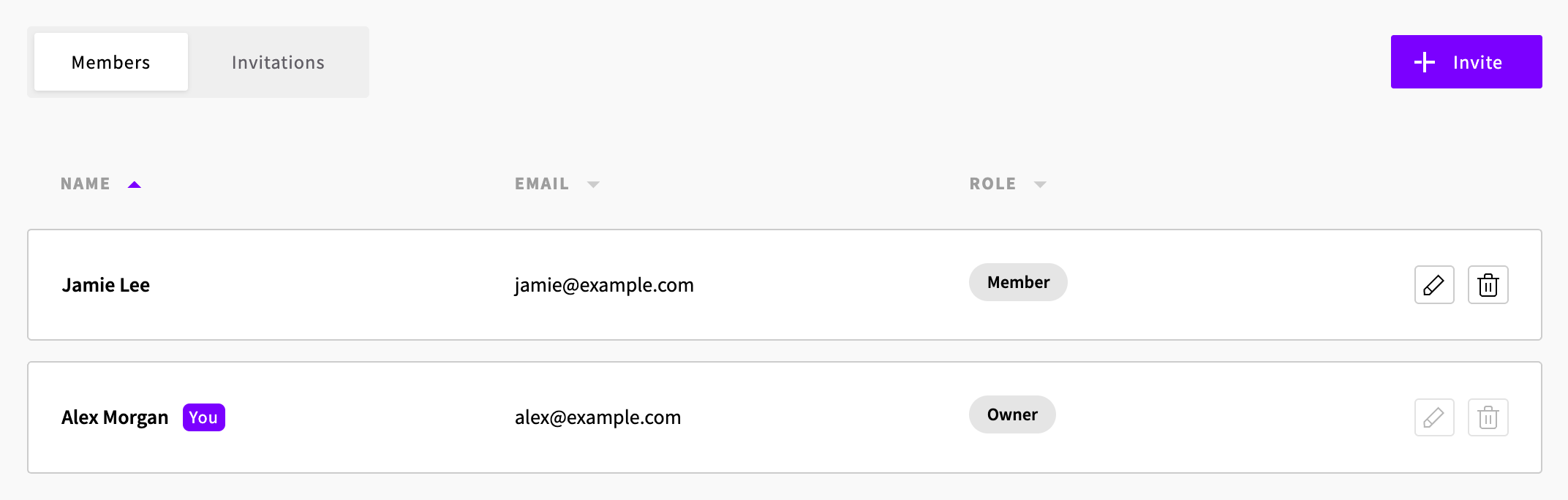
- In the organization settings, select the Members tab and click Invite.
- Enter the person's email address. It must be the address they log in with.
- Select their Organisation role. It's set to Admin unless you change it, and admins have Owner access to every workspace in the organization. For someone who only needs some workspaces, select Member, and add them to those workspaces once they've joined.
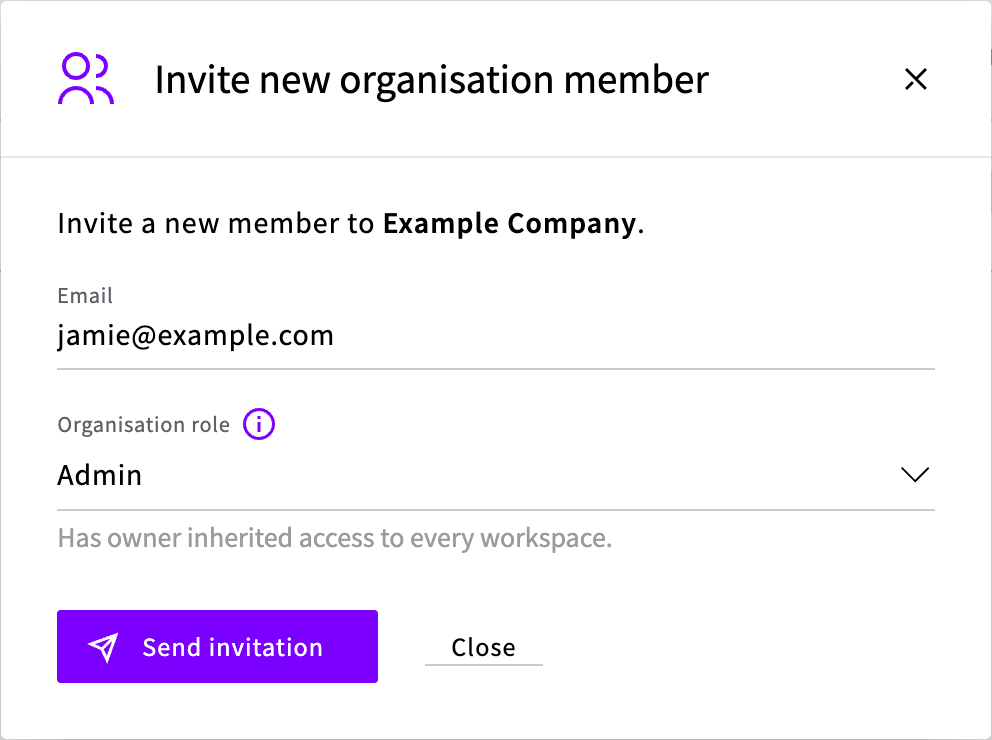
- Click Send invitation.
Invitations that haven't been accepted yet are on the Invitations tab.
Accept an invitation to an organization
- Open the link in the invitation email.
- If you're not logged in, click Log in. If you don't have a Workspaces account yet, click Sign up and sign up with the email address that the invitation was sent to.
- Click Accept.
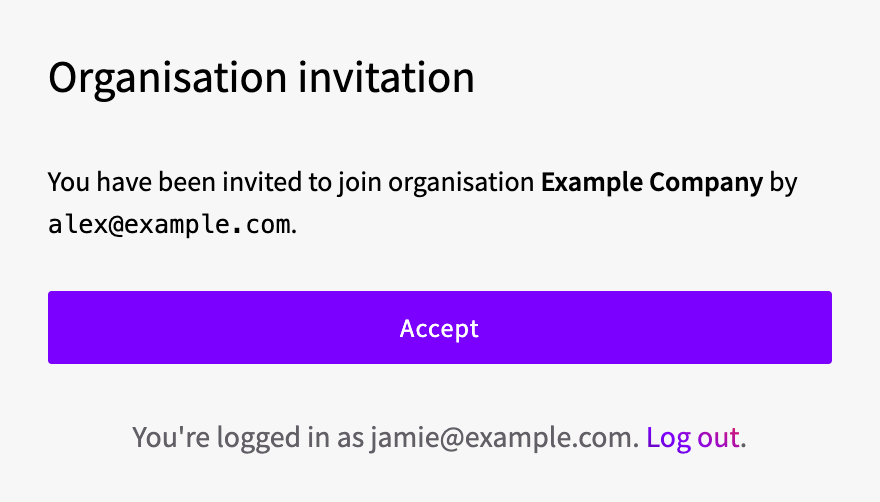
If you aren't a member of any workspace yet, the Control Panel then asks you to create a workspace of your own. To work in your organization's workspaces instead, ask one of its owners or admins to add you to them.
If the page says Invitation not found, either you're logged in with a different email address or the invitation has already been accepted. The page shows which address you're logged in with. To use another one, click Log out, then log in with the address that the invitation was sent to.
Change someone's role
- On the Members tab, click Change organisation role (the pencil icon) on the person's row.
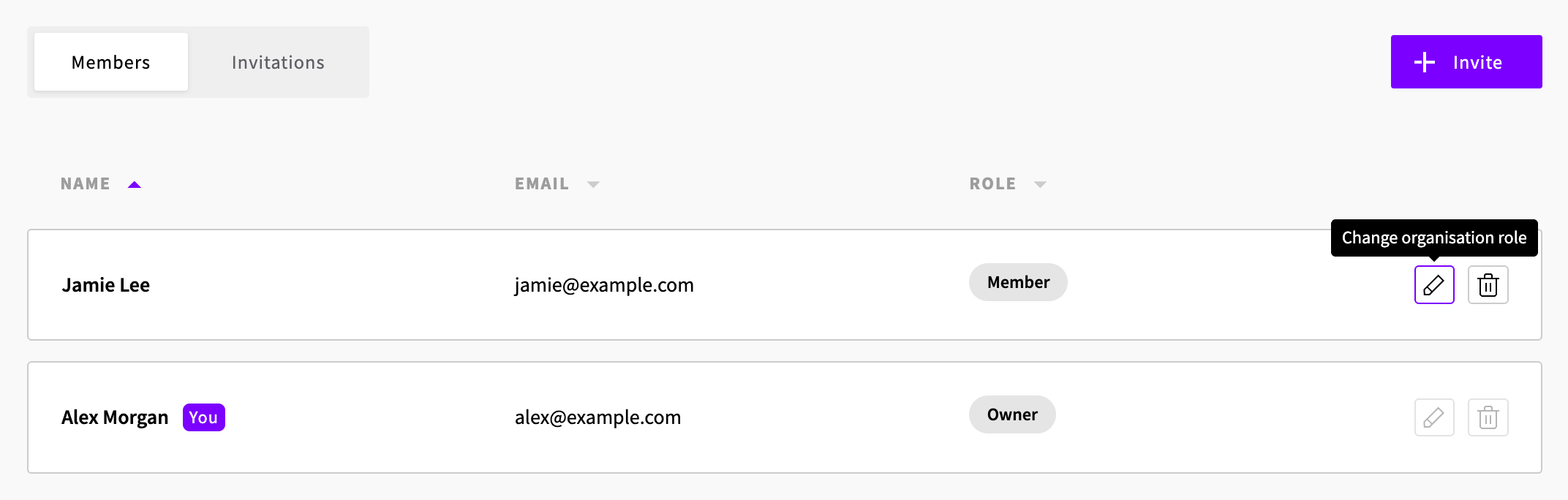
- Select the new Organisation role and click Change role.
Changing someone's role doesn't change their access in workspaces they're a member of, including access they gave themselves as an admin. When you change an admin to a member, check their access in each of those workspaces.
Remove someone from the organization
- On the Members tab, click Remove member from organisation (the trash can icon) on the person's row.
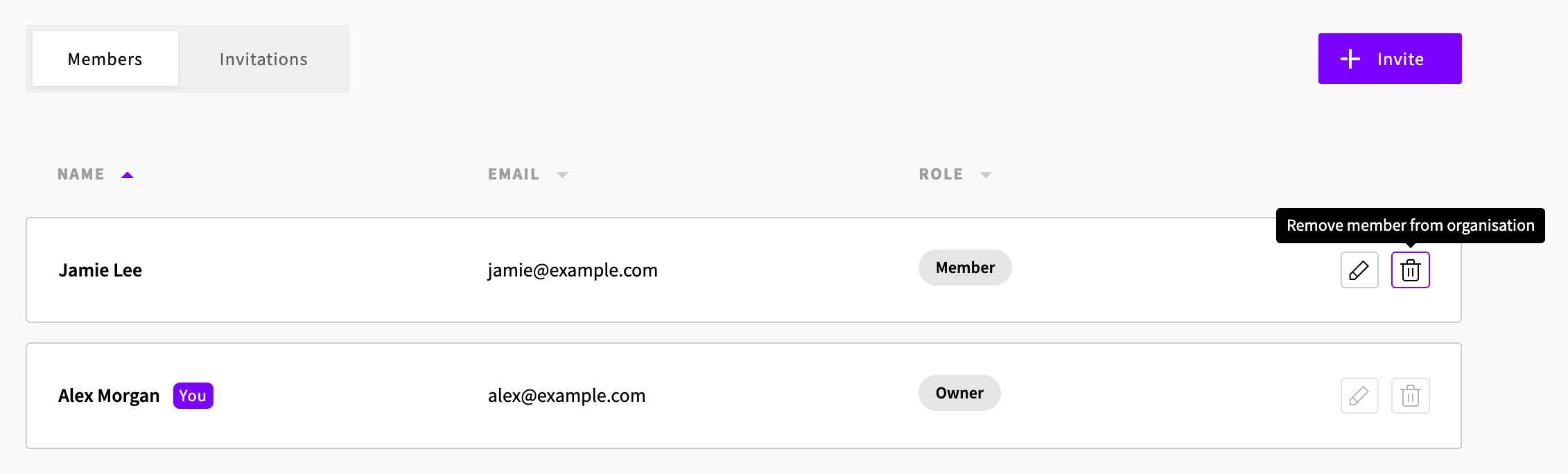
- Confirm the removal.
The person loses the Owner access they had to every workspace as an owner or admin. They stay a member of any workspace they were added to directly. To remove all of their access, see When someone leaves.
An organization always has at least one owner. To remove the last owner, make someone else an owner first.