Single sign-on doesn't prevent people with email addresses from your organization's domains from creating their own UpCloud accounts, including by signing up with Google.
Set up single sign-on
With single sign-on, your organization's members log in to the Control Panel with their work accounts from your identity provider, using OpenID Connect (OIDC). Only organization owners can set it up.
Before you start
In your identity provider, create an OIDC application, also called a client, for UpCloud. You need its:
- issuer URL
- client ID
- client secret
UpCloud asks your identity provider for the openid, profile and email scopes, so allow them in the application.
You also need the email domains that your members use, such as example.com. Only people with an email address from these domains can log in through your identity provider.
Set up single sign-on
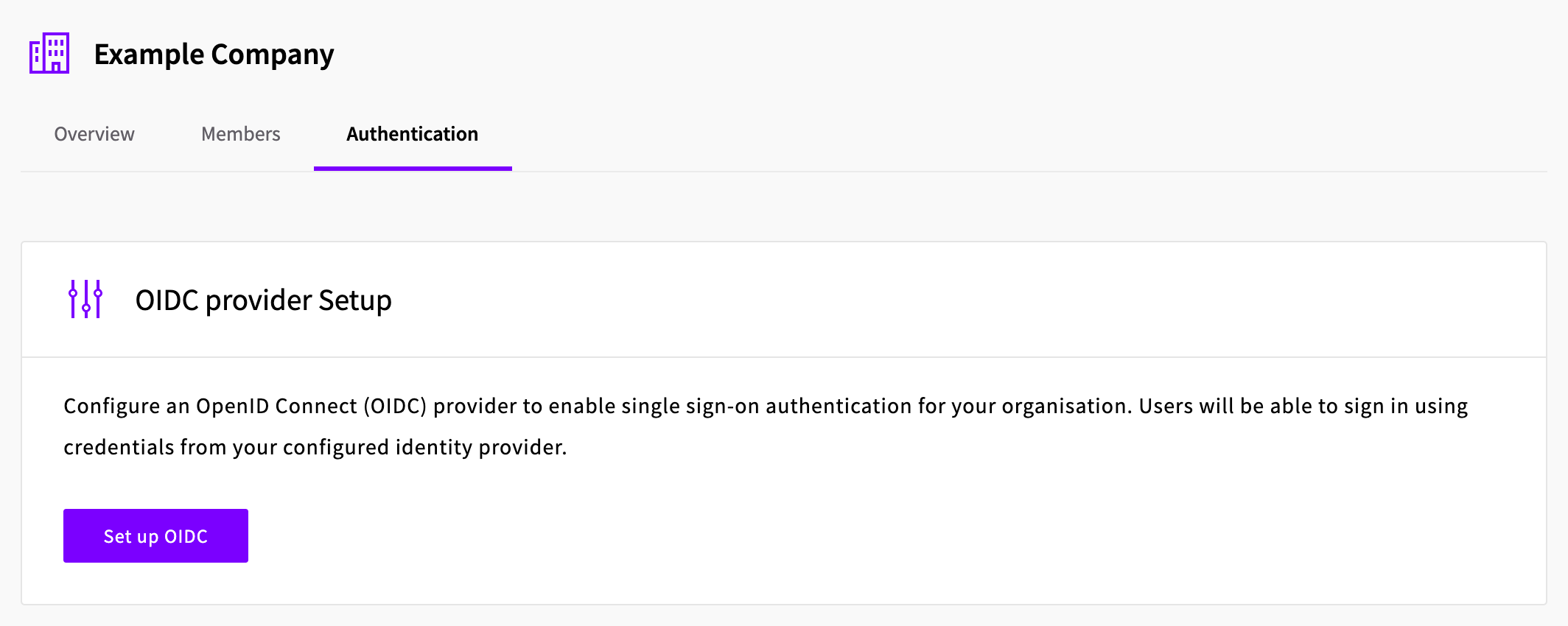
Open your organization settings and select the Authentication tab.
Click Set up OIDC.
Enter the Issuer URL, Client ID and Client Secret of your OIDC application.
In Allowed domains, enter your email domains, separated by commas.
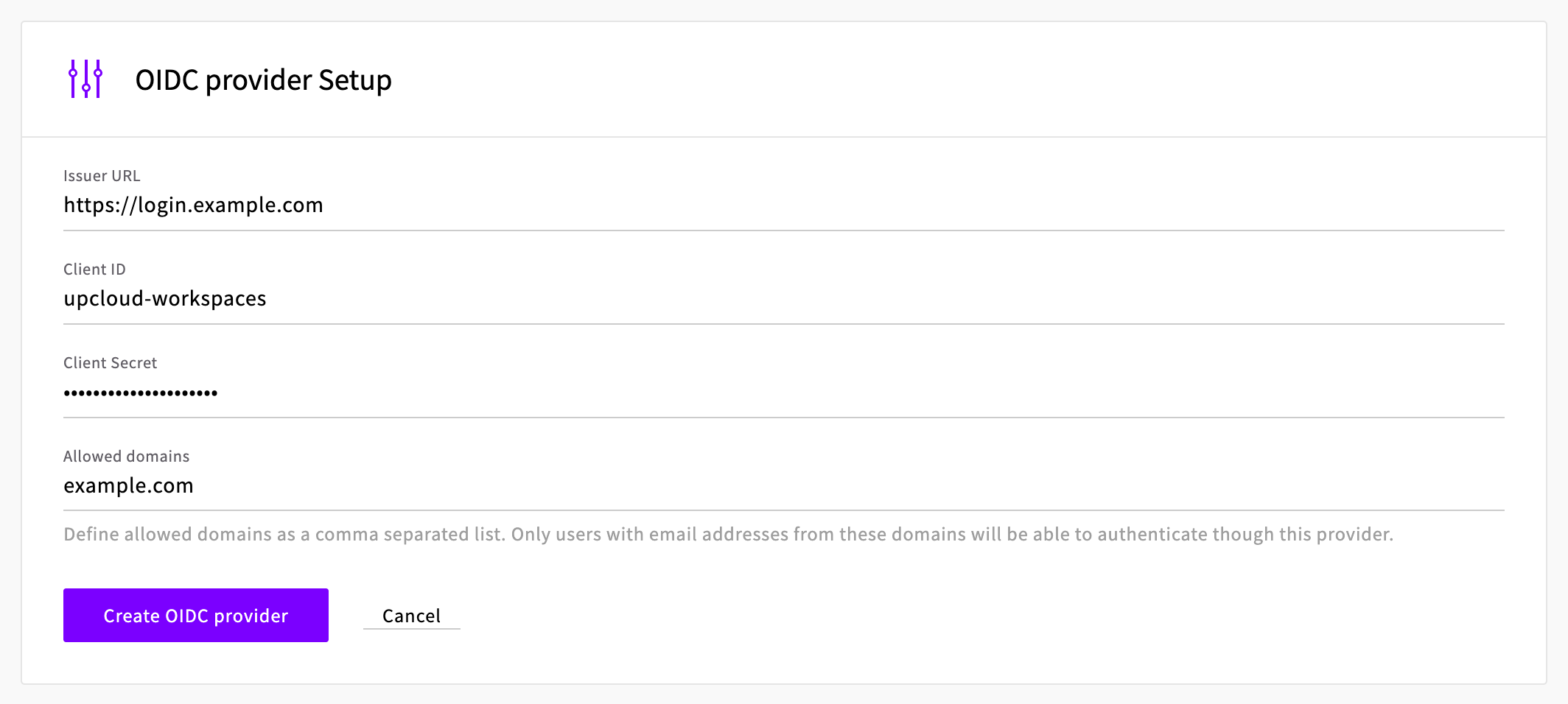
Click Create OIDC provider.
The provider's page opens, with the status Pending verification, a Callback URL, and your domains under Captured login domains.
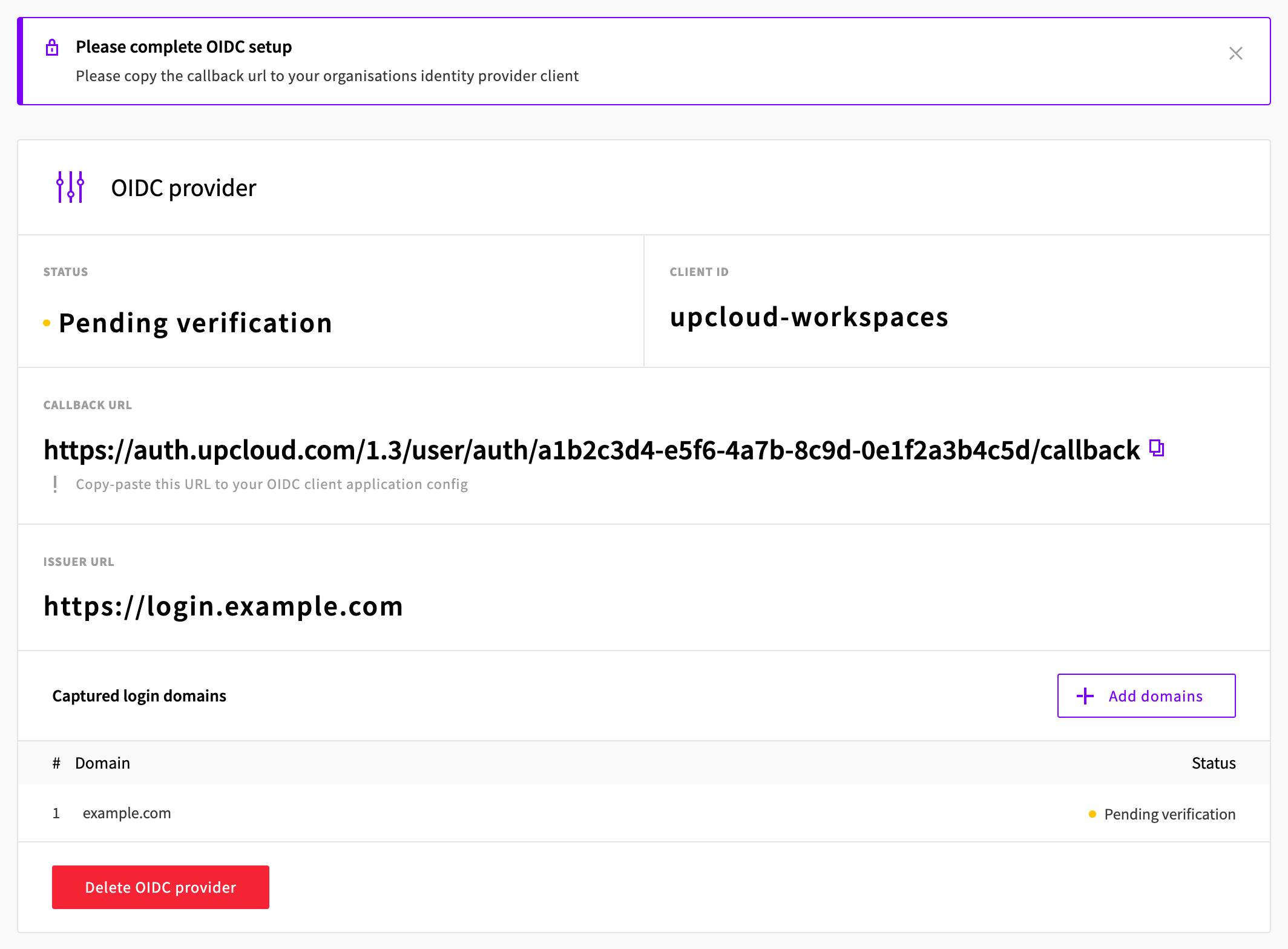
Copy the Callback URL and add it to the OIDC application in your identity provider.
Contact UpCloud support to verify your domain.
Once your domain is verified, your members can log in with single sign-on.
To add more email domains later, click Add domains under Captured login domains on the provider's page. Each domain is listed with its own status.
How members log in
On the Workspaces login page, members enter their work email address and click Continue. The login page takes them to your identity provider.
Note
People who were members before you set up single sign-on add your provider to their profile first. In My profile, under Authentication, they click Set up next to your provider. See Add sign-in methods.
Remove single sign-on
- Open your organization settings and select the Authentication tab.
- Click Delete OIDC provider, then click Delete to confirm.
Deleting the provider can't be undone. To use single sign-on again, set it up from the start.