Manage workspace members
Workspace owners and Full access members can add and remove a workspace's members and change their access. So can the organization's owners and admins, through their inherited access. Limited access members can see the member list, but not change it.
For what each access level allows, see Workspace access levels.
Open the member list
- Click the workspace menu at the top left of the Control Panel, under the UpCloud logo.
- Hover over the workspace and click its Members icon.
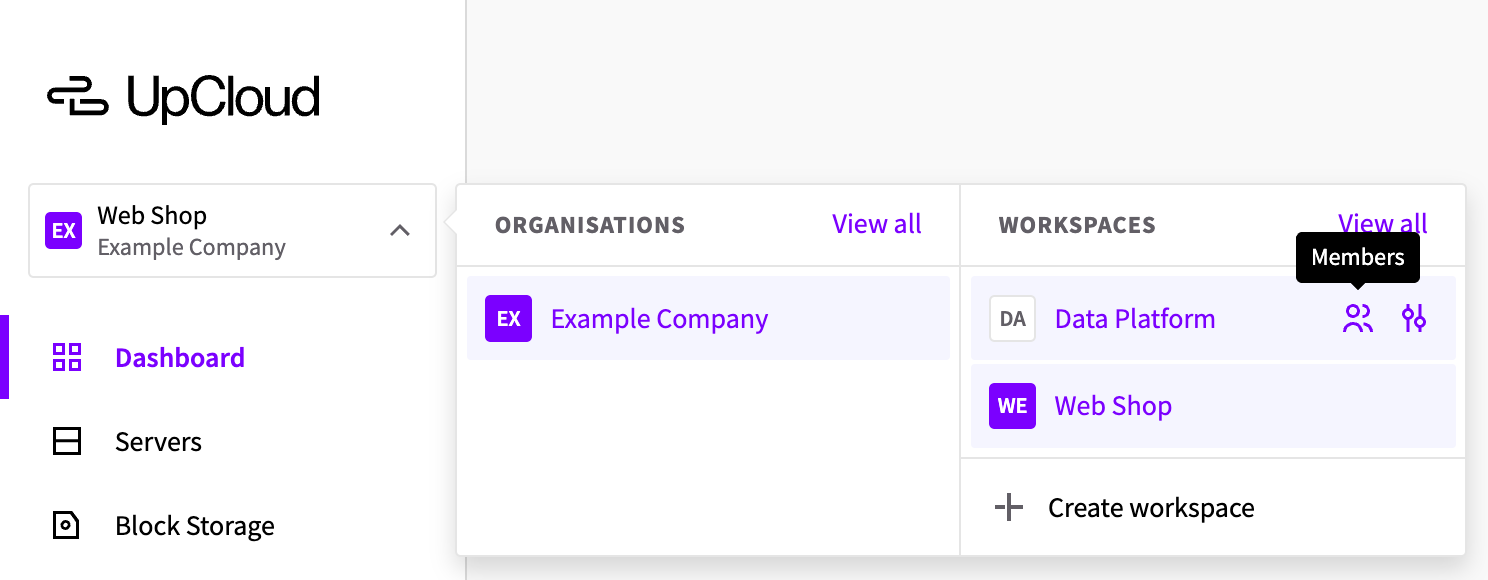
The member list opens on the Members tab of the workspace's settings.
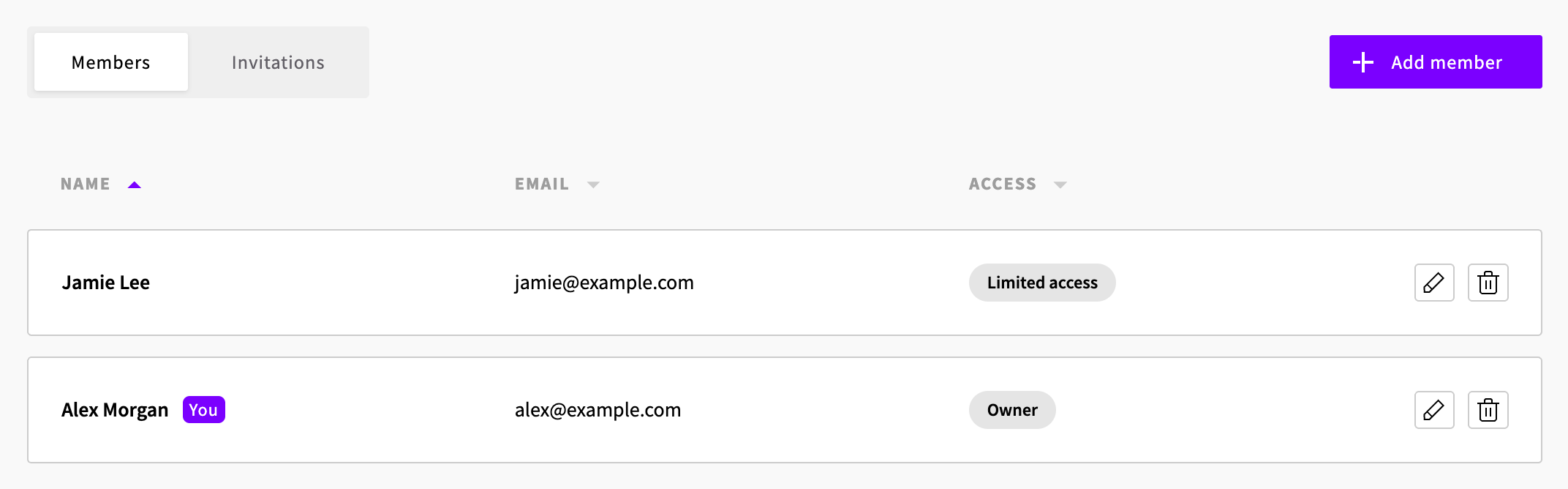
Add a member
You can add anyone with an email address, whether or not they're a member of your organization.
- In the member list, click Add member.
- Enter the person's email address. It must be the address they log in with. To add someone who's already in your organization, you can start typing their name and select them instead.
- Select their Workspace access. It's set to Full access unless you change it.
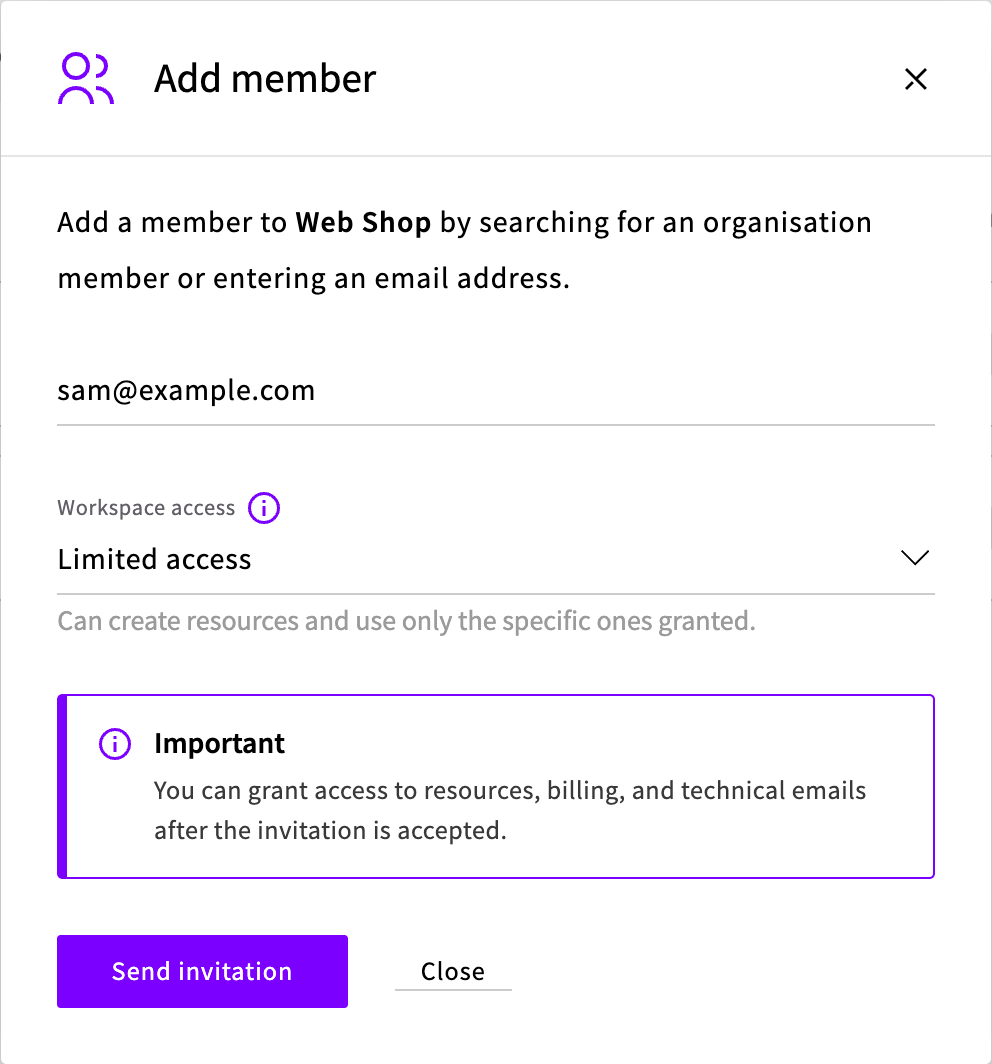
- Click Send invitation.
The person receives an invitation email, and becomes a member when they accept it. If you chose Limited access, set their custom access once they've accepted.
Resend or cancel an invitation
Invitations that haven't been accepted yet are on the Invitations tab of the member list. An invitation expires 7 days after it's sent, and resending it gives it another 7 days.
To resend or withdraw an invitation, click Resend invitation or Cancel invitation on its row.
Accept an invitation
If you've been invited to a workspace:
- Open the link in the invitation email.
- If you're not logged in, click Log in. If you don't have a Workspaces account yet, click Sign up and sign up with the email address that the invitation was sent to.
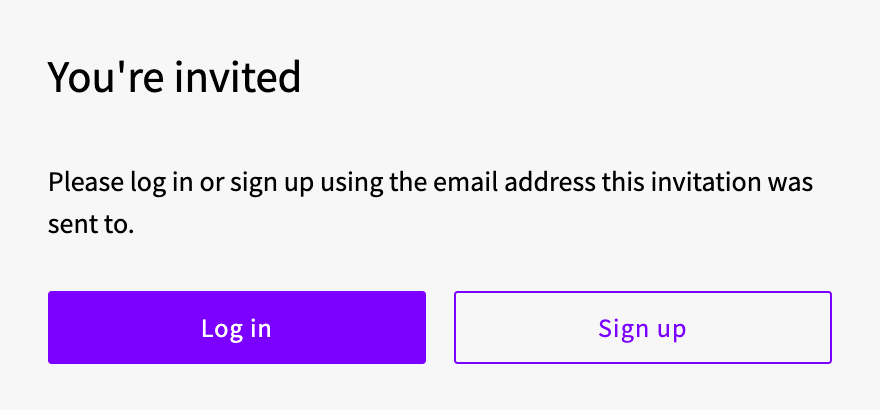
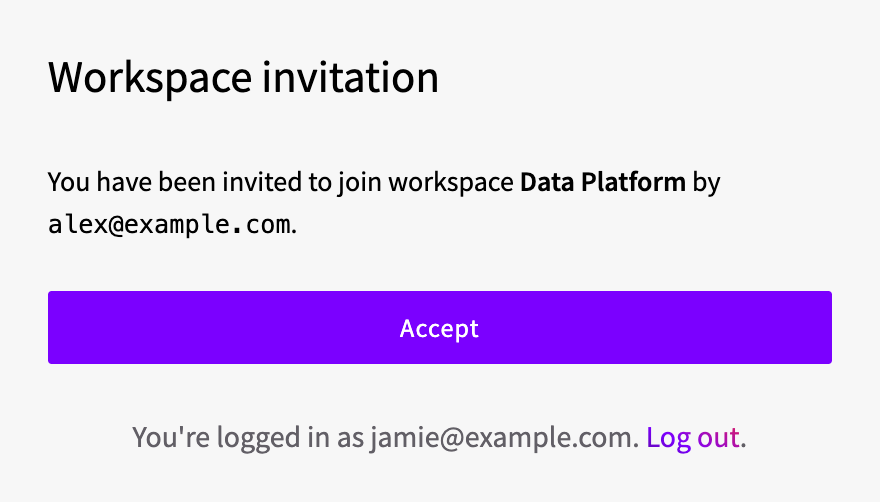
- Check the workspace and who invited you, and click Accept.
The Control Panel opens in the workspace.
If the page says Invitation not found, either you're logged in with a different email address or the invitation has already been accepted. The page shows which address you're logged in with. To use another one, click Log out, then log in with the address that the invitation was sent to.
Signing up creates an organization of your own as well. If you're not a member of the organization that the workspace belongs to, that organization is listed under Guest organisations on your Organisations page.
Change a member's access
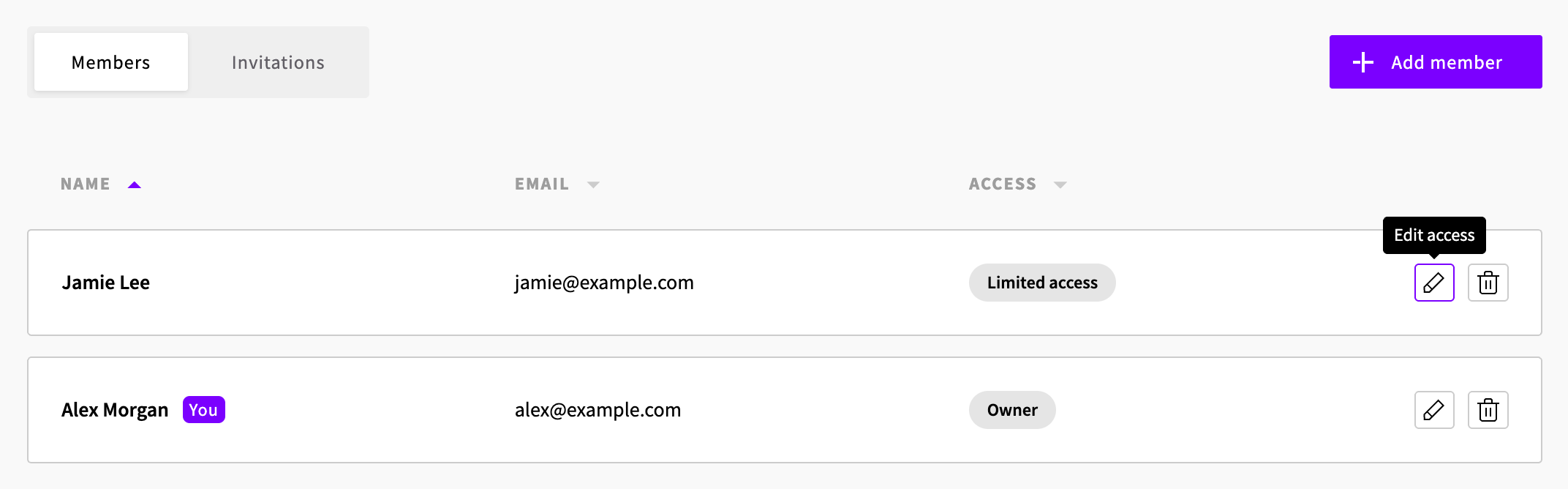
- In the member list, click Edit access (the pencil icon) on the member's row.
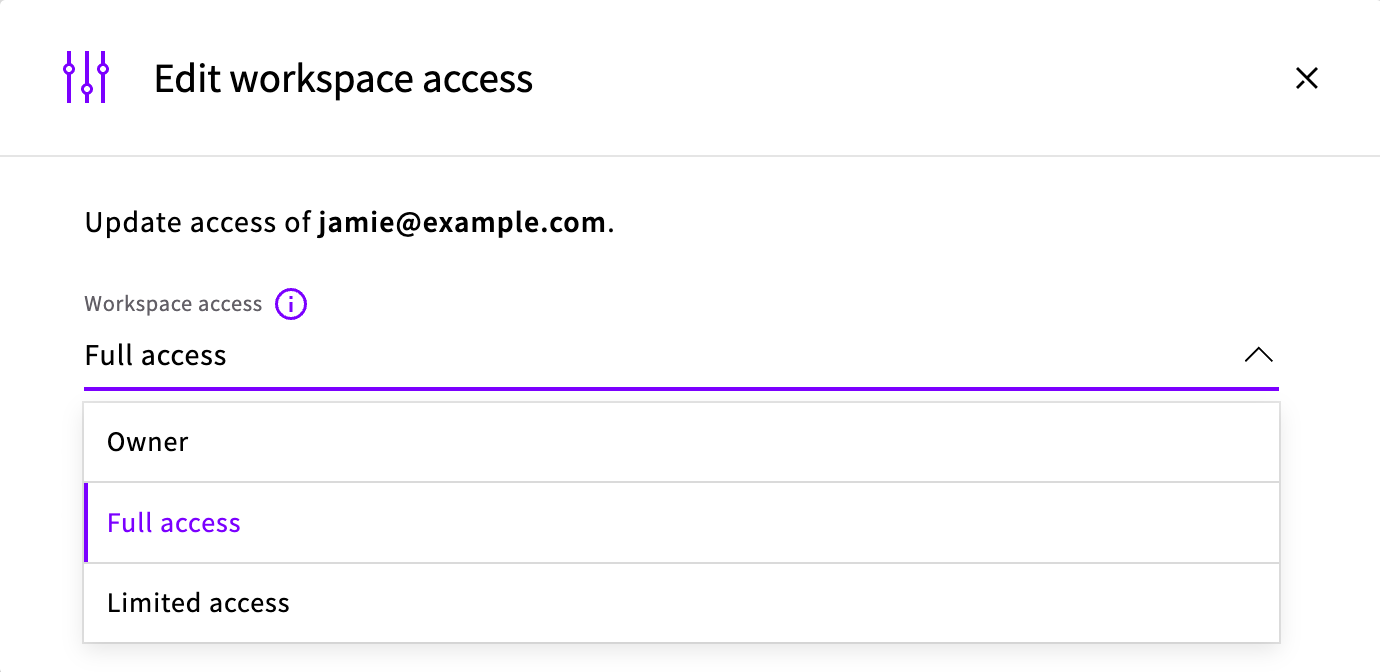
- Select the new Workspace access.
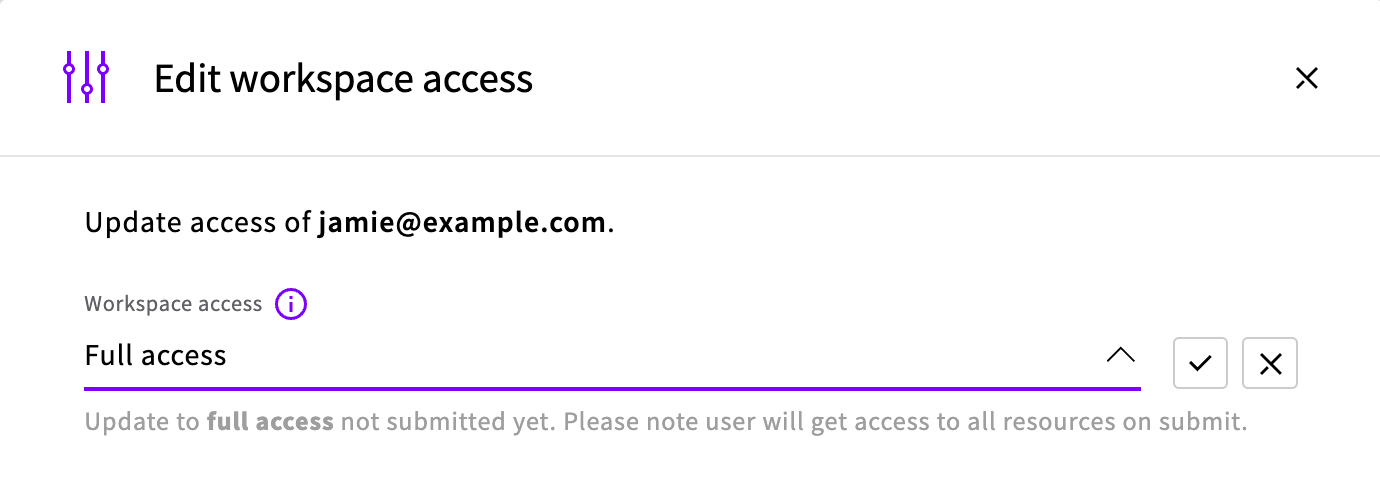
- Click the check mark next to the list to save the change, or the cross to cancel it.
You can't change the access of members with inherited access, or of members whose access level is higher than yours.
When you change someone's access:
- If you lower the access of an Owner or Full access member, delete the API tokens they created. Those tokens belong to the workspace and keep working. See API tokens in Workspaces.
- If you change a Limited access member to Full access and later back to Limited access, their custom access is cleared. Grant it again.
Set custom access
Custom access gives a Limited access member access to specific resources, billing or emails, without raising their access level. You can set it once they've accepted their invitation.
- In the member list, click Edit access (the pencil icon) on the member's row.
- Under Custom access, turn on Billing access and billing emails or Technical emails if the member needs them.
- For each type of resource that the member needs, do one of these:
- To grant every resource of that type, turn on its All switch, such as All servers.
- To grant some of them, click its Add button, such as Add servers, select the resources and click the button to add them, such as Add selected servers.
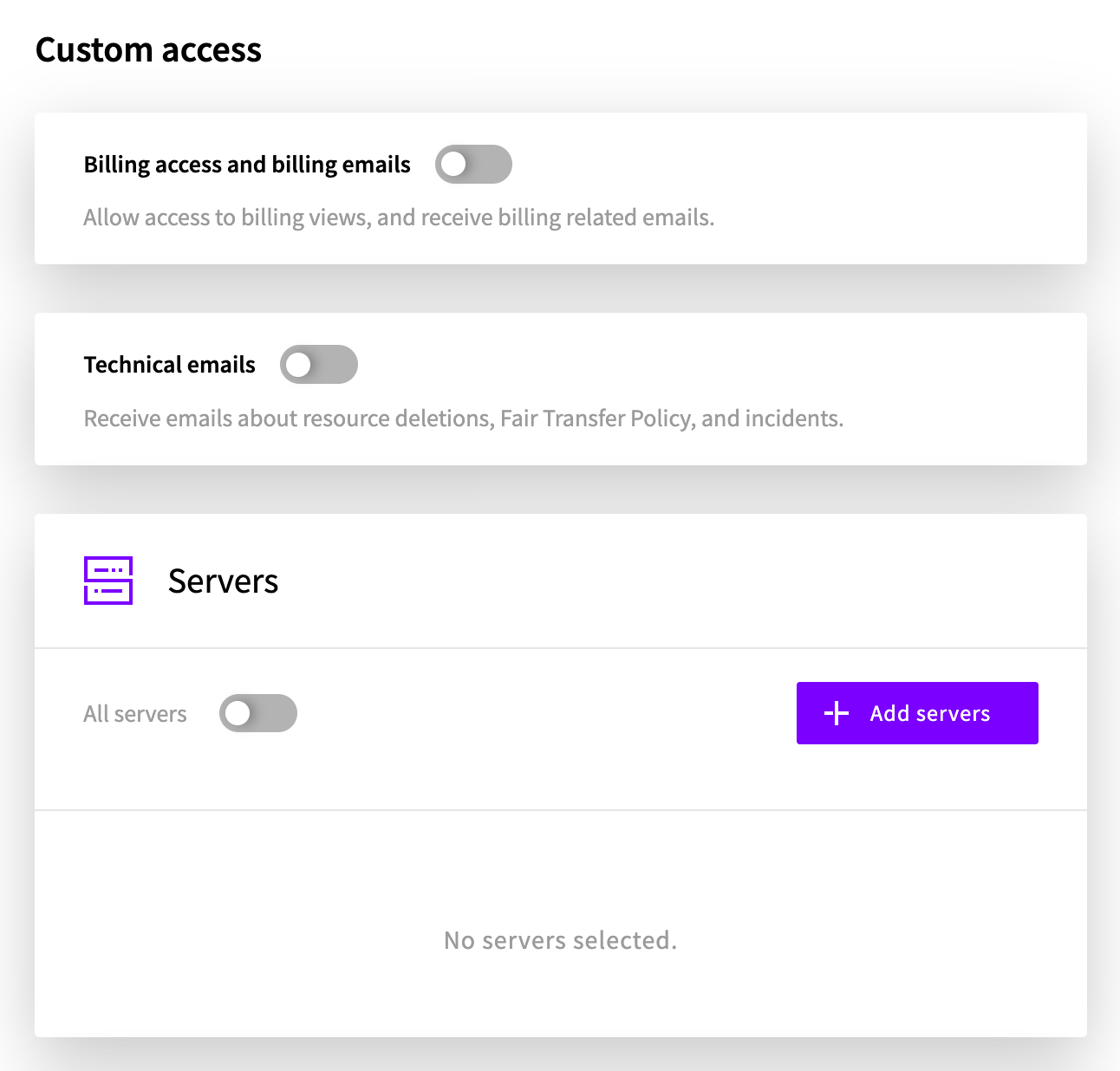
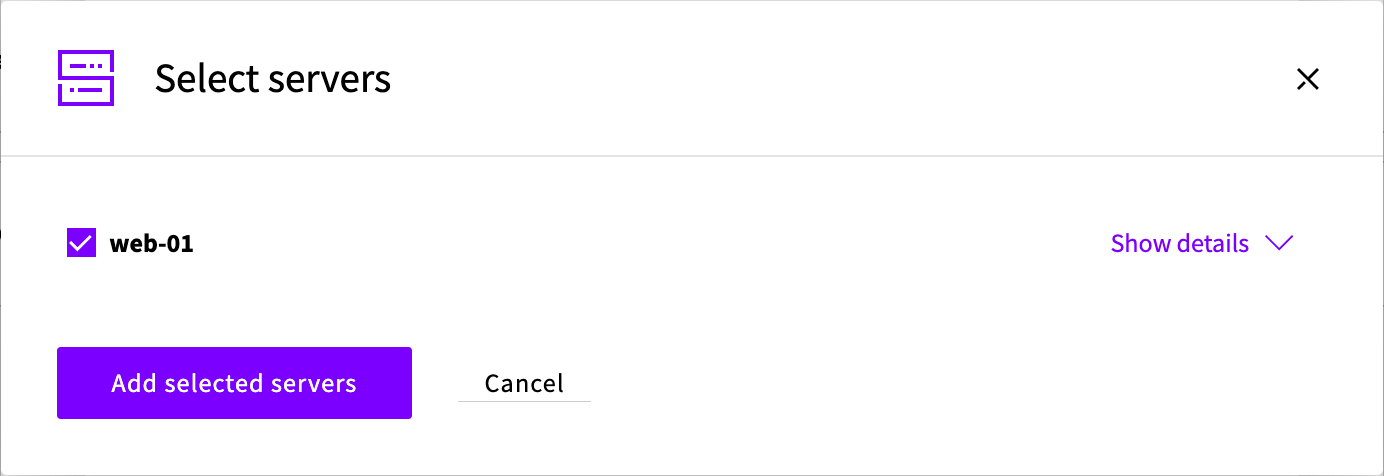
Your changes are saved as you make them. To take away access to a resource, click the trash can icon on its row.
Access to a server lets the member see its storage devices. To let them work with a storage device itself, for example to back it up, also add the storage device under Storages.
Remove a member
- In the member list, click Remove member from workspace (the trash can icon) on the member's row.
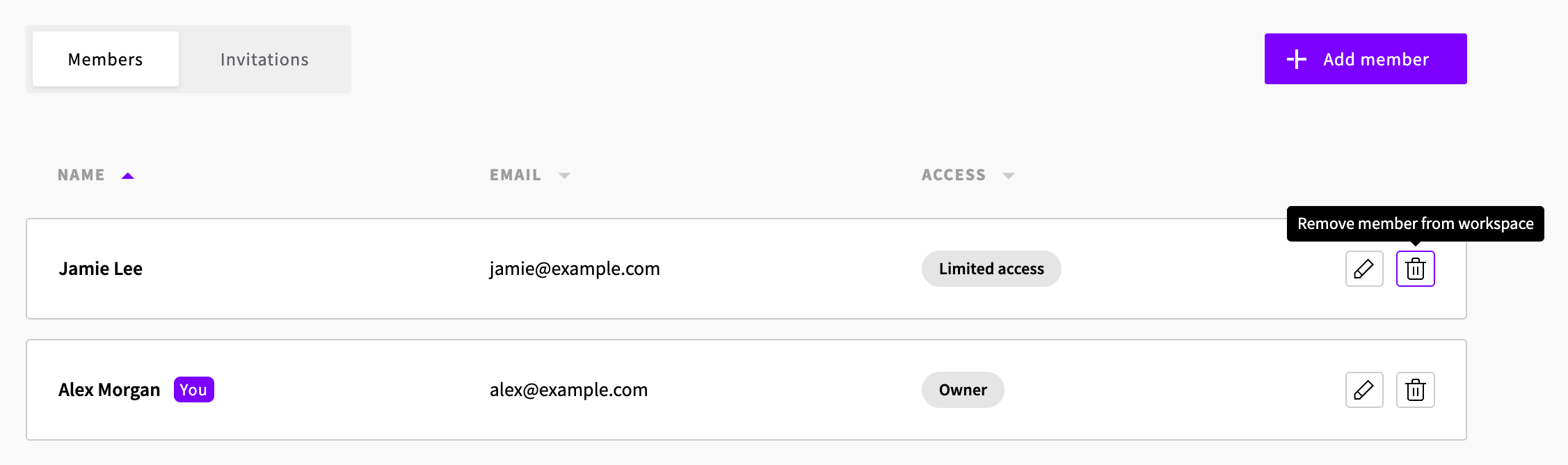
- Confirm the removal.
You can't remove members with inherited access, or members whose access level is higher than yours.
Resources the member created stay in the workspace. If the member had Owner or Full access, delete the API tokens they created too. Those tokens keep working after the member has been removed.
Leave a workspace
In the member list, click Leave workspace (the trash can icon) on your own row.