If you log in to UpCloud with a username and password, signing up for Workspaces doesn't move your existing resources, and you can't move them into a workspace yet. Keep using your existing account for them, with switch to username login on the login page. You can create new resources directly in a workspace.
Get started with Workspaces
This page takes you from signing up to working in a workspace with your team. If someone has invited you to their workspace or organization, start from the link in your invitation email instead: see Accept an invitation.
Already using UpCloud?
Sign up
- Go to the Workspaces signup page.
- Sign up with Google, GitHub or Microsoft. Or enter your email address, click Get started for free and follow the steps.
- Enter a Workspace name for your first workspace, and choose its Currency and Country. If you have a promo code, click Have a promo code? and enter it.
- Click Create.
Signing up also creates your organization, called My Organisation, with you as its owner. Your first workspace belongs to it.
Verify your workspace
Before you can deploy resources, verify the workspace to start your free trial. On the dashboard, click Verify & start trial and follow the steps.
During the trial, your organization can have one workspace. You can create more once you've made your first payment.
Name your organization
People you invite see your organization's name, so give it your company's or team's name, such as Example Company.
- Click the workspace menu at the top left of the Control Panel, under the UpCloud logo. It shows the name of the workspace you're in.
- Under Organisations, hover over My Organisation and click its Settings icon.
- On the Overview tab, click Edit (the pencil icon) next to the name, enter the new name and click Save.
Set your name
Other members see your name in their member lists, so set it before you invite anyone.
- Click your profile icon at the top right of the Control Panel and select My profile.
- Under Profile information, click Edit (the pencil icon) next to Name, and enter your name.
The First name and Last name under a workspace's Billing details are for the workspace's billing contact. They don't change your name.
Invite your team
You can give people access in two ways:
- Add them to a workspace. They get access to that workspace only, at the access level you choose. This suits most people, including contractors from outside your organization. See Add a member.
- Invite them to your organization. As admins, they get Owner access to every workspace in the organization and can manage its members. As members, they get no workspace access until you add them to workspaces. See Invite someone to the organization.
If you're not sure what access to give someone, Choose the right access has suggestions for common cases.
Log in
- Go to the Workspaces login page.
- Click Google, GitHub or Microsoft. Or enter your email address and click Continue.
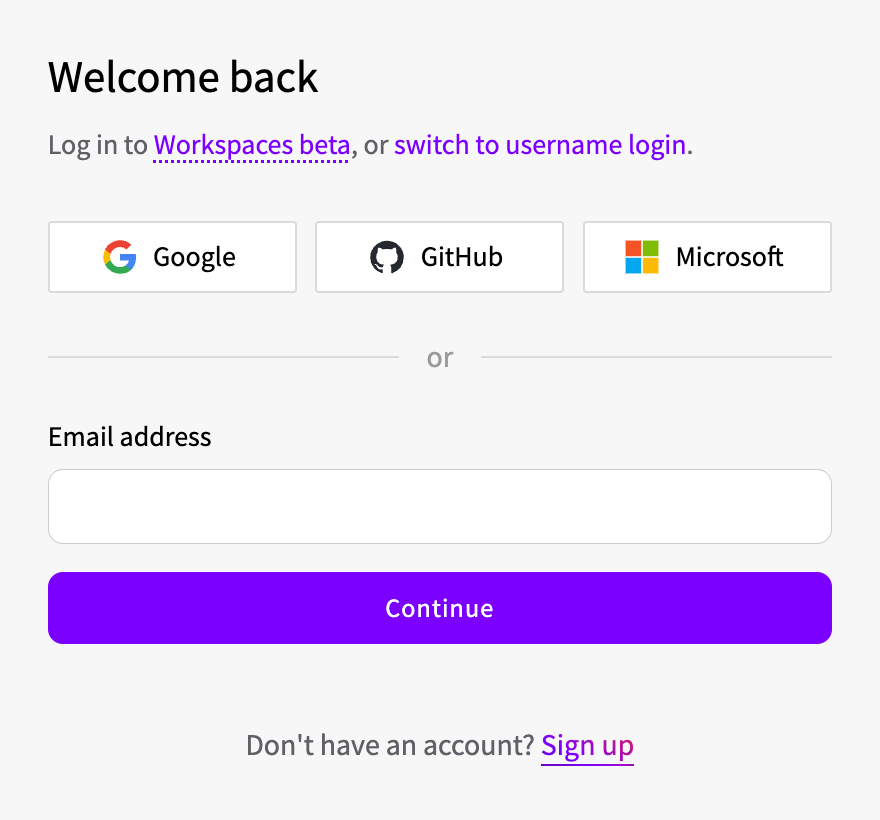
If your organization uses single sign-on, enter your work email address and click Continue. The login page takes you to your organization's identity provider.
If you log in to UpCloud with a username and password, click switch to username login on the login page.
Add sign-in methods
You can link more than one sign-in method to your account, and log in with any of them.
- Click your profile icon at the top right of the Control Panel and select My profile.
- Under Authentication, click Set up next to the method you want to add, and sign in with it.
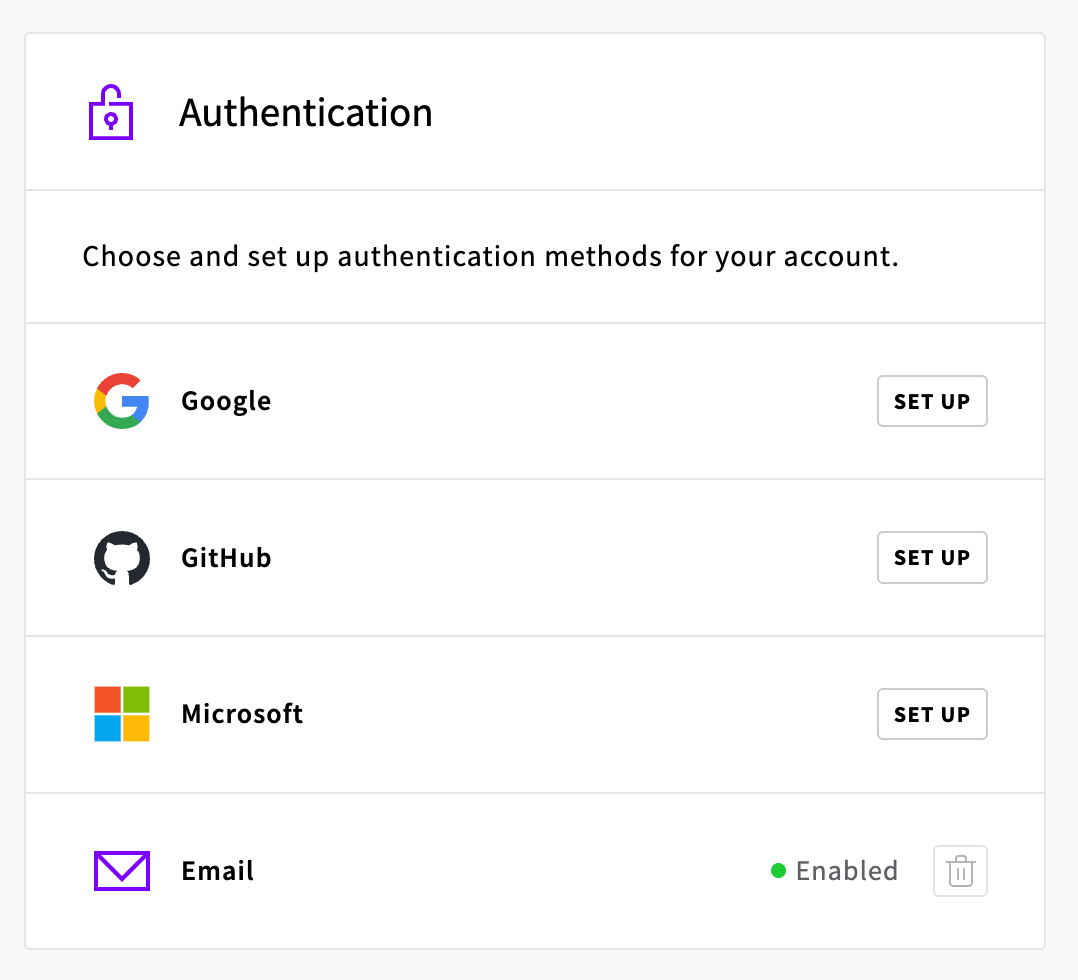
To remove a method, click the trash can icon next to it. You can't remove your last sign-in method.
If your organization has set up single sign-on, its provider is listed here too. People who were members before single sign-on was set up add the provider here before they can log in with it.