How to configure Managed Valkey as a cache
A cache keeps copies of data that's slow to fetch, such as the results of database queries, so that your application can read them again quickly. Managed Valkey* keeps its data in memory, which makes it a good place for a cache.
A new Managed Valkey service never removes keys to make room: when its memory is full, it refuses new writes. A cache needs the opposite. When it runs out of room, it should make space by removing entries that are less likely to be needed. The service's eviction policy decides which of the two happens.
This guide walks you through choosing and setting an eviction policy in the Control Panel or with the UpCloud API, deciding whether the cache needs persistence, caching data from a Python application and checking how the cache is doing.
Before you start
You need a Managed Valkey service and a Cloud Server that can connect to it. The examples continue from How to get started with Managed Valkey: they run on that server, with valkey-cli, the Python virtual environment and the VALKEY_URI environment variable set up there.
For the API steps, you need an API token. To create one, see How to get started using the UpCloud API.
How caching works with Valkey
The usual way to use Valkey as a cache is called cache-aside. When your application needs some data, it asks Valkey for the data's key first, for example product:1. If the key is there, that's a cache hit, and the application uses the cached copy. If it isn't, that's a cache miss: the application reads the data from the database and stores a copy in Valkey, so that the next lookup is a hit.
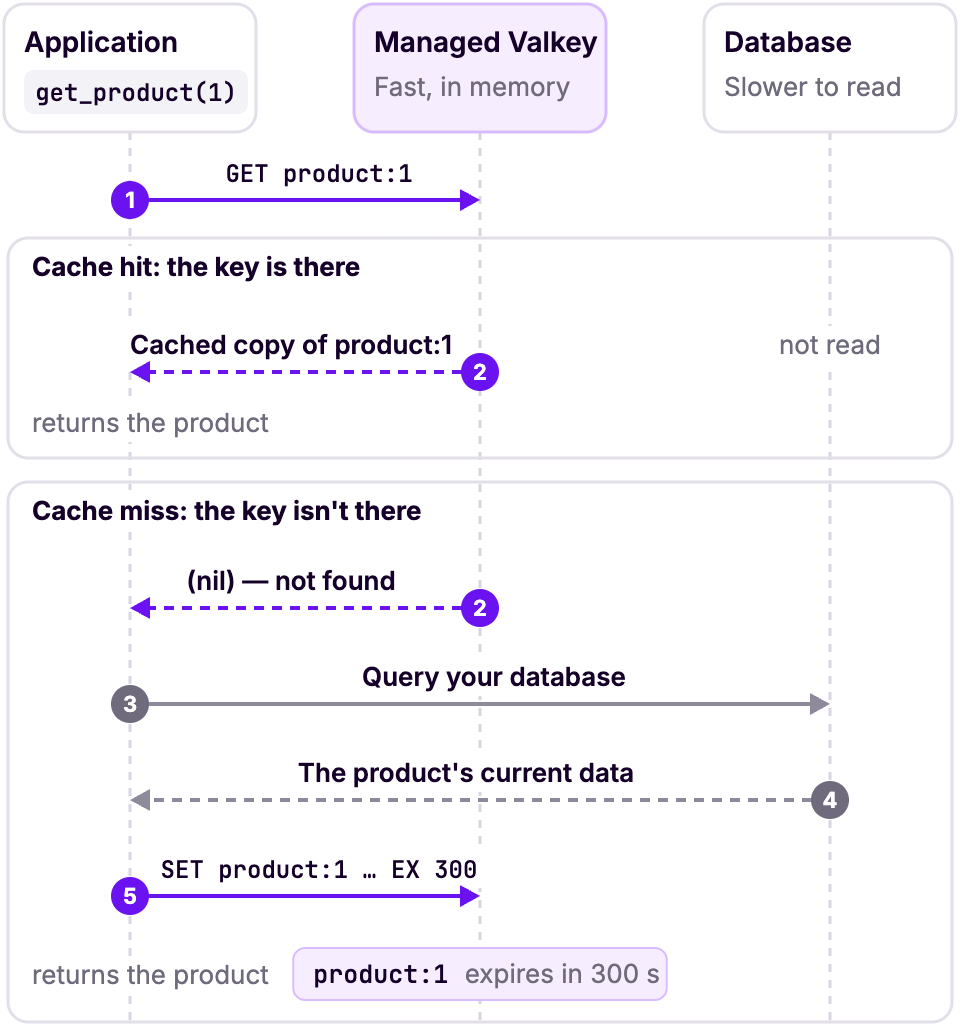
Each cached copy gets an expiry time. When it runs out, Valkey deletes the key, and the next lookup reads fresh data from the database. The expiry time therefore sets how out of date a cached copy can get. When the data changes in the database, your application can also delete the cached copy straight away, so that the next lookup reads the new data.
Valkey doesn't get all of the plan's memory: its limit is lower than the plan's memory, and its own overhead counts towards it. INFO memory shows the limit as maxmemory. When the cached data reaches it, the eviction policy decides what happens next.
Choose an eviction policy
The eviction policy decides what Valkey does when its memory is full and an application writes something new. A new Managed Valkey service uses noeviction. It keeps every key and refuses the write with an error:
OOM command not allowed when used memory > 'maxmemory'.That suits data you can't lose, but not a cache, because the application's writes start failing just when the cache is busiest. For a cache, choose a policy that removes keys to make room:
allkeys-lruremoves the keys that were used least recently. Choose it when the service is used only as a cache. If you're not sure which policy you need, this is the one to start with.volatile-lrualso removes the keys used least recently, but only keys that have an expiry time. Choose it when the same service also holds keys that must stay, and give every cached copy an expiry time. Keys without one are never removed, so when there are no keys with an expiry time left to remove, writes fail as they do withnoeviction.
The other policies differ in which keys they remove first:
allkeys-lfuandvolatile-lfuremove the keys used least often, rather than least recently.allkeys-randomandvolatile-randomremove keys at random.volatile-ttlremoves the keys with the least time left before they expire.
The allkeys- policies choose from every key, and the volatile- policies only from keys with an expiry time.
Set the eviction policy
You can change the eviction policy at any time. The change doesn't restart the Managed Valkey service, and connected applications keep working while it's applied.
Go to Databases and open the Managed Valkey service.
Open the Properties tab.
Find
valkey_maxmemory_policy. To find it quickly, typemaxmemoryin the search box.Click the edit icon next to it, select the policy, for example
allkeys-lru, and click the tick to save it.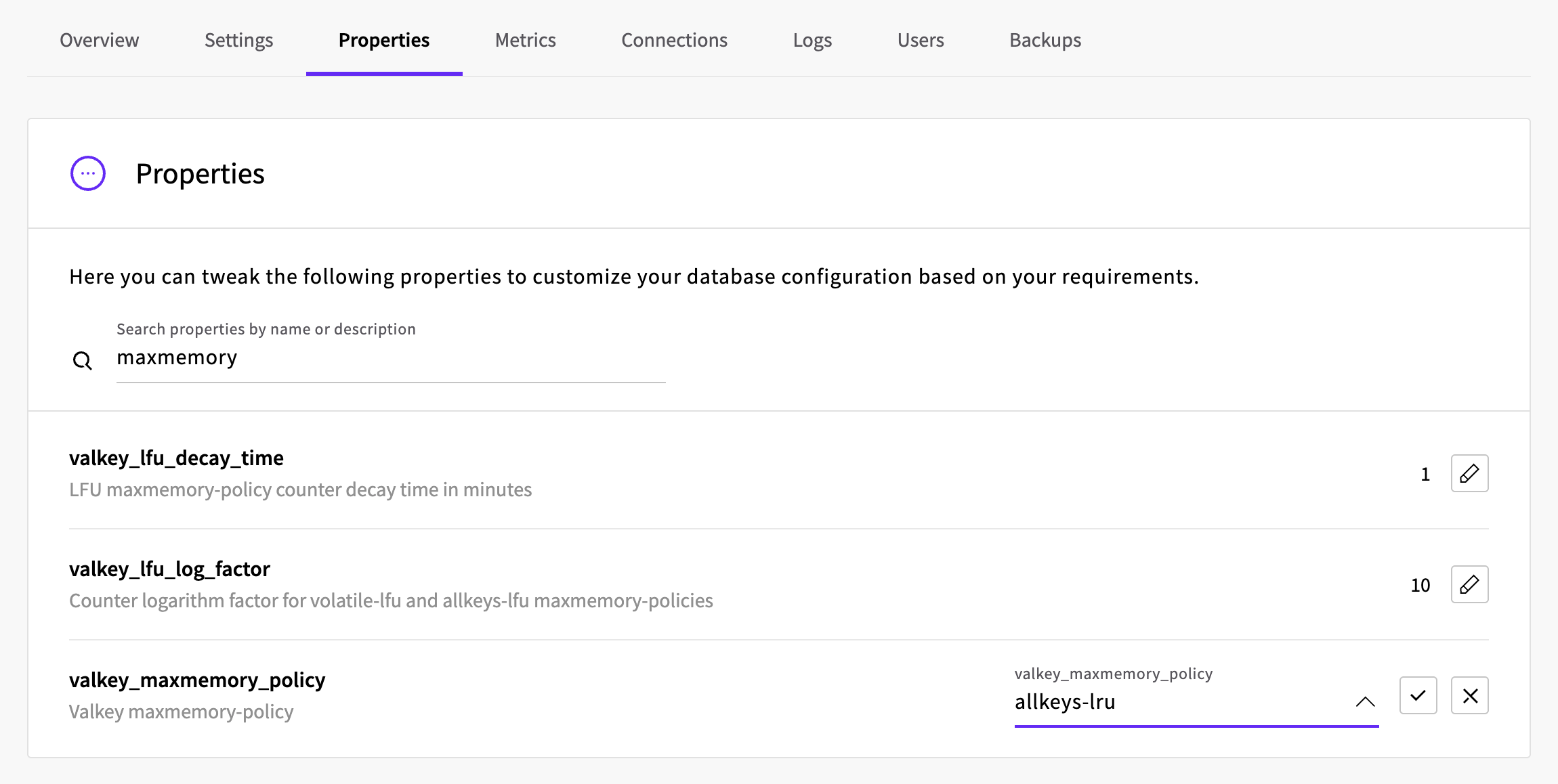
To check the policy that Valkey is using, run INFO memory on your server:
valkey-cli -u 'rediss://default:<password>@<hostname>:<port>' INFO memory | grep maxmemory_policyWarning: Using a password with '-a' or '-u' option on the command line interface may not be safe.
maxmemory_policy:allkeys-lruDecide whether the cache needs persistence
Persistence decides whether Valkey saves its data to disk. Backups depend on it, and so does what's left in the cache after you shut down the Managed Valkey service and start it again. A cache holds copies of data that your database already has, so an empty cache isn't lost data: the application reads from the database again and the cache fills back up. Until it has, though, your database handles every lookup.
The valkey_persistence property has three settings:
- No value, the default for a new service. The service takes backups on its normal backup schedule. When you start it again after a shutdown, it starts from its latest backup, so keys written since that backup are gone.
rdb. The service takes backups on its normal schedule, and also when you shut it down, so the cache is back as you left it when you start the service again.off. Valkey doesn't save its data to disk. The service has no backups and can't be restored, and it's empty when you start it again after a shutdown. Turning persistence off also deletes the service's existing backups.
For most caches, the default is fine. Set rdb if the cache should come back full after a shutdown, so that your database doesn't take every lookup while it refills. Set off if you don't need backups of the cache at all.
You set valkey_persistence the same way as the eviction policy: on the Properties tab, or with the API in properties, for example "valkey_persistence": "rdb". You can change it at any time, and the change doesn't interrupt connected applications or remove any keys.
Cache data from your application
This example adds caching to a product lookup with valkey-py, the Python client from the getting started guide. The function get_product_from_database stands in for your database: it waits a second, like a slow query, and returns a product.
Save this program as cache.py on your server:
import json
import os
import time

import valkey

client = valkey.from_url(os.environ["VALKEY_URI"], decode_responses=True)

CACHE_SECONDS = 300

# Stands in for your database in this example.
PRODUCTS = {
    1: {"name": "Trail running shoes", "category": "footwear", "price": 129.00},
}


def get_product_from_database(product_id):
    # Replace this with a query to your own database.
    time.sleep(1)
    return dict(PRODUCTS[product_id])


def get_product(product_id):
    key = f"product:{product_id}"
    cached = client.get(key)
    if cached is not None:
        print(f"{key} from the cache")
        return json.loads(cached)

    product = get_product_from_database(product_id)
    client.set(key, json.dumps(product), ex=CACHE_SECONDS)
    print(f"{key} from the database")
    return product


def update_price(product_id, price):
    # Replace this with an update to your own database.
    PRODUCTS[product_id]["price"] = price
    client.delete(f"product:{product_id}")


product = get_product(1)
print(product["name"], product["price"])

product = get_product(1)
print(product["name"], product["price"])

update_price(1, 119.00)
product = get_product(1)
print(product["name"], product["price"])
get_product follows the cache-aside pattern above. It looks for the product in Valkey first. On a miss, it reads the product from the database and stores a copy with an expiry time of CACHE_SECONDS (here 300 seconds), using SET with the ex argument. update_price changes the price in the database and deletes the cached copy, so that the next lookup reads the new price instead of the cached one.
Run it with your connection string in VALKEY_URI:
source venv/bin/activate
export VALKEY_URI='rediss://default:<password>@<hostname>:<port>'
python cache.pyproduct:1 from the database
Trail running shoes 129.0
product:1 from the cache
Trail running shoes 129.0
product:1 from the database
Trail running shoes 119.0The first lookup is a miss, so the product comes from the database. The second comes from the cache. After the price changes, the third lookup misses again and gets the new price. If you run the program again within CACHE_SECONDS, the first lookup comes from the cache too.
In your own application, get_product_from_database queries your database instead. To connect to a Managed MySQL or Managed PostgreSQL service from Python, see How to get started with Managed MySQL or How to get started with Managed PostgreSQL.
This example connects as default, which has full access to every key. To give the application its own user with access to only its own keys, see How to restrict user access in Managed Valkey.
Check how the cache is doing
Valkey counts hits, misses and evicted keys. To see the counts, run INFO stats on your server:
valkey-cli -u 'rediss://default:<password>@<hostname>:<port>' INFO stats | grep -E '^(keyspace_hits|keyspace_misses|expired_keys|evicted_keys):'Warning: Using a password with '-a' or '-u' option on the command line interface may not be safe.
expired_keys:0
evicted_keys:0
keyspace_hits:1
keyspace_misses:2keyspace_hitsandkeyspace_missescount the lookups that found a key and those that didn't. The share of hits,keyspace_hits / (keyspace_hits + keyspace_misses), tells you how much work the cache saves your database.expired_keyscounts the keys that Valkey deleted when their expiry time ran out.evicted_keyscounts the keys that the eviction policy removed to make room.
The counts start again from zero when the service's nodes are replaced, for example when you resize the service or start it again after a shutdown.
INFO memory shows how much memory the data uses and Valkey's limit:
valkey-cli -u 'rediss://default:<password>@<hostname>:<port>' INFO memory | grep -E '^(used_memory_human|maxmemory_human):'Warning: Using a password with '-a' or '-u' option on the command line interface may not be safe.
used_memory_human:5.66M
maxmemory_human:2.46GWhen used_memory_human is close to maxmemory_human and evicted_keys keeps growing, the cache is full and is removing keys to make room. That's what an eviction policy is for, but if the share of hits drops at the same time, the cache is too small for the data your application uses. Resize the service to a bigger plan on its Settings tab, as described in How to get started with Managed Valkey.
The service's Metrics tab in the Control Panel also has a Memory usage chart. It shows each node's memory as a whole, so it levels off below 100% when the cache is full. To see how close the cache is to its limit, use INFO memory.
Troubleshooting
OOM command not allowed when used memory > 'maxmemory'.The memory of the Managed Valkey service is full and the eviction policy doesn't allow Valkey to remove any keys. With valkey-py, the error comes as
OutOfMemoryError. Either the policy isnoeviction, or it's avolatile-policy and no key has an expiry time. Set the eviction policy toallkeys-lru, or give the cached keys an expiry time.ERR unknown command 'CONFIG', with args beginning with: 'SET' 'maxmemory-policy' 'allkeys-lru'Managed Valkey sets the eviction policy and other settings as service properties, so
CONFIG SETisn't available. Set the policy on the Properties tab or with the API instead, as described in Set the eviction policy.Cached keys disappear before their expiry time
The cache is full and the eviction policy removed them to make room. Check
evicted_keysand the memory use, as described in Check how the cache is doing. If the cache needs more room, resize the service to a bigger plan.The cache is empty after the service was shut down and started again
Without persistence set to
rdb, the service starts from its latest backup, or empty if persistence isoff. Your application refills the cache as it looks up data. To keep the cache through a shutdown, setvalkey_persistencetordb, as described in Decide whether the cache needs persistence.
Next steps
- How to restrict user access in Managed Valkey shows how to create users that can use only the keys and commands they need.
- Customisable Managed Valkey properties lists the other settings you can change, such as
valkey_timeoutfor idle connections. - Managed Valkey Backups describes how backups work and how long they're kept.
- Key eviction in the Valkey documentation describes each eviction policy in more detail.
* Valkey and the Valkey logo are trademarks of LF Projects, LLC. Any rights therein are reserved to LF Projects, LLC. Any use by UpCloud is for referential purposes only and does not indicate any sponsorship, endorsement or affiliation between Valkey and UpCloud. Other names may be trademarks of their respective owners.