The placeholder only fills in the required SSH key. It isn't a valid public key, so no one can use it to log in to your server. The initialization script below also removes it from the server during deployment.
How to configure root password during server deployment
As UpCloud adopts SSH key authentication for better security, password-based login is no longer available as a deployment option for newer Linux templates.
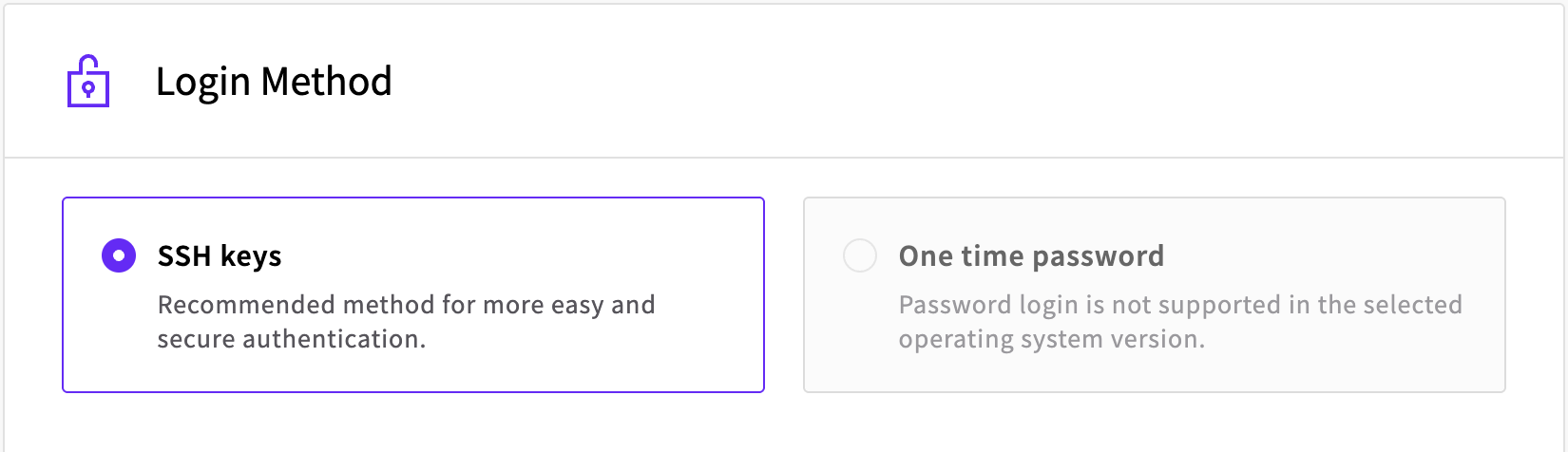
However, you can still configure password access for your Cloud Servers during deployment using initialization scripts. This applies to the templates where One time password is unavailable under Login Method. These templates use cloud-init, which runs the initialization script below.
To do this, configure your server deployment settings as usual (server size, location, etc.), but you'll need to handle the login method and initialization script differently, as described below.
Login method
The Control Panel needs at least one SSH key before it deploys a server with these templates. If you don't want to use your own SSH key, add the following placeholder key instead:
ssh-rsa AAAAB3NzaC1yc2EAAAADAQABAAABgQC7S5dY8JqJ6Y8DQ2YXtL8j9fK3nJ2wF5kM1P7vG2rN4qE9bH8z3xW6cV8s9fN2mK7dL3qY8jP9rS4vW6xZ5nA8bC7eR9fT2hU3iV4jK5lM6nO7pQ8rS9tU0vW1xY2zA3bC4dE5fG6hI7jK8lM9nO0pQ1rS2tU3vW4xY5zA6bC7dE8fG9hI0jK1lM2nO3pQ4rS5tU6vW7xY8zA9bC0dE1fG2hI3jK4lM5nO6pQ7rS8tU9vW0xY1zA2bC3dE4fG5hI6jK7lM8nO9pQ0rS1tU2vW3xY4zA5bC6dE7fG8hI9jK0lM1nO2pQ3rS4tU5vW6xY7zA8bC9dE0fG1hI2jK3lM4nO5pQ6rS7tU8vW9xY0zA1bC2dE3fG4hI5jK6lM7nO8pQ9rS0tU1vW2xY3zA4bC5dE6fG7hI8jK9lM0nO1pQ2rS3tU4vW5xY6zA7bC8dE9fG0hI1jK2lM3nO4pQ5rS6tU7vW8xY9zA0bC1dE2fG3hI4jK5lM6nO7pQ8rS9tU0vW1xY2zA3bC4dE5fG6hI7jK8lM9nO0pQ1rS2tU3vW4xY5zA6bC7dE8fG9hI0jK1lM2nO3pQ4 placeholder-not-a-real-keyThe placeholder isn't a working key
Under Login Method, select SSH keys and click Add new. In the Add an SSH key dialog, give the key a name, such as Placeholder key, paste the placeholder key into the Public SSH key field, and click Save. The new key is selected automatically.
Initialization script
Next, to set a password for your server during deployment, use the following configuration in the initialization script field:
#cloud-config
chpasswd:
  expire: true
  users:
  - {name: root, password: <temp-password>, type: text}
ssh_pwauth: true
runcmd:
  - sed -i '/placeholder-not-a-real-key/d' /root/.ssh/authorized_keys
Replace <temp-password> with a long, random temporary password. You can generate one with:
openssl rand -base64 24Use a random temporary password
Password login is turned on as soon as the server starts, so the temporary password is what protects your server until you change it. Use a long, random password rather than an example or a short one, and log in soon after the server has started.
The runcmd line removes the placeholder key from the server. If you added your own SSH key instead, you can leave the line in, as it only removes the placeholder.
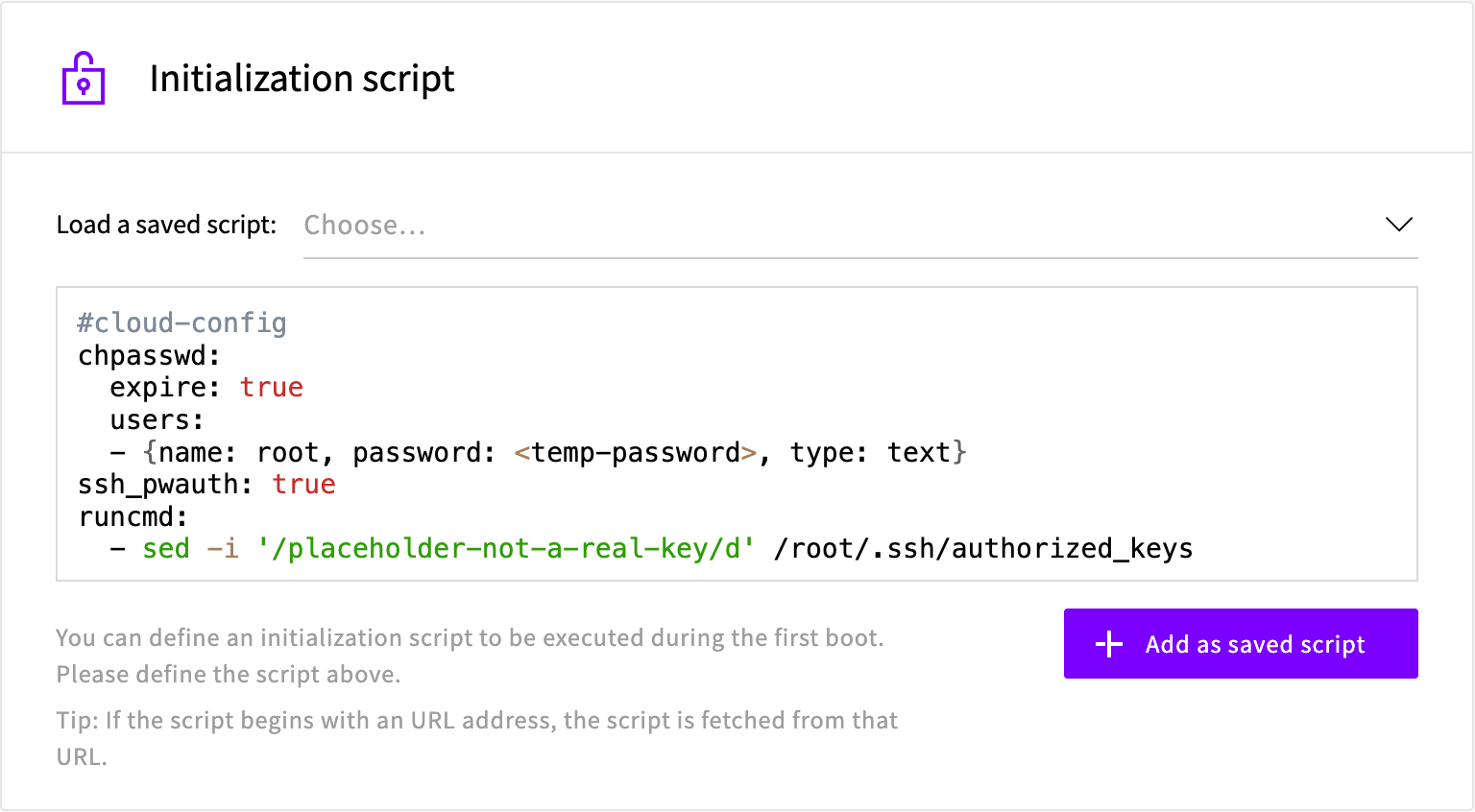
You can save this script for future use by clicking Add as saved script. Save it before you replace <temp-password>, and set a new random password each time you deploy a server with it.
First login
After deployment:
- Connect to your server using SSH as
rootwith the temporary password. - You're asked to change the password straight away. If you're asked for the current password, enter the temporary password again. Then enter your new password twice.
- Depending on the template, you then either stay logged in, or the connection closes. If it closes, connect again and log in with your new password.
Most templates close the connection after the password change:
Output
❯ ssh [email protected]
[email protected]'s password:
You are required to change your password immediately (administrator enforced).
You are required to change your password immediately (administrator enforced).
Welcome to Ubuntu 26.04 LTS (GNU/Linux 7.0.0-29-generic x86_64)

[system information and updates messages...]

WARNING: Your password has expired.
You must change your password now and log in again!
New password:
Retype new password:
passwd: password updated successfully
Connection to 203.0.113.10 closed.
Ubuntu 22.04, Ubuntu 24.04 and Debian 12 ask for the current password and keep you logged in:
Output
❯ ssh [email protected]
[email protected]'s password:
You are required to change your password immediately (administrator enforced).
You are required to change your password immediately (administrator enforced).
Welcome to Ubuntu 24.04.2 LTS (GNU/Linux 6.8.0-63-generic x86_64)

[system information and updates messages...]

Changing password for root.
Current password:
New password:
Retype new password:
root@ubuntu-1cpu-2gb-sg-sin1:~#
Remove the placeholder key from your account
The placeholder key stays in your account's saved SSH keys and is offered every time you deploy a server. If you don't plan to deploy more servers this way, delete it: go to Account > SSH keys in the Control Panel and click Delete next to the placeholder key.
Setting up proper SSH key authentication
Once your server is running and you've changed the temporary password, we strongly recommend setting up dedicated SSH key authentication for enhanced security. This involves generating new SSH keys specifically for this server and configuring them properly.
For detailed instructions on generating and configuring SSH keys, see our guide: How to generate and use SSH keys for secure authentication.
After setting up proper SSH keys, you should also consider disabling password authentication entirely to block brute-force attacks.