How to configure the SDN Firewall
The SDN Firewall filters your Cloud Servers' traffic on SDN Private Networks only. You add the rules to a firewall ruleset and attach the ruleset to each server that should follow them. The firewall is stateful, so you write rules just for connections that start elsewhere: replies to allowed connections get through on their own.
This guide describes how to create a ruleset, attach it to a server, change it later and change a server's default actions, in the Control Panel or with the UpCloud API.
For a server's public and utility interfaces, use the Public & Utility Firewall as well. Firewall compares the two.
Before you start
You need one or more Cloud Servers with an interface on an SDN Private Network.
Work out which connections the servers must accept over the private network: for each one, the source address or range, the protocol and the port. For example, web servers might accept SSH from an admin network and HTTP from a load balancer.
Create a ruleset
A ruleset can serve any number of servers, so it helps to give it a name that describes what those servers do, such as web-servers, rather than the name of one server.
- In the Control Panel, go to Network > Firewall rulesets and click Create new ruleset.
- Enter a Name and click Create.
The ruleset's page opens.
Add rules
Each incoming rule describes one kind of connection that your servers accept. Once you attach the ruleset and switch on the server's SDN Firewall, incoming traffic that no rule accepts is dropped, because that's the server's default action for incoming traffic. To change it, see Change the default actions.
A rule has these parts:
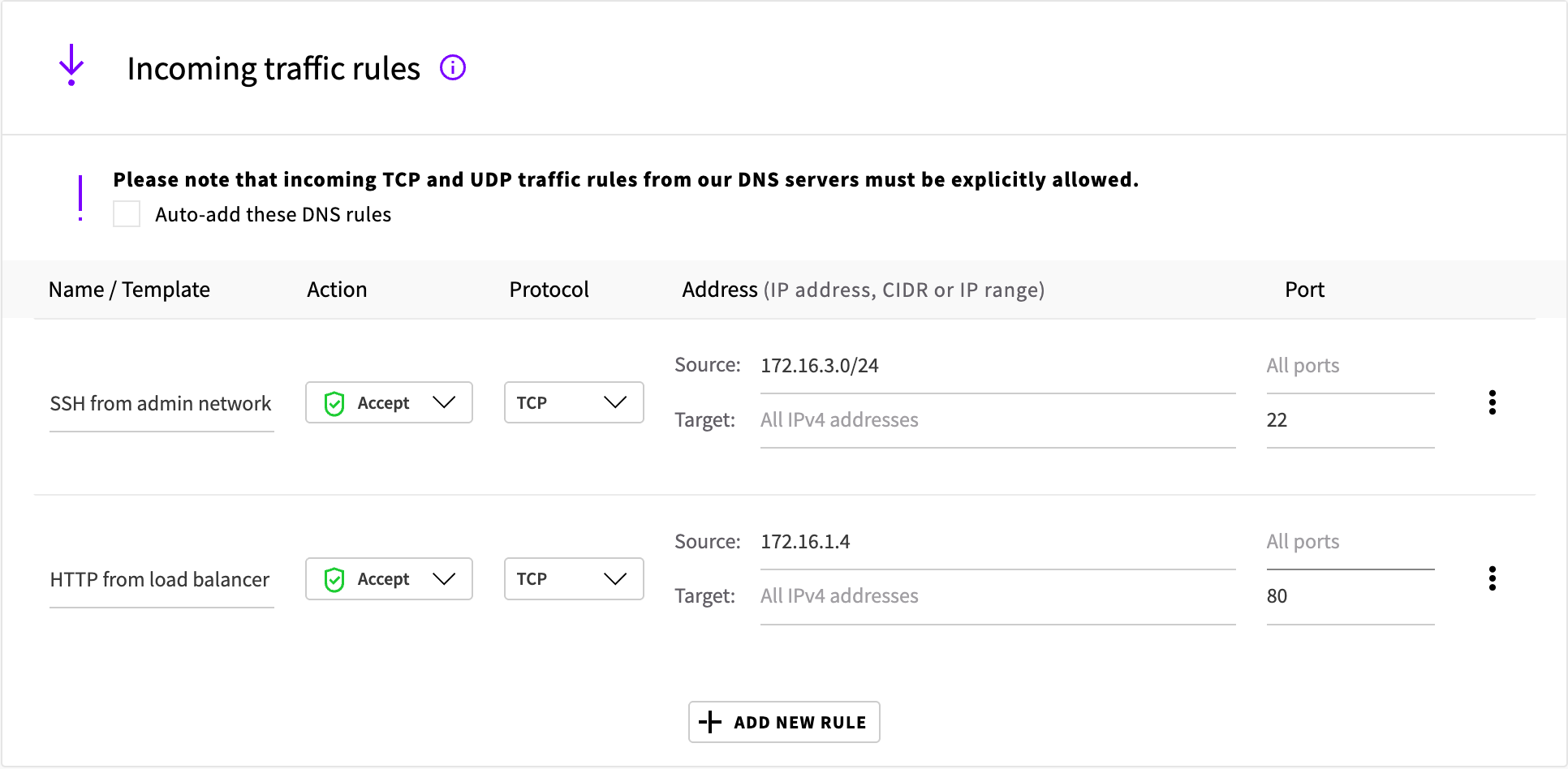
- Source: where the connection comes from. Give an address, such as a load balancer's private address, or a range, such as an admin network's
172.16.3.0/24. - Target: where the connection goes, which is a server that the ruleset is attached to. Leave the address empty, so that the rule applies to every server that the ruleset is attached to, whatever its address.
- Port: the port that the service on your servers listens on, for example 22 for SSH or 80 for HTTP. This is the destination port, so it goes with the target. The connecting computer picks a different source port for each connection, so leave the source port empty. A rule with the service's port as its source port matches almost no traffic.
- Protocol: TCP for most services, such as SSH and HTTP. UDP for services that use it, such as DNS.
- Action: Accept lets matching connections through. A Drop rule blocks matching connections even when an Accept rule matches them too, so use Drop only for connections that must never get through.
The Control Panel's rules editor also has an Auto-add these DNS rules option. It adds rules that accept TCP and UDP traffic on port 53 from UpCloud's DNS servers. Your servers don't need it for their own DNS lookups: the firewall is stateful, so replies to the lookups that a server makes get through without a rule.
- On the ruleset's page, under Incoming traffic rules, click Edit rules.
- Click Add new rule and fill in the rule:
- A name that says what the rule is for.
- Accept and the protocol.
- The source address or range in Source. Leave Target empty.
- The port in the port field on the Target row. The port field on the Source row is the source port: leave it empty.
- Add a rule for each connection, then click Save changes.
Attach the ruleset and switch on the SDN Firewall
Attaching the ruleset tells a server which rules to use, but the server only enforces them once its SDN Firewall is on. Do both on every server that should follow the rules.
- Go to Servers, open the server and go to Firewall > SDN Firewall.
- Click Attach ruleset, select the ruleset and click Attach.
- Next to Status, click the pencil icon, then click Enable.
The overview shows the SDN Firewall as Enabled, with the ruleset in the list below it.
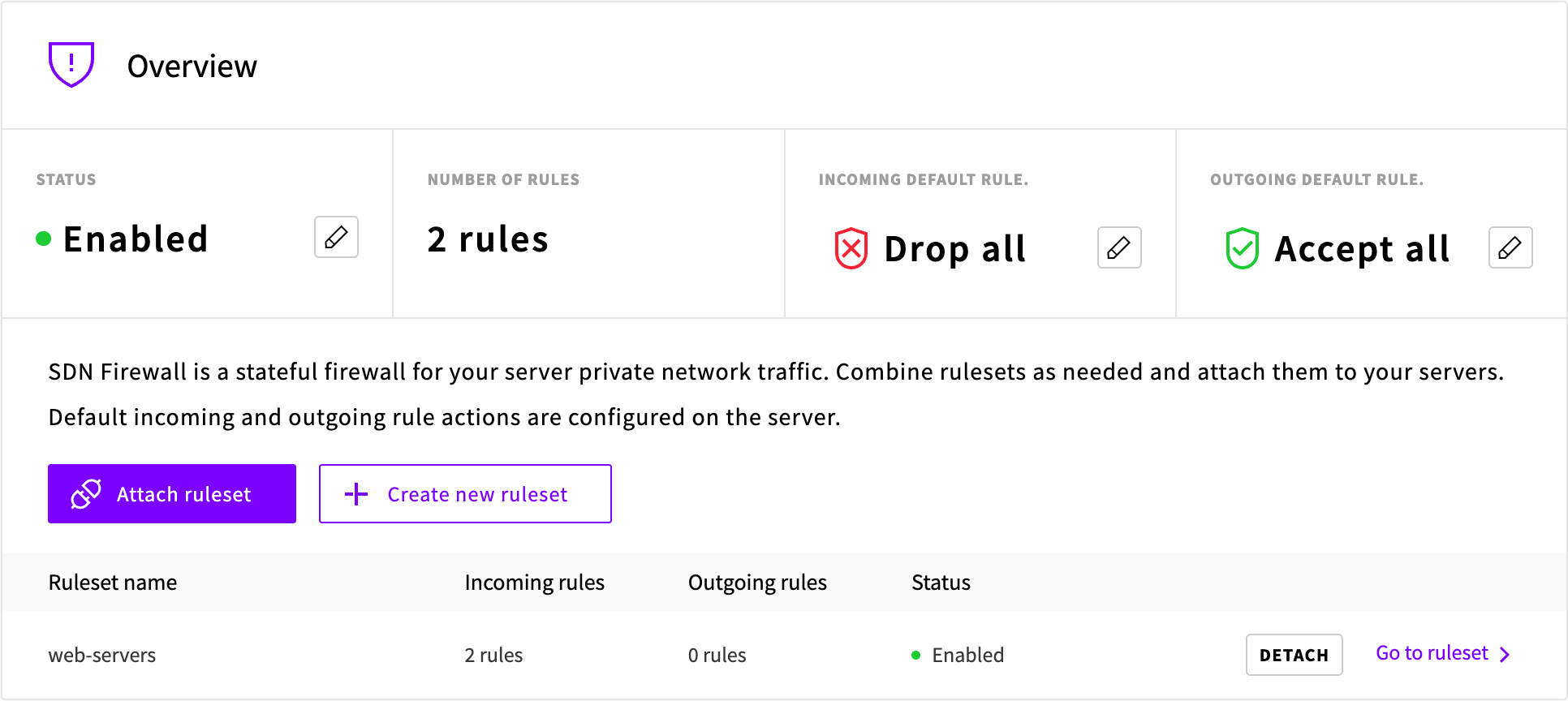
A server can have more than one ruleset attached, for example one that all your web servers share and one for a single server. Attach each one in the same way. The rules of all the attached rulesets apply together, and their order makes no difference:
- A connection that any drop rule matches is dropped, even when an accept rule matches it too.
- Otherwise, a connection that any accept rule matches is accepted.
- Otherwise, the server's default action for that direction applies.
The same goes for the rules within one ruleset. A rule's position only sets the order in which it's listed.
Check that the rules apply
From another server on the private network, connect to a port that a rule allows and to one that no rule allows, for example with nc:
nc -zv -w 5 <server-address> <port>The connection to the allowed port succeeds. On Ubuntu, the output ends with succeeded!. The connection to the other port times out after 5 seconds.
With the API, you can also check that a server enforces the latest rules: its applied_version matches the ruleset's version.
GET /1.3/server/{uuid}/firewall_ruleset_relationships/privateChange rules later
Each saved change reaches every server that uses the ruleset on its own. You don't need to attach the ruleset again. Make related changes in one save, so that your servers never run half of a change.
Then check the changed rules as before.
Change the default actions
Each server has a default action for incoming traffic and one for outgoing traffic. They decide what happens to traffic that no rule matches. A new server drops incoming traffic and accepts outgoing traffic. The default actions belong to the server, not to a ruleset, so set them on each server that needs different ones.
A drop rule still blocks the traffic it matches when the default action is accept. Replies to allowed connections get through whatever the default actions are, because the firewall is stateful: with the outgoing default action set to drop, a server still answers the incoming connections that it accepts.
- Go to Servers, open the server and go to Firewall > SDN Firewall.
- Next to Incoming default rule or Outgoing default rule, click Edit default rule.
- Select Accept or Drop and click Save.
The overview shows the new default rule, for example Accept all.
The server can keep running while you change them. To check the new default actions, connect to the server as in Check that the rules apply.
Next steps
- How to use the UpCloud firewall covers the Public & Utility Firewall, which filters public and utility traffic.
- Firewall compares the SDN Firewall and the Public & Utility Firewall.
- Multi-tier application on private networks uses SDN Firewall rulesets on every tier of a load-balanced application.