Cloud Servers on a network peered with your database's network will not be able to reach the database privately, even when the peering is active. The route to the database is only available on the attached network itself. If you need to connect from another network or data centre, you can attach your servers to the same network as the database, connect using the public hostname together with the allowed IP addresses, or set up a Managed Load Balancer on the database's network to forward the database port.
How to connect Managed Databases to SDN Network
Reliable and secure connectivity is an absolute necessity for databases. With UpCloud Managed Databases, you have the option to connect to your database using your account wide Utility Network or the customisable SDN Private Networks.
Utility Networks are enabled by default but attaching an SDN Private Network affords you the highest level of security and compliance. In this guide, we also show you how to enable SDN Private Networks when creating a new Managed Database or attaching your existing databases. This allows you to then connect any of your other SDN enabled UpCloud services to your database.
Configuring at Managed Database creation
During a new Managed Database creation, you can attach any existing SDN Private Network within the same location to the new database service.
In the “Connection access” section, click the “Attach a private network” button.
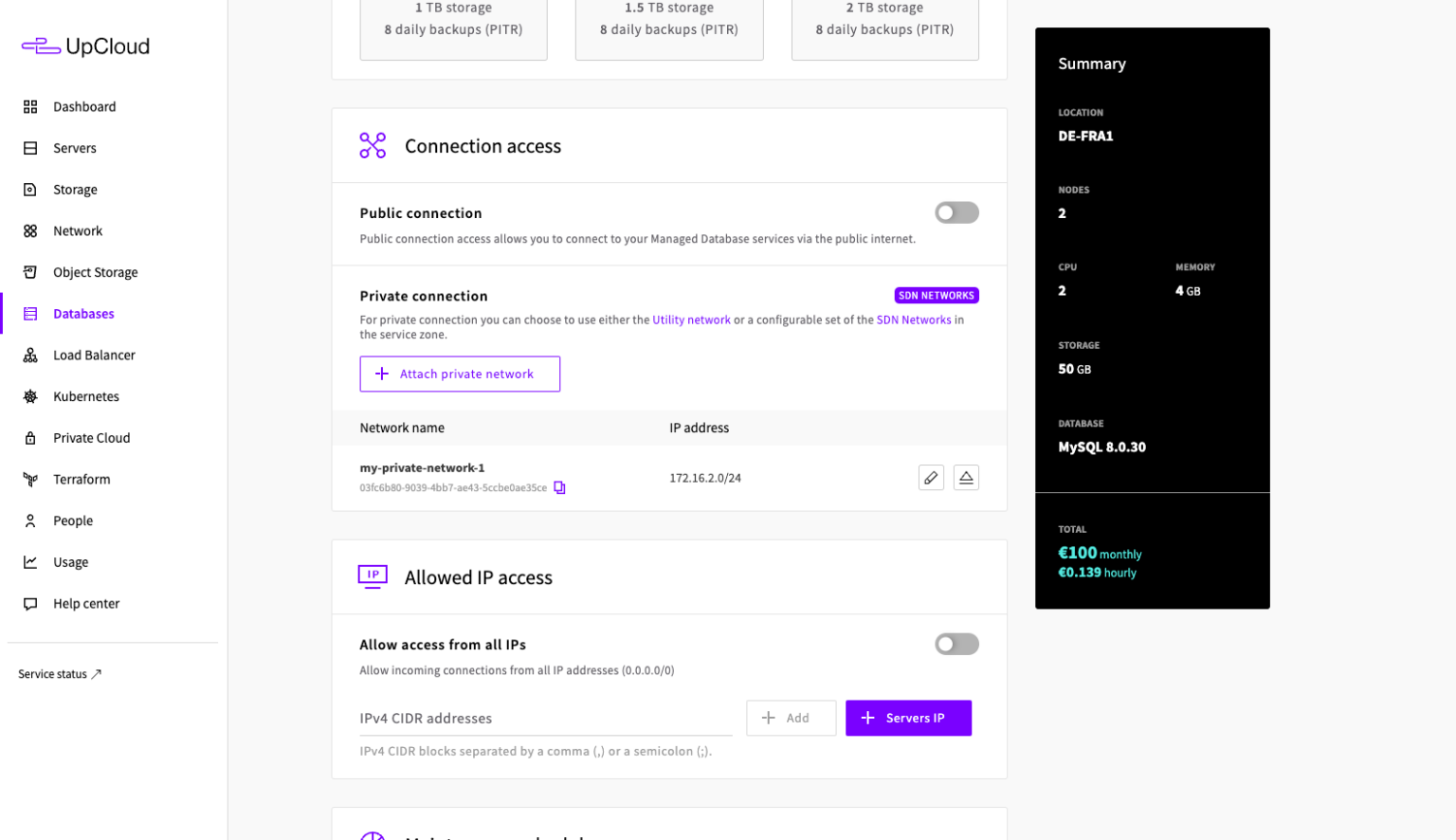
Then choose the network you wish to connect. Note that the Managed Database needs to be created in the same data centre as the existing SDN Private Network.
If you do not already have an SDN Private Network configure in the location you want to create the new Managed Databases, you can always configure a new Private Network.
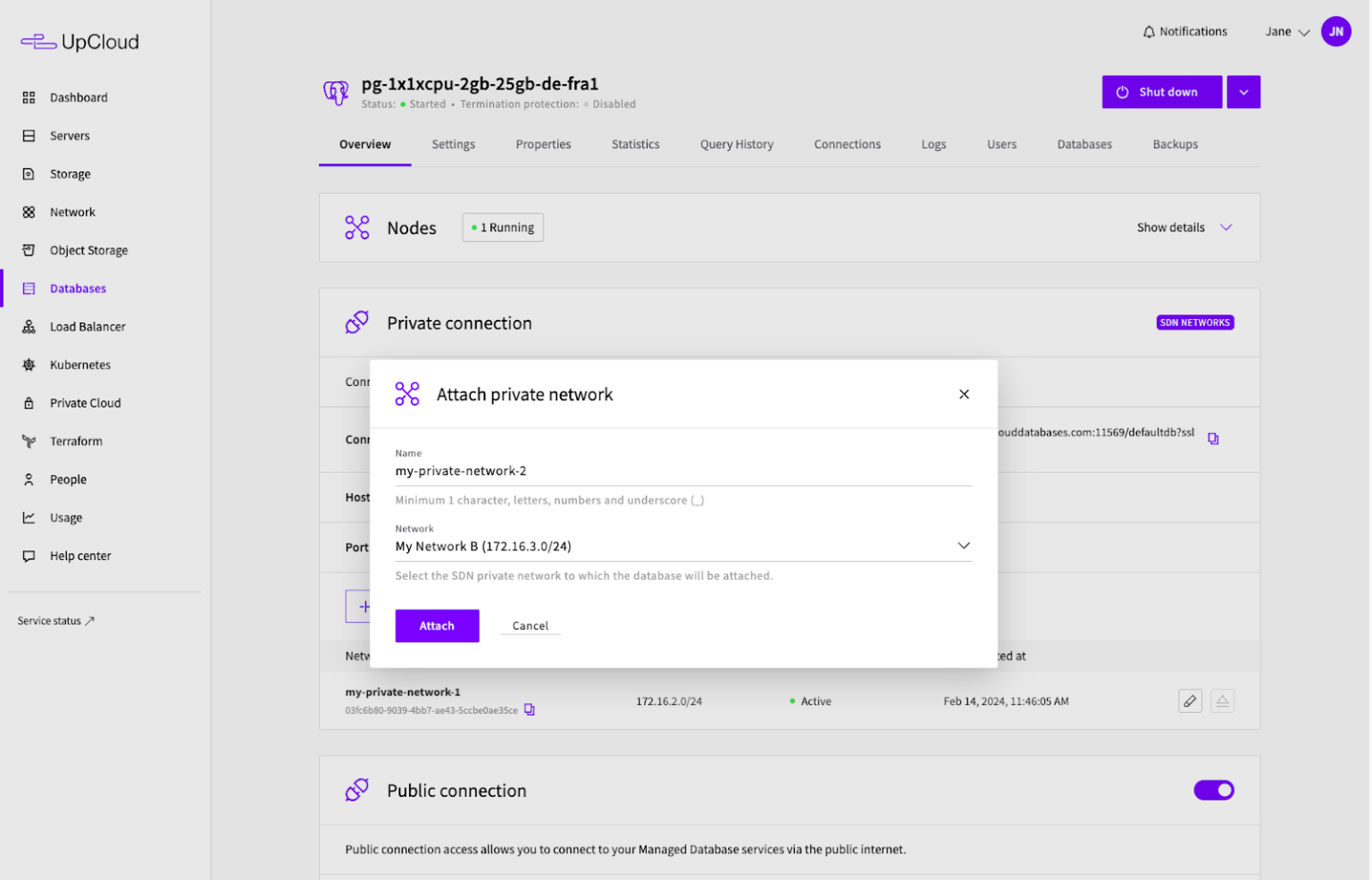
When you’ve attached your SDN Private Network, configure your new Managed Database as normal. You can find more details on how this is done at our databases guide.
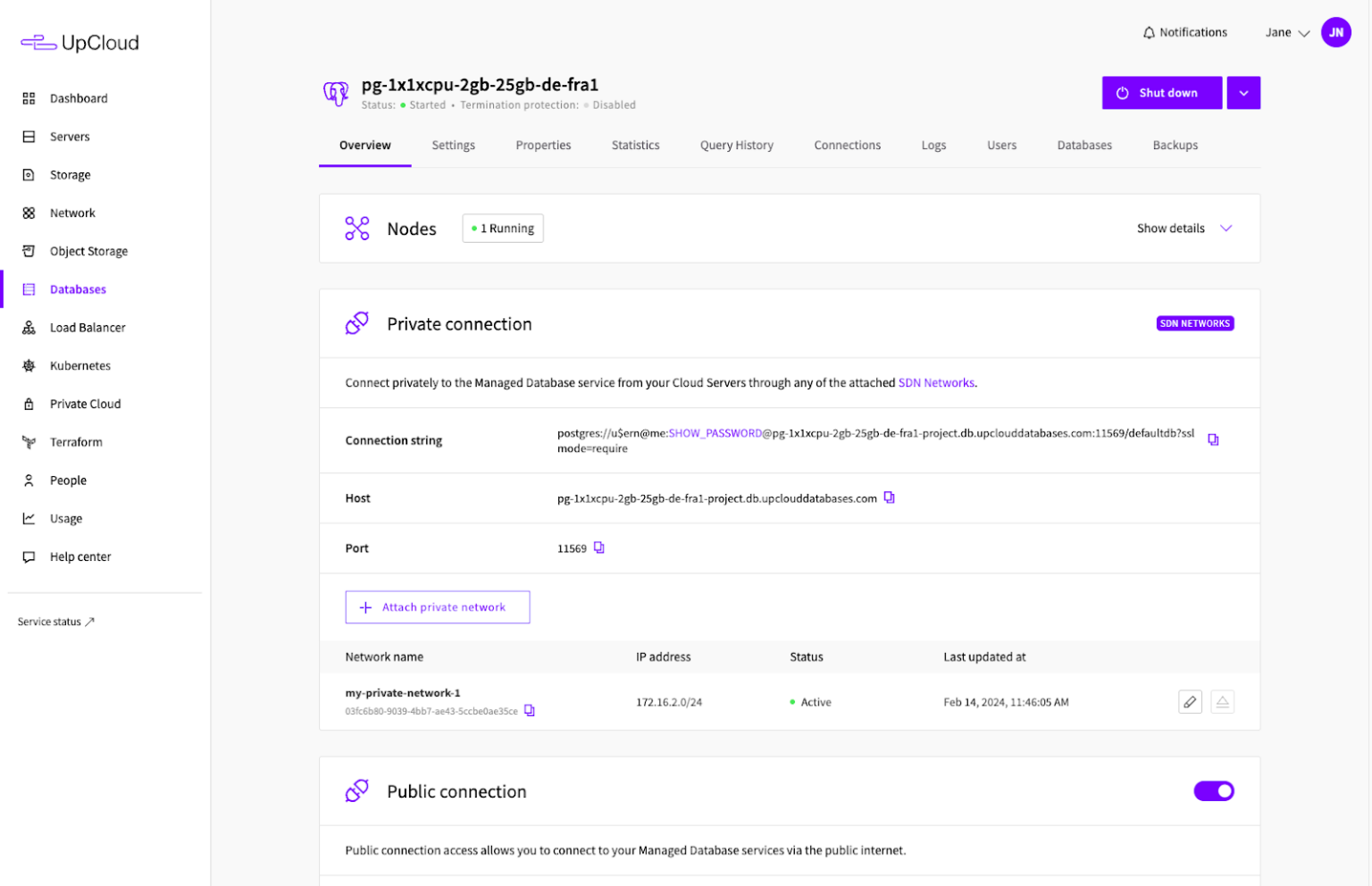
Once created, you can find the SDN connection details in the Managed Databases Overview
Attaching SDN network to existing Managed Database
It’s also possible to attach SDN Private Networks to an already existing Managed Database cluster that was created using the Utility Network. The process entails migrating the database service to the SDN network which is a one-way process.
Note that enabling SDN Private Network access will cause the database service to be rebuilt with existing data migrated over. Once the process is completed the migrated Managed Database cluster cannot be switched back to using the Utility Network.
In your Managed Database details under the Overview tab, see the “Private connection” section and click the “Switch to SDN Networks” button.
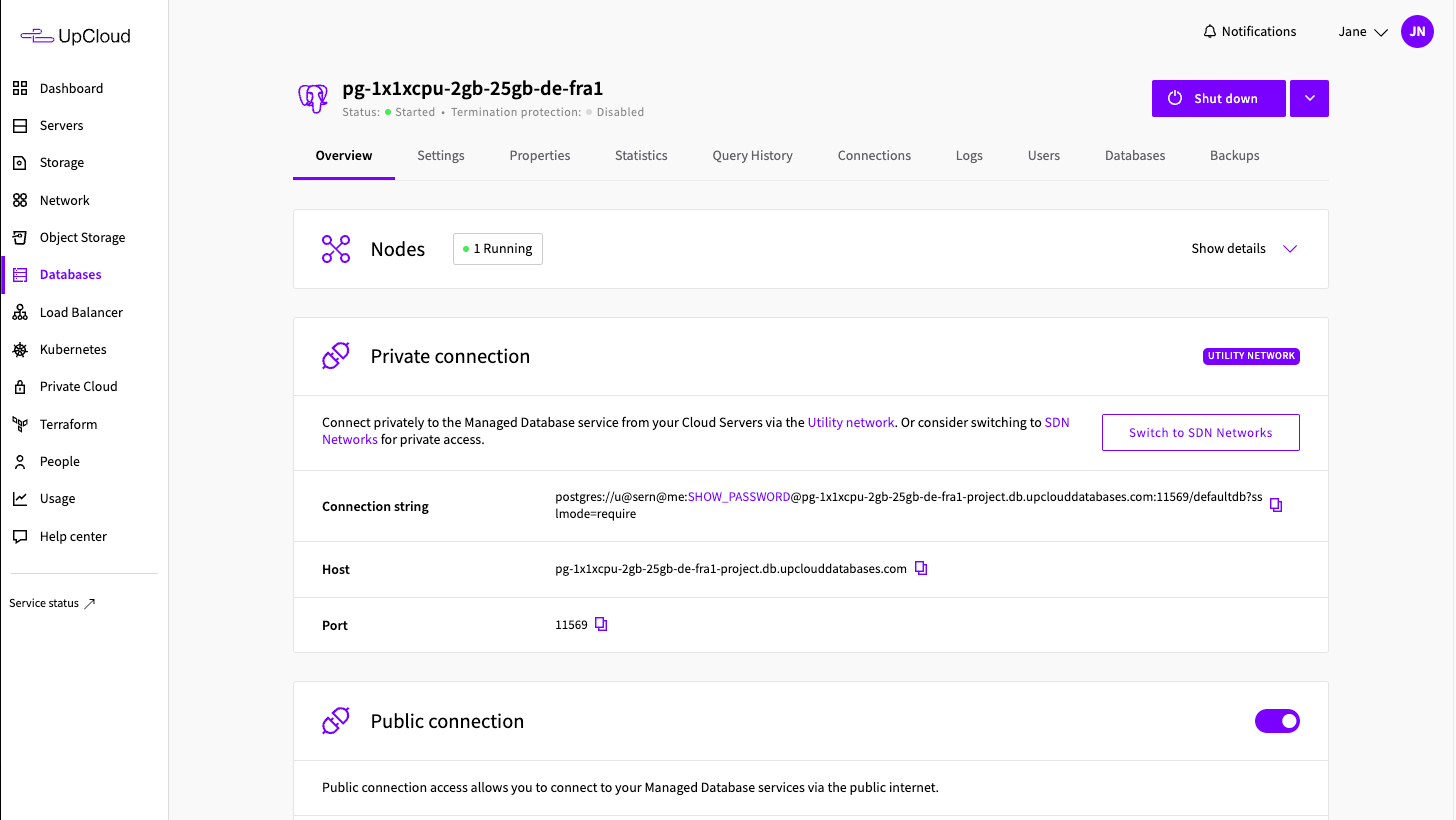
Choose your SDN Private Network you want to migrate to and click “Attach”.
Note that the migration process requires an SDN Router to be attached to the SDN Private Network you wish to connect to your databases.
This allows you to connect your Managed Databases to a private network and trigger a service migration. The migration process will cause a short interruption to the service connectivity.
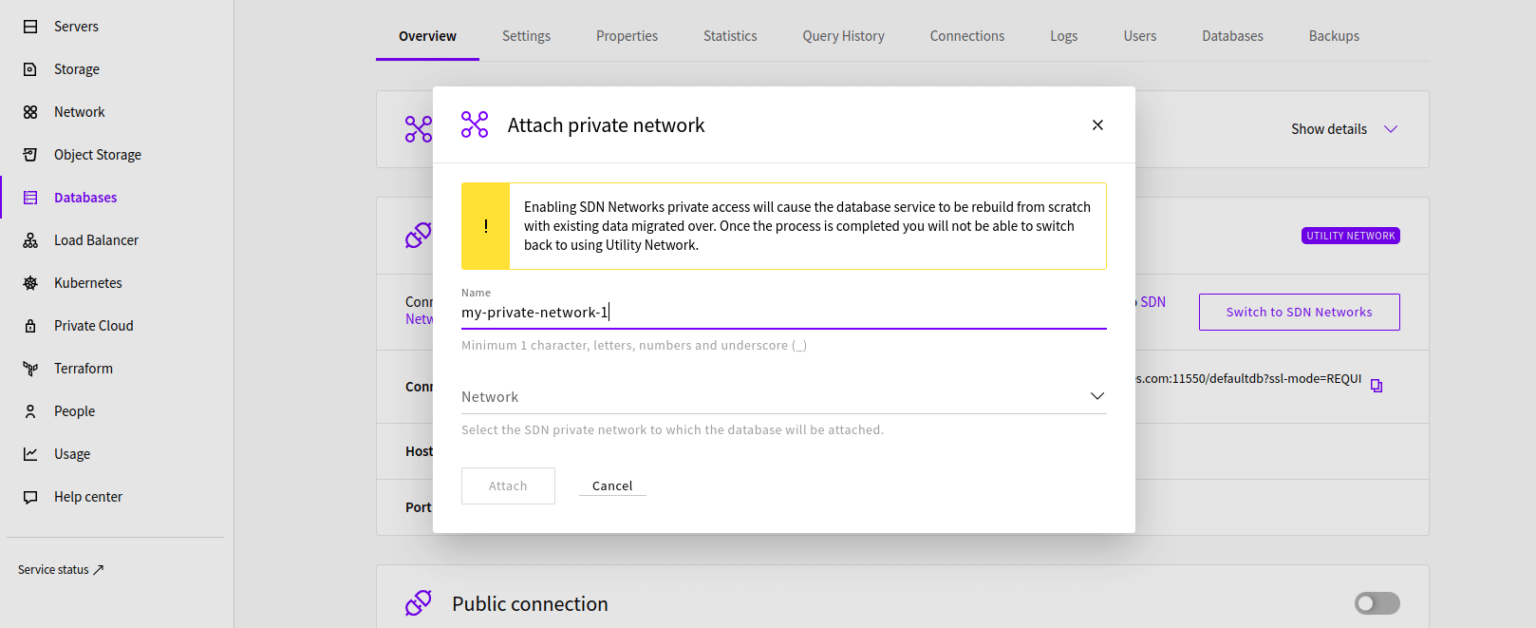
Clicking the “Attach” button will begin the migration. Once the process has been completed, you can configure any services attached to the same private network to use the new connectivity.
If your Cloud Servers were already running before you attached the network, renew their DHCP lease or reboot them to pick up the new connection. See "How the private connection works" below for details.
How the private connection works
When you attach an SDN Private Network, your database does not get an IP address in your network's own range. Instead, the service hostname will resolve to an address in a separate range that UpCloud reserves for private database access. This is normal and nothing further needs to change - your database keeps its existing private hostname.
Your Cloud Servers reach this address using a route that UpCloud delivers automatically over DHCP on the attached network. Servers created after the network is attached will have the route from the start, while servers that were already running will pick it up after a DHCP lease renewal or a reboot.
Note that only Cloud Servers attached to the same SDN Private Network can use the private connection, and the network needs to be in the same data centre as the database service.
Network peering does not extend private database access to other networks.