How to connect to Managed Object Storage over an SDN Private Network
Cloud Servers that use Managed Object Storage, such as an application, a backup job or a copy job, can reach it over an SDN Private Network instead of the public internet. Their traffic then stays on your private network, and it doesn't count toward your Fair Transfer Limit.
This guide walks you through attaching a network to your service in the Control Panel or with the UpCloud API, checking that your servers have a route to the service's private endpoint, and connecting with the AWS CLI over that endpoint. If you want the service to be reachable only from your private networks, it also shows how to turn public access off.
For how public and private access work, see Connecting to Managed Object Storage.
Before you start
You need:
- A Managed Object Storage service with a bucket, and a user with access keys. To create them, see How to get started with UpCloud Managed Object Storage. The examples in this guide use the bucket
product-images. - An SDN Private Network that's attached to an SDN Router, in one of the locations that can reach the service's region. For example, a service in APAC-1 can use networks in SG-SIN1 and AU-SYD1. For every region, see Object Storage availability. To create a network, see How to configure SDN Private Networks, and to attach it to a router, see How to connect private networks using SDN Router. The examples use a network named
storage-networkwith the range172.16.45.0/24. - A Cloud Server on that network, with the AWS CLI installed. For how to install it, see Connecting to an UpCloud Object Storage instance using AWS CLI. Run the commands in this guide on that server.
- For the API steps, an API token. To create one, see How to get started using the UpCloud API.
This guide covers the following operating systems, installed from the UpCloud templates:
- Ubuntu 22.04, 24.04, and 26.04
- Debian 12 and 13
- AlmaLinux 8, 9, and 10
- Rocky Linux 8, 9, and 10
- CentOS Stream 9 and 10
- Fedora 42 and 43
Attach the network to the service
You can attach a network to a service that's already running. Requests through the public endpoint keep working while the network is being attached.
In the Control Panel, go to Object Storage and open the service.
On the Overview tab, under Private access, click Attach private network.
Enter a Name for the attachment, for example
storage-network, and select the network under Network. The list shows only the networks in the locations that can reach the service's region. Networks without a router are grayed out.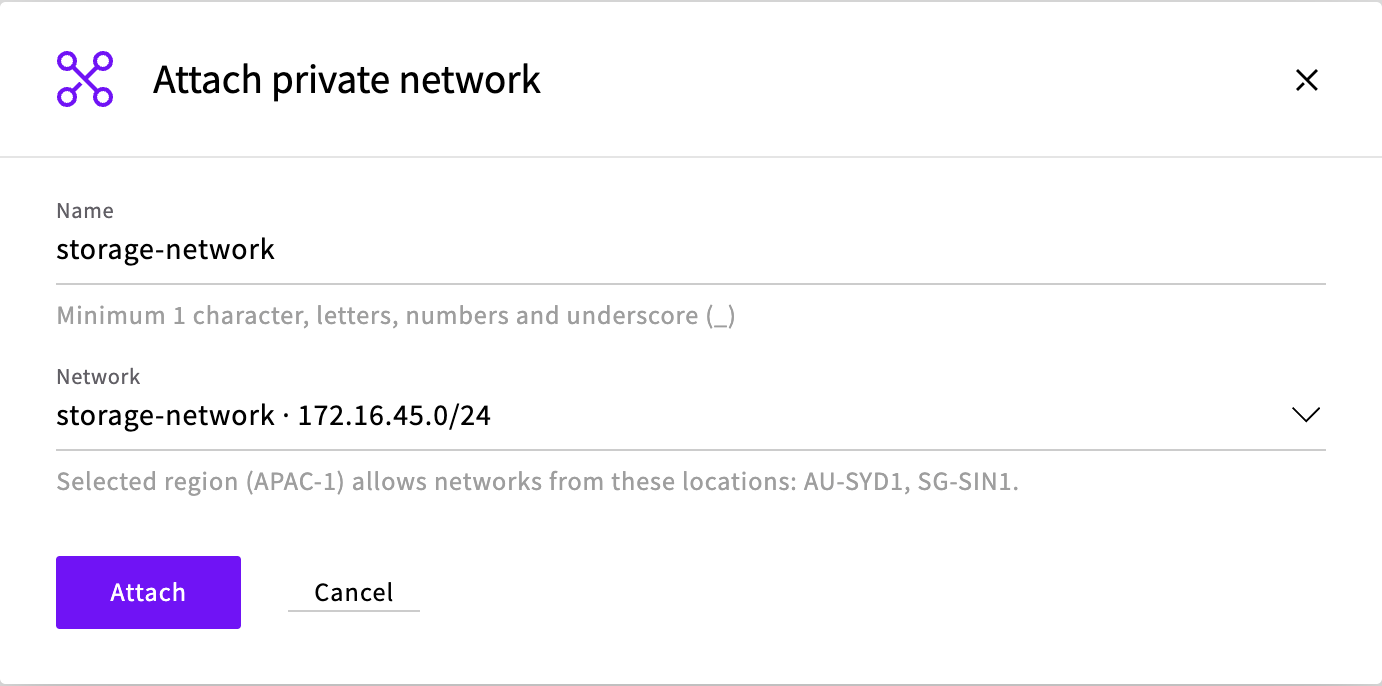
Click Attach. While the network is being attached, the service's status shows setup steps, such as Setting up private endpoint…. The network is attached once the status is Running again.
Private access now lists the service's private S3, IAM and STS endpoints, and the attached network. Copy the S3 endpoint. You need it to connect.
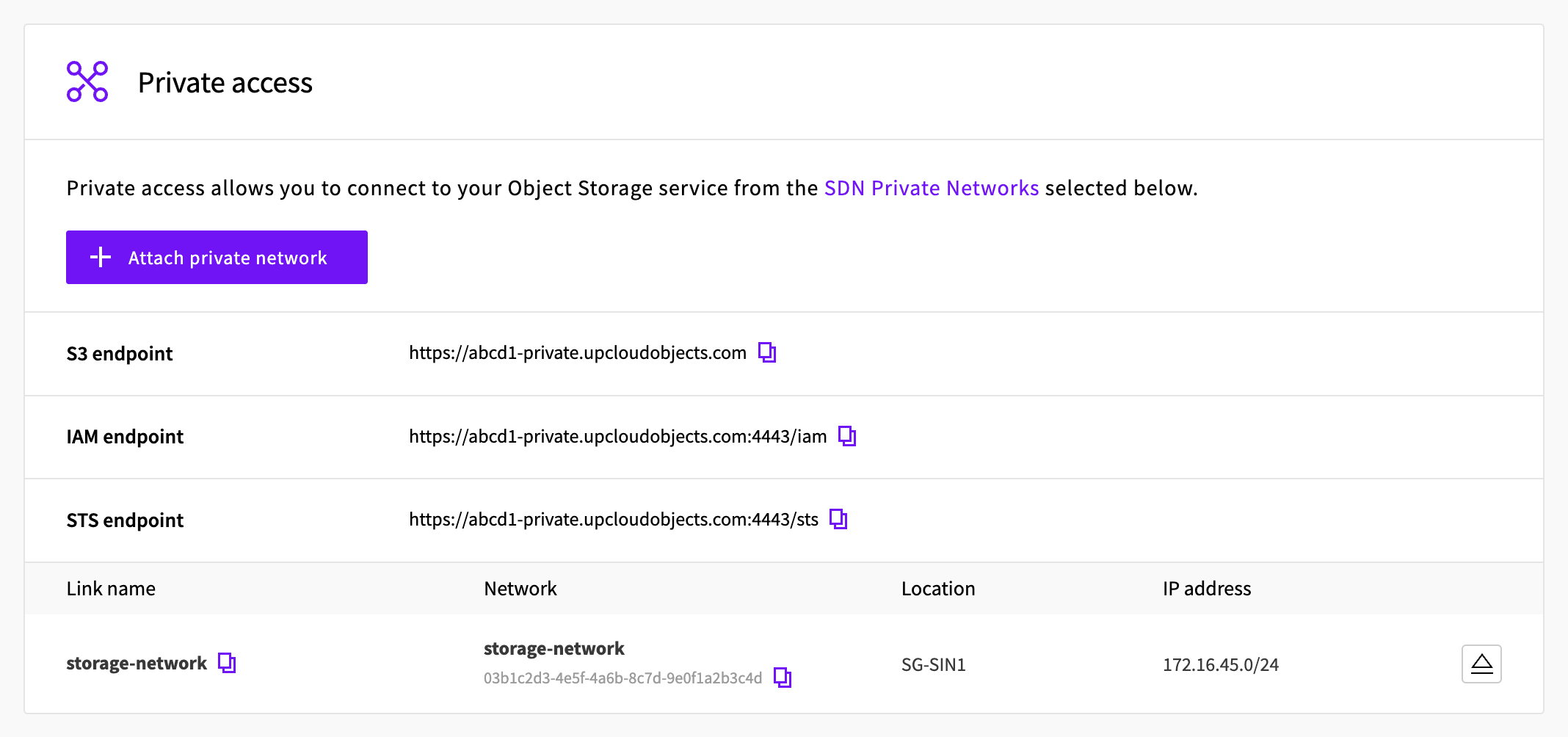
You can attach more networks to the same service in the same way, for example a network in each location where you have servers. They all use the same private endpoints.
Check the server's route to the private endpoint
Servers reach the private endpoint through a route that the network's DHCP hands out. A server that you create after attaching the network gets the route when it starts. A server that was already on the network gets it the next time it renews its DHCP lease. You don't have to wait for that: the steps below check whether the server has the route and, if it doesn't, renew the lease.
To check the route, look up the private endpoint's address and ask the server which way it would send traffic there. Replace abcd1-private.upcloudobjects.com with your service's private S3 endpoint, without https://:
ip route get $(getent hosts abcd1-private.upcloudobjects.com | awk '{print $1; exit}')When the server has the route, the output names the server's interface on the private network, here eth2 with an address from 172.16.45.0/24:
100.126.126.4 via 172.16.45.1 dev eth2 src 172.16.45.2 uid 0
    cache
If the command prints need at least a destination address instead, the server couldn't look up the private endpoint's name. Right after the network is attached, the name can take a moment to appear. Wait a moment and run the command again.
If the output names another interface, usually eth0, the server doesn't have the route yet. To get it, renew the DHCP lease on the server's private network interface. To find the interface, list the server's addresses and look for the one in your network's range:
ip -br -4 addrlo UNKNOWN 127.0.0.1/8
eth0 UP 203.0.113.20/22 metric 100
eth1 UP 10.10.17.76/22 metric 100
eth2 UP 172.16.45.2/24 metric 100Then renew the lease on that interface, here eth2:
sudo networkctl renew eth2Run the ip route get command again to check that the output now names the private network interface. Restarting the server gives it the route too.
Connect with the AWS CLI over the private endpoint
The AWS CLI connects to whichever endpoint its profile names. On the server, set up the upcloud profile as in How to get started with UpCloud Managed Object Storage, and give it the private S3 endpoint:
aws configure set endpoint_url https://abcd1-private.upcloudobjects.com --profile upcloudThen list the bucket:
aws s3 ls s3://product-images/ --profile upcloud2026-10-27 10:09:01 34 hello.txtThe request now goes over the private network. Uploads, downloads and every other S3 request work the same as over the public endpoint, with the same users, policies and access keys. For requests to the IAM and STS endpoints, use the private ones from Private access, for example --endpoint-url https://abcd1-private.upcloudobjects.com:4443/iam.
Requests over the private endpoint come from the server's address on the private network, not from its public IP address. If a policy limits a user to certain IP addresses with aws:SourceIp, add the server's private address or the network's range, for example 172.16.45.0/24. For an example, see How to restrict user access in Managed Object Storage.
Turn off public access (optional)
Attaching a private network doesn't turn public access off. The service stays reachable over the internet as well, and you can keep it that way. If you want the service to be reachable only from your private networks, you can turn public access off. The service then works only through its private endpoints, which changes the following:
- The public S3, IAM and STS endpoints are removed.
- In the Control Panel, the file manager and the bucket policy editor stop working. The Buckets tab still lists your buckets.
- Custom domains and static websites stop working, because they're reached over public access.
Before you turn public access off, check that every server and application that uses the service connects over the private endpoint.
- On the service's Overview tab, turn off the switch next to Public access.
- In the Disable public access window, click Disable.
The status shows Setting up public endpoint… and then Running. Public access now says that it's disabled.
To turn public access back on:
- On the service's Overview tab, turn on the switch next to Public access.
- In the Enable public access window, keep the Network name or enter another one, and click Enable.
Public access is on once the status is Running again.
The public endpoints come back with the same names, and custom domains and static websites work again. Right after the status changes to Running, requests to the public endpoints can fail with Could not connect to the endpoint URL for a moment. If they do, try again.
Detach a network
When servers on a network no longer need the service, detach the network. Servers on it can't reach the service any more, even if they still have the route.
If public access is off, keep at least one network attached. Without public access or a network, nothing can reach the service until you turn public access back on.
- On the service's Overview tab, under Private access, click the Detach icon on the network's row.
- In the Detach network window, click Detach.
The network is detached once the status is Running again.
An SDN Private Network that's attached to a service can't be deleted. Detach it from every service first.
Troubleshooting
Connect timeout on endpoint URL: "https://abcd1-private.upcloudobjects.com/..."The server doesn't have the route to the private endpoint, so the AWS CLI tries to reach it through the public interface and gives up after several attempts. Check the route as in Check the server's route to the private endpoint.
Could not connect to the endpoint URL: "https://abcd1-private.upcloudobjects.com/..."The network isn't attached to the service, or the attachment isn't ready yet. Right after the status changes to Running, requests can fail like this for a moment. Try again. If it keeps failing, check under Private access that the server's network is attached.
SSL validation failed for https://abcd1-private.upcloudobjects.com/... hostname 'abcd1-private.upcloudobjects.com' doesn't match either of ...The server's network isn't attached to the service any more. Attach it again, or connect through another attached network. The same error for the public endpoint,
https://abcd1.upcloudobjects.com, means that public access is off.An error occurred (AccessDenied) when calling the <operation> operation: Access Deniedover the private endpoint onlyA policy limits the user to certain IP addresses with
aws:SourceIp. Over the private endpoint, requests come from the server's private address. Add that address or the network's range to the policy.Network should be attached to a router.The network has no SDN Router. Attach it to a router, then attach it to the service. In the Control Panel, such networks are grayed out.
Network zone should be in the service region.The network is in a location that can't reach the service's region. Use a network in one of the locations listed for the region on Object Storage availability.
There are 1 peerings referencing network <network-uuid>You tried to delete a network that's still attached to a service. Detach it first, as in Detach a network.
Next steps
- Connecting to Managed Object Storage describes public and private access, the endpoints and which locations can reach each region.
- How to restrict user access in Managed Object Storage explains how to give each user only the access it needs.
- How to copy objects between Managed Object Storage instances on a schedule shows a copy job that runs over a private network.
- Best practices for UpCloud Managed Object Storage covers security, performance and cost.