Creating an Object Storage instance using the API
To set up a Managed Object Storage instance, you'll need an UpCloud user account that has API credentials, and an API client. Instructions for creating a user account with API credentials can be found in the Getting started using the UpCloud API guide.
You can find detailed information about all Managed Object Storage endpoints in our API documentation.
In this guide, we'll be using an API client called Insomnia. However, you're free to use any API client that you're comfortable with.
To get started, make the following API request, replacing the name field with your preferred service name, and region with the region where your storage will be hosted.
POST https://api.upcloud.com/1.3/object-storage-2
{
    "name": "my-object-storage",
    "region": "europe-1",
    "configured_status": "started",
    "networks": [
        {
            "name": "public-network",
            "type": "public",
            "family": "IPv4"
        }
    ]
}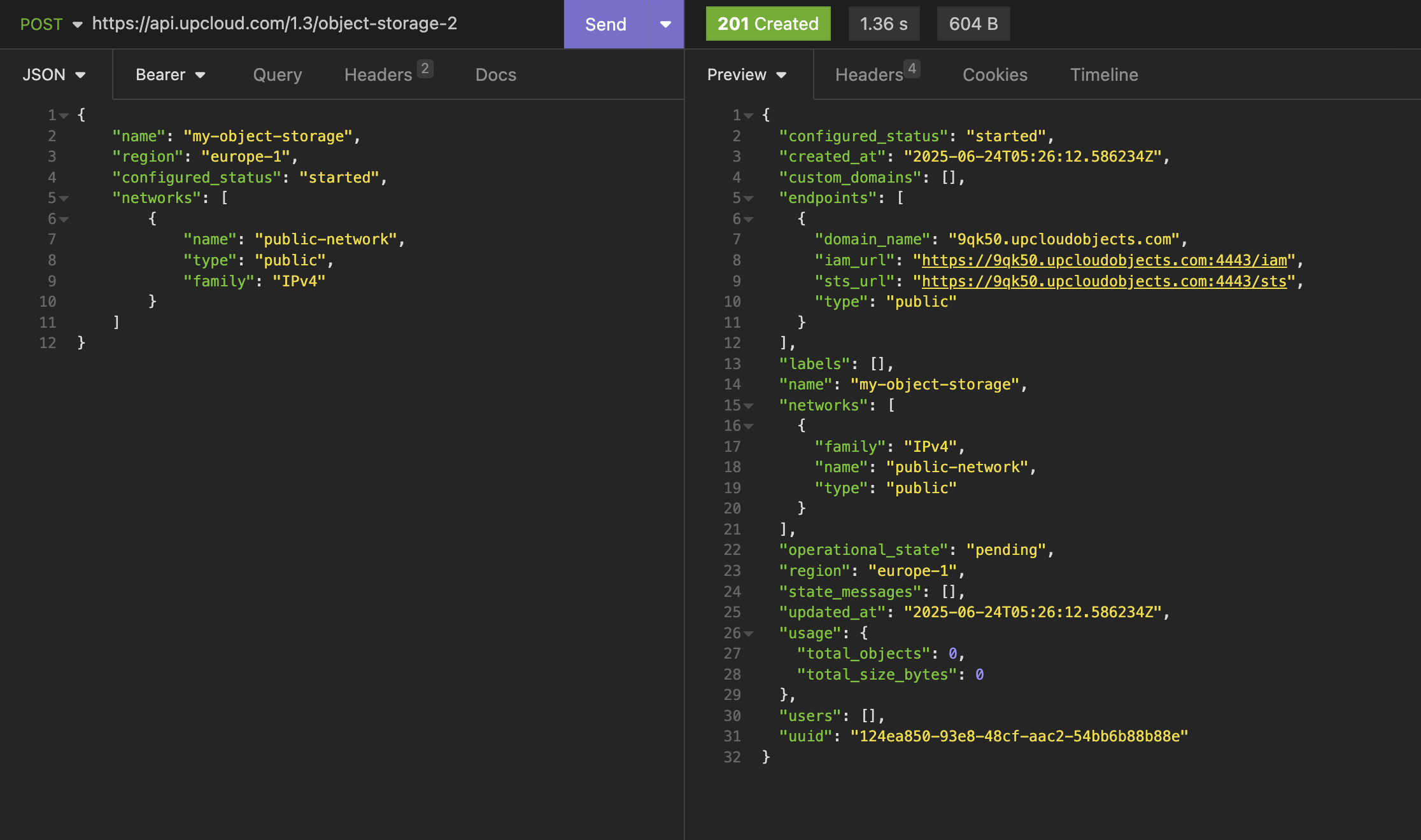
The output on the left confirms that the request was successful and that the Managed Object Storage is now set up. From this output, you will need to note down two key details:
- The Managed Object Storage UUID
- The domain name for the Managed Object Storage endpoint
You will need these later when setting up access keys for the Managed Object Storage instance.
In the example above, the UUID is 124ea850-93e8-48cf-aac2-54bb6b88b88e, and the endpoint domain is 9qk50.upcloudobjects.com.
While setting up your Managed Object Storage, its worth noting that using a private network for internal use is advisable where possible as it does not count towards the public egress fair transfer limit. This is more efficient and cost-effective when transferring data within resources in the same region, such as from a compute cluster to your Managed Object Storage instance. Access rules to the Managed Object Storage remain the same regardless of the network origin of the request.