Share files over NFS with File Storage on Ubuntu
Introduction
This guide walks you through setting up shared network storage using UpCloud File Storage and NFS (Network File System) on Ubuntu servers. File Storage provides scalable, managed storage that can be accessed by multiple servers simultaneously over SDN Private Networks.
Prerequisites
Before starting this guide, you should have:
- Access to the UpCloud Hub
- Basic understanding of Linux command line to work with files
File Storage & NFS basics
File Storage is UpCloud's managed network storage service that provides shared storage accessible over your SDN Private Networks. It's ideal for:
- Shared application data across multiple servers
- Centralized file storage for web applications
- Storing backups and logs
- Content management systems requiring shared media storage
NFS (Network File System) is a distributed file system protocol that allows you to mount remote directories on your server. It enables multiple servers to access the same files simultaneously, making it perfect for use with File Storage.
Create SDN Private Network
File Storage requires an SDN Private Network for connectivity. If you don't already have one, create it first:
- Log in to the UpCloud Hub
- Navigate to Networking → Private networks, select Create Private network
- Configure the network:
- Name: Give it a descriptive name (e.g., "file-storage-network")
- Location: Select your preferred location (must be the same with the server)
- IP network: Use the default (e.g., 192.168.0.0/24) or specify your own private IP range
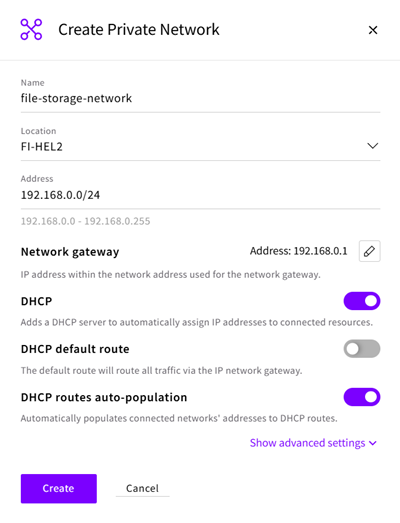
Note the network details - you'll need to attach your servers to this network.
Creating the client server
Now create an Ubuntu server that will access the File Storage:
- In the Hub, navigate to Servers → Deploy server
- Configure your server:
- Location: Select the same location as your SDN Private Network
- Plan: Select a server plan based on your needs
- Operating system: Choose Ubuntu 24.04 LTS or later
- Under Network, select Attach private network
- Select the SDN Private Network you created earlier
- Pick or create an SSH key
- Hostname: Give it a descriptive name (e.g., "nfs-client-01")
Wait for the server to be provisioned and start. Once it's running, connect to it via SSH using the configured SSH key.
Creating the File Storage
Create a File Storage instance in the Hub:
- Navigate to File Storage → Create File Storage
- Configure the storage:
- Location: Must match the location of your Cloud Server
- Storage size: Select the storage size (can be expanded later)
- Network: Select the SDN Private Network you created
- Name: Choose a descriptive name (e.g., "my-file-storage-1")
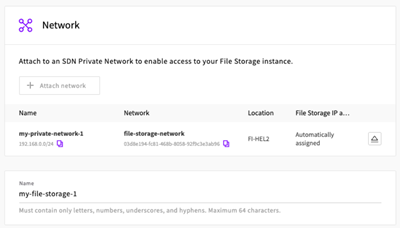
The File Storage instance will be created and you'll see its details, including the IP address - note this down as you'll need it for mounting.
Create an NFS share
After creating the File Storage instance, create an NFS share:
- On your File Storage instance, navigate to the Shares tab, select Create Share
- Configure the share:
- Path: Specify the path (e.g., "/data")
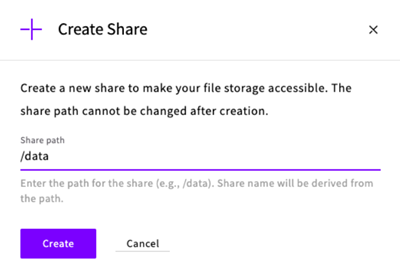
Grant access to the share
Configure the share to be available to all servers on your SDN Private Network with full read & write permissions. You can also configure more precise permissions to a smaller subnet, and also read-only permissions.
- In the Shares tab, Access Rules section, select Create
- Give the access control a descriptive name (for example, "access to all servers")
- Target: Enter the whole network, e.g. 192.168.0.0/24
- Permission: Select Read & Write
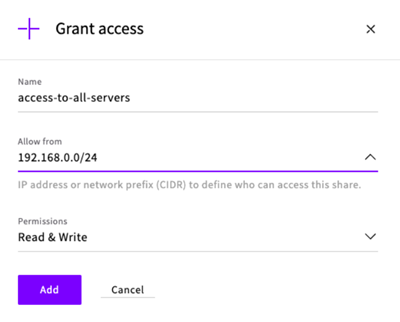
The share is now ready to be mounted from your client server.
Install NFS client on Ubuntu
Connect to your Ubuntu server via SSH and install the NFS client packages:
sudo apt update
sudo apt install nfs-common -y
The nfs-common package provides the necessary tools to mount NFS shares on Ubuntu.
Mount the File Storage share
Create a mount point
First, create a directory where the File Storage will be mounted:
sudo mkdir -p /mnt/sharedMount the NFS share
Mount the share using the File Storage IP address and the share path. Replace FILE_STORAGE_IP with the actual IP address from your File Storage instance:
sudo mount -t nfs FILE_STORAGE_IP:/data /mnt/sharedFor example, if your File Storage IP is 192.168.0.100:
sudo mount -t nfs 192.168.0.100:/data /mnt/sharedVerify the mount:
df -h | grep /mnt/sharedYou should see output showing the mounted File Storage with its total size and available space.
Make the mount persistent
To ensure the File Storage is automatically mounted after server reboots, add an entry to /etc/fstab. Add the following line at the end of the file (replace FILE_STORAGE_IP with your actual IP):
FILE_STORAGE_IP:/data /mnt/shared nfs defaults,_netdev,vers=4.1,nconnect=8,rsize=1048576,wsize=1048576,noatime,hard 0 0The _netdev option ensures the system waits for network connectivity before attempting to mount the share. The mount options have been optimized for best performance.
Test the fstab entry:
sudo umount /mnt/shared
sudo mount /mnt/shared
Verify the mount is successful:
df -h | grep /mnt/sharedTest the File Storage
Now test that you can read and write to the File Storage:
Create a test file
echo "Hello from File Storage!" > /mnt/shared/test.txtRead the test file
cat /mnt/shared/test.txtYou should see the output: Hello from File Storage!
Test from multiple servers
To demonstrate the shared nature of File Storage:
- Create another Ubuntu Cloud Server following the same steps
- Attach it to the same SDN Private Network
- Install the NFS client and mount the same File Storage share
- You'll be able to see the same files on both servers
- Changes made on one server are immediately visible on the other
Performance considerations
For optimal performance:
- Use appropriate mount options: The fstab entry in this guide uses NFSv4.1 with parallel connections (nconnect=8) and larger read/write sizes (1MB) for optimal throughput.
Troubleshooting
Mounting fails
- Verify your server is attached to the correct SDN Private Network
- Check that the File Storage instance is reachable:
ping FILE_STORAGE_IP - Ensure your firewall rules allow NFS traffic (port 2049)
- Check the share's access rights in the Hub
- Verify your server's SDN Private Network IP is allowed in the share configuration
Mount becomes unresponsive
- Check network connectivity to the File Storage:
ping FILE_STORAGE_IP - Verify the File Storage instance is running in the Hub
- Check system logs for errors:
sudo journalctl -xe | grep nfs