How to get started with GPU Servers
GPU Servers are servers with one or more dedicated NVIDIA GPUs, for work such as machine learning, AI inference and rendering. Each GPU belongs to a single server, so your server has the whole GPU to itself.
This guide walks you through deploying a GPU Server in the Control Panel or with the UpCloud API, connecting to it over SSH, and viewing its GPU from the server and from a Docker container.
Before you start
You need:
- An SSH key pair on the computer you'll connect from. To create one, see How to generate and use SSH keys on Linux, macOS and Windows.
- For the API steps, an API token. To create one, see How to get started using the UpCloud API.
GPU Servers run in the FI-HEL2 location in Helsinki. They aren't included in the free trial, and promotional credits can't be used for them. For the details, see GPU Servers availability.
For plans, see GPU Server configurations. For prices, see the pricing page.
Choose your options
GPU model and plan
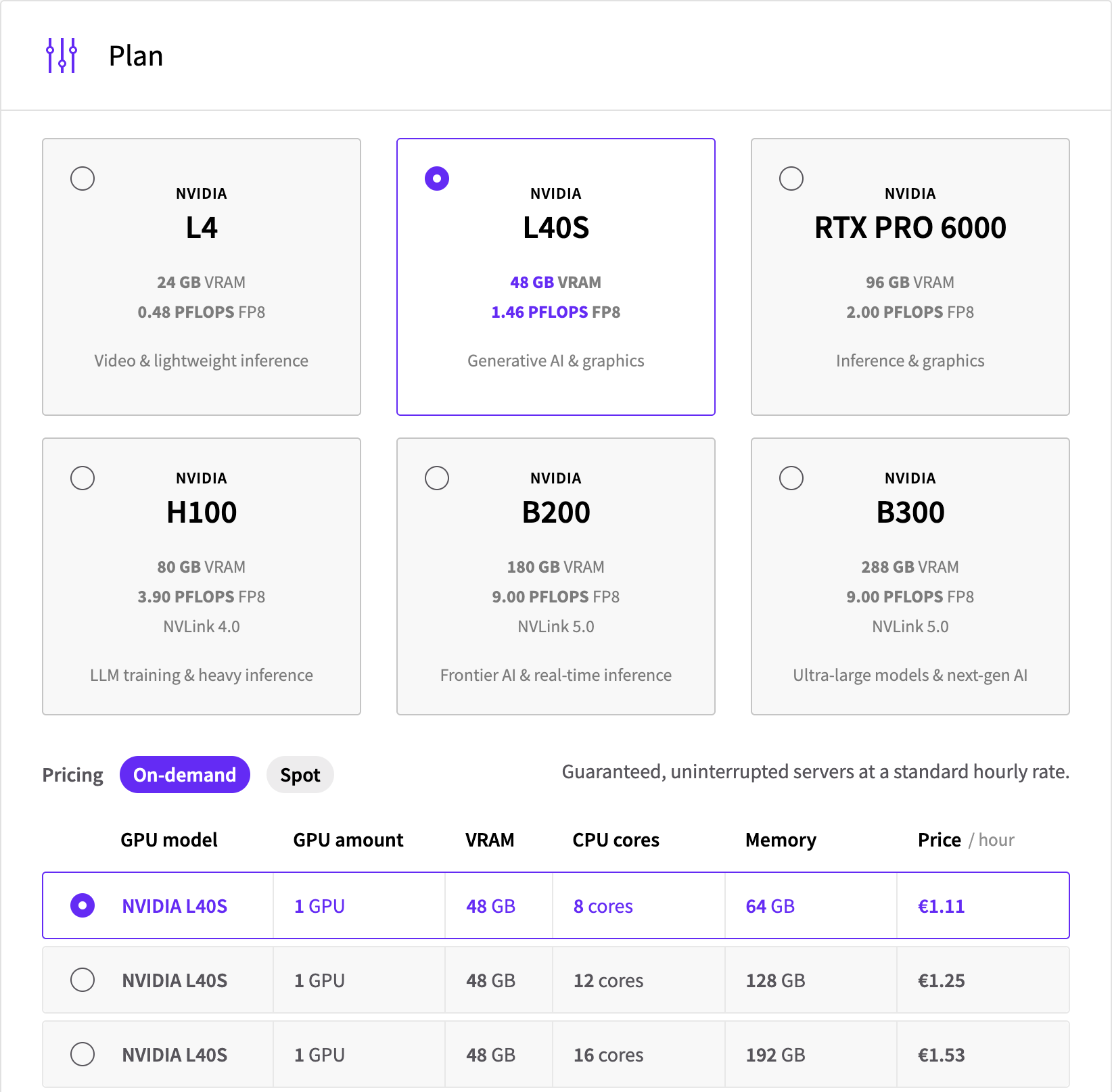
The GPU model decides what kind of work the server suits best. There are six to choose from:
- NVIDIA L4, for video and lightweight inference.
- NVIDIA L40S, for generative AI and graphics.
- NVIDIA RTX PRO 6000, for inference and graphics.
- NVIDIA H100, for LLM training and heavy inference.
- NVIDIA B200, for frontier AI and real-time inference.
- NVIDIA B300, for ultra-large models.
The GPU's memory (VRAM) sets the size of the models you can load onto it, so compare it with the models you plan to run. For the memory and performance of each GPU model, see GPU Server configurations.
You can switch to another plan or GPU model later while the server is stopped, so start with the smallest plan that fits your work.
On-demand or spot
Every plan comes with on-demand or spot pricing. An on-demand server runs until you stop it. A spot server costs less, but UpCloud can stop it when the capacity is needed for on-demand servers.
Spot suits work that can carry on after an interruption, such as batch jobs that save their progress regularly, while on-demand suits anything that has to keep running. For how interruptions work, see Spot instances.
Storage
The GPU plan's price covers the GPUs, CPU cores and memory. The server also needs a storage device for its operating system and your data, and the storage device is billed separately, on top of the plan.
You choose the size of the storage device, and the default is 50 GB. Model weights, datasets and container images take up a lot of space, so choose a larger device if you'll work with them. You can also make the device larger or add more devices later.
MaxIOPS, the default storage tier, suits most GPU workloads. For the other tiers, see Storage on GPU Servers.
Operating system
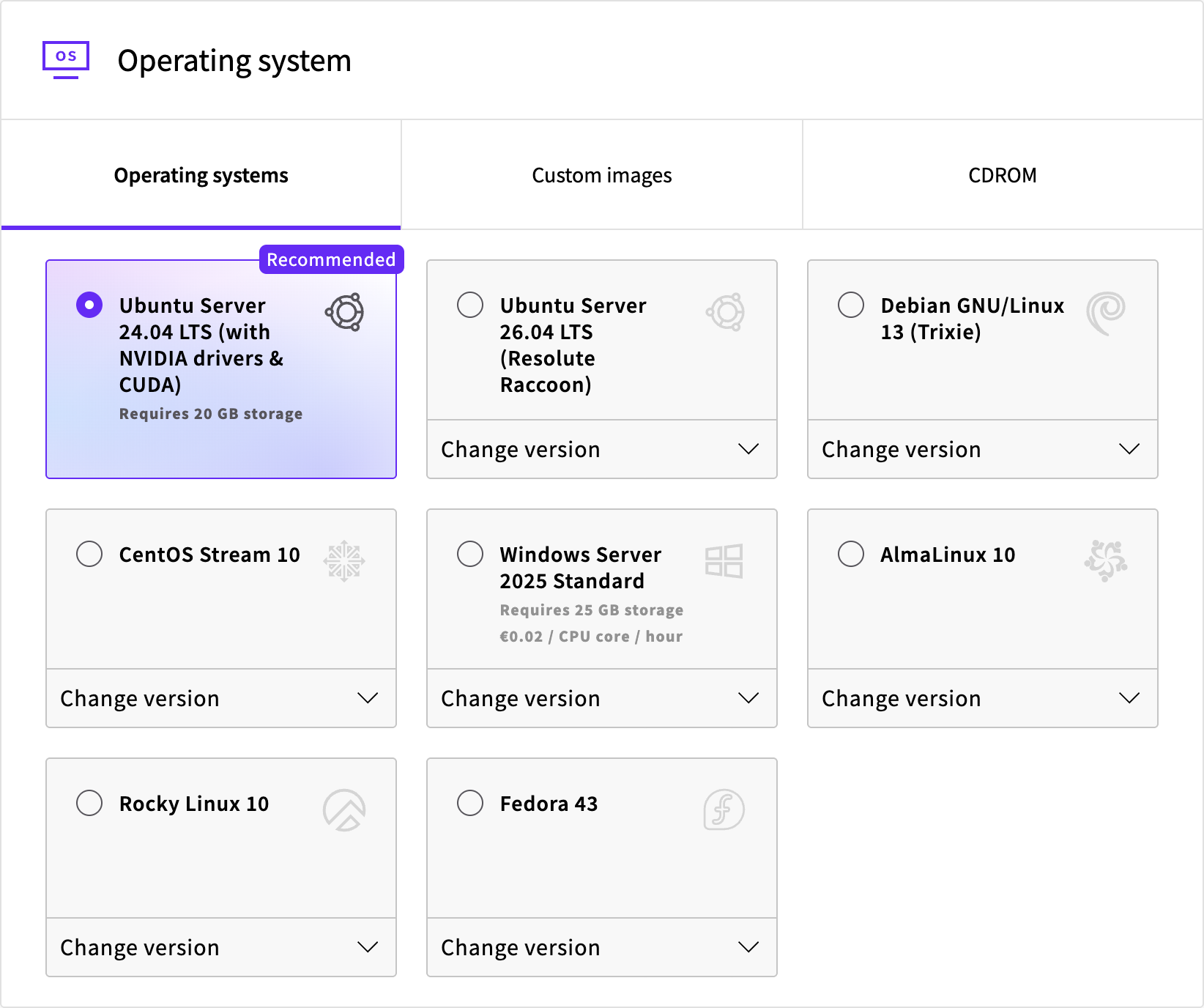
We recommend Ubuntu Server 24.04 LTS (with NVIDIA drivers & CUDA), and this guide uses it. It comes with the NVIDIA driver, the CUDA Toolkit, Docker and the NVIDIA Container Toolkit preinstalled, so the GPU is ready to use, directly and from containers, as soon as the server starts.
Other operating systems are available too, but they don't come with the NVIDIA driver, so you need to install it before you can use the GPU. For what to install, see Recommended software for GPU Servers.
Login
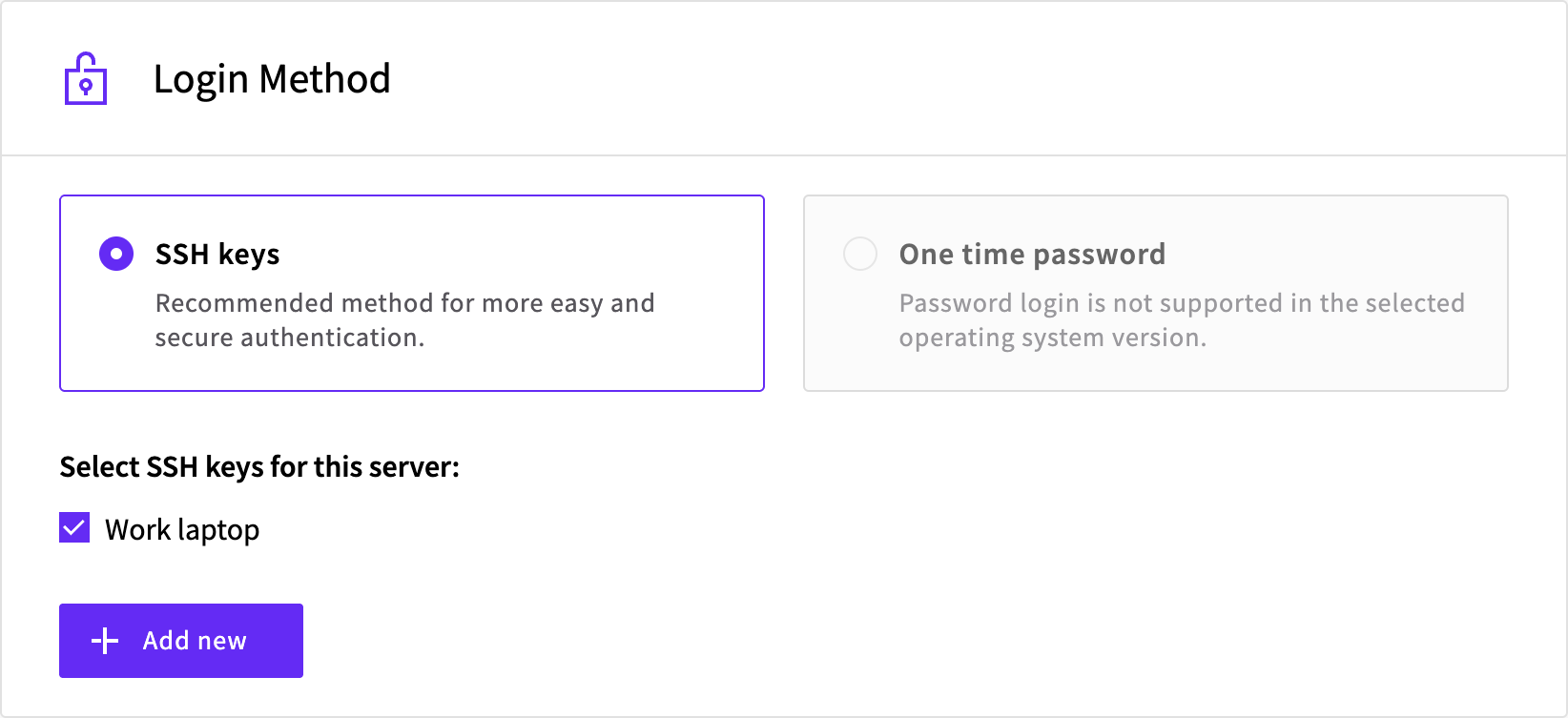
The operating system with the NVIDIA driver preinstalled supports SSH key logins only, so you choose the public key of your key pair when you deploy the server.
Network and backups
The defaults suit most GPU Servers. The server gets a public IPv4 address, which you connect to over SSH, and a Utility network address, which it uses to reach other UpCloud services privately. A public IPv6 address and SDN Private Networks are optional.
Automated backups are off by default, and you can turn them on if you need them.
Deploy the GPU Server
In the Control Panel, go to Servers > GPU Servers and click Deploy GPU Server.
Under Location, select FI-HEL2.
Under Plan, select the GPU model. Next to Pricing, select On-demand or Spot, then select a plan in the list.
Under Storage, set the size of the storage device. Leave Automated backups off, or select a backup plan.
Under Operating system, keep Ubuntu Server 24.04 LTS (with NVIDIA drivers & CUDA), which is selected by default.
Keep the defaults under Network and Optionals, or attach an SDN Private Network if you need one.
Under Login Method, select your SSH key. To add a key that isn't listed, click Add new, enter a Name, paste your public key under Public SSH key and click Save.
Under Server configuration, enter a Hostname and a Server name, for example
gpu-server-1.Check the plan, storage and price in the Summary, then click Deploy.
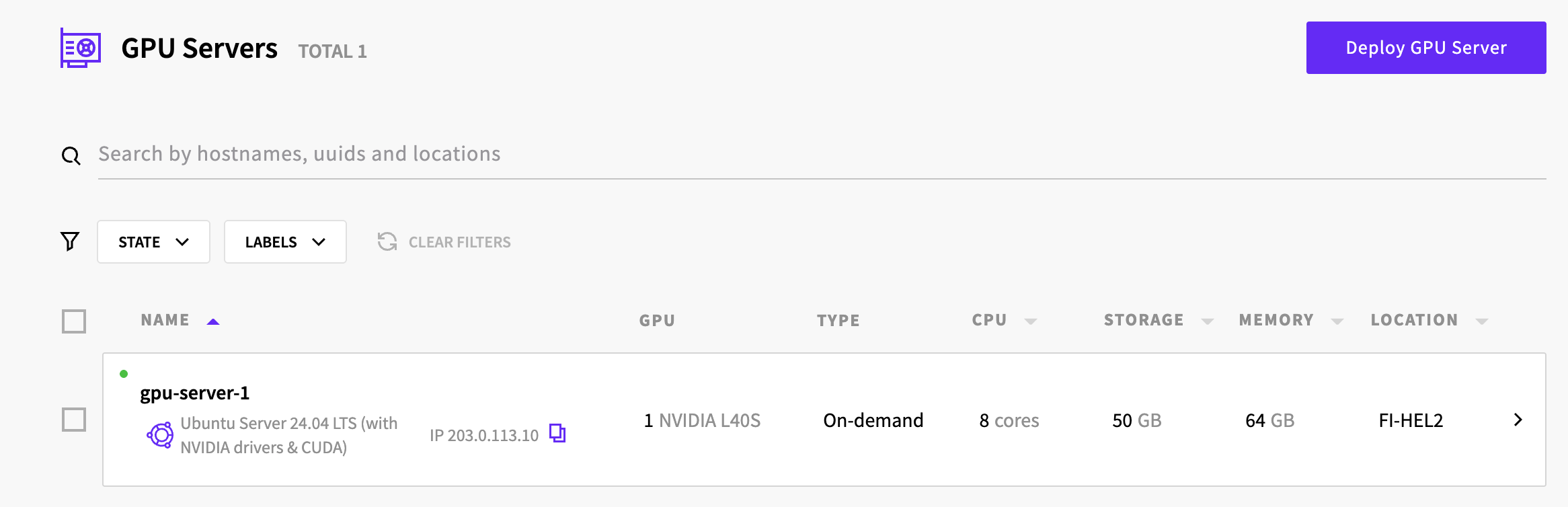
The Control Panel goes to the GPU Servers list. Click the server to open its page: the server is ready to use once the state at the top of the page is Started.
Connect to the GPU Server
You connect to the GPU Server over SSH as root, through its public IPv4 address, so start by finding the address.
ssh command, click How to connect on the server's Overview tab.Connect to the server, replacing 203.0.113.10 with its IP address:
The first time you connect, SSH asks you to confirm the server's host key. Check that the IP address in the question is your server's, then type yes.
View the GPU
nvidia-smi shows the GPUs the server can use and what's running on them. Run it on the server:
nvidia-smiSat Oct 31 07:32:30 2026
+-----------------------------------------------------------------------------------------+
| NVIDIA-SMI 595.58.03 Driver Version: 595.58.03 CUDA Version: 13.2 |
+-----------------------------------------+------------------------+----------------------+
| GPU Name Persistence-M | Bus-Id Disp.A | Volatile Uncorr. ECC |
| Fan Temp Perf Pwr:Usage/Cap | Memory-Usage | GPU-Util Compute M. |
| | | MIG M. |
|=========================================+========================+======================|
| 0 NVIDIA L40S On | 00000000:00:07.0 Off | 0 |
| N/A 32C P8 24W / 350W | 0MiB / 46068MiB | 0% Default |
| | | N/A |
+-----------------------------------------+------------------------+----------------------+
+-----------------------------------------------------------------------------------------+
| Processes: |
| GPU GI CI PID Type Process name GPU Memory |
| ID ID Usage |
|=========================================================================================|
| No running processes found |
+-----------------------------------------------------------------------------------------+The header shows the version of the NVIDIA driver and the newest CUDA version it supports. Below it, each GPU of the plan has a row of its own, with its model, memory use and load.
The operating system also has Docker set up to use the GPU. To see the GPU from a container, run nvidia-smi -L in NVIDIA's CUDA image, which lists the GPUs the container sees:
docker run --rm --gpus all nvidia/cuda:13.2.1-base-ubuntu24.04 nvidia-smi -LDocker downloads the image the first time, and the last line shows the GPU:
Unable to find image 'nvidia/cuda:13.2.1-base-ubuntu24.04' locally
13.2.1-base-ubuntu24.04: Pulling from nvidia/cuda
...
Status: Downloaded newer image for nvidia/cuda:13.2.1-base-ubuntu24.04
GPU 0: NVIDIA L40S (UUID: GPU-eb89b57a-8e0c-d422-97e8-fbf1bca2d4d7)
Delete the GPU Server
When you no longer need the GPU Server, delete it together with its storage device. Stopping the server isn't enough to end the charges: a stopped GPU Server isn't billed for the server itself, but its storage and public IP addresses are. Starting it again also depends on a free GPU of its model, the same as deploying a new server.
- Go to Servers > GPU Servers and open the server.
- Click Shut down, then click Shut down in the dialog. Once the server has stopped, the button changes to Start.
- Click the arrow next to Start and select Delete.
- In the Delete server dialog, the server's storage device is selected, so it's deleted along with the server. To keep the device, clear its checkbox. Then click Delete.
Troubleshooting
These GPU plans are temporarily at capacity. More availability may open up soon.No GPUs of the selected model are free at the moment. Choose another GPU model, or deploy the server later. With the API, the plans listed by
GET /1.3/device/availability?zone=fi-hel2&type=gpuare the ones you can deploy.[email protected]: Permission denied (publickey).The keys SSH tried don't match the public key you selected when you deployed the server. If the matching private key isn't your default key, tell SSH to use it, for example
ssh -i ~/.ssh/gpu_key [email protected].
Next steps
- GPU Server configurations lists every GPU model and plan.
- Spot instances explains how spot servers are interrupted and how to prepare your work for it.
- Recommended software for GPU Servers lists the drivers and tools to install on other operating systems.
- Storage on GPU Servers describes the storage tiers and how to add storage.
- GPU Servers FAQ answers common questions about billing, hardware and software.
NVIDIA is a registered trademark of NVIDIA Corporation.