How to get started with Managed OpenSearch
Managed OpenSearch runs OpenSearch, the open-source search and analytics suite, as a service. You choose a plan and the network, and UpCloud runs the cluster's nodes for you. Every service also comes with OpenSearch Dashboards, a web interface for exploring your data.
This guide walks you through creating a Managed OpenSearch service in the Control Panel or with the UpCloud API, sending it requests with curl, opening OpenSearch Dashboards, and using it from a Python application.
Before you start
For the API steps, you need an API token. To create one, see How to get started using the UpCloud API.
For plans, see Managed OpenSearch configurations. For prices, see the pricing page.
Choose your options
Before you create the Managed OpenSearch service, decide on these options. They set where the service runs, what it costs and who can connect to it. The steps for setting them in the Control Panel or with the API come after, in Create the Managed OpenSearch service.
A few of the choices can't be undone. The hostname prefix can't be changed. The OpenSearch version can be upgraded, but not changed back to an older one. Once the service is attached to an SDN Private Network, it can't go back to the Utility network.
Location
Create the Managed OpenSearch service close to the clients that will use it. If they're Cloud Servers, put the service in their location so that they can connect to it privately. For the list of locations, see Managed OpenSearch availability.
Version
Choose the newest OpenSearch version that your applications and tools support. OpenSearch 3.8 is a preview version, so for production, choose the newest version that isn't a preview. You can upgrade the Managed OpenSearch service to a newer version later, but you can't go back to an older one.
Plan
The plan sets the size of the whole Managed OpenSearch service in one go: the number of nodes, the CPU cores and memory of each node, the storage, and how many days backups are kept. The plan's identifier spells these out. For example, 3x2xCPU-4GB-120GB-3D has 3 nodes with 2 cores and 4 GB of memory each, 120 GB of storage shared between the nodes, and 3 days of backups. For every plan, including how many days its backups are kept, see Managed OpenSearch configurations.
The plans with 14 GB of memory can have 3, 6, 9, 12 or 15 nodes. Each extra set of 3 nodes adds the plan's storage again.
On plans with 3 or more nodes, each new index gets a copy on another node, so your data stays available if a node fails. A 1-node service keeps a single copy. For how this works, see Managed OpenSearch High availability.
The service is backed up automatically every hour, and the backups are kept for the plan's number of days.
If the plan's storage isn't enough, you can add disk space on top of it. The extra space goes to every node in equal steps, so the step size and the maximum depend on the plan and the number of nodes.
Connection access
The private connection decides which private network your Cloud Servers use to reach the Managed OpenSearch service:
- The Utility network is the default. Servers in the same location can connect over their Utility network interface, with nothing else to set up.
- An SDN Private Network can be attached instead, and then only servers on that network can connect privately. The network must be attached to an SDN Router: see How to connect private networks using SDN Router.
Make this choice when you create the service. You can attach a network later, but from then on, servers can't reach the service over the Utility network. Detaching the network doesn't bring the Utility network back: it leaves the service without a private connection.
The public connection is off by default. Turn it on when you want to connect over the public internet through the public hostnames, for example to open OpenSearch Dashboards in your browser. The public hostnames accept connections only while the public connection is on, and only from the addresses in the allowed IP list.
Allowed IP access
Two settings decide which addresses can connect:
- Automatic access from Utility network servers is on by default and lets every Cloud Server in the same location connect over the Utility network. To allow only some of them, turn it off and add their Utility network addresses to the allowed IP list.
- The allowed IP list holds IPv4 addresses in CIDR notation, for example
203.0.113.10/32. It controls connections through the public hostnames, and also Utility network connections while automatic access is off.
With an empty list, nobody can connect through the public hostnames. Servers on an attached SDN Private Network don't need to be in the list.
Maintenance schedule
Choose the day and the start time (UTC) for maintenance updates. See Managed OpenSearch Maintenance.
Termination protection
Termination protection is off by default. Turn it on for a Managed OpenSearch service you can't afford to lose by accident: while it's on, the service can't be deleted or shut down until you turn protection off again.
Service name and hostname prefix
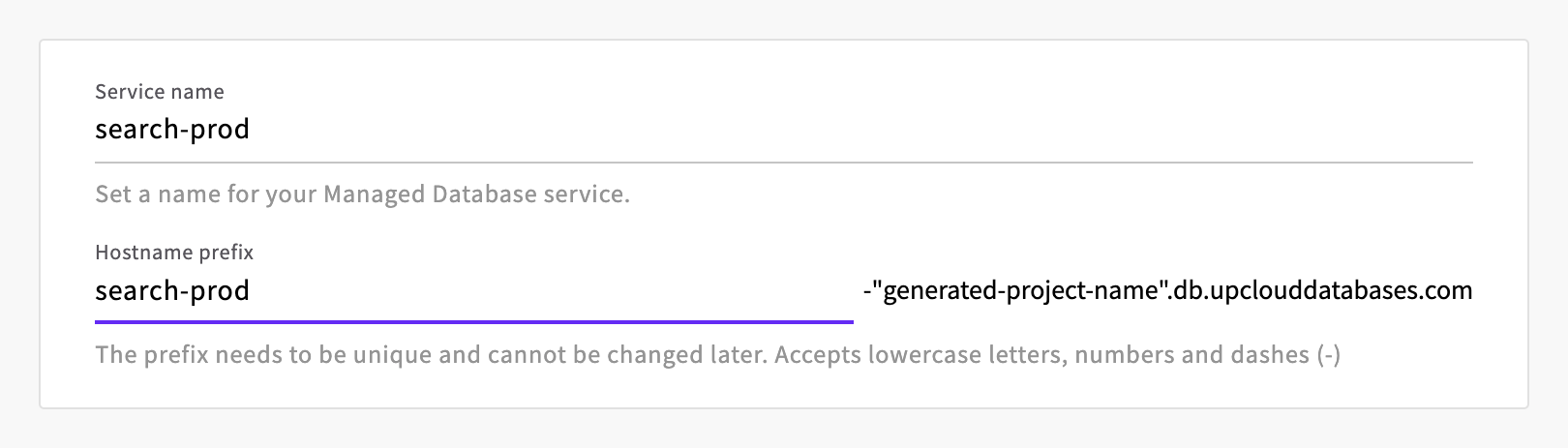
The service name is just for you, and you can change it later. The hostname prefix becomes the first part of the service's hostnames. It must be unique, start with a letter and contain only lowercase letters, numbers and dashes, and you can't change it later.
Create the Managed OpenSearch service
In the Control Panel, go to Databases and click Create Managed Database.
Under Location, select the location.
Under Database, select OpenSearch. The form selects OpenSearch 3.8, the preview version. To choose another version, click Change version and select it.
Under Plan, select a plan. The list shows each plan's CPU cores, memory, storage, nodes and monthly price.
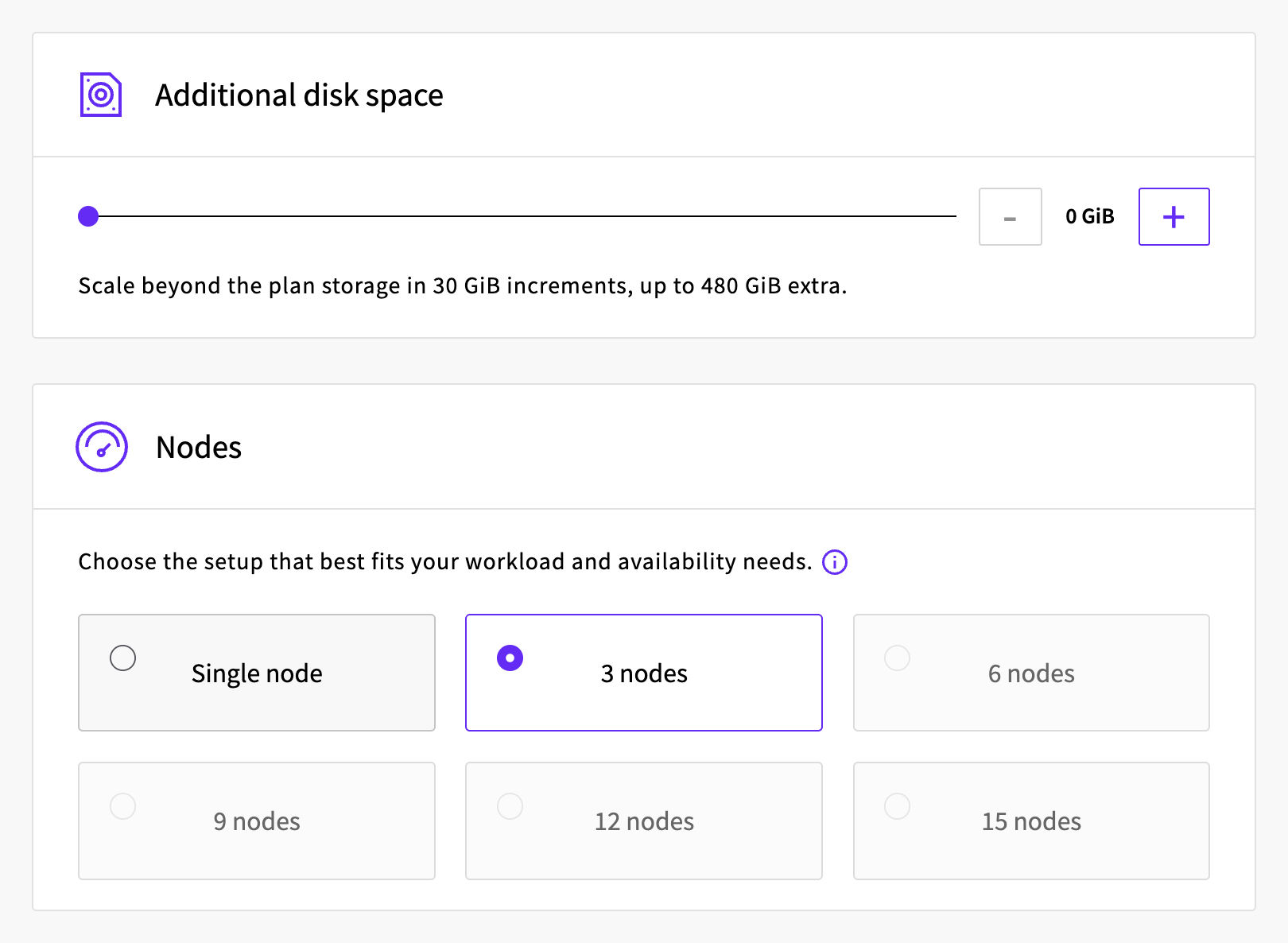
Under Additional disk space, add disk space if you need it. The text under the slider shows the step size and the maximum for the plan.
Under Nodes, select the number of nodes. With the 14 GiB plans, you can choose from 3 to 15 nodes. With the other plans, Single node and 3 nodes switch to the plan with the same memory and that number of nodes.
Under Connection access, turn on Public connection if you need it. For the private connection, keep Utility network, or click Attach private network, enter a Name for the attachment, select the network under Network and click Attach.
Under Allowed IP access, keep Automatic access from Utility network servers on, or turn it off. The switch is shown only while the service uses the Utility network. Add addresses to IPv4 CIDR addresses: Servers IP picks addresses from your Cloud Servers, and Add my IP adds the address you're browsing from.
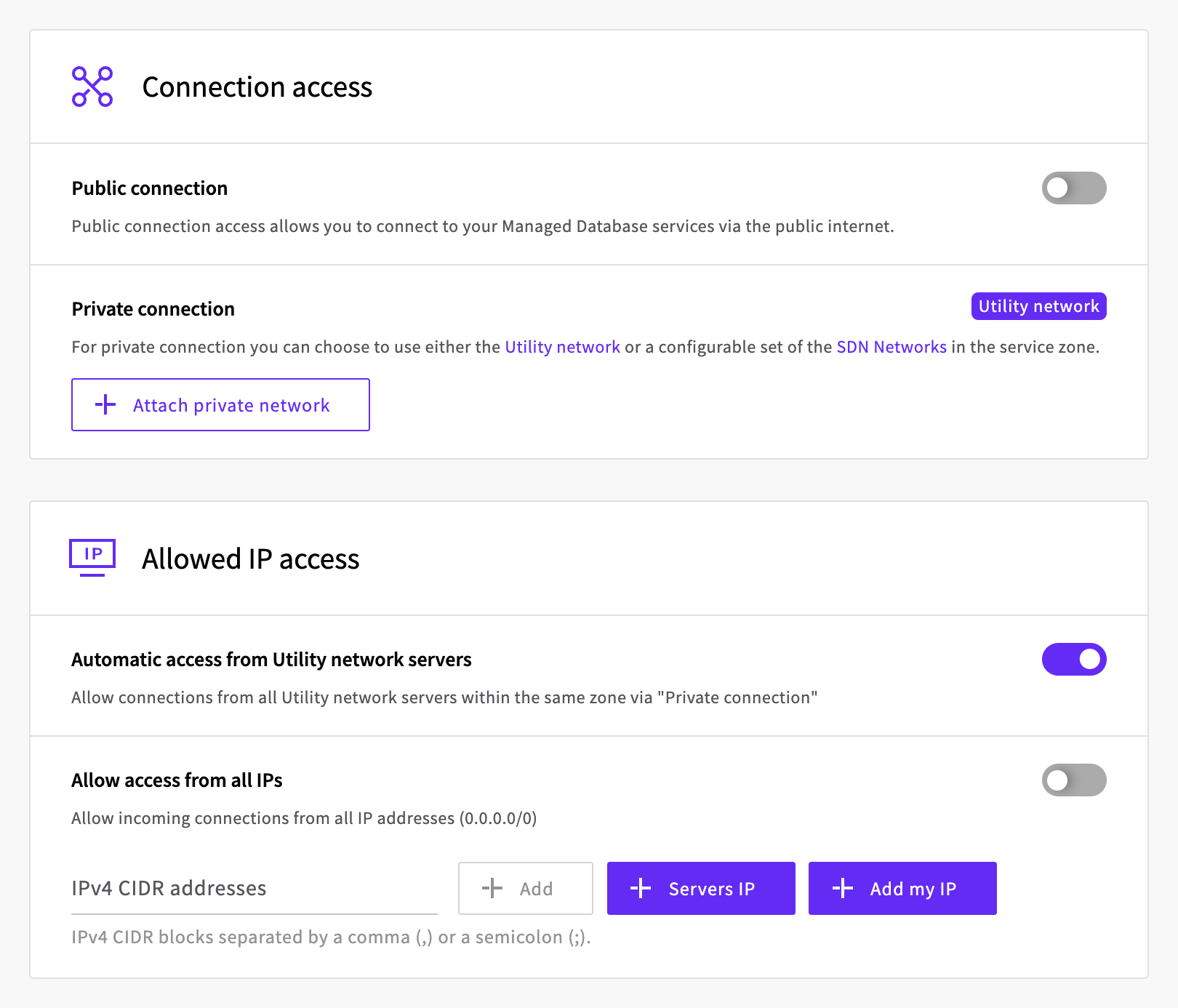
With the defaults, Cloud Servers in the same location can connect over the Utility network, and nothing can connect over the public internet.
Set the Maintenance schedule, and turn on Termination protection if you want it.
Enter a Service name and a Hostname prefix, check the total in the Summary, then click Create Database.
The service's page opens, and the service is ready to use once its status changes to Started.
Connect to the Managed OpenSearch service
To try out the connection, you need a computer with curl. How it connects depends on where it is:
- A Cloud Server in the same location as the service can connect privately, without going over the public internet.
- Any other computer, such as your own, connects over the public internet through the public hostnames. Turn on public connection and add the computer's public address to the allowed IP list first.
Find the connection details
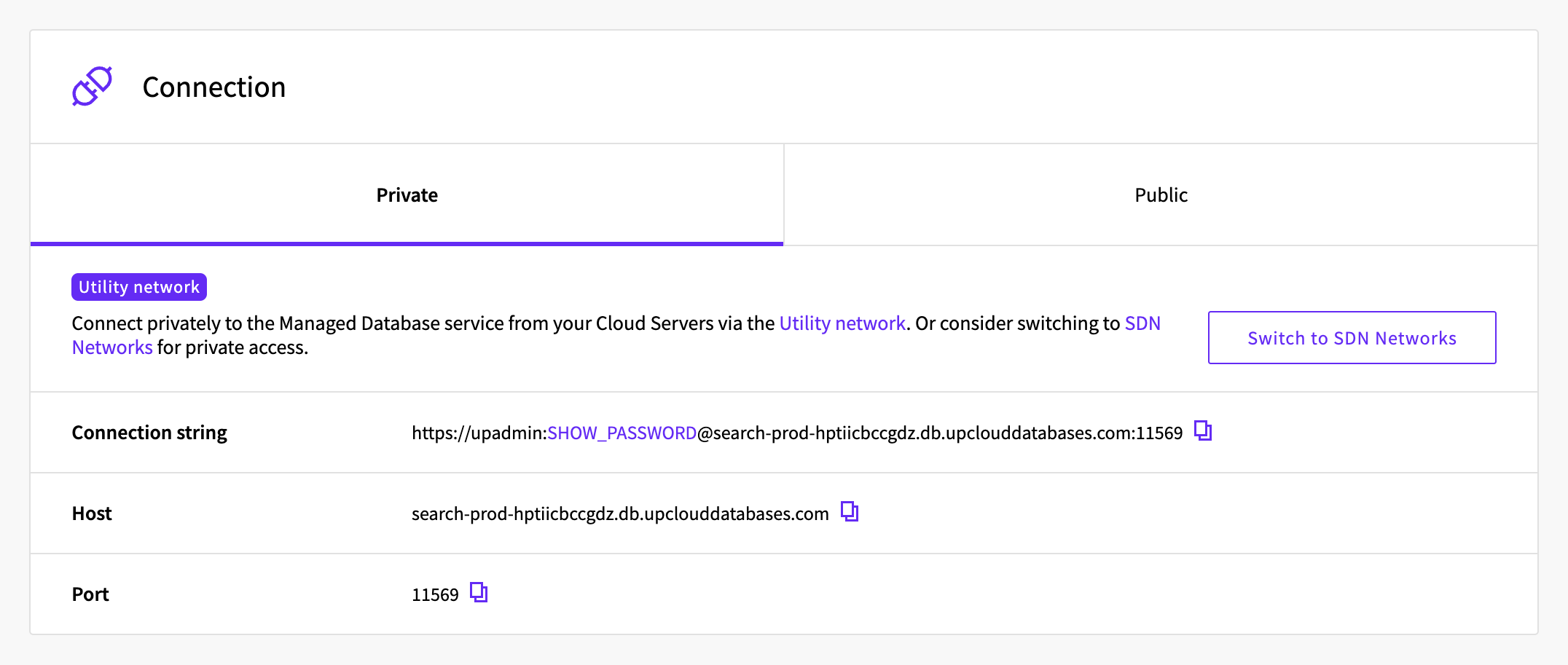
Go to Databases and open the Managed OpenSearch service. The Overview tab shows:
- Connection: the connection string, host and port. Private has the details for private connections, and Public for connections over the public internet. While public connection is off, Public shows only the switch that turns it on.
- Auth: the username,
upadmin, and the password. Click Show to see the password.
Auth also shows a CA certificate, which you don't need for OpenSearch. The service's certificate is issued by a public certificate authority, so clients check it with the certificates they already trust.
All of the service's hostnames end in .db.upclouddatabases.com:
<hostname-prefix>-<id>is the private hostname. On a service with more than one node, it points to all of the nodes.public-<hostname-prefix>-<id>is the same over the public internet. It's listed only while public connection is on, and it accepts connections only from addresses in the allowed IP list.
The private hostname works from servers in the same location over the Utility network, and from servers on an SDN Private Network attached to the service. On both hostnames, the OpenSearch API answers on the port in the connection details, and OpenSearch Dashboards on port 443.
Send requests with curl
You use OpenSearch through its REST API over HTTPS, so curl is enough to try it out. Ubuntu 26.04 comes with curl installed.
Take the host and port from the connection details. In the Control Panel, which tab to take them from depends on where you run the commands:
- On a Cloud Server in the same location as the Managed OpenSearch service, use the Private tab.
- On any other computer, use the Public tab.
With the API, service_uri_params has the private host and port.
--user upadmin makes curl ask for the password. The service accepts only encrypted connections. Its certificate is issued by a public certificate authority, so curl checks it without any extra options.
Check that you can reach the service:
curl --user upadmin https://<hostname>:<port>/Enter host password for user 'upadmin':
{
"name" : "search-prod-3",
"cluster_name" : "ab3e5a73-c23c-4d06-a98f-11d71e554a53",
"cluster_uuid" : "VfXAvl5rQa-b0c-KNjStNA",
"version" : {
"distribution" : "opensearch",
"number" : "3.6.0",
"build_type" : "unknown",
"build_hash" : "unknown",
"build_date" : "2026-10-06T00:00Z",
"build_snapshot" : false,
"lucene_version" : "10.4.0",
"minimum_wire_compatibility_version" : "2.19.0",
"minimum_index_compatibility_version" : "2.0.0"
},
"tagline" : "The OpenSearch Project: https://opensearch.org/"
}The response names the node that answered and the OpenSearch version. To see the state of the whole service, ask for the cluster health:
curl --user upadmin "https://<hostname>:<port>/_cluster/health?pretty"Enter host password for user 'upadmin':
{
"cluster_name" : "ab3e5a73-c23c-4d06-a98f-11d71e554a53",
"status" : "green",
"timed_out" : false,
"number_of_nodes" : 3,
"number_of_data_nodes" : 3,
...
}green means that every index has all of its copies in place.
Now add a document to an index named greetings:
curl --user upadmin "https://<hostname>:<port>/greetings/_doc?refresh=true&filter_path=result&pretty" -H 'Content-Type: application/json' -d '{"message": "Hello from Managed OpenSearch"}'Enter host password for user 'upadmin':
{
"result" : "created"
}The index doesn't exist yet, so OpenSearch creates it. refresh=true makes the document searchable straight away, and filter_path=result keeps only the result in the response.
Search the index for documents that contain "hello":
curl --user upadmin "https://<hostname>:<port>/greetings/_search?q=message:hello&filter_path=hits.hits._source&pretty"Enter host password for user 'upadmin':
{
"hits" : {
"hits" : [
{
"_source" : {
"message" : "Hello from Managed OpenSearch"
}
}
]
}
}Open OpenSearch Dashboards
OpenSearch Dashboards is a web interface for searching and visualizing the data in the Managed OpenSearch service. You open it in your browser, on port 443 of the service's hostnames. The private hostname works only on private networks, so from your own computer, Dashboards opens through the public hostname:
- Turn on public connection, and add your computer's public address to the allowed IP list. In the Control Panel, Add my IP under Allowed IP access adds the address you're browsing from.
- Open
https://public-<hostname-prefix>-<id>.db.upclouddatabases.comin your browser. In the Control Panel, Go to dashboards on the service's Overview tab opens it in a new tab. - Log in with the username
upadminand the service's password. - The first time you log in, Dashboards asks you to select a tenant. Tenants decide who can see the visualizations and dashboards you save. Keep Private and click Confirm.
- Dashboards then shows a message about a new Discover experience that needs changes to its configuration file. Managed OpenSearch manages that file for you, so click Dismiss.
- On the welcome page, click Explore on my own.
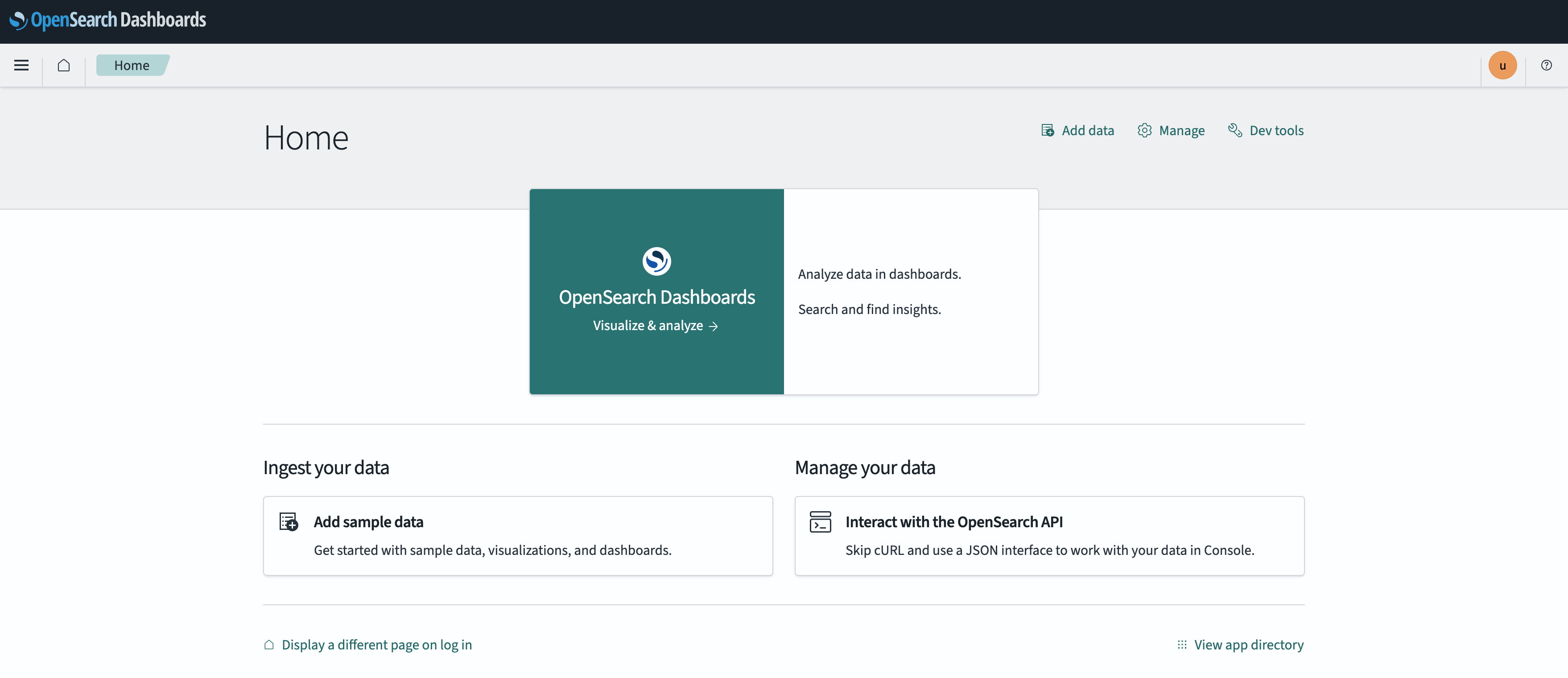
Dashboards opens on its home page.
When you no longer need Dashboards from your computer, turn public connection off again to keep the service private.
Connect from an application
Applications connect the same way, with an OpenSearch client library and the connection string. This example uses opensearch-py, the official OpenSearch client for Python, which checks the server's certificate by default.
Install it in a virtual environment. On Ubuntu 26.04:
sudo apt install python3-venv
python3 -m venv venv
source venv/bin/activate
pip install opensearch-py
Save this short program as app.py. It reads the connection string from an environment variable, adds a document to the greetings index and prints every message that contains "hello":
import os

from opensearchpy import OpenSearch

client = OpenSearch(os.environ["OPENSEARCH_URL"])
client.index(index="greetings", body={"message": "Hello from Python"}, refresh=True)
response = client.search(index="greetings", body={"query": {"match": {"message": "hello"}}})
for hit in response["hits"]["hits"]:
    print(hit["_source"]["message"])
Run it with your connection string in OPENSEARCH_URL. In the Control Panel, the copy icon next to Connection string, on the same tab you took the host from, copies it to your clipboard, including the password. With the API, service_uri has the connection string with the private hostname.
export OPENSEARCH_URL='https://upadmin:<password>@<hostname>:<port>'
python app.pyHello from Python
Hello from Managed OpenSearchOpenSearch returns the best matches first, so the order depends on how well each message matches the search.
Delete the Managed OpenSearch service
- Go to Databases and open the service.
- Click Shut down, then click Shut down in the dialog. The status changes to Stopped. While the service is started, Delete isn't available.
- Open the menu next to Start and select Delete.
- Click Delete to confirm.

The Control Panel returns to the list of databases.
If termination protection is on, the Shut down dialog tells you so and won't let you continue. Click Disable termination protection in the dialog to go to the Termination protection switch on the Overview tab, turn it off, and start again.
Troubleshooting
UnauthorizedThe password is wrong. Copy it again from the connection details.
curl: (52) Empty reply from serverThe URL starts with
http://. The Managed OpenSearch service accepts only encrypted connections, so usehttps://.Connections from a new server in the same location fail with
curl: (28) Failed to connect to <hostname> port <port> after 134206 ms: Could not connect to serverA Cloud Server created after the service can take a while to get access over the Utility network. To let it connect straight away, add the server's Utility network address to the allowed IP list, for example
10.4.36.209/32. Use the Utility network address, not the public one, because that's the address the server connects from.Connections through a public hostname time out, or OpenSearch Dashboards doesn't load in your browser
Either public connection is off, or the address you're connecting from isn't in the allowed IP list. Turn public connection on and add the address to the list.
Connections from a server on the SDN Private Network time out
A server that joined the network before the service did only gets the route to the service when it renews its DHCP lease. Find the server's interface on the SDN Private Network with
ip -br addr, then renew the lease. On Ubuntu:sudo networkctl renew <interface>
Next steps
- How to export Managed Database logs to OpenSearch and Rsyslog explains how to collect the logs of your other Managed Databases in your Managed OpenSearch service.
- How to ship Managed Kubernetes logs to Managed OpenSearch with Fluent Bit explains how to collect your Kubernetes cluster's logs in your Managed OpenSearch service.
- Connecting to Managed OpenSearch describes the private and public connection options.
- Managed OpenSearch High availability describes how the nodes keep copies of your data.
- Customisable Managed OpenSearch properties lists the settings you can change with the API.
For the other database engines, see How to get started with Managed MySQL, How to get started with Managed PostgreSQL or How to get started with Managed Valkey.