How to get started with Managed PostgreSQL
Managed PostgreSQL runs PostgreSQL®, the open-source relational database, as a service. You choose the size, the version and the network, and UpCloud runs the database nodes for you.
This guide walks you through creating a Managed PostgreSQL service in the Control Panel or with the UpCloud API, connecting to it with psql, and using it from a Python application.
Before you start
For the API steps, you need an API token. To create one, see How to get started using the UpCloud API.
For plans, see Managed PostgreSQL configurations. For prices, see the pricing page.
Choose your options
Before you create the service, decide on these options. They set where the service runs, what it costs and who can connect to it. The steps for setting them in the Control Panel or with the API come after, in Create the service.
Three of the options can't be undone: the hostname prefix can't be changed, the service can't move to an older PostgreSQL version, and once the service is attached to an SDN Private Network, it can't go back to the Utility network.
Location
Create the service close to the clients that will use it. If they're Cloud Servers, put the service in their location so that they can connect to it privately. For the list of locations, see Managed PostgreSQL availability.
Version
New services get the newest version, PostgreSQL 18, and you can pick an older one instead. Unless your application needs an older version, keep the newest: you can't move the service to an older version later.
If your application needs a particular extension, check that it's available for your version in Supported PostgreSQL extensions.
Compute and storage
The compute plan sets the CPU cores and memory of each node. The plans come in three families:
- Developer plans have 1 core and run on a single node, for development, testing and small workloads.
- Standard plans have balanced CPU and memory for most production workloads.
- High Memory plans have more memory per core, for workloads that keep a lot of data in memory.
Storage is the disk space for your data. Every node keeps a full copy of the data, so each node gets the storage you choose, and you pay for it on every node. The sizes on offer depend on the compute plan. For every plan and its storage range, see Managed PostgreSQL configurations.
Nodes and backups
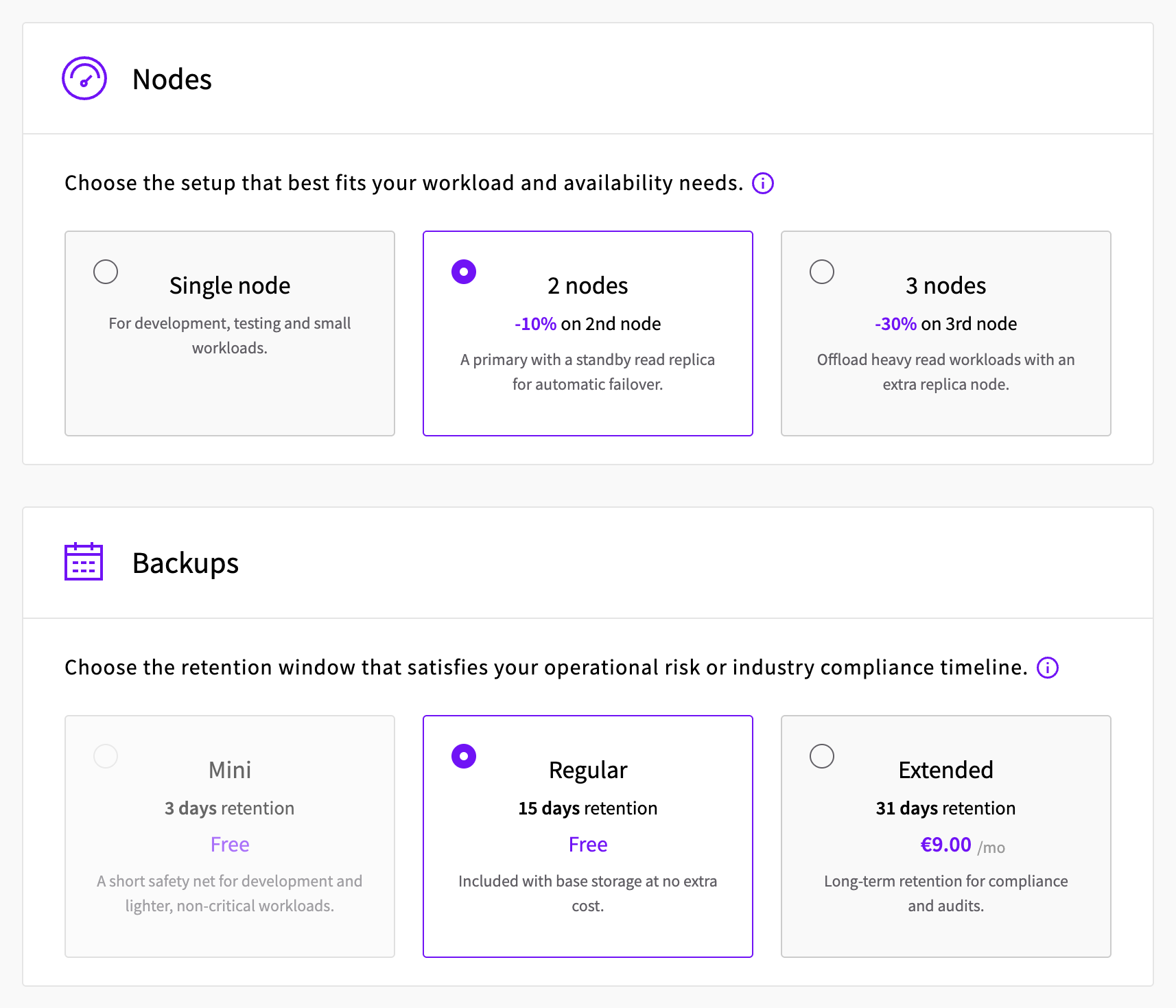
The number of nodes, from 1 to 3, decides whether the service has standby nodes:
- With 1 node, the service has no standby node.
- With 2 nodes, a standby node takes over automatically if the primary node fails.
- With 3 nodes, the service has a second standby node.
Standby nodes also answer read-only queries through the service's replica hostname, described in Connect to the service. For how failover works, see Managed PostgreSQL High availability.
The backup tier sets how long backups are kept: Mini for 3 days, Regular for 15 days and Extended for 31 days. Developer plans come with Mini only, and Standard and High Memory plans with Regular or Extended. You can restore the database to any point within that time: see How to restore a Managed Database to a point in time.
Connection access
The private connection decides which private network your Cloud Servers use to reach the service:
- The Utility network is the default. Servers in the same location can connect over their Utility network interface, with nothing else to set up.
- An SDN Private Network can be attached instead, and then only servers on that network can connect privately. The network must be attached to an SDN Router: see How to connect private networks using SDN Router.
Make this choice when you create the service. You can attach a network later, but once the service is on an SDN Private Network, it can't switch back to the Utility network. Detaching the network doesn't bring the Utility network back: it leaves the service without a private connection.
The public connection is off by default. Turn it on when you want to connect over the public internet through the public hostnames. The public hostnames accept connections only while the public connection is on, and only from the addresses in the allowed IP list.
Allowed IP access
Two settings decide which addresses can connect:
- Automatic access from Utility network servers is on by default and lets every Cloud Server in the same location connect over the Utility network. To allow only some of them, turn it off and add their Utility network addresses to the allowed IP list.
- The allowed IP list holds IPv4 addresses in CIDR notation, for example
203.0.113.10/32. It controls connections through the public hostnames, and also Utility network connections while automatic access is off.
With an empty list, nobody can connect through the public hostnames. Servers on an attached SDN Private Network don't need to be in the list.
Maintenance schedule
Choose the day and the start time (UTC) for maintenance updates. Updates are installed during a four-hour period that starts at that time. During maintenance, the service switches between nodes, which can cause a short interruption. The hostnames stay the same, so always connect by hostname. See Managed PostgreSQL Maintenance.
Termination protection
Termination protection is off by default. Turn it on for a service you can't afford to lose by accident: while it's on, the service can't be deleted or shut down until you turn protection off again.
Service name and hostname prefix
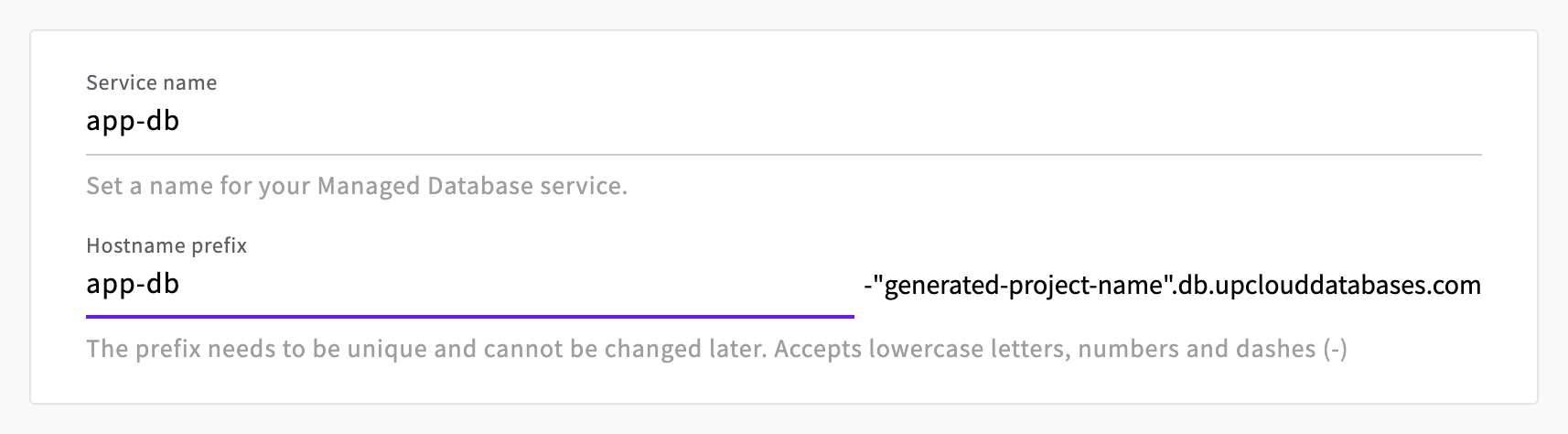
The service name is just for you, and you can change it later. The hostname prefix becomes the first part of the service's hostnames. It must be unique and can contain only lowercase letters, numbers and dashes, and you can't change it later.
Create the service
In the Control Panel, go to Databases and click Create Managed Database.
Under Location, select the location.
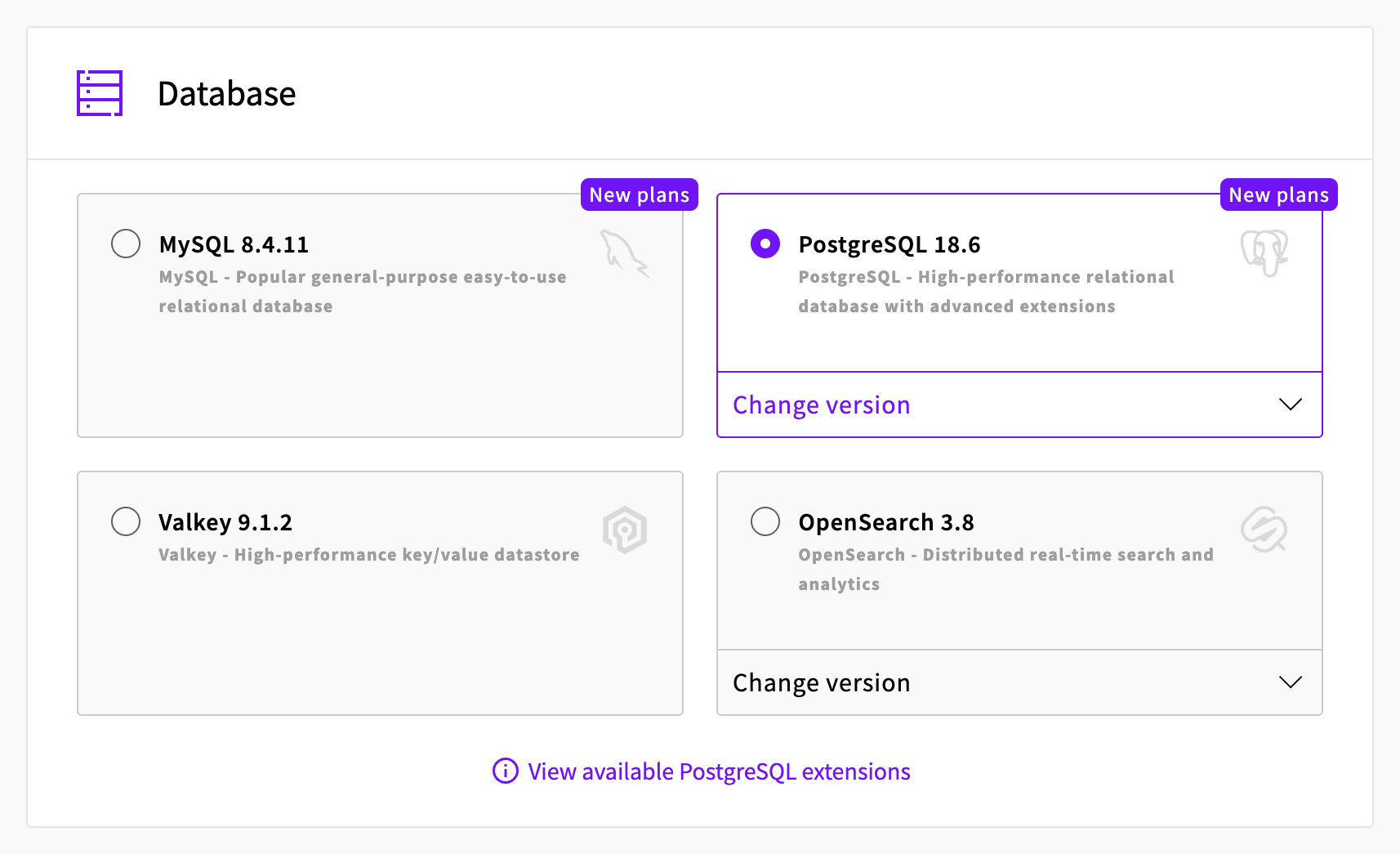
Under Database, select PostgreSQL. To use an older version, click Change version on the PostgreSQL card and pick it from the list, which also shows when each version reaches its end of life.
Under Compute, select Developer, Standard or High Memory, then a plan. The list shows the monthly price of one node. Under Storage, select the storage for each node.
Under Nodes and Backups, select the number of nodes and the backup tier.
Under Connection access, turn on Public connection if you need it. For the private connection, keep Utility network, or click Attach private network, select the network under Network and click Attach.
Under Allowed IP access, keep Automatic access from Utility network servers on, or turn it off. The switch is shown only while the service uses the Utility network. Add addresses to IPv4 CIDR addresses: Servers IP picks addresses from your Cloud Servers, and Add my IP adds the address you're browsing from.
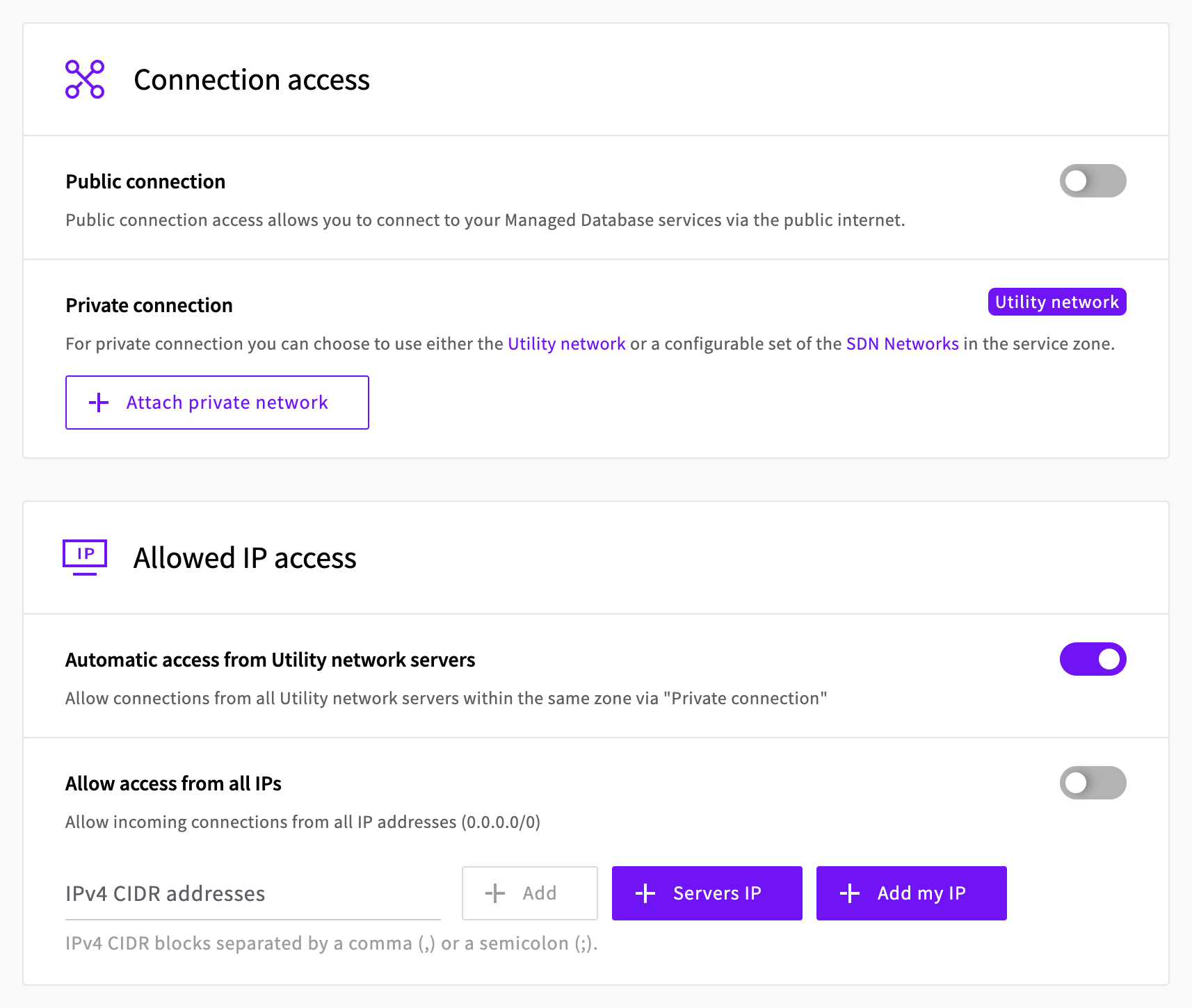
With the defaults, Cloud Servers in the same location can connect over the Utility network, and nothing can connect over the public internet.
Set the Maintenance schedule, and turn on Termination protection if you want it.
Enter a Service name and a Hostname prefix, check the total in the Summary, then click Create Database.
The service's page opens, and the service is ready to use once its status changes to Started.
Connect to the service
To try out the connection, you need a computer with psql. How it connects depends on where it is:
- A Cloud Server in the same location as the service can connect privately, without going over the public internet.
- Any other computer, such as your own, connects over the public internet through the public hostnames. Turn on public connection and add the computer's public address to the allowed IP list first.
Find the connection details
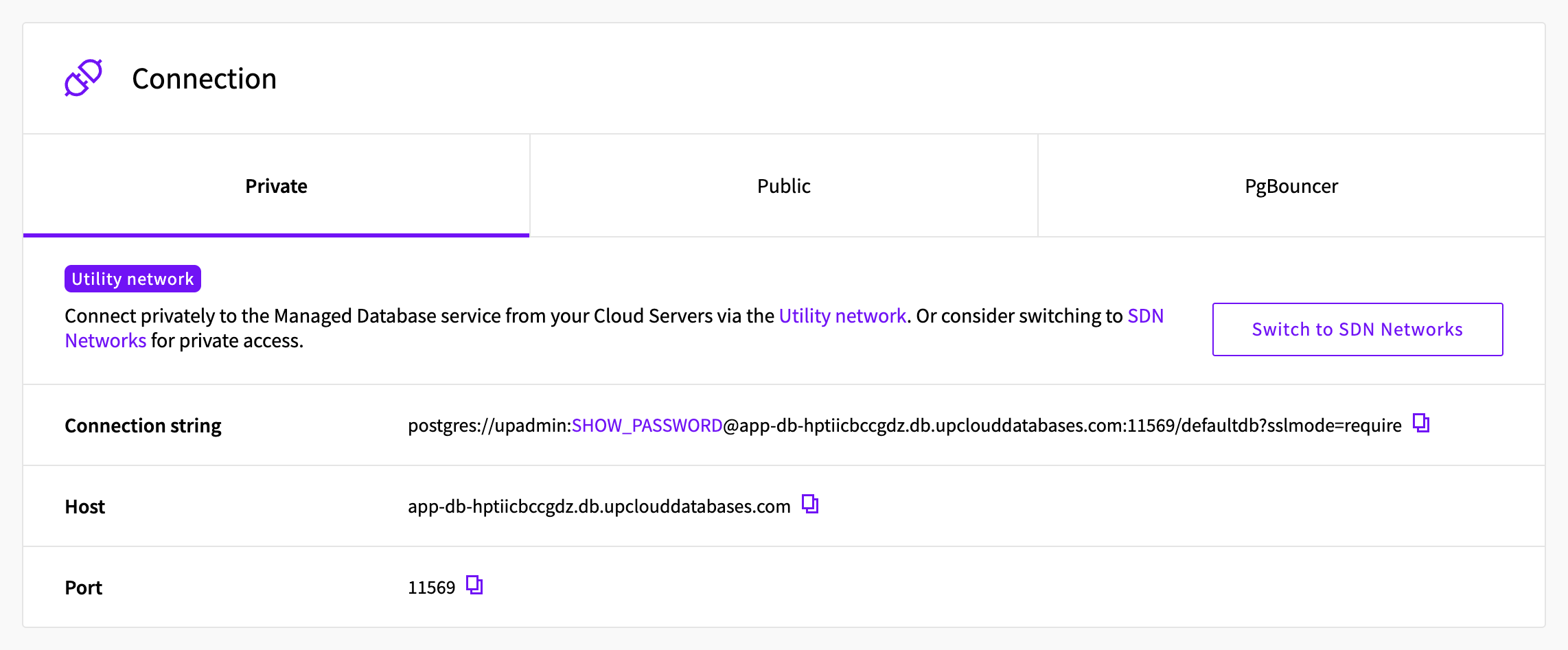
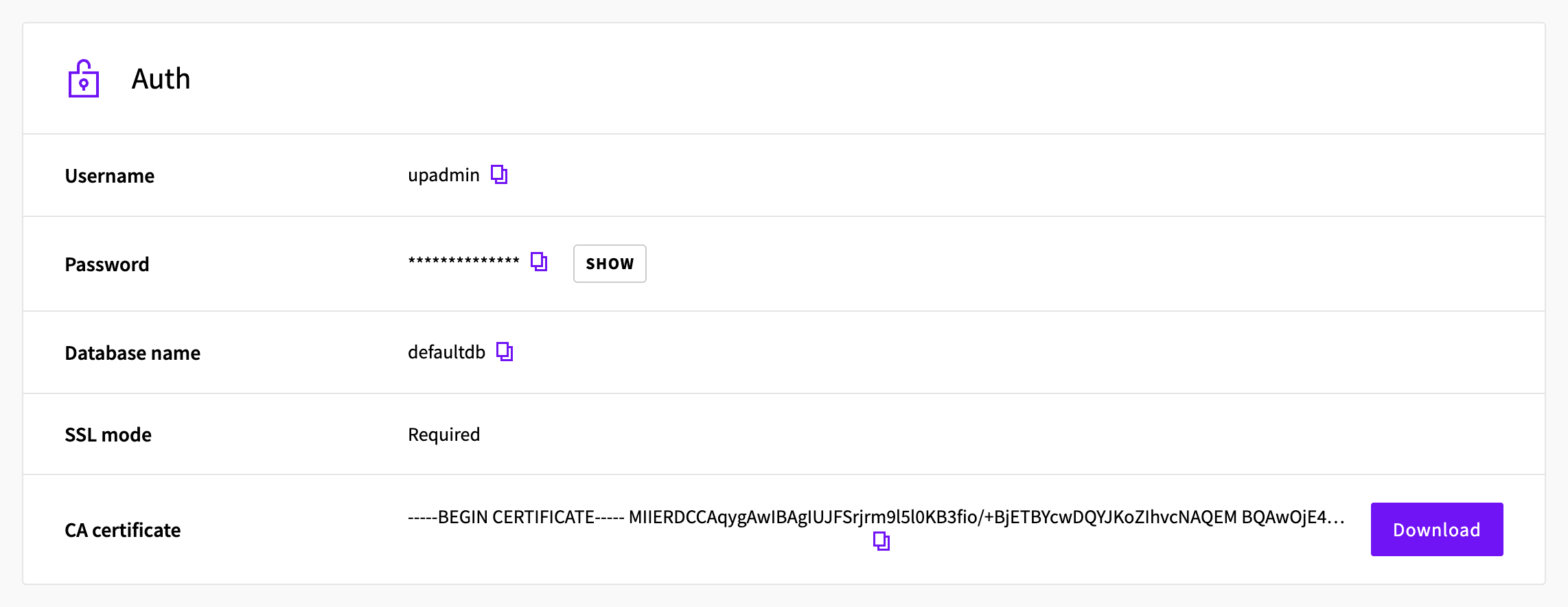
Go to Databases and open the service. The Overview tab shows:
- Connection: the connection string, host and port. Private has the details for private connections, Public for connections over the public internet, and PgBouncer for connection pooling. While public connection is off, Public shows only the switch that turns it on.
- Auth: the username,
upadmin, the password, the database name,defaultdb, and the CA certificate. Click Show to see the password.
Connect at the top of the page shows a ready-to-run psql command with the password filled in.

All of the service's hostnames end in .db.upclouddatabases.com:
<hostname-prefix>-<id>points to the primary node. Use it for reads and writes.replica-<hostname-prefix>-<id>points to the standby nodes, on services with more than one node. It's handy for reads that you want to keep off the primary, but it's read-only: writes through it fail withERROR: cannot execute INSERT in a read-only transaction. Use it with the port listed for it incomponents, because it isn't always the same as the primary's.public-<hostname-prefix>-<id>andpublic-replica-<hostname-prefix>-<id>are the same two over the public internet. They're listed only while public connection is on, and they accept connections only from addresses in the allowed IP list.
The private hostnames work from servers in the same location over the Utility network, and from servers on an SDN Private Network attached to the service.
Connect with psql
Install psql on the computer you'll connect from. On Ubuntu 26.04, this installs psql 18:
sudo apt update
sudo apt install postgresql-client
For other systems, see PostgreSQL downloads.
The commands below use the service's connection string. In the Control Panel, the copy icon next to Connection string copies it to your clipboard, including the password. Which tab to copy it from depends on where you run the commands:
- On a Cloud Server in the same location as the service, use the Private tab.
- On any other computer, use the Public tab.
With the API, service_uri has the connection string with the private hostname.
The service accepts only TLS connections, and the connection string turns TLS on with sslmode=require. Check that you can reach the service by asking for its version:
psql 'postgres://upadmin:<password>@<hostname>:<port>/defaultdb?sslmode=require' -c 'SELECT version();' version
----------------------------------------------------------------------------------------------------------
PostgreSQL 18.6 on x86_64-pc-linux-gnu, compiled by gcc (GCC) 15.3.1 20260722 (Red Hat 15.3.1-1), 64-bit
(1 row)Now create a table, add a row and read it back:
psql 'postgres://upadmin:<password>@<hostname>:<port>/defaultdb?sslmode=require' \
  -c "CREATE TABLE greetings (id serial PRIMARY KEY, message text NOT NULL);" \
  -c "INSERT INTO greetings (message) VALUES ('Hello from Managed PostgreSQL');" \
-c "SELECT * FROM greetings;"CREATE TABLE
INSERT 0 1
id | message
----+-------------------------------
1 | Hello from Managed PostgreSQL
(1 row)To work in an interactive session instead, run psql with just the connection string, and type \q to leave.
Check the server's certificate
sslmode=require encrypts the connection, but it doesn't check that the certificate belongs to your service. To check that too, use the service's CA certificate. One CA certificate covers all of your Managed PostgreSQL services.
Save the CA certificate as
ca.pemin the directory you runpsqlfrom. In the Control Panel, click Download next to CA certificate on the service's Overview tab. With the API,GET /1.3/database/certificatereturns it incertificate.Connect with
sslmode=verify-fulland pointsslrootcertat the file:psql 'postgres://upadmin:<password>@<hostname>:<port>/defaultdb?sslmode=verify-full&sslrootcert=ca.pem' -c 'SELECT 1;'Output?column? ---------- 1 (1 row)
The service's certificate is signed by this CA, not by a public certificate authority, so sslrootcert has to point at ca.pem: the system's trusted certificates (sslrootcert=system) don't include it.
Connect from an application
Applications connect the same way, with a PostgreSQL client library and the same connection string. This example uses psycopg, the PostgreSQL adapter for Python.
Install it in a virtual environment. On Ubuntu 26.04:
sudo apt install python3-venv
python3 -m venv venv
source venv/bin/activate
pip install "psycopg[binary]"
Save this short program as app.py. It reads the connection string from an environment variable, adds a row to the greetings table and prints every message in it:
import os

import psycopg

with psycopg.connect(os.environ["DATABASE_URL"]) as conn:
    conn.execute(
        "CREATE TABLE IF NOT EXISTS greetings (id serial PRIMARY KEY, message text NOT NULL)"
    )
    conn.execute("INSERT INTO greetings (message) VALUES (%s)", ("Hello from Python",))
    for (message,) in conn.execute("SELECT message FROM greetings ORDER BY id"):
        print(message)
Run it with your connection string in DATABASE_URL:
export DATABASE_URL='postgres://upadmin:<password>@<hostname>:<port>/defaultdb?sslmode=require'
python app.pyHello from Managed PostgreSQL
Hello from PythonThis example connects as upadmin, the service's main user.
Delete the service
- Go to Databases and open the service.
- Click Shut down, then click Shut down in the dialog. The status changes to Stopped. While the service is started, Delete isn't available.
- Open the menu next to Start and select Delete.
- Click Delete to confirm.

The Control Panel returns to the list of databases.
If termination protection is on, the Shut down dialog tells you so and won't let you continue. Cancel it, turn off the Termination protection switch on the service's Overview tab, and start again.
Troubleshooting
FATAL: no pg_hba.conf entry for host "<address>", user "upadmin", database "defaultdb", no encryptionThe client connected without TLS. Use
sslmode=requireorsslmode=verify-fullin the connection string.FATAL: password authentication failed for user "upadmin"The password is wrong. Copy it again from the connection details.
root certificate file "<home>/.postgresql/root.crt" does not existThe client used
sslmode=verify-fullwithoutsslrootcert. Download the CA certificate and addsslrootcert=ca.pemto the connection string, as in Check the server's certificate.SSL error: certificate verify failedThe client checked the server's certificate against the wrong CA certificate, for example with
sslrootcert=system. Setsslrootcertto the service's CA certificate,ca.pem.ERROR: cannot execute INSERT in a read-only transactionThe client connected to a standby node through the replica connection. Send writes to the primary hostname.
Connections through a public hostname fail with
timeout expiredEither public connection is off, or the address you're connecting from isn't in the allowed IP list. Turn public connection on and add the address to the list, or connect from a server over a private network.
Connections from a server on the SDN Private Network fail with
timeout expiredA server that joined the network before the service did only gets the route to the service when it renews its DHCP lease. Find the server's interface on the SDN Private Network with
ip -br addr, then renew the lease. On Ubuntu:sudo networkctl renew <interface>
Next steps
- How to restore a Managed Database to a point in time shows how to get your data back from backups.
- How to enable PostgreSQL connection pool using UpCloud API sets up connection pooling with PgBouncer.
- How to back up Managed PostgreSQL to Object Storage keeps your own copies of the database.
- How to migrate PostgreSQL database to UpCloud Managed Databases using the migration tool moves an existing database to the service.
- Connecting to Managed PostgreSQL describes the private and public connection options.
- Customisable PostgreSQL properties lists the settings you can change with the API.
PostgreSQL is a registered trademark of the PostgreSQL Community Association of Canada, and used with their permission.