On a service that uses the Utility network, every address in the allowed IP list can connect from the internet, even while public connection is off. With Allow access from all IPs on, anyone on the internet can connect, and only the password protects the service. To keep the service private, keep public addresses out of the list, or attach the service to an SDN Private Network.
How to get started with Managed Valkey
Managed Valkey runs Valkey™*, an open-source key/value data store forked from Redis. Valkey keeps its data in memory, and applications use it as a cache, a message queue or a primary database.
This guide walks you through creating a Managed Valkey service in the Control Panel or with the UpCloud API, connecting to it with valkey-cli, and using it from a Python application.
Before you start
You need:
- An UpCloud account.
- For the API steps, an API token. To create one, see How to get started using the UpCloud API.
For plans, see Configurations. For prices, see the pricing page.
Choose your options
These options decide where the service runs, what it costs and who can connect to it. Two of them can't be undone, so settle those before you start: the hostname prefix can't be changed, and once the service is attached to an SDN Private Network, it can't go back to the Utility network.
Location
Create the service close to the clients that will use it. If they're Cloud Servers, put the service in their location so that they can connect privately. A server in another location can't reach the service over the Utility network, even with its Utility network address in the allowed IP list, so it has to use the public hostnames instead. For the list of locations, see Availability.
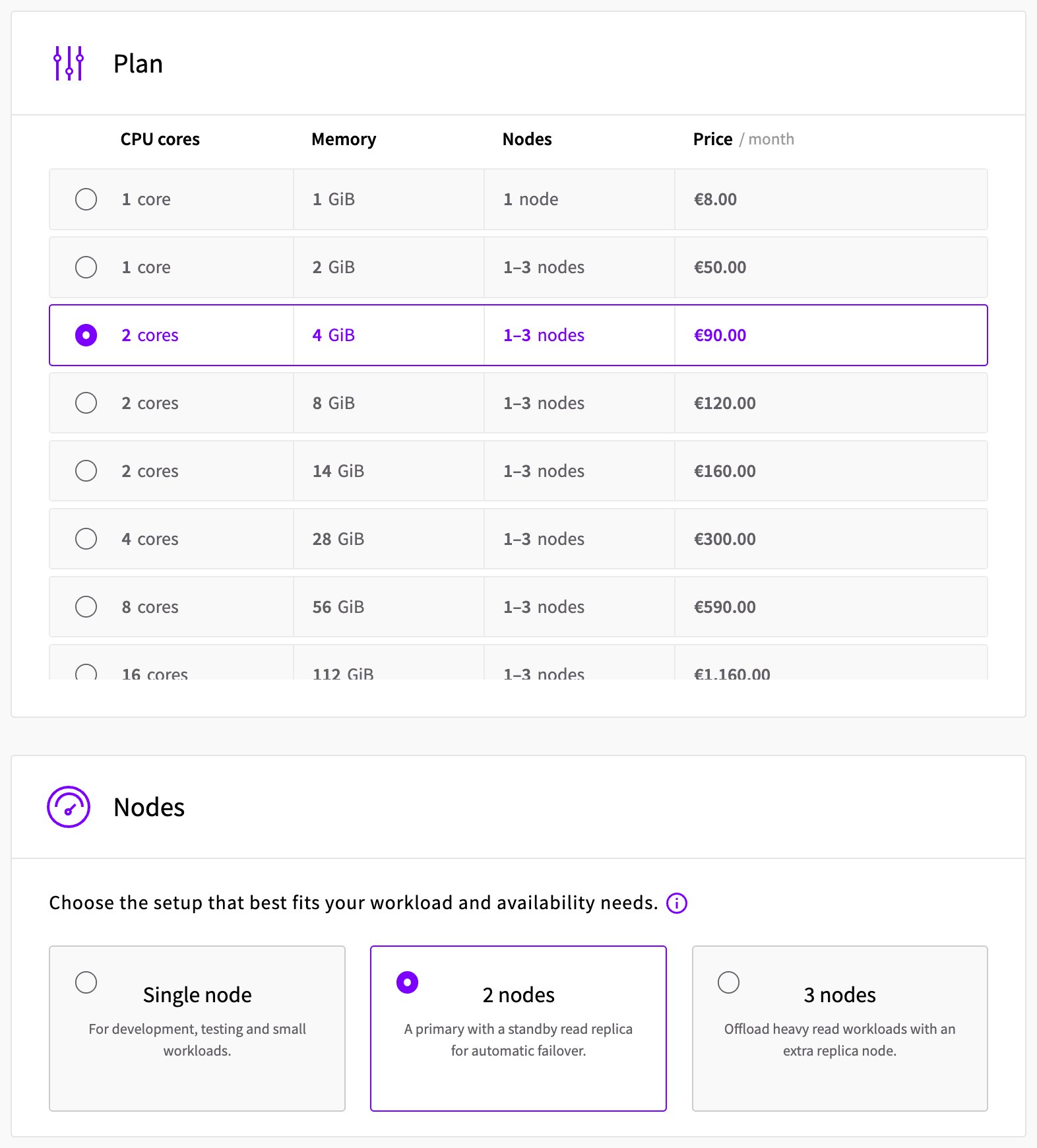
Plan and nodes
The plan sets how many CPU cores and how much memory each node gets. Because Valkey keeps its data in memory, the memory also caps how much you can store, so leave some headroom when you choose a plan: Valkey's limit is lower than the plan's memory, and its own overhead counts towards it. When the limit is reached, the service refuses new writes until you delete some data or resize to a bigger plan. For every plan, see Configurations.
The number of nodes decides whether the service has standby nodes:
- Single node has no standby node.
- 2 nodes adds a standby node for automatic failover.
- 3 nodes adds a second standby node.
The smallest plan, with 1 core and 1 GiB of memory, comes with a single node only. For how failover works, see High availability.
In the Control Panel, the plan list shows the monthly price of one node, and the Summary adds up the total for the number of nodes you choose.
Connection access
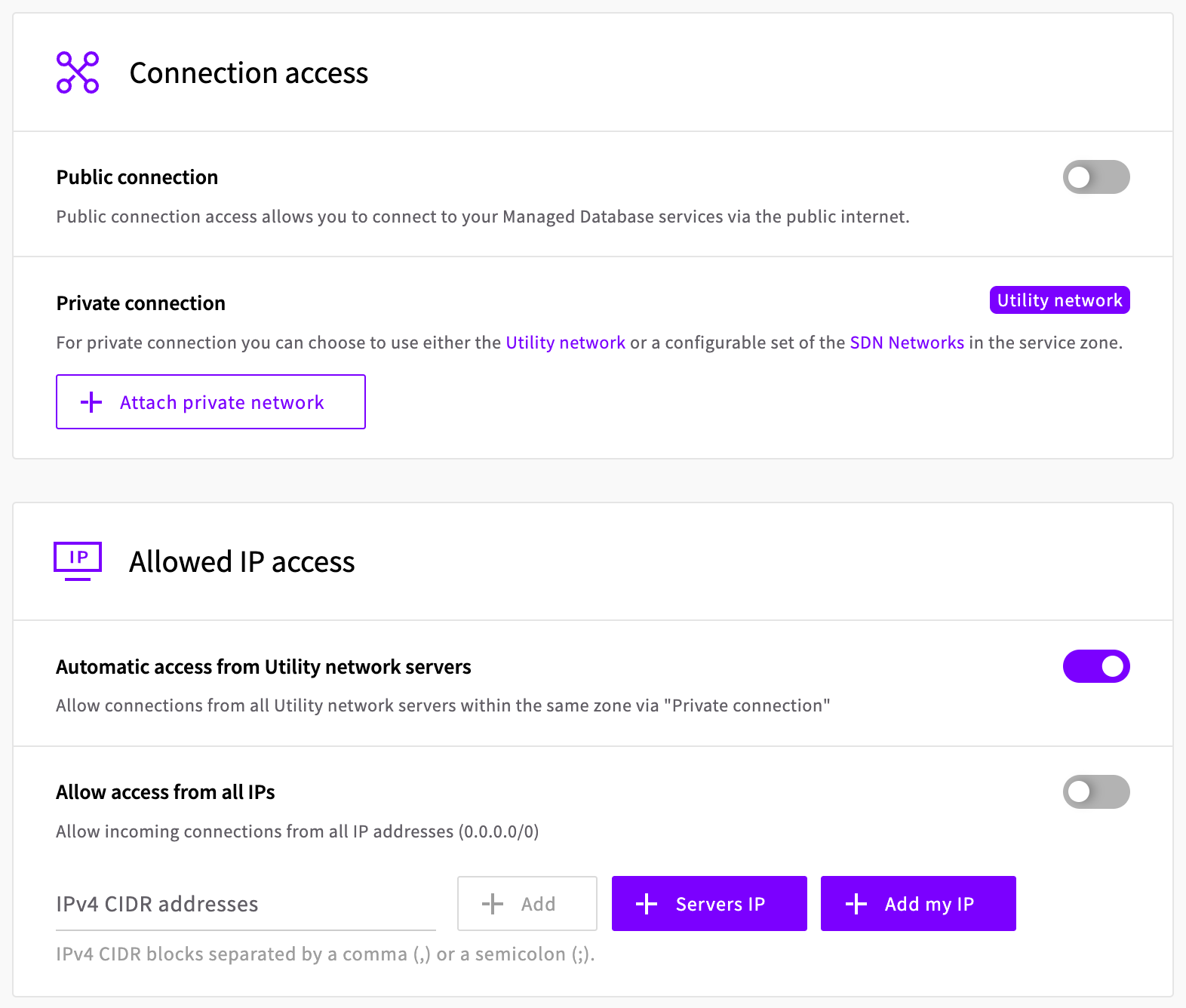
Private connection decides which private network your Cloud Servers use to reach the service:
- Utility network is the default. Servers in the same location connect over their Utility network interface, with nothing else to set up.
- Attach private network puts the service on an SDN Private Network instead, and only servers on that network can connect privately. The network must be attached to an SDN Router.
Make this choice when you create the service. You can attach a network later, but once the service is on an SDN Private Network, it can't switch back to the Utility network, even if you detach the network.
Public connection is off by default. Turn it on when you want to connect over the internet through the public hostnames, from the addresses in Allowed IP access.
On a service attached to an SDN Private Network, the public hostnames accept connections only while public connection is on. On the Utility network, the allowed IP list decides who can connect from the internet: see the warning under Allowed IP access.
Allowed IP access
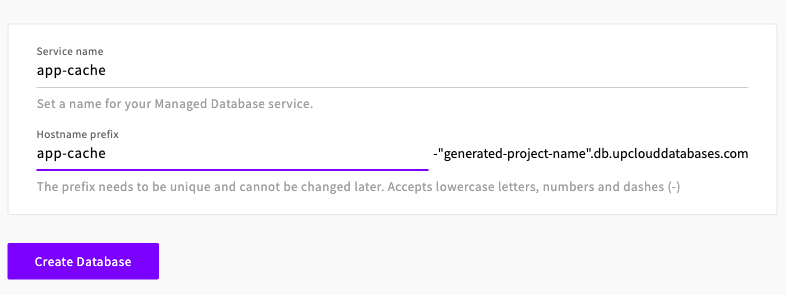
- Automatic access from Utility network servers is on by default and lets every Cloud Server in the same location connect over the Utility network. To allow only some of them, turn it off and add their Utility network addresses to the list.
- IPv4 CIDR addresses is the list itself, for example
203.0.113.10/32. It controls public connections, and also Utility network connections while automatic access is off. Servers IP picks addresses from your Cloud Servers, and Add my IP adds the address you're browsing from. - Allow access from all IPs sets the list to
0.0.0.0/0, so every IP address can connect.
With an empty list, nobody can connect through the public hostnames. Servers on an attached SDN Private Network don't need to be in the list.
Public addresses on the Utility network
Maintenance schedule
Pick the day and the start time (UTC) for maintenance updates. Updates are installed during a four-hour period that starts at that time. During maintenance, the service switches between nodes, which can cause a short interruption. The hostnames stay the same, but the IP addresses behind them change, so always connect by hostname. See Maintenance.
Termination protection
Termination protection is off by default. Turn it on for a service you can't afford to lose by accident: while it's on, the service can't be deleted or shut down until you turn protection off again.
Service name and hostname prefix
The Service name is just for you, and you can change it later. The Hostname prefix becomes the first part of the service's hostnames. It must be unique, start with a letter and contain only lowercase letters, numbers and dashes, and you can't change it later.
Create the service
- In the Control Panel, go to Databases and click Create Managed Database.
- Select a location, then select Valkey.
- Choose the plan and the number of nodes.
- Set Connection access, Allowed IP access, Maintenance schedule and Termination protection. With the defaults, Cloud Servers in the same location connect over the Utility network, and nothing can connect over the internet.
- Enter a Service name and a Hostname prefix, then click Create Database.
The service's page opens, and the service is ready to use once its status changes to Started.
Connect to the service
To try out the connection, you need a computer with valkey-cli. How it connects depends on where it is:
- A Cloud Server in the same location as the service connects privately, without going over the internet.
- Any other computer, such as your own, connects over the internet through the public hostnames. Turn on public connection and add the computer's public address to the allowed IP list first.
Find the connection details
Go to Databases and open the service. The Overview tab shows:
- Connection: the connection string, host and port. Private shows the private hostname. Public has the switch for the public connection and, while it's on, shows the public hostname.
- Read-only replicas: the same details for the replica hostname, on services with more than one node.
- Auth: the username,
default, and the password. Click Show to see the password.
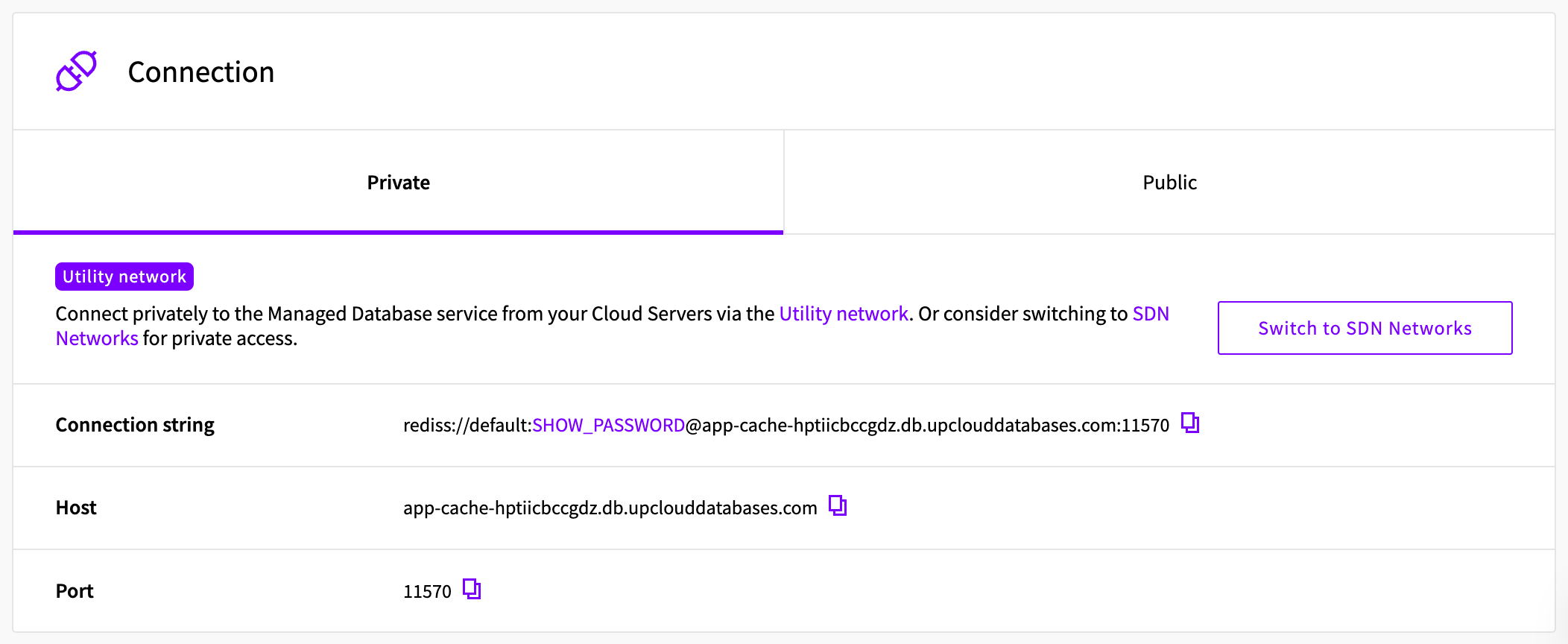
All of the service's hostnames end in .db.upclouddatabases.com:
<hostname-prefix>-<id>points to the primary node. Use it for reads and writes.replica-<hostname-prefix>-<id>points to the standby nodes, on services with more than one node. It's handy for reads that you want to keep off the primary, but it's read-only: writes through it fail withREADONLY You can't write against a read only replica.public-<hostname-prefix>-<id>andpublic-replica-<hostname-prefix>-<id>are the same two over the public internet. The connection details show them only while public connection is on, and they accept connections only from addresses in the allowed IP list.
The private hostnames work from servers in the same location over the Utility network, and from servers on the SDN Private Network attached to the service.
Connect with valkey-cli
Install valkey-cli on the computer you'll connect from. On Ubuntu 26.04:
sudo apt update
sudo apt install valkey-tools
For other systems, see Valkey downloads. Make sure your build supports TLS: valkey-cli --help should list --tls.
By default, the service accepts only TLS connections. You don't need to do anything extra for that: the rediss:// scheme in the connection URI turns TLS on, and because the service's certificate is signed by a public certificate authority, there's no CA certificate to download.
Check that you can reach the service with a PING:
valkey-cli -u 'rediss://default:<password>@<hostname>:<port>' PINGOutput
Warning: Using a password with '-a' or '-u' option on the command line interface may not be safe.
PONG
Now store a value and read it back:
valkey-cli -u 'rediss://default:<password>@<hostname>:<port>' SET greeting "Hello from Managed Valkey"
valkey-cli -u 'rediss://default:<password>@<hostname>:<port>' GET greeting
Output
Warning: Using a password with '-a' or '-u' option on the command line interface may not be safe.
OK
Warning: Using a password with '-a' or '-u' option on the command line interface may not be safe.
"Hello from Managed Valkey"
The warning appears whenever the password is part of the command. To keep it out of the command, use --askpass instead, and valkey-cli reads the password from standard input:
valkey-cli --tls -h <hostname> -p <port> --user default --askpass PINGConnect from an application
Applications connect the same way, with a Valkey client library and the same connection URI. This example uses valkey-py, the Python client from the Valkey project.
Install it in a virtual environment. On Ubuntu 26.04:
sudo apt install python3-venv
python3 -m venv venv
source venv/bin/activate
pip install valkey
Save this short program as app.py. It reads the connection URI from an environment variable, stores a value and prints it back:
import os

import valkey

client = valkey.from_url(os.environ["VALKEY_URI"], decode_responses=True)

client.set("greeting", "Hello from Python")
print(client.get("greeting"))
Run it with your connection URI in VALKEY_URI:
export VALKEY_URI='rediss://default:<password>@<hostname>:<port>'
python app.py
Output
Hello from PythonDelete the service
- Go to Databases and open the service.
- Click Shut down, then click Shut down in the dialog. The status changes to Stopped. While the service is started, Delete isn't available.
- Open the menu next to Start and select Delete.
- Click Delete to confirm.

The Control Panel returns to the list of databases.
If termination protection is on, the Shut down dialog tells you so and won't let you continue. Cancel it, turn off the Termination protection switch on the service's Overview tab, and start again.
Troubleshooting
I/O errorandError: Server closed the connectionThe client connected without TLS. Use a
rediss://URI, or add--tlsto thevalkey-clicommand.NOAUTH Authentication required.on its ownThe client didn't send a password. Use the full connection URI, or add
--user default --askpass.AUTH failed: WRONGPASS invalid username-password pair or user is disabled.The password is wrong.
valkey-clialso printsNOAUTH Authentication required.in this case. Copy the password again from the connection details.OOM command not allowed when used memory > 'maxmemory'.The service's memory is full. Reads still work, but writes fail until you delete data you no longer need or resize to a bigger plan on the service's Settings tab. Your data is kept when you resize.
READONLY You can't write against a read only replica.The client connected through a
replica-hostname. Send writes to the primary hostname.Connections through a public hostname time out
Either the address you're connecting from isn't in the allowed IP list, or the service is on an SDN Private Network with public connection off. Add the address to the list and turn public connection on, or connect from a server over a private network.
Connections from a new server in the same location time out
A Cloud Server created after the service can take a while to get access over the Utility network. To let it connect straight away, add the server's Utility network address to the allowed IP list, for example
10.4.15.173/32. Use the Utility network address, not the public one: see the warning under Allowed IP access.Connections from a server on the SDN Private Network time out
A server that joined the network before the service did only gets the route to the service when it renews its DHCP lease. Find the server's interface on the SDN Private Network with
ip -br addr, then renew the lease. On Ubuntu:sudo networkctl renew <interface>
Next steps
- Connecting to Managed Valkey describes the private and public connection options.
- High availability describes how primary and standby nodes work.
- Customisable properties lists the settings you can change with the API.
* Valkey and the Valkey logo are trademarks of LF Projects, LLC. Any rights therein are reserved to LF Projects, LLC. Any use by UpCloud is for referential purposes only and does not indicate any sponsorship, endorsement or affiliation between Valkey and UpCloud. Other names may be trademarks of their respective owners.