
How to import VMware images
If you already have a running virtual Linux VM on a VMware hypervisor but would like to take advantage of UpCloud's platform, it is possible to import your server's images to UpCloud. To get your existing server running in our cloud, you will need to upload the server image to a new cloud host, convert it to RAW format, copy the converted image to a new storage drive, and reconfigure the host. This migration guide goes through each step in detail to help you transfer pre-existing virtual servers to the cloud.
Please note that only Linux based virtual hosts can be imported. Windows Servers need to be deployed using the templates provided by UpCloud due to licensing.
Also note that improted Linux virtual hosts must be running kernel 4.13 or later. Earlier kernel versions have been known not to work on our latest hardware
Deploying a new server
To start off, log in to the UpCloud Hub and deploy a new server. You can choose any Linux template, but for convenience you could use the same distro as the system image you are migrating.
The new server will be used to download, convert and set up the image being imported. Consider the following during configuration.
Selecting the location you wish to import the server.
Choosing the server plan - the 1CPU/1GB plans work fine, but the primary disk should ideally be double your primary disk. It can be increased later if needed.
Adding a second storage disk by clicking the Add a new device button and choosing the appropriate size for your .vmdk import. It can also be increased later if needed.
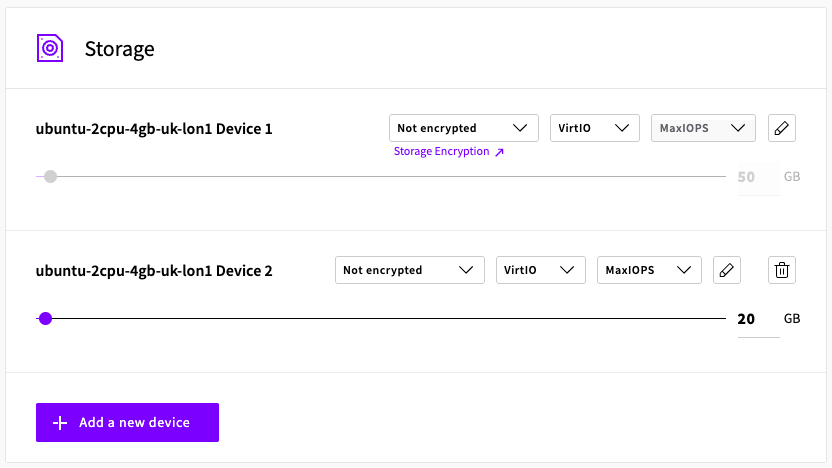
Selecting your SSH key in the checkbox.
Giving your server a hostname and display name.
Once the configurations are done, hit the Deploy server button. Wait a few seconds for the server to start, then log into the newly deployed host to continue.
Update the system to make sure the software is running the latest versions.
# Debian and Ubuntu
apt update && apt upgrade

# CentOS Stream
dnf upgrade
With the new server up to date, check that both of the storage drives are attached and report their size correctly.
lsblkNAME MAJ:MIN RM SIZE RO TYPE MOUNTPOINT
vda 253:0 0 50G 0 disk
└─vda1 253:1 0 1M 0 part /
└─vda2 253:2 0 50G 0 part
vdb 253:16 0 20G 0 diskHere the vda disk with the two partitions (vda1 and vda2) is your primary storage and the vdb disk is the second device without partitions. If everything seems in order, continue with uploading to import the VMware image to your cloud server.
Importing VMware system image
Depending on your VMware hypervisor configuration the system storage disk might be stored in one or more files. The VMware virtual disk files are usually named the same as your virtual system and have a .vmdk file extension. You will need to copy all of the .vmdk files to the new cloud host.
Depending on your VMware system and your network connection it may be useful to compress the disk files into a single archive to transfer, and then extract on the UpCloud server.
An example scp command would be as follows, to copy a file from your local computer to the root directory of your UpCloud server.
scp archive.zip root@server_ip:/Once you have finished uploading the image files, you need to convert them from the VMware format to RAW format. The format can be converted using the qemu-img utility available through the package managers on most Linux distributions. With Ubuntu and other Debian-based systems, it is included in the qemu-utils package while on CentOS it can be installed by default.
# Debian and Ubuntu
apt install qemu-utils

# CentOS Stream
dnf install qemu-img
If you transferred a zip archive, don't forget to install unzip and extract it.
# Debian and Ubuntu
apt install unzip

# CentOS Stream
dnf install unzip

# Make a directory and unzip to it
mkdir vmware-images/
unzip archive.zip -d vmware-images/
With the required utilities installed, convert the VMware image to RAW format with the command below. Replace {VMware_image} with the name of your VMware virtual disk file and the {RAW_image} with what you wish to call the new image file.
qemu-img convert -f vmdk -O raw {VMware_image}.vmdk {RAW_image}.imgOnce the conversion is complete, copy the new RAW image content to the secondary disk. Replace the {RAW_image} with the converted disk file name just as above.
dd if={RAW_image}.img of=/dev/vdb bs=16M oflag=directAfterwards, you can shut down the server and remove the old primary disk. Go to your UpCloud Control Panel and the Storage tab in your server settings. Once the server is in the stopped state, click the eject icon on the primary storage device to remove it. The second disk, where you just transferred the system image, will then be automatically set as the new primary device. In the same menu, you should also choose the disk controller.
VirtIO controller provides the best performance, but if you have issues starting the server, try IDE as it has better compatibility with different operating systems.
You can then restart the server again to continue configuring the system.
Reconfiguring the system networking
The newly transferred operating system should now work with the cloud server. However, you will likely need to use the Web Console to log into the server and adjust the network configuration before the system will connect normally. Go to the UpCloud Hub, open the Console tab under your server settings, and click Open the console connection.
Then, log in with the credentials for the imported VMware host. Once in, check the network settings with the following command.
ip addrUpCloud hosts have three network interfaces in the default configuration, public IPv4, private IPv4 and public IPv6 addresses, you might see something similar to the example output below. Here the first interface eth0 is working but the other devices are not yet configured.
1: lo: <LOOPBACK,UP,LOWER_UP> mtu 65536 qdisc noqueue state UNKNOWN group default
 link/loopback 00:00:00:00:00:00 brd 00:00:00:00:00:00
 inet 127.0.0.1/8 scope host lo
 valid_lft forever preferred_lft forever
 inet6 ::1/128 scope host
 valid_lft forever preferred_lft forever
2: eth0: <BROADCAST,MULTICAST,UP,LOWER_UP> mtu 1500 qdisc pfifo_fast state UP group default qlen 1000
 link/ether 6e:d7:1b:bf:18:29 brd ff:ff:ff:ff:ff:ff
 inet 83.136.248.62/22 brd 83.136.251.255 scope global eth0
 valid_lft forever preferred_lft forever
 inet6 fe80::6cd7:1bff:febf:1829/64 scope link
 valid_lft forever preferred_lft forever
3: eth1: <BROADCAST,MULTICAST> mtu 1500 qdisc noop state DOWN group default qlen 1000
 link/ether 6e:d7:1b:bf:e6:f2 brd ff:ff:ff:ff:ff:ff
4: eth2: <BROADCAST,MULTICAST> mtu 1500 qdisc noop state DOWN group default qlen 1000
 link/ether 6e:d7:1b:bf:61:a8 brd ff:ff:ff:ff:ff:ff
You will need to update your network configuration to match the network interface names listed in the command output (usually eth0, eth1, and eth2).
Netplan based (Debian / Ubuntu)
Modern Debian-based systems use Netplan to manage networking. Netplan reads YAML configuration files stored in the /etc/netplan/ directory.
First, list the files in the directory to see what your system is currently using.
ls /etc/netplan/Open the existing configuration file (e.g., 01-netcfg.yaml, 50-cloud-init.yaml) using a text editor. Note in Netplan, multiple files will combine and overwrite eachother in numerical order, 01 to 99.
sudo nano /etc/netplan/01-netcfg.yamlReplace or add the following configuration. (Note: YAML is strict about indentation. Use spaces, not tabs). This configures eth0 and eth1 for IPv4 DHCP, and eth2 for IPv6 auto-configuration.
network:
  version: 2
  ethernets:
    eth0:
      dhcp4: true
    eth1:
      dhcp4: true
    eth2:
      dhcp6: true
      accept-ra: true
Save the file and apply the changes with:
sudo netplan applyNetworkManager based (CentOS Stream 10, other modern RHEL variants)
Red Hat variants have deprecated the old /etc/sysconfig/network-scripts/ directory. Most modern variants rely on NetworkManager. To configure the interfaces cleanly, use the nmcli command-line tool.
nmcli connection showThe existing connections might be tied to your old VMware hardware MAC addresses. The safest approach is to delete the old connections and create fresh ones for the UpCloud interfaces.
# Delete existing connections (replace ethX with your old names if different)
sudo nmcli connection delete eth0 eth1 eth2

# Create new dynamic connections for UpCloud's standard interfaces
sudo nmcli connection add con-name eth0 ifname eth0 type ethernet ipv4.method auto ipv6.method ignore
sudo nmcli connection add con-name eth1 ifname eth1 type ethernet ipv4.method auto ipv6.method ignore
sudo nmcli connection add con-name eth2 ifname eth2 type ethernet ipv4.method disabled ipv6.method auto
Next, bring the interfaces up to apply the new settings.
sudo nmcli connection up eth0
sudo nmcli connection up eth1
sudo nmcli connection up eth2
You may need to do the same operation to other network interfaces, or simply create new configuration files if your old system had less.
Afterwards, reboot the server and try logging in with SSH. If the network is working you can start using the new host as before with the added benefit of the freely scalable system resources and faster than SSD storage disks with MaxIOPS technology.
Older operating systems
We cannot provide guidance for all older operating systems and setups, however the main concepts to follow are:
- Configure the interfaces as eth0, eth1 and so-forth, in the same order as the Network tab in the Hub.
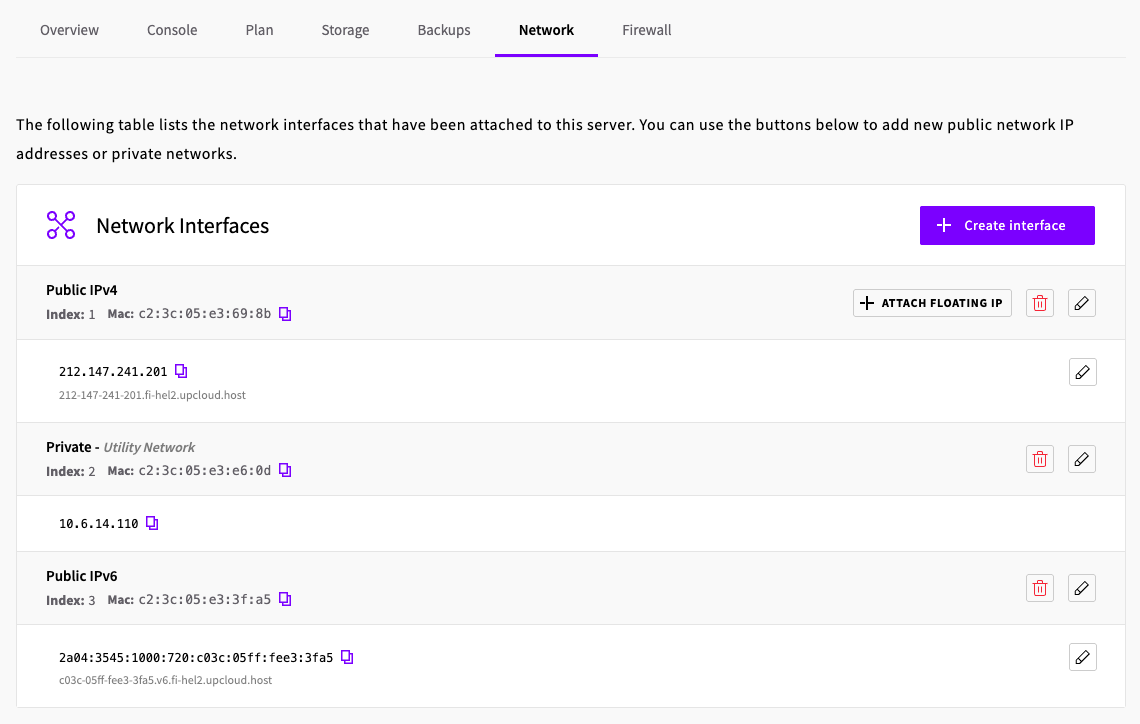
- Enable DHCP, via either IPv4 or IPv6 when relevant.
Final steps
Congratulations, your imported VMware system should now be up and running on a brand new cloud host. In case you have any further problems with the network, you can find additional help with troubleshooting the connectivity in our tutorial regarding network issues on your Linux host.
Also, if you run into issues with booting from the migrated system image, you can always attach the old primary disk again and find the uploaded VMware disk stored safely for another try. Once you are confident that the imported system is running properly, you can go to the Storage menu in the UpCloud Hub and delete the original deployment storage device.