How to install WordPress with Managed MySQL
WordPress runs on a web server and keeps its posts, pages, users and settings in a MySQL database. This guide walks you through installing WordPress on a Cloud Server with its database in Managed MySQL. The server connects to the database privately, so the database never needs to be reachable from the internet. Visitors reach the site over HTTPS on your own domain.
With the database in Managed MySQL, UpCloud runs and maintains the MySQL server, and you manage the databases and users. The service is backed up automatically, so you can restore the site's data to any point in the backup retention period, and MySQL updates are installed in a maintenance window you choose. On plans with two or three nodes, a standby node keeps a copy of the data on a separate host. If the primary node fails, the standby node takes over. The service's hostname then points to the standby node, so WordPress keeps using the same connection details. For more, see Managed MySQL High availability and Managed MySQL Backups.
Before you start
You'll need:
- A Managed MySQL service, with its private hostname, port and the
upadminpassword. To create a service and find its connection details, see How to get started with Managed MySQL. - A domain name for the site and access to its DNS records at your DNS provider.
This guide uses example.com for the site's domain. Replace it with your own domain wherever it appears.
Create the Cloud Server
Create a Cloud Server for WordPress in the same location as the service. The commands in this guide are for Ubuntu Server 26.04 LTS. The server needs public IP addresses so visitors can reach the site, and the Utility network, which it uses to connect to the service. If your Managed MySQL service is on an SDN Private Network instead, attach the server to that network too. WordPress then connects to the service over that network, using the same private hostname.
Go to Servers, click Deploy server, choose these settings and keep the defaults for the rest:
- Location: the service's location.
- Operating system: Ubuntu Server 26.04 LTS.
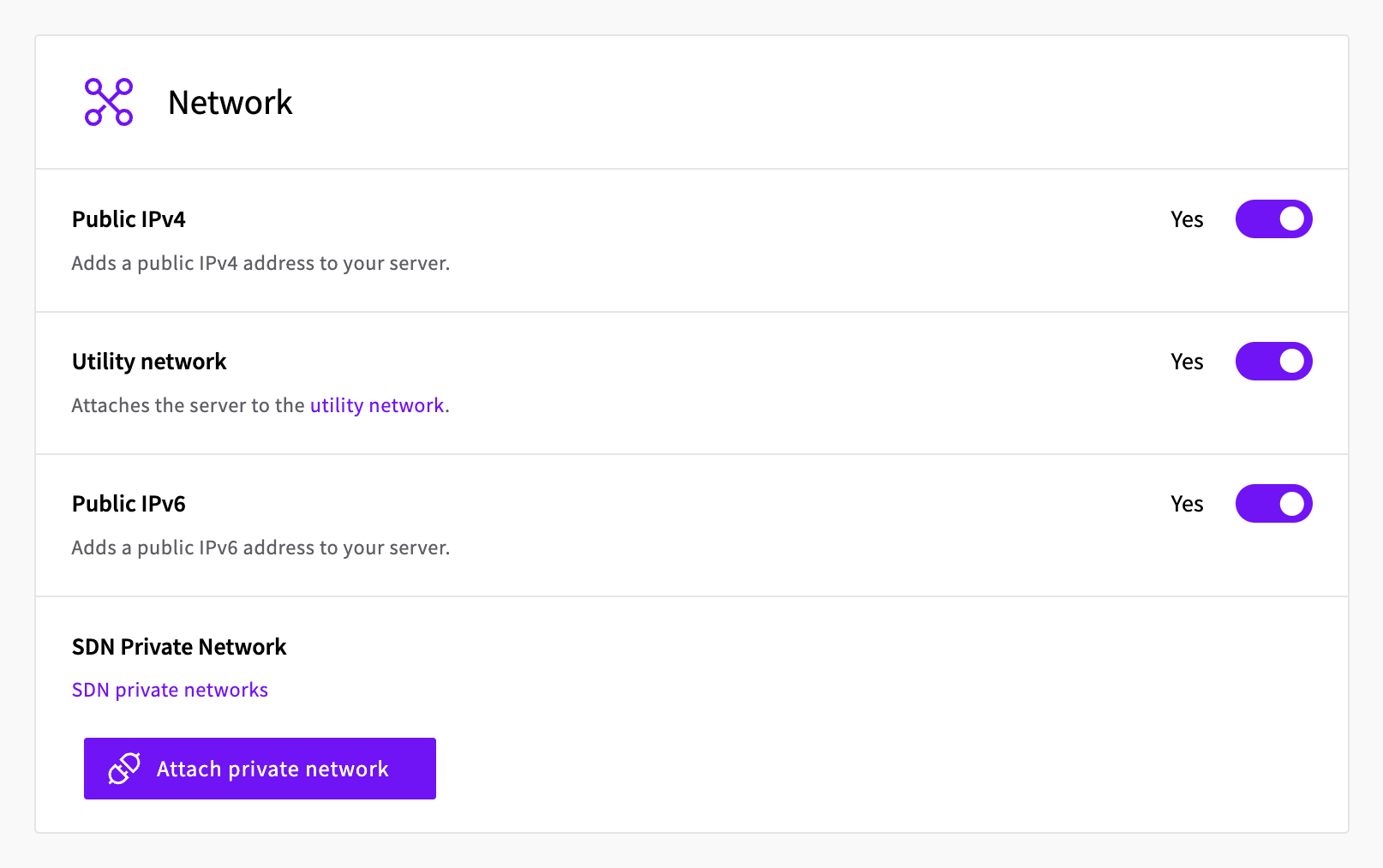
- Network: keep Public IPv4, Utility network and Public IPv6 on. If the Managed MySQL service is on an SDN Private Network, click Attach private network and select that network.
- Login Method: SSH keys, with your key selected.
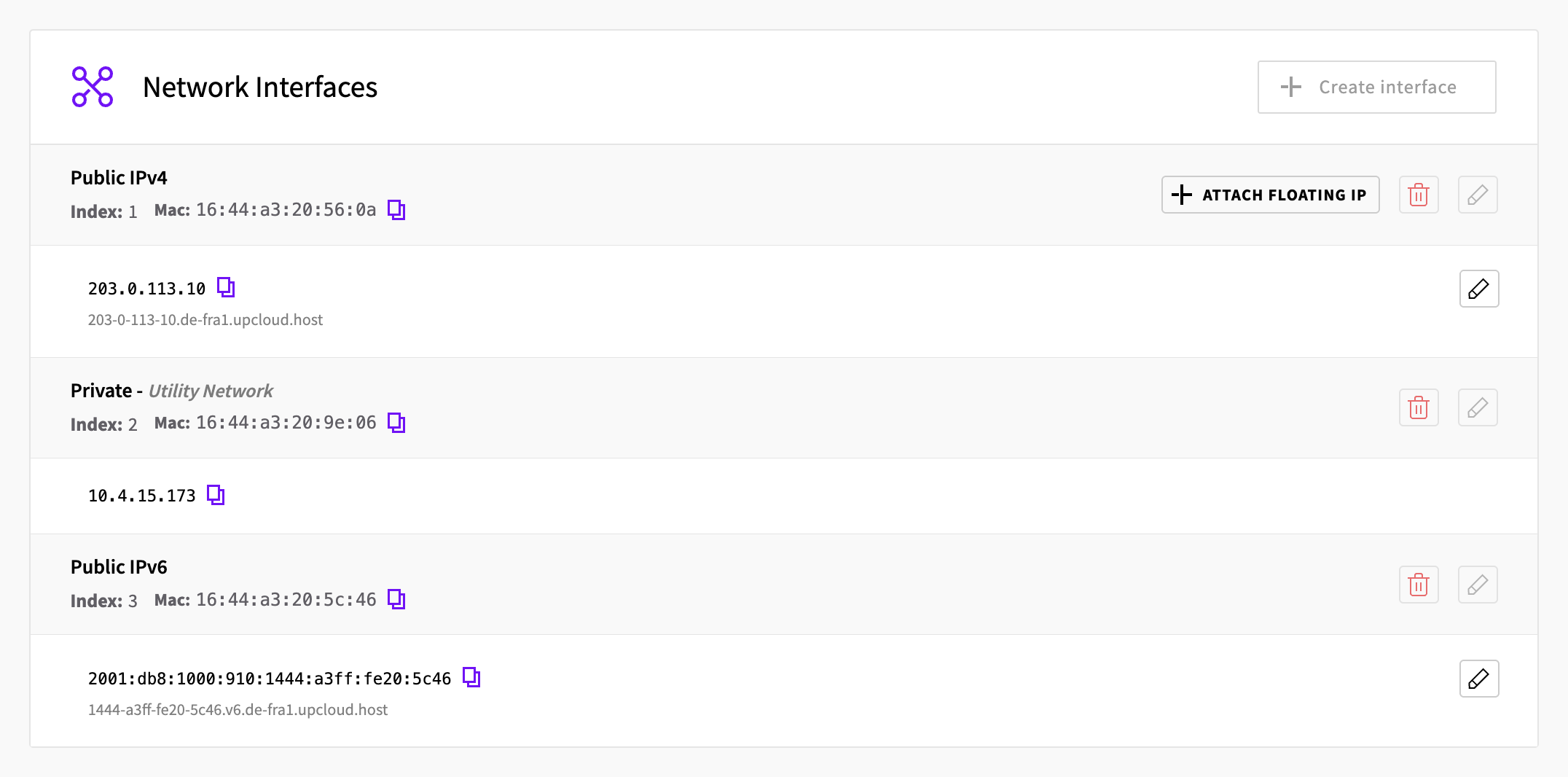
Then click Deploy. Once the server has started, its public IPv4 and IPv6 addresses are on the server's Network tab, under Public IPv4 and Public IPv6.
For more about creating servers, see Deploying a new Cloud Server.
Log in to the server over SSH as root, and run the commands in the rest of this guide there. For help with logging in, see Connecting to your Cloud Server.
Point your domain at the server
At your DNS provider, create these four records, so that both example.com and www.example.com point at the server:
| Name | Type | Value |
|---|---|---|
@ | A | The server's public IPv4 address |
@ | AAAA | The server's public IPv6 address |
www | A | The server's public IPv4 address |
www | AAAA | The server's public IPv6 address |
@ stands for the domain itself. Keep the provider's default TTL.
If your DNS provider can proxy traffic, as Cloudflare can, turn the proxy off for these records, so that they point straight at the server.
If your site is on a subdomain, such as blog.example.com, create only two records, an A and an AAAA, with the subdomain part as the name, for example blog. Leave out www.example.com in the later steps too.
Let's Encrypt checks these records when you get the certificate. Creating them now gives them time to reach DNS servers while you set up the rest. For more about DNS records, see Domain Name System and how to manage DNS records.
Create the database and user
WordPress needs a database of its own and a user that can only use that database. You create both from the new server, so this step also confirms that the server can reach the service.
Install the
mysqlclient:sudo apt update sudo apt install mysql-clientConnect to the service as
upadmin, with the private hostname and port from the connection details. Enter theupadminpassword when you're asked for it:mysql --host=<hostname> --port=<port> --user=upadmin --password --ssl-mode=REQUIRED defaultdbCreate the database and the user. Replace
<password>with a strong password for thewordpressuser, and keep it for later, because WordPress needs it too:CREATE DATABASE wordpress; CREATE USER 'wordpress'@'%' IDENTIFIED BY '<password>' REQUIRE SSL; GRANT ALL PRIVILEGES ON wordpress.* TO 'wordpress'@'%'; exitREQUIRE SSLmakes the service refuse any connection from this user that isn't encrypted with TLS.GRANTgives the user full access to thewordpressdatabase and nothing else.Create the user in SQL like this, not in the Control Panel, because users created there get the same full access as
upadmin. For more on users, see How to restrict user access in Managed MySQL.Check that the new user can connect. Enter its password when you're asked for it:
mysql --host=<hostname> --port=<port> --user=wordpress --password --ssl-mode=REQUIRED wordpress -e 'SELECT CURRENT_USER();'OutputEnter password: +----------------+ | CURRENT_USER() | +----------------+ | wordpress@% | +----------------+
Install Apache and PHP
Install Apache, PHP and the PHP extensions WordPress uses, including the one for MySQL. On Ubuntu 26.04, this installs Apache 2.4 and PHP 8.5, with PHP running inside Apache:
sudo apt install apache2 libapache2-mod-php php-mysql php-curl php-gd php-imagick php-intl php-mbstring php-xml php-zipInstall WP-CLI
WordPress is usually set up in the browser, on a setup screen that creates the administrator account. However, until that's done, anyone who opens the new site can see the setup screen and complete it. Automated scanners look for new sites in that state. To avoid this, we recommend installing WordPress with WP-CLI, WordPress's official command-line tool. With WP-CLI, the site is fully set up before Apache serves it.
Download WP-CLI, check that it runs, and install it as the wp command:
curl -O https://raw.githubusercontent.com/wp-cli/builds/gh-pages/phar/wp-cli.phar
php wp-cli.phar --info
chmod +x wp-cli.phar
sudo mv wp-cli.phar /usr/local/bin/wp
php wp-cli.phar --info prints details such as:
...
PHP version:	8.5.4
...
WP-CLI version:	2.12.0
Install WordPress
You run WP-CLI as www-data, the user Apache runs as, so the WordPress files belong to that user. WordPress can then install plugins, themes and updates from its dashboard.
Create the site's folder, and a folder where WP-CLI keeps its cache, both owned by
www-data, and go to the site's folder:sudo install -d -o www-data -g www-data /var/www/wordpress /var/www/.wp-cli cd /var/www/wordpressDownload WordPress:
sudo -u www-data wp core downloadOutputDownloading WordPress 7.1.3 (en_US)... md5 hash verified: cf558ee9e6768434cd574aedb15ee335 Success: WordPress downloaded.Create WordPress's configuration file,
wp-config.php. The first command asks for thewordpressuser's password without showing it on screen, and the second writes it to the file along with the private hostname and port. Join the hostname and port with a colon, for exampleapp-db-abcdefghijkl.db.upclouddatabases.com:11569:read -rsp 'Password for the wordpress database user: ' DB_PASSWORD && echo sudo -u www-data wp config create --dbname=wordpress --dbuser=wordpress --dbpass="$DB_PASSWORD" --dbhost=<hostname>:<port> --skip-checkOutputSuccess: Generated 'wp-config.php' file.--skip-checkskips WP-CLI's connection check, which doesn't use TLS and so can't connect as a user that requires it.Tell WordPress to encrypt its connection to the service with TLS:
sudo -u www-data wp config set MYSQL_CLIENT_FLAGS MYSQLI_CLIENT_SSL --rawOutputSuccess: Added the constant 'MYSQL_CLIENT_FLAGS' to the 'wp-config.php' file with the raw value 'MYSQLI_CLIENT_SSL'.Install WordPress. Replace the site title, the administrator's username and the email address with your own, and keep
https://in the address:sudo -u www-data wp core install --url=https://example.com --title='My WordPress site' --admin_user=<admin-username> --admin_email=<email-address> --skip-emailOutputAdmin password: <generated-password> Success: WordPress installed successfully.WP-CLI generates a strong password for the administrator. Save it somewhere safe, because you need it to log in.
--skip-emailstops WordPress from sending a welcome email, because the server isn't set up to send email.
Configure Apache
Apache needs a site that serves the WordPress folder for your domain.
Create the file
/etc/apache2/sites-available/wordpress.conf, for example withsudo nano /etc/apache2/sites-available/wordpress.conf, with this content:<VirtualHost *:80> ServerName example.com ServerAlias www.example.com DocumentRoot /var/www/wordpress <Directory /var/www/wordpress> AllowOverride All </Directory> </VirtualHost>ServerAliasmakes the same site answer onwww.example.com.AllowOverride Alllets WordPress manage its own rules in a.htaccessfile in its folder, which readable permalinks and many plugins need.Turn on Apache's rewrite module, which those rules use, turn on the WordPress site, and turn off Ubuntu's default site:
sudo a2enmod rewrite
sudo a2ensite wordpress
sudo a2dissite 000-default
Each command reminds you to restart or reload Apache. You do that in the next step, after checking the configuration.
Check the configuration, then restart Apache:
sudo apache2ctl configtest sudo systemctl restart apache2OutputSyntax OKYou might also see a line that starts with
AH00558: apache2: Could not reliably determine the server's fully qualified domain name. It's only a notice and doesn't affect the site, because the site file setsServerNamefor your domain.
Get a certificate
Certbot gets a free certificate for your domain from Let's Encrypt, sets up HTTPS in Apache, and renews the certificate before it expires.
Check that your domain points at the server:
dig +short example.com @94.237.127.9
dig +short AAAA example.com @94.237.127.9
The output is the server's public IPv4 address, then its IPv6 address. Check
www.example.comthe same way.@94.237.127.9queries UpCloud's DNS resolver directly. If the output is empty or shows another address, wait for the DNS records from Point your domain at the server to appear, then try again.Install Certbot and its Apache plugin, and get the certificate:
sudo apt install certbot python3-certbot-apache
sudo certbot --apache -d example.com -d www.example.com
Certbot asks a few questions first:
- An email address for notices about the certificate. Press Enter to skip it.
- Whether you agree to the Let's Encrypt terms of service. Answer
Y, because you must agree to get a certificate. - If you entered an email address, whether to share it with the Electronic Frontier Foundation. Answer as you prefer.
When it's done, it shows:
Output... Successfully received certificate. ... Congratulations! You have successfully enabled HTTPS on https://example.com and https://www.example.comCertbot also sets Apache to redirect
http://addresses to HTTPS. WordPress sends visitors fromwww.example.comtoexample.com, the address you installed it with.Check that the certificate can be renewed:
sudo certbot renew --dry-runOutput... Congratulations, all simulated renewals succeeded: /etc/letsencrypt/live/example.com/fullchain.pem (success)
Log in to WordPress
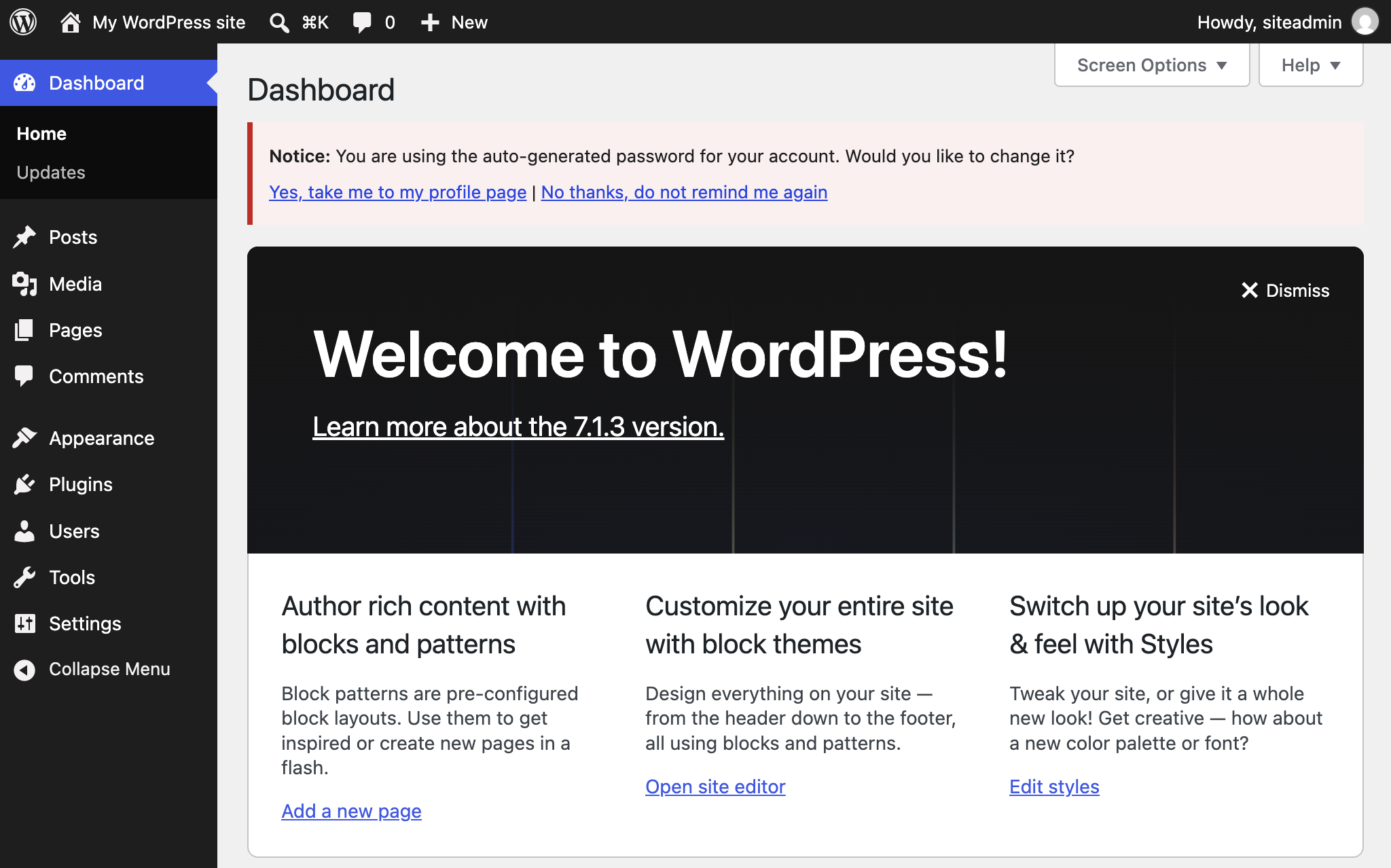
Open https://example.com/wp-admin in your browser and log in with the administrator's username and the password from Install WordPress. The dashboard then offers to change the generated password, which you can do straight away or later in your profile.
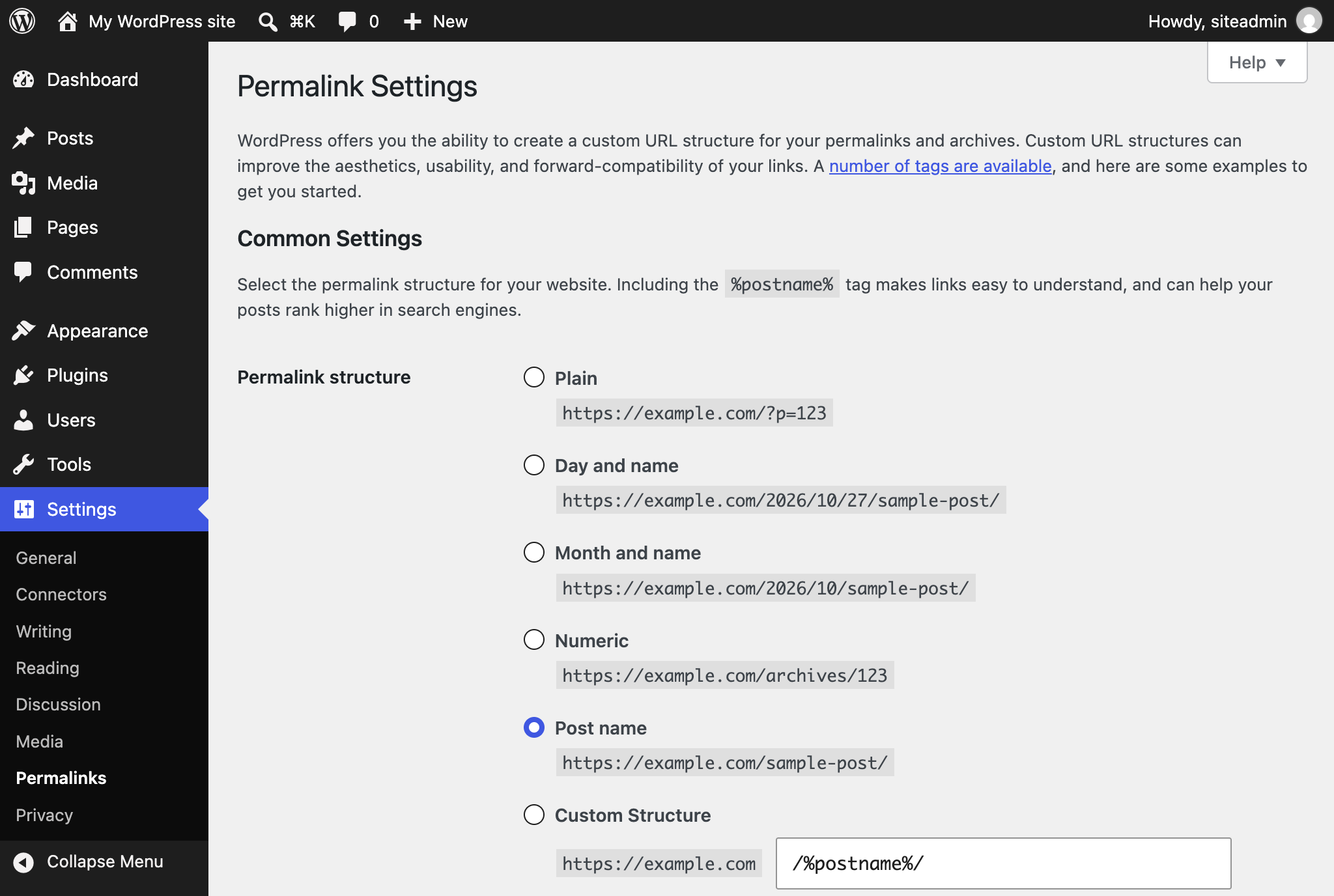
Then turn on readable permalinks, so posts get addresses like https://example.com/hello-world/:
Go to Settings > Permalinks.
Select Post name and click Save Changes.
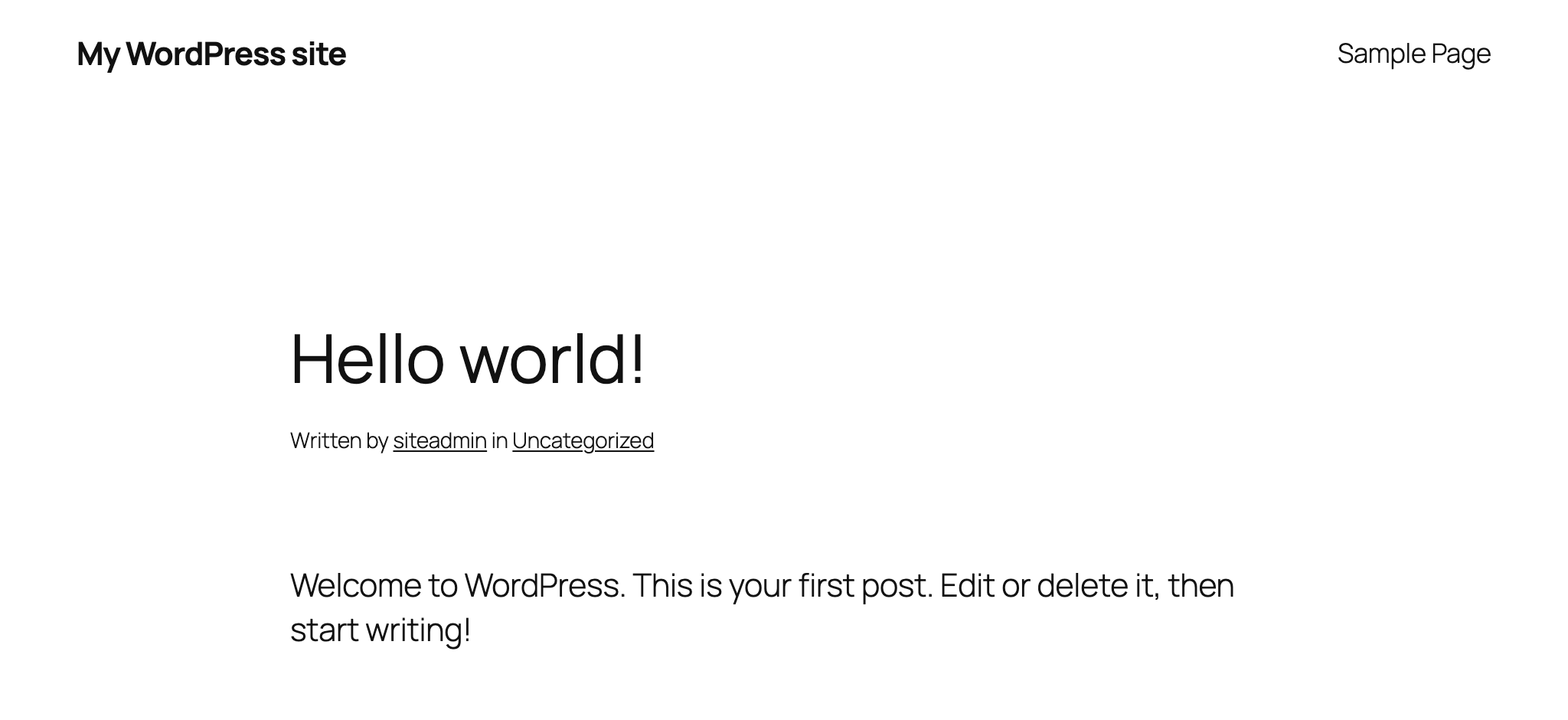
WordPress writes the rules to its .htaccess file. To check them, open the Hello world! post that WordPress created: its address ends in /hello-world/.
Troubleshooting
The
mysqlclient fails withERROR 2003 (HY000): Can't connect to MySQL server on '<hostname>:<port>' (110)A Cloud Server created after the service can take a while to get access over the Utility network. To let it connect straight away, add the server's Utility network address to the service's allowed IP list, for example
10.4.15.173/32. Use the Utility network address, not the public one, because that's the address the server connects from.WP-CLI shows
Error: Error establishing a database connection., or the site shows Error establishing a database connectionCheck the
wordpressuser's password and the hostname and port with themysqlcommand from Create the database and user. Ifmysqlfails withERROR 1045 (28000): Access denied, the password is wrong. Ifmysqlconnects, checkwp-config.php:DB_HOSTmust be the private hostname and port joined with a colon, andMYSQL_CLIENT_FLAGSmust be set, because the service refuses the user's connections without TLS. This command shows2048when it's set:sudo -u www-data wp config get MYSQL_CLIENT_FLAGSCertbot fails with
DNS problem: NXDOMAIN looking up A for example.com - check that a DNS record exists for this domainThe DNS records for the name in the message,
example.comorwww.example.com, don't exist yet, or haven't reached Let's Encrypt. Check the records at your DNS provider, wait until thedigcommands from Get a certificate show the server's addresses for that name, and run Certbot again.Certbot fails with
Invalid response from http://example.com/.well-known/acme-challenge/...Let's Encrypt reached a different server at one of your domain's addresses. The address at the start of the
Detail:line is the one it used. When the domain has anAAAArecord, Let's Encrypt connects over IPv6, so a wrongAAAArecord can make the check fail even if theArecord is right. Check that the domain'sAandAAAArecords point to this server's addresses, change or delete any that don't, and run Certbot again.Posts show Not Found with
The requested URL was not found on this server.after you change the permalinksApache isn't using WordPress's
.htaccessrules. Check that the site file hasAllowOverride Allfor/var/www/wordpressand that the rewrite module is on (sudo a2enmod rewrite), then restart Apache.
Next steps
- How to set up free backups for Cloud Servers explains how to back up the server. Uploaded media, themes and plugins are on the server, not in the database, so they need backups of their own.
- How to restore a Managed Database to a point in time shows how to get the site's data back from the service's backups.
- How to customise Managed Database properties explains how to change the service's MySQL settings.
MySQL is a registered trademark of Oracle and/or its affiliates. Other names may be trademarks of their respective owners.