Automatic node updates is in beta. Features shown in this guide may change before general availability.
How to keep Managed Kubernetes nodes up to date
The worker nodes in a Managed Kubernetes cluster run Debian, which regularly releases security fixes for its packages and for the Linux kernel. Automatic node updates installs them for you, on a schedule you choose for each node group. However, kernel updates take effect only after a node restarts. Since nodes aren't restarted for you, you also need a way to reboot them without disrupting your workloads.
This guide shows how to turn on automatic node updates in the Control Panel or with the UpCloud API, and how to use Kured, the Kubernetes Reboot Daemon, to reboot nodes one at a time once an update needs a restart. For how automatic node updates works, see Data Plane.
Beta notice
Before you start
You need:
- A Managed Kubernetes cluster running Kubernetes 1.35 or later, and
kubectlset up with its kubeconfig. To create a cluster, see Get started with Managed Kubernetes. - Helm, to install Kured.
- For the API steps, an API token. To create one, see How to get started using the UpCloud API.
Choose your options
Kubernetes patch updates
Include Kubernetes patch updates decides whether the nodes also update kubelet, kubeadm and kubectl. With it on, they move to the latest patch release of the cluster's Kubernetes version, for example from 1.35.3 to 1.35.9. The kubelet restarts to pick up the new version, and the pods on the node keep running. With it off, those packages stay at the version the node was created with.
Either way, the Kubernetes minor version stays the same. To move the cluster to a new Kubernetes version, upgrade the cluster.
Schedule
Schedule day is either Daily or one day of the week, and Schedule time (UTC) is the time of day the updates start, in UTC. All nodes in the group install updates at the same time, so pick a time when your cluster is quiet. If you use Kured to reboot nodes, leave room for both the updates and the reboots before your busy hours begin.
Each node group has its own schedule. Depending on your workloads, you can give your node groups different schedules, for example so that they don't all update at the same time.
Turn on automatic node updates
You can turn on automatic node updates only when you create a node group, either with a new cluster or by adding a node group to an existing one. To use it for workloads that already run in your cluster, create a new node group with automatic node updates turned on, then move the workloads to it in the same way as when changing the node plan.
For a new cluster, use the Node group section of the cluster's create form. For an existing cluster, add a node group: open the cluster, go to its Node groups tab and click Create a new node group.
- Choose the plan, enter a name for the node group and set the number of nodes.
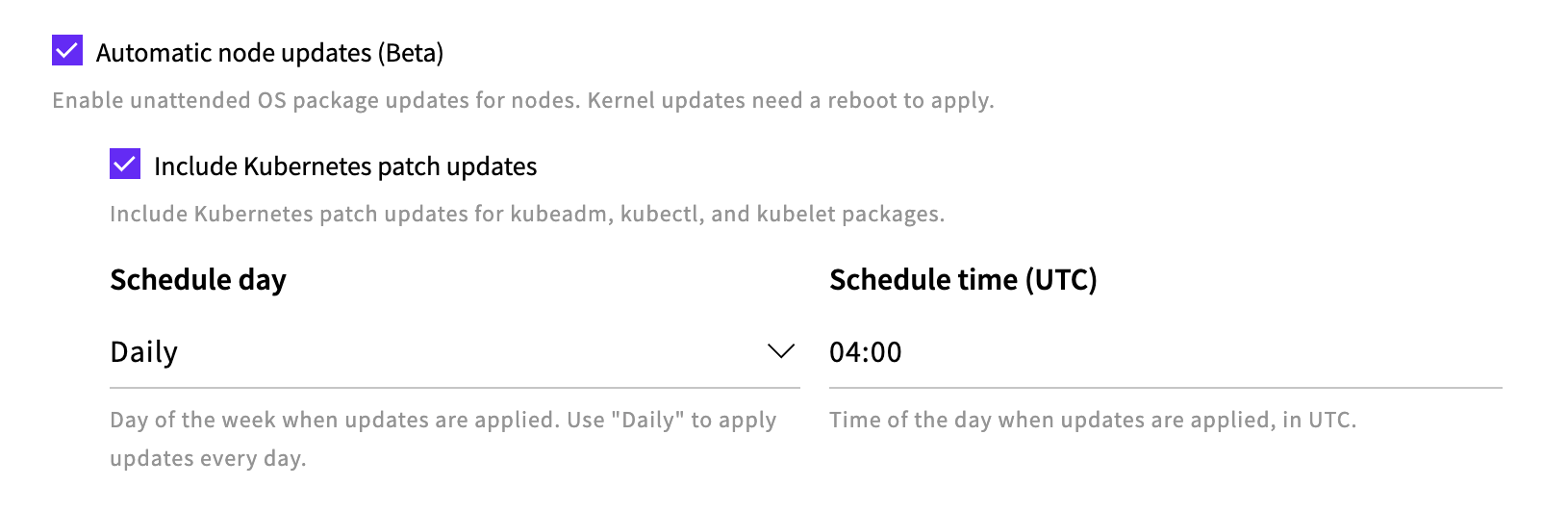
- Select Automatic node updates (Beta).
- Keep Include Kubernetes patch updates selected to update
kubelet,kubeadmandkubectltoo, or clear it to leave them as they are. - Choose the Schedule day and enter the Schedule time (UTC), for example
04:00. - Fill in the rest of the form as usual, then click Create cluster, or Create for a new node group.
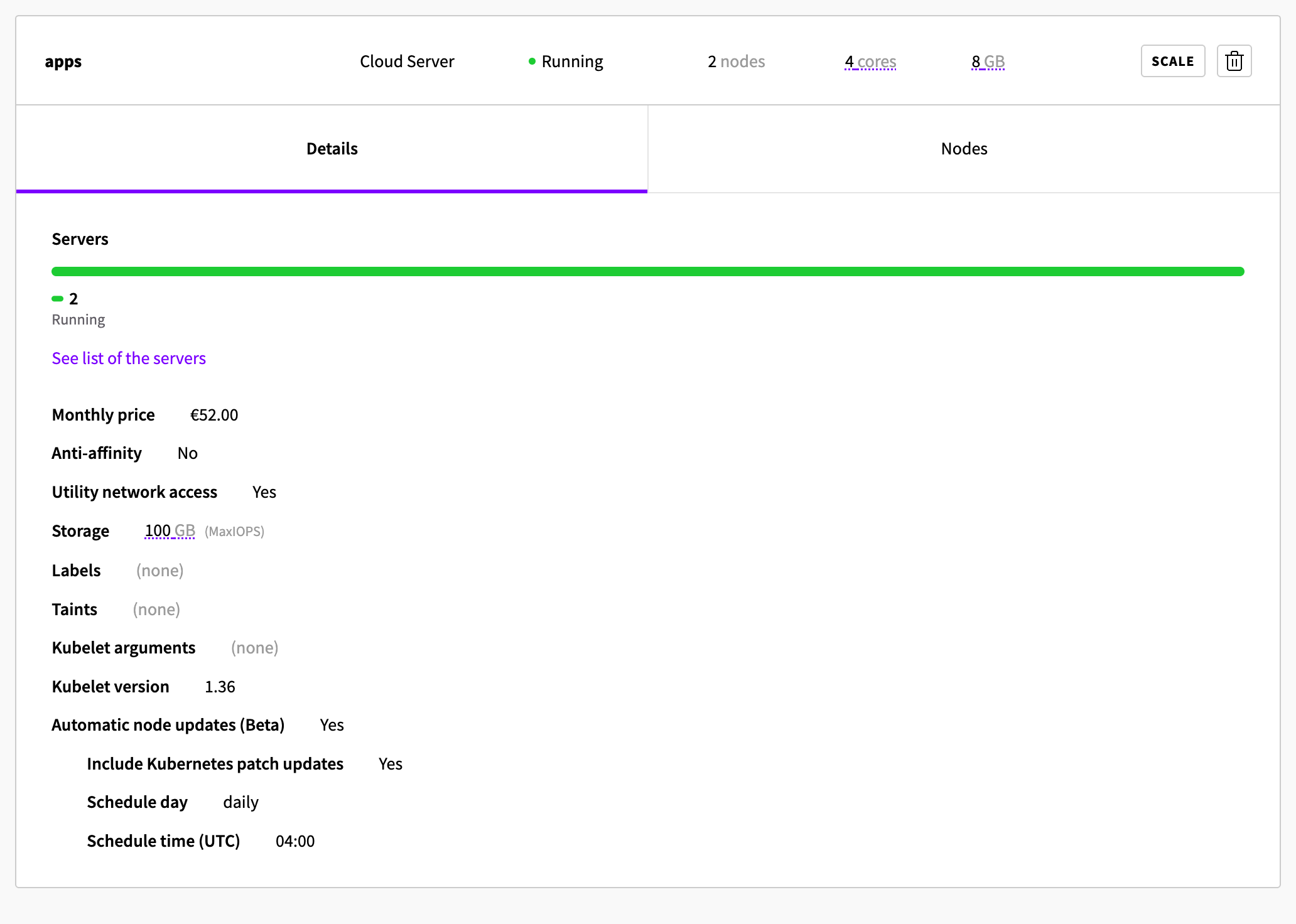
To check the settings later, open the cluster's Node groups tab and expand the node group. Its details list Automatic node updates (Beta), Include Kubernetes patch updates, Schedule day and Schedule time (UTC).
Reboot nodes with Kured
Kured runs on every node as a DaemonSet and checks whether /var/run/reboot-required exists, the file a node gets when an update needs a reboot. When it finds the file on a node, it takes a lock so that only one node in the cluster reboots at a time, then cordons and drains the node, reboots it, and uncordons it once it's back. Your pods are evicted and started again on the other nodes, in the same way as with kubectl drain. The node is restarted, not replaced, so it keeps its name and nothing else in the cluster changes.
Choose a reboot window
Without any settings, Kured reboots nodes at any time of day. To keep reboots to a quiet period, give it a window that opens after your update time. For example, with updates daily at 04:00 UTC, a window from 04:30 to 07:00 UTC gives the updates time to finish first. A node that needs a reboot outside the window, such as a new node that joined during the day, waits for the next window.
Kured also checks each node only once an hour by default. Because it reboots one node at a time, a short check period lets more nodes reboot within the window. Save these settings as kured-values.yaml:
configuration:
  timeZone: "UTC"
  startTime: "04:30"
  endTime: "07:00"
period: "10m"timeZone,startTimeandendTimeset the window. Using UTC keeps it in line with the update schedule.periodis how often Kured checks each node.- To reboot only on certain days, add
rebootDays, for examplerebootDays: [sa, su]. Match it to your update schedule if you update on one day of the week.
For every setting, see the Kured configuration reference.
Install Kured
Add the Kured Helm repository and install Kured into the kube-system namespace with your settings:
helm repo add kubereboot https://kubereboot.github.io/charts
helm repo update
helm install kured kubereboot/kured --namespace kube-system -f kured-values.yaml
Output
"kubereboot" has been added to your repositories
Hang tight while we grab the latest from your chart repositories...
...Successfully got an update from the "kubereboot" chart repository
Update Complete. ⎈Happy Helming!⎈
NAME: kured
LAST DEPLOYED: Mon Oct 19 22:03:39 2026
NAMESPACE: kube-system
STATUS: deployed
REVISION: 1
DESCRIPTION: Install complete
TEST SUITE: None
NOTES:
Kured will check for /var/run/reboot-required, and reboot nodes when needed.

See https://github.com/kubereboot/kured/ for details.
Check that a Kured pod is running on every node:
kubectl get pods -n kube-system -l app.kubernetes.io/name=kured -o wideOutput
NAME          READY   STATUS    RESTARTS   AGE   IP              NODE                  NOMINATED NODE   READINESS GATES
kured-2k5ht   1/1     Running   0          32s   192.168.0.37    workers-sg4gh-6g7bb   <none>           <none>
kured-6ztxh   1/1     Running   0          32s   192.168.5.138   apps-fs9j2-sdtqx      <none>           <none>
kured-b22p6   1/1     Running   0          32s   192.168.4.96    apps-fs9j2-jvrsq      <none>           <none>
kured-mt29n   1/1     Running   0          32s   192.168.1.89    workers-sg4gh-kp7s2   <none>           <none>
kured-rdzfb   1/1     Running   0          32s   192.168.2.14    workers-sg4gh-kfpjw   <none>           <none>
kured-vwn6v   1/1     Running   0          32s   192.168.3.213   batch-7rstb-7pjp6     <none>           <none>
To check the reboot window Kured is using, look for the Reboot schedule line in its logs:
kubectl logs -n kube-system daemonset/kured | grep "Reboot schedule"Output
Found 6 pods, using pod/kured-vwn6v
time="2026-10-19T09:51:08Z" level=info msg="Reboot schedule: SunMonTueWedThuFriSat between 04:30 and 07:00 UTC"
Keep your applications available during reboots
Because Kured drains each node before it reboots it, a workload with a single replica stops while its node is drained. For anything that must stay available, run at least two replicas spread across nodes, and add a PodDisruptionBudget so that a drain never takes too many of them down at once. For example, for a Deployment whose pods have the label app: web:
apiVersion: policy/v1
kind: PodDisruptionBudget
metadata:
  name: web
spec:
  minAvailable: 2
  selector:
    matchLabels:
      app: web
The same applies to CoreDNS, which resolves names inside the cluster. To make sure DNS keeps working while nodes reboot, see Make CoreDNS resilient to node failures.
Check that nodes were rebooted
After a reboot, a node reports the new kernel version. List the nodes with their kernel versions:
kubectl get nodes -o wideOutput
NAME                  STATUS   ROLES    AGE   VERSION   INTERNAL-IP   EXTERNAL-IP    OS-IMAGE                       KERNEL-VERSION                 CONTAINER-RUNTIME
workers-sg4gh-6g7bb   Ready    <none>   23m   v1.36.4   172.16.31.2   203.0.113.10   Debian GNU/Linux 13 (trixie)   6.12.107+deb13-amd64 (amd64)   containerd://2.2.4
workers-sg4gh-kfpjw   Ready    <none>   22m   v1.36.4   172.16.31.4   203.0.113.11   Debian GNU/Linux 13 (trixie)   6.12.107+deb13-amd64 (amd64)   containerd://2.2.4
workers-sg4gh-kp7s2   Ready    <none>   23m   v1.36.4   172.16.31.3   203.0.113.12   Debian GNU/Linux 13 (trixie)   6.12.107+deb13-amd64 (amd64)   containerd://2.2.4
To see what Kured did, check the logs of its pods:
kubectl logs -n kube-system -l app.kubernetes.io/name=kured --prefix --tail=20While a node waits for its turn, its Kured pod logs Reboot required and Lock already held with the name of the node that's rebooting. When its turn comes, it logs Draining node <node-name> and Triggering reboot for node <node-name>, and once the node is back, Uncordoning node <node-name>. After that, it logs Reboot not required until the next update needs a reboot.
Next steps
- Data Plane describes node groups and their settings, including automatic node updates.
- Scale a Managed Kubernetes cluster shows how to add and remove nodes.
- The Kured documentation covers further options, such as reboot notifications and blocking reboots while alerts are firing.
Kubernetes is a registered trademark of The Linux Foundation.