How to migrate to Managed Object Storage from AWS S3 or another provider
The migration tool copies buckets and objects into Managed Object Storage from AWS S3, from another S3-compatible storage service, or from another Managed Object Storage service, for example one in a different region. The copy runs on UpCloud's side, so you don't need a server or copy scripts of your own. You give the tool an access key for the source and one for the target, and it does the rest.
This guide walks you through preparing the source and the target, starting a migration in the Control Panel or with the UpCloud API, and checking the copy before you switch your applications over.
The migration tool is for moving your data once. To keep a copy of a bucket up to date in a second region, see How to copy objects between Managed Object Storage instances on a schedule.
What the migration copies
Check this before you start, because some things stay behind, and you may need to set them up again on the new service.
The migration copies every object in the buckets you choose, with its content and its Content-Type. Keys with spaces and other special characters are copied as they are. Objects that were uploaded in parts, such as large files, get a different ETag on the new service, but their content is the same.
The migration doesn't copy:
- Older versions and delete markers. Only the current version of each object is copied. An object whose current version is a delete marker isn't copied at all.
- Other headers, metadata and tags.
Cache-Control, custom metadata (x-amz-meta-*) and object tags stay behind. - Empty folders. Folders that contain files arrive with their files, but empty folders aren't copied.
- Bucket settings. Versioning, CORS, lifecycle rules and bucket policies stay behind. To set them up on the new service, see the guides listed in Next steps.
The source isn't changed. On the target, an object with the same name as one being copied is replaced, and objects that exist only on the target are left alone.
Before you start
You need a Managed Object Storage service to copy into. To create one, see How to get started with UpCloud Managed Object Storage.
For the API steps, you need an API token. To create one, see How to get started using the UpCloud API.
Prepare the source
The migration tool reads from the source through the source's S3 endpoint, with an access key. Give it a key that can only read, so the migration can't change anything on the source.
Endpoint. The endpoint is https://s3.<region>.amazonaws.com, where <region> is the region of the bucket you're copying. You can see it in the AWS Region column of the bucket list in the Amazon S3 console. For a bucket in Asia Pacific (Singapore), for example, the endpoint is https://s3.ap-southeast-1.amazonaws.com. Use the bucket's own region: with the global https://s3.amazonaws.com endpoint or another region's endpoint, the migration fails.
Access key. Create an IAM user just for the migration, so you can delete it, and its key, once you're done. In the AWS IAM console:
Go to Users and click Create user. Enter a User name, for example
upcloud-migration, leave Provide user access to the AWS Management Console off, and click Next.On Set permissions, click Next without choosing anything, then click Create user.
Open the user. On the Permissions tab, click Add permissions and select Create inline policy.
Click JSON, replace the editor's contents with the policy below, and click Next. Replace
example-bucketwith your bucket's name in both statements.{ "Version": "2012-10-17", "Statement": [ { "Effect": "Allow", "Action": "s3:ListBucket", "Resource": "arn:aws:s3:::example-bucket" }, { "Effect": "Allow", "Action": "s3:GetObject", "Resource": "arn:aws:s3:::example-bucket/*" } ] }The first statement lets the migration list the objects in the bucket, and the second lets it download them.
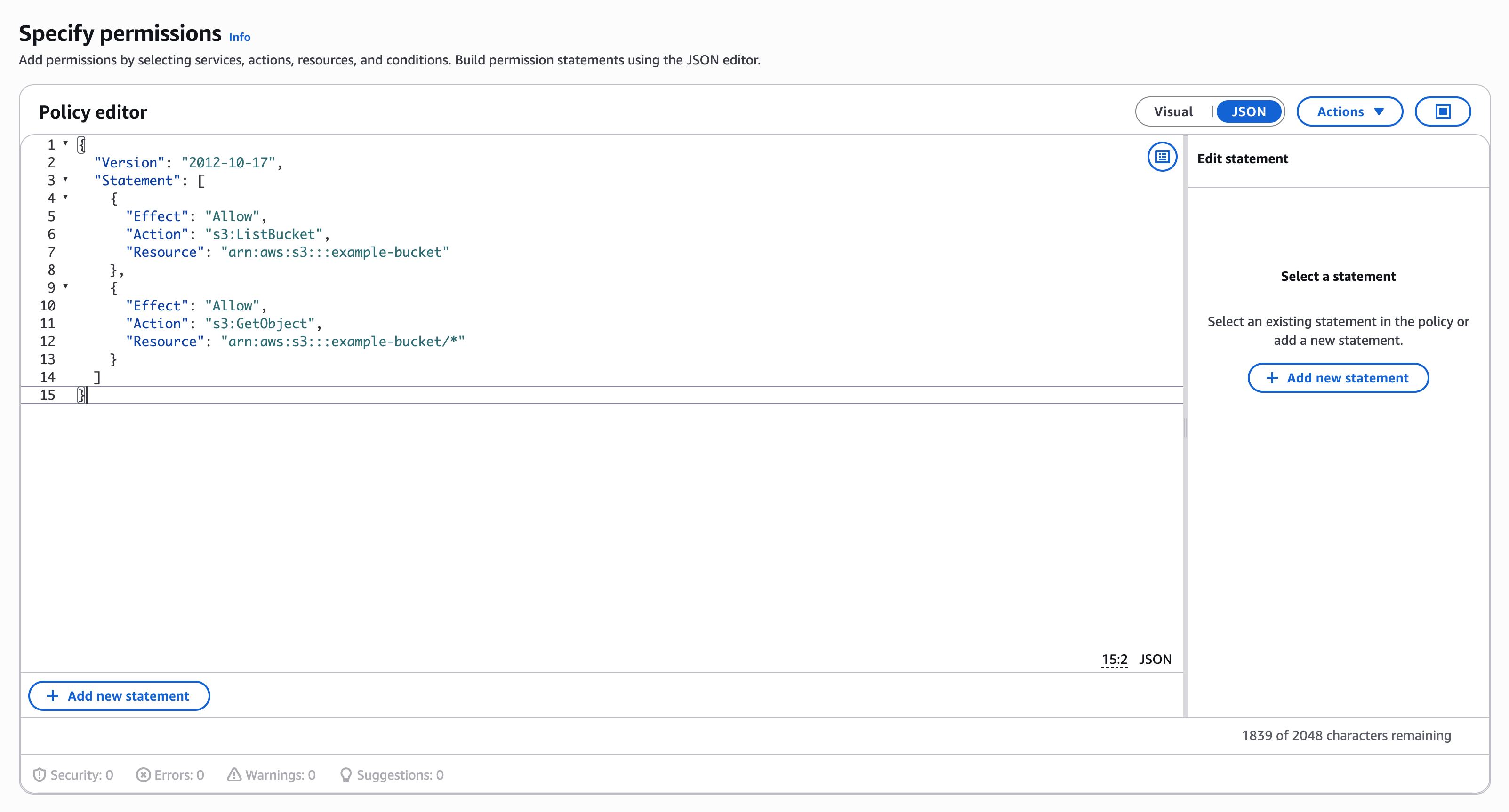
Enter a Policy name, for example
upcloud-migration-read, and click Create policy.On the user's Security credentials tab, click Create access key.
Under Use case, select Third-party service. AWS then recommends temporary credentials instead of an access key, but the migration tool needs an access key, so tick the confirmation and click Next.
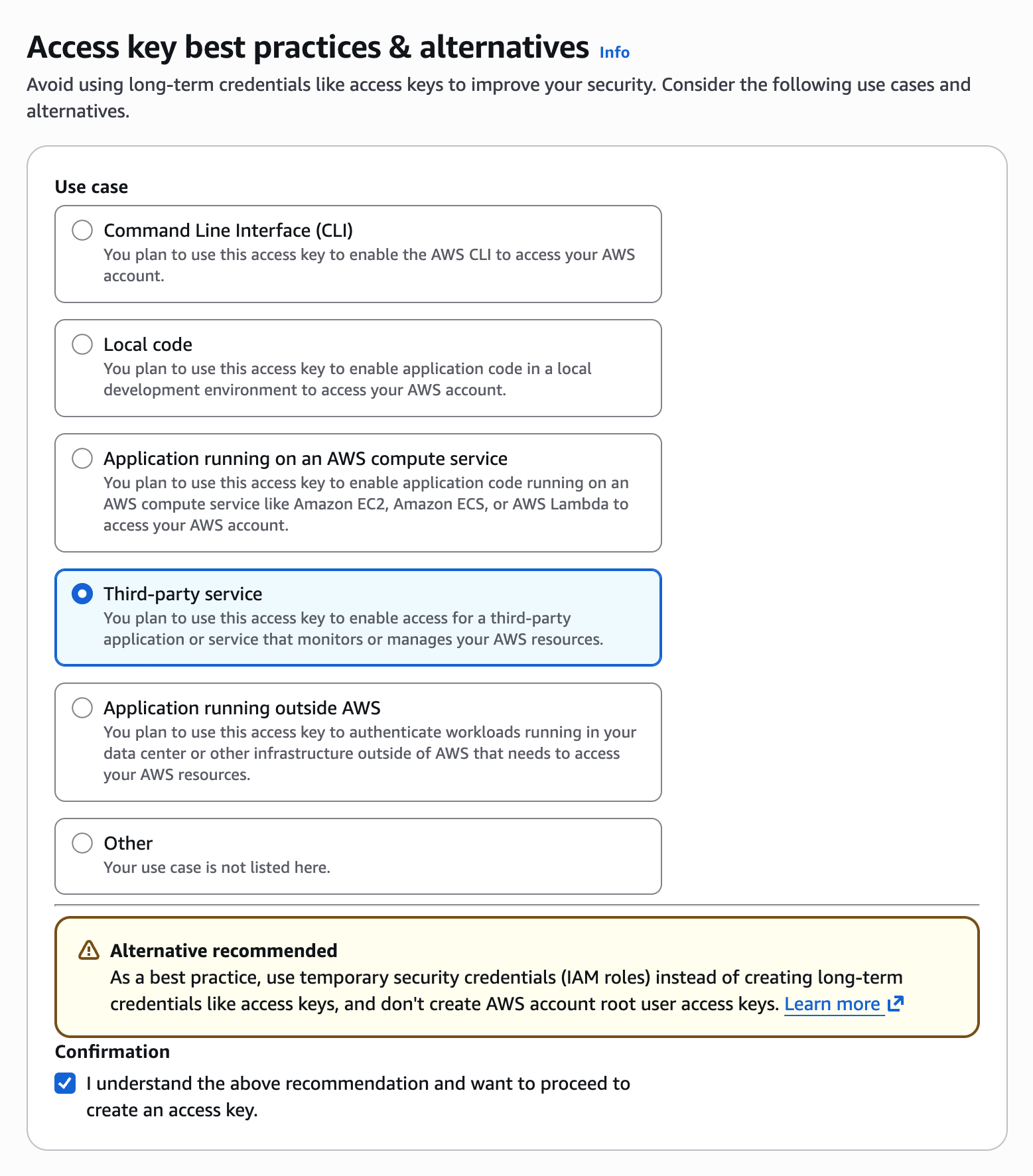
Enter a Description tag value if you want one, for example
UpCloud migration tool, and click Create access key.Copy the Access key and the Secret access key, or click Download .csv file. The secret access key is shown only once.
Copying every bucket. To copy all your buckets in one migration, the key has to be able to list every bucket in the AWS account and read each of them. In step 3, click Add permissions › Add permissions instead, select Attach policies directly, select the AWS managed policy AmazonS3ReadOnlyAccess, and click Next and Add permissions. Keep two things in mind:
- If there's a bucket in the account that the key can't read, the migration fails.
- A migration copies only the buckets in the endpoint's region. If your buckets are in several regions, run a migration for each region, with that region's endpoint.
Prepare the target
The target is a Managed Object Storage service in your account. The migration tool writes to it with an access key of one of the service's users, and that user needs full access to the buckets it writes to.
In the Control Panel, you can create this user while you create the migration, with Generate migration secrets. It creates a user with ECSS3FullAccess and an access key, and fills in the key for you. Each time you use it, it creates another user, named migration-user-1, migration-user-2 and so on, so delete them once the migration is done.
To use a user of your own instead, give it ECSS3FullAccess, or a policy with full access to the target bucket. A user that's limited to one bucket can't create it, so create the bucket first. For the steps, see How to get started with UpCloud Managed Object Storage and How to restrict user access in Managed Object Storage.
The target can also be a service with public access turned off. Use its private endpoint, which the Control Panel lists with private after it.
Choose the buckets
A migration can copy one bucket or every bucket in the source, and it can put them into one target bucket or into buckets of their own. Target buckets that don't exist yet are created for you.
| Source bucket | Target bucket | What the migration does |
|---|---|---|
| A bucket's name | A bucket's name | Copies the source bucket's objects into the target bucket. |
| A bucket's name | Empty | Copies the source bucket into a target bucket with the same name. |
| Empty | Empty | Copies every source bucket into a target bucket with the same name. |
| Empty | A bucket's name | Copies every source bucket into the target bucket, each in a folder named after the source bucket. |
Start the migration
In the Control Panel, go to Object Storage › Migrate and click Create new migration.
Under Source, enter the source's Endpoint, the Bucket to copy, and the Access key and Secret key. Leave Bucket empty to copy every bucket.
Under Target, select the target service under Endpoint.
Under Bucket, select a bucket, or type a name and select Create "<name>". If a bucket you've just created isn't in the list yet, type its name in the same way, and the migration copies into it. Leave Bucket empty to copy each bucket into a bucket of its own.
Enter the target user's Access key and Secret key. To create a user for the migration instead, click Generate migration secrets, change the Username if you want to, and click Create user. The Control Panel fills in the new user's keys.
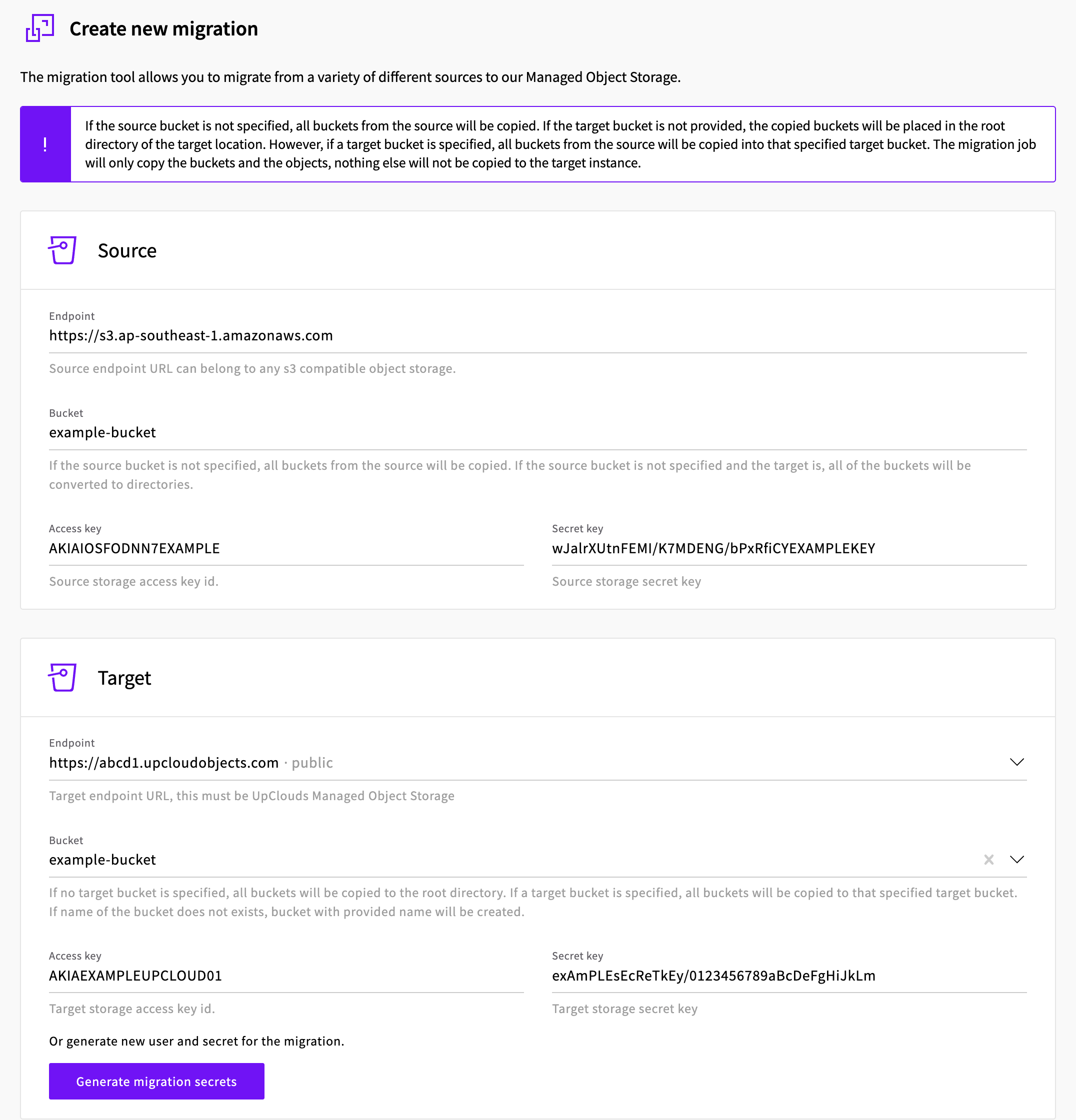
Click Create.
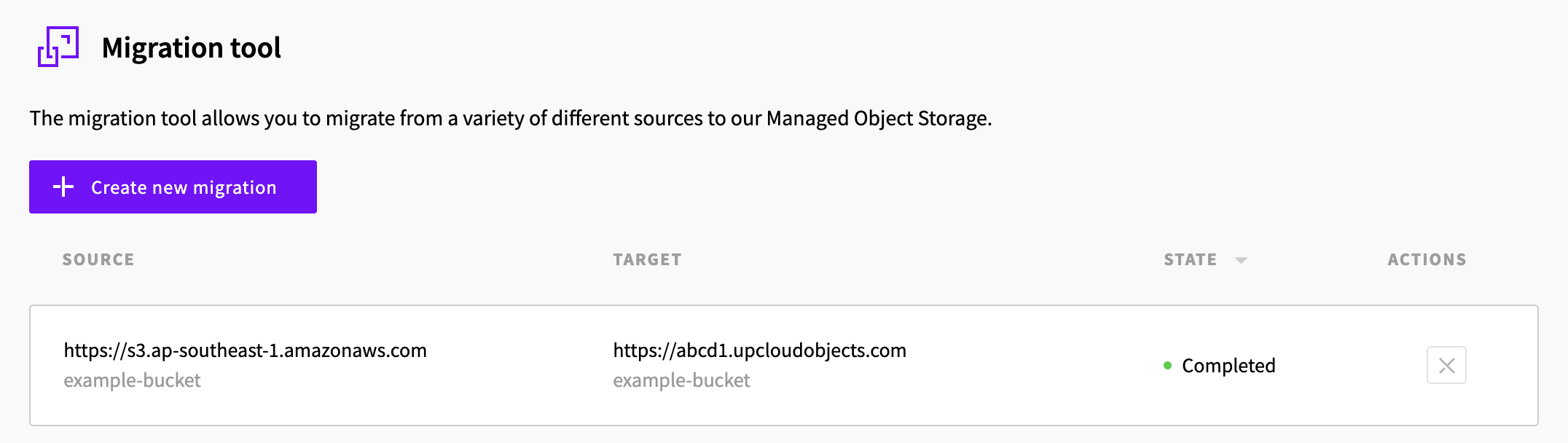
The migration appears in the list on the Migrate page.
Check the progress
Migrations in your account run one at a time, so a new migration waits as pending until the ones before it have finished. It then goes through these states:
pending: waiting to start.configuring: being set up.running: copying objects.completed: finished.failed: stopped because of an error. See Troubleshooting.canceled: canceled before it finished.
On the Migrate page, each migration's STATE column shows its state. For a migration that failed, click SHOW to see the error.
Cancel a migration
You can cancel a migration that hasn't finished. Objects it has already copied stay on the target.
Check the copy
Once the migration has completed, compare the number of objects and their total size in the source bucket and the target bucket. The AWS CLI's --summarize option counts them for you. Run it once with an AWS CLI profile for the source, and once with the upcloud profile from How to get started with UpCloud Managed Object Storage. For AWS S3, the source profile is the one you already use with your AWS account. For another Managed Object Storage service, set up a profile for it the same way as the upcloud profile.
aws s3 ls s3://<source-bucket> --recursive --summarize --profile <source-profile>
aws s3 ls s3://<target-bucket> --recursive --summarize --profile upcloud
Each command lists the bucket's objects and ends with the totals, for example:
...
2026-10-28 19:37:00  115343360 videos/intro-110mib.bin

Total Objects: 305
   Total Size: 116173465
The totals should match. If the source has empty folders, the target has that many fewer objects, because empty folders aren't copied, but the total size is the same.
The target service's Buckets tab in the Control Panel also shows each bucket's SIZE and OBJECTS. These figures are updated periodically, so right after a migration they can be lower than what's in the bucket.
After the migration
If your applications keep writing to the source while the migration runs, objects can be added or changed there after they've been copied. To pick those up, run the same migration again just before you switch your applications over. It copies only new and changed objects and skips the rest. Objects you deleted on the source aren't deleted on the target, so delete those yourself if you need to.
Then:
- Point your applications at the target service's S3 endpoint, with an access key of one of its users. For the endpoint, see How to get started with UpCloud Managed Object Storage.
- Set up the bucket settings that weren't copied, such as versioning, CORS and lifecycle rules. See Next steps.
- Delete the users you created for the migration: the IAM user on AWS, the read-only user on a Managed Object Storage source, and the users that Generate migration secrets created on the target. In the Control Panel, open the service's Users tab, click Remove on the user's row and confirm with Remove. The user's access keys are deleted with it.
- Keep the source until you've checked that your applications work with the new service.
Troubleshooting
The migration fails with
System error.The Control Panel shows
An error occurred during the job: System error, and the API returns"error": "System error"inoutput. Check that:- the source bucket exists, and its name is spelled the same way;
- for AWS S3, the endpoint has the bucket's own region;
- both access keys and secret keys are correct, and belong to the right side;
- the source key can list and read the bucket, and, to copy every bucket, list all your buckets and read each of them;
- if the target user is limited to one bucket, that bucket already exists.
Then create the migration again.
The API refuses the request with
Target endpoint url must belong to the service owned by the user account.The target endpoint isn't one of your Managed Object Storage services. Copy the S3 endpoint from the target service's Overview tab.
The API refuses the request with
'<endpoint>' is not valid 'uri'.The endpoint is missing
https://. Add it to the start of the endpoint.
Next steps
- How to restrict user access in Managed Object Storage explains how to give your applications' users only the access they need.
- How to enable and manage S3 object versioning, How to configure a CORS policy on a bucket and How to configure lifecycle policies show how to set up the bucket settings that the migration doesn't copy.
- How to set up a public read bucket explains how to share files over HTTPS without credentials.
- How to copy objects between Managed Object Storage instances on a schedule shows how to keep a copy of a bucket in a second region.