The replication method replaces everything on the Managed Valkey service with the data from Redis, in every database. An attempt that fails can also leave the service empty. Use a new service, or one whose data you don't need.
How to migrate Redis or Valkey to Managed Valkey
UpCloud Managed Valkey* has a migration tool that copies the data from Redis or Valkey that you run yourself on a Cloud Server. It copies the data while Redis or Valkey keeps running, and with the replication method it keeps copying new changes until you switch your application over, so the switch-over only needs a short pause in writes.
This guide walks you through checking that your version can be migrated, connecting your Cloud Server and the Managed Valkey service over an SDN Private Network, and copying the data in the Control Panel or with the UpCloud API. It then shows how to check that all of the data has arrived before you switch your application over.
To move a Managed Valkey service to another location instead, restore it from a backup into that location, as described in How to restore Managed Valkey from a backup. The new service has the data from the latest backup, which can be up to 12 hours old with the default backup schedule, so this suits data that your application can rebuild, such as a cache.
Check your Redis or Valkey version
Before you set anything up, check that the migration tool can copy from your version. Valkey started as a copy of Redis 7.2, and the two have been developed separately since then. The tool copies data from Redis 6.0 to 7.2 and from Valkey 7.2 to 9.1, but not from Redis 7.4 or later.
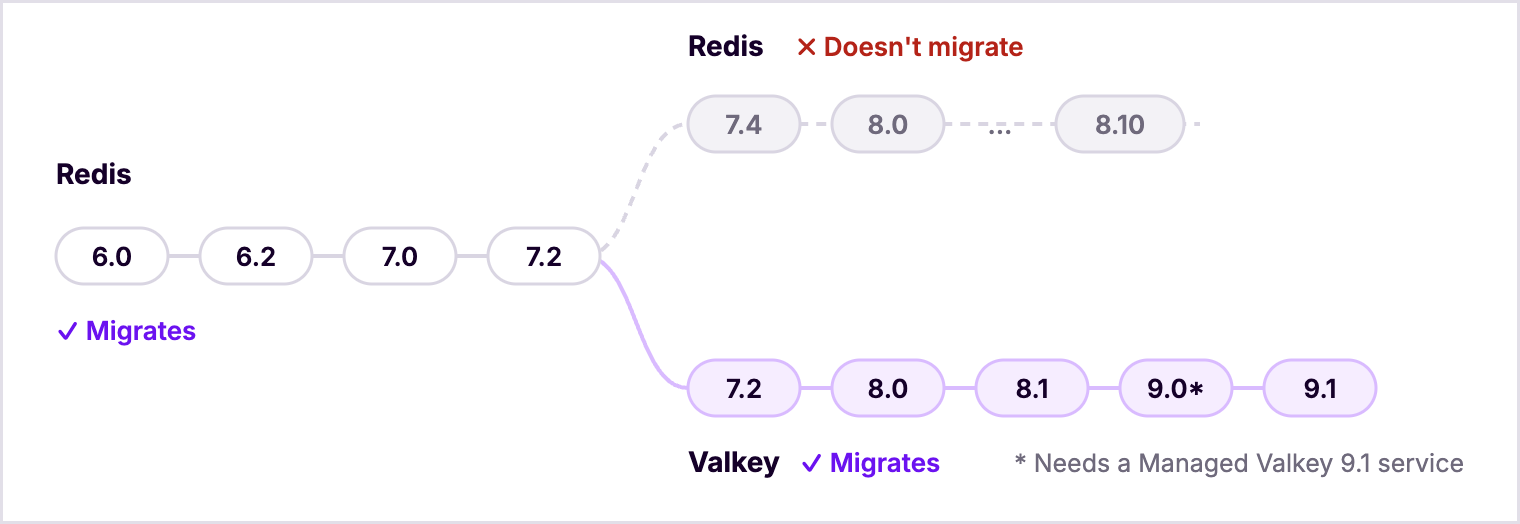
The INFO server command shows your version. If Redis or Valkey has a password, put it in the REDISCLI_AUTH environment variable first, so that redis-cli and valkey-cli can log in with it:
export REDISCLI_AUTH='<redis-password>'Then run the command on your Cloud Server. On Redis:
redis-cli INFO server | grep -E 'redis_version|valkey_version'Output
redis_version:7.0.15On Valkey, run the same command with valkey-cli. Valkey reports both versions, and valkey_version is the one to go by:
Output
redis_version:7.2.4
valkey_version:9.0.4
These versions can be migrated:
- Redis 6.0, 6.2, 7.0 and 7.2.
- Valkey 7.2, 8.0, 8.1, 9.0 and 9.1.
If you run Redis 7.4 or later, see If you run Redis 7.4 or later for what you can do instead.
The version of the Managed Valkey service matters too. Valkey 9.0 can only be copied into a service that runs Valkey 9.1, because Valkey 8.1 can't take data from Valkey 9.0. Check the Managed Valkey service shows how to check the service's version and change it.
Before you start
The migration tool connects from the Managed Valkey service to Redis on your Cloud Server, so the two need a network they can both reach. The main steps use an SDN Private Network that both are attached to, which keeps Redis off the public internet and works for Cloud Servers in the same location as the service. The tool can't reach your Cloud Server over the Utility network. If Redis runs outside UpCloud, or in another location, see Migrate from Redis outside UpCloud instead.
The steps use Redis as the example. If you run Valkey, use valkey-cli, /etc/valkey/valkey.conf and valkey-server wherever the steps use redis-cli, /etc/redis/redis.conf and redis-server.
You need the following, set up in this order:
- A Cloud Server that runs Redis or Valkey, in a location where Managed Valkey is available. The examples use Ubuntu 24.04 with Redis from Ubuntu's own packages.
- An SDN Private Network in the same location, attached to an SDN Router. To create the network, see How to configure SDN Private Networks, and to attach it to a router, see How to connect private networks using SDN Router. When you attach the network in the Control Panel, turn off Enable DHCP and add default route by DHCP, because your Cloud Server already has its default route through its public network interface.
- A new Managed Valkey service in the same location, created with the private network attached, as described in How to get started with Managed Valkey.
- An API token, if you follow the API steps. To create one, see How to get started using the UpCloud API.
Replication replaces the data on the service
Most of the preparation can happen while your application keeps running, but three steps interrupt it, so plan a short maintenance window for them:
- Your Cloud Server. Adding the private network interface means shutting the Cloud Server down, which stops Redis until it starts again.
- Your application servers. Only Cloud Servers on a network attached to the service can reach it privately, so your application servers need an interface on the same network, and each of them has to be shut down while you add it. Adding them before the migration means the switch-over later only needs a short pause in writes. An application server that can't join the network can use the service's public connection instead, with its address in the allowed IP list, as described in How to get started with Managed Valkey.
- The Redis password. If Redis has no password yet, your application has to start using the new one as soon as Redis restarts with it.
Connect your Cloud Server to the private network
For the Managed Valkey service to reach Redis, your Cloud Server needs an address on the private network, and Redis has to listen on that address and ask for a password. Adding the network interface means shutting the Cloud Server down, so save the data first.
Save the data to disk, so that Redis loads it again when your Cloud Server starts:
redis-cli SAVEOutputOKAdd your Cloud Server to the private network. The Cloud Server has to be shut down while you add the interface.
Shut down the Cloud Server. On its Network tab, click Create interface and select Private network interface. Under Network, select the private network, and click Create interface. Then start the Cloud Server again.
For the other options in the dialog, see Attaching new IP addresses.
Log in to your Cloud Server and list its network interfaces:
ip -br addrThe new interface is the last one in the list,
eth2in the examples. Ubuntu 26.04 gives it an address on the private network as soon as the Cloud Server starts. On Ubuntu 22.04 and 24.04, it shows asDOWNwith no address until you set it up as described in Attaching new IP addresses, which also covers other systems. Once it's set up, it shows its private address:ip -br addr show dev eth2Outputeth2 UP 172.16.1.10/24 metric 100 fe80::1444:a3ff:fe20:9a52/64Check that your Cloud Server has a route to the Managed Valkey service:
ip route | grep 100.125Output100.125.0.0/22 via 172.16.1.1 dev eth2 proto dhcp src 172.16.1.10 metric 100The service's private addresses are in this range, and your range can differ from the example. If a firewall runs on your Cloud Server, allow connections to the Redis port from your range.
Open
/etc/redis/redis.confand add the private address to the end of the existingbindline, so that Redis also listens on the private network. Keep the addresses that are already on the line, because your application may connect through one of them. On Ubuntu 24.04, the line then reads:bind 127.0.0.1 -::1 172.16.1.10If Redis has no password yet, add one in the same file, because the migration tool can't connect to Redis without one:
requirepass <redis-password>Restart Redis to apply both changes. If you've just set the password, update your application's Redis settings with it at the same time, because from now on Redis answers its commands with
NOAUTH Authentication required.until it logs in:sudo systemctl restart redis-serverPut the password in the
REDISCLI_AUTHenvironment variable, so that theredis-clicommands in the rest of this guide can log in:export REDISCLI_AUTH='<redis-password>'
Check the Managed Valkey service
Before you copy anything, make sure the Managed Valkey service has room for your data and runs the Valkey version you want. You can check both from your Cloud Server over the private network, with the service's private connection string. To find it, see How to get started with Managed Valkey.
To check the room, compare the memory that Redis uses with the memory limit of the service:
redis-cli INFO memory | grep used_memory_humanOutput
used_memory_human:1.24Mredis-cli -u 'rediss://default:<service-password>@<hostname>:<port>' INFO memory | grep maxmemory_humanOutput
Warning: Using a password with '-a' or '-u' option on the command line interface may not be safe.
maxmemory_human:2.46G
The warning appears whenever the password is part of the command. If Redis uses more memory than the service's limit, resize the service to a bigger plan, as described in How to get started with Managed Valkey.
Then check which Valkey version the service runs:
redis-cli -u 'rediss://default:<service-password>@<hostname>:<port>' INFO server | grep valkey_versionOutput
Warning: Using a password with '-a' or '-u' option on the command line interface may not be safe.
valkey_version:8.1.11
A service created in the Control Panel runs Valkey 8.1 unless you change it. Every version that can be migrated works with a Valkey 8.1 or 9.1 service, except Valkey 9.0, which needs a service that runs Valkey 9.1. To move the service to Valkey 9.1:
- Open the service's Properties tab.
- Find
valkey_version. To find it quickly, typevalkey_versionin the search box. - Click the edit icon next to it, select
9.1, and click Save changes straight away.
When the change has finished, the command above shows valkey_version:9.1.3. If it still shows 8.1, wait and run it again.
Check the connection
The migration tool can check the connection and the login before it copies anything, so run the check first. If it fails, the result says what to fix.
Go to Databases and open the Managed Valkey service.
Open the Settings tab.
Under Migrate from external source, click Set up database migration.
Select Configure manually and click Continue.
Fill in the form:
- Method: change it to
replication. The form selectsdumpby default. - Hostname: your Cloud Server's private address, for example
172.16.1.10. - Port:
6379. - Username:
default. - Password: your Redis password.
- Database name:
0. With replication, the migration copies every database, whatever you enter here. - Leave Use TLS/SSL encryption unselected.
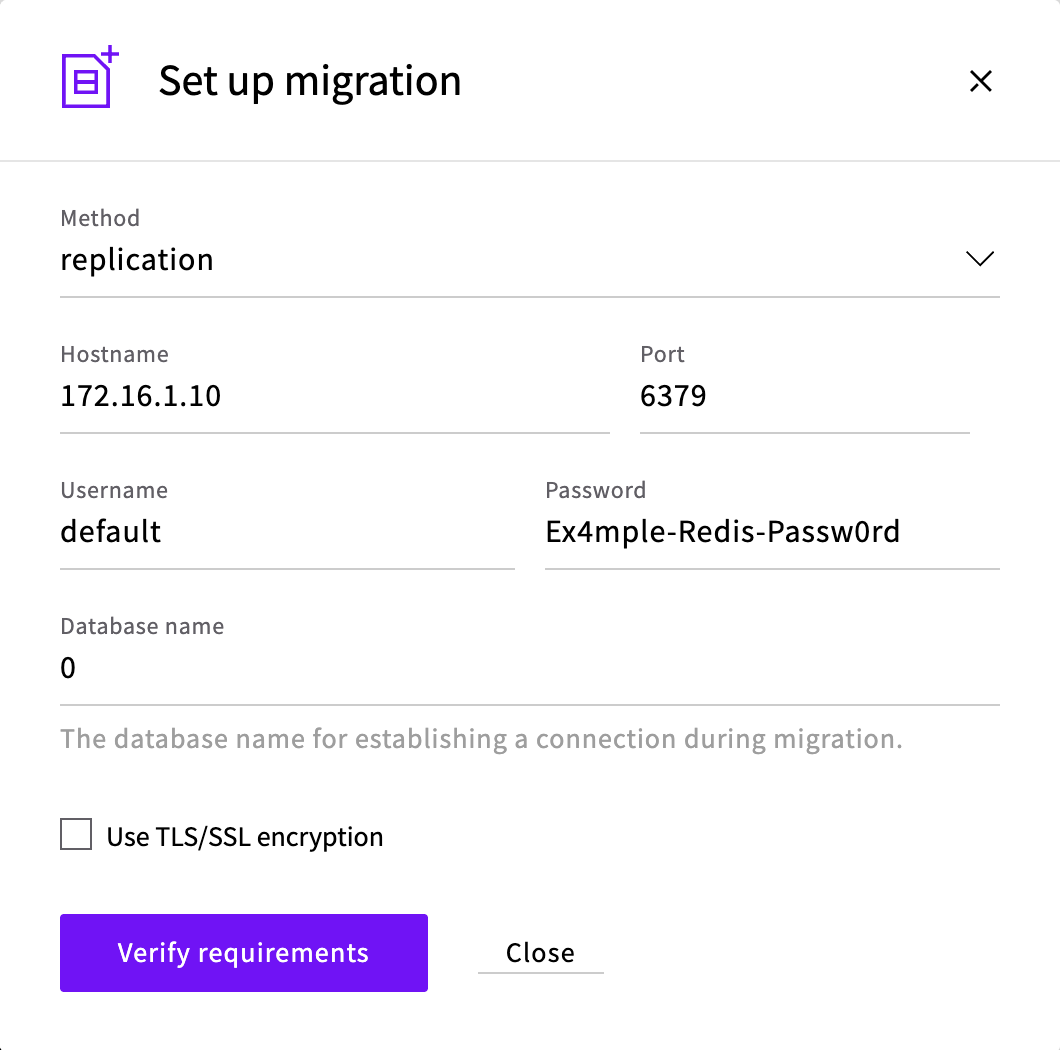
- Method: change it to
Click Verify requirements.
When the check passes, the Control Panel shows Requirements verification complete! with the result:
Output
Result: Migration method will be REPLICATION
Source redis has 2 databases, target redis has 16 databases. Target databases above db1 will be flushed.
Despite the wording of the last line, replication removes the service's existing keys from every database, not only the ones above that number. If the check fails, the result says why, and Troubleshooting lists the messages with their fixes.
Instead of filling in the form, you can select Use connection URI and paste a connection string such as redis://default:<redis-password>@172.16.1.10:6379/0, and the Control Panel fills in the same form from it. Check the Method before you continue, because it stays on dump.
Start the migration
When the check passes, start the migration.
In the Requirements verification complete! dialog, click Start migration. The Migrate from external source section then shows STATUS as Enabled, with the settings you entered. To follow the copy, see Check that the data has arrived.
The Managed Valkey service first copies all of your data and then keeps copying every change. Until you end the migration, the service is a read-only copy of Redis, so writes to it fail with READONLY You can't write against a read only replica.
Check that the data has arrived
Before you switch your application, make sure the first copy has finished and the service has all of your keys. You can check both from your Cloud Server with the service's connection string. Start with the state of the migration:
redis-cli -u 'rediss://default:<service-password>@<hostname>:<port>' INFO replication | grep -E '^(role|master_link_status)'Output
Warning: Using a password with '-a' or '-u' option on the command line interface may not be safe.
role:slave
master_link_status:up
role:slave shows that the service is copying from Redis, and master_link_status:up means the first copy is complete and the service is receiving changes. While the first copy is still running, it shows down, so wait and run the command again.
Then compare the number of keys in each database in Redis and on the service:
redis-cli INFO keyspaceOutput
# Keyspace
db0:keys=1010,expires=1,avg_ttl=86001031
db1:keys=1,expires=0,avg_ttl=0
redis-cli -u 'rediss://default:<service-password>@<hostname>:<port>' INFO keyspaceOutput
Warning: Using a password with '-a' or '-u' option on the command line interface may not be safe.
# Keyspace
db0:keys=1010,expires=1,avg_ttl=0,keys_with_volatile_items=0
db1:keys=1,expires=0,avg_ttl=0,keys_with_volatile_items=0
When the keys numbers match in every database, all of your data is on the service, even though the other figures can differ. If they don't match yet, wait and compare them again. While your application still writes to Redis, the numbers can also differ by the writes made between the two commands, and the marker key in Switch your application confirms that those arrive too.
Switch your application
With all of the data on the Managed Valkey service, you can switch your application over. The marker key in these steps shows when the service has every write made before the pause, so nothing written to Redis is left behind:
Stop the writes to Redis, for example by stopping your application or putting it in maintenance mode.
Write a marker key in Redis:
redis-cli SET migration:marker "$(date -u +%FT%TZ)"OutputOKCheck that the marker has reached the service:
redis-cli -u 'rediss://default:<service-password>@<hostname>:<port>' GET migration:markerOutputWarning: Using a password with '-a' or '-u' option on the command line interface may not be safe. "2026-10-30T01:11:42Z"When the marker is there, so is every write made before it. If the command returns
(nil), wait and run it again, and don't end the migration until the marker is there.End the migration.
In the Migrate from external source section, click End migration, then Yes. STATUS changes to Disabled.Check that the service accepts writes:
redis-cli -u 'rediss://default:<service-password>@<hostname>:<port>' INFO replication | grep -E '^(role|master_link_status)'OutputWarning: Using a password with '-a' or '-u' option on the command line interface may not be safe. role:masterIf it still shows
role:slave, wait and run the command again.Point your application at the connection string of the Managed Valkey service, and start it again. The connection string starts with
rediss://, so the application must connect with TLS. For an example, see How to get started with Managed Valkey.
Once the migration has ended, the service keeps the data but no longer copies changes from Redis, and the data in Redis stays as it was. You can keep Redis running until you're sure that your application works with the service, and stop it after that.
The migration copies data only, so two things need setting up on the service separately:
- Users. Users that you created in Redis aren't copied, and the service keeps its own
defaultuser and password. To give applications their own users, see How to restrict user access in Managed Valkey. - Settings. Settings such as the eviction policy aren't copied, because Managed Valkey sets them as service properties. For the eviction policy, see How to configure Managed Valkey as a cache.
Copy the data once with dump
If you want a one-off copy, or want to add data to a service that already holds keys you want to keep, use the dump method instead. It copies the keys that are in Redis when it runs, once, and doesn't copy later changes. It also doesn't replace what's already on the service: keys with the same name are overwritten, and other keys stay.
To use it, follow Check the connection and Start the migration with Method set to dump, or "method": "dump" in the API. The check then reports Migration method will be SCAN.
Because the service stays a primary and accepts writes during a dump, the INFO replication and marker checks don't apply. Compare the key counts instead, as in Check that the data has arrived: the copy has finished when the numbers on the service stop changing. STATUS stays Enabled until you end the migration, so end it as in Switch your application once the copy is complete.
Migrate from Redis outside UpCloud
If Redis runs outside UpCloud, or on a Cloud Server in another location, it can't join the service's private network, so the Managed Valkey service connects to it over the public internet. Redis then has to accept connections from the internet, which is why these steps let in only the addresses that the service connects from.
The data crosses the internet
Without TLS, the data and your Redis password cross the internet unencrypted. The migration check doesn't accept self-signed certificates.
Turn on the public connection of the Managed Valkey service, and add the public address of the server that runs Redis to its allowed IP list, so that you can run this guide's
redis-clichecks from that server. For the steps, see How to get started with Managed Valkey. With the API, sendPATCH /1.3/database/<service-uuid>with:{ "properties": { "public_access": true, "ip_filter": ["203.0.113.10/32"] } }Find the addresses that the Managed Valkey service connects from. The service connects to Redis from the address of its public hostname, which is on the Public tab of the connection details in the Control Panel, and in
componentswith"route": "public"in the API. If the service has more than one node, its standby node, which takes over when the primary node fails, has its own public hostname that starts withpublic-replica-instead ofpublic-. Look up the hostnames on the server that runs Redis:dig +short public-<hostname-prefix>-<id>.db.upclouddatabases.com dig +short public-replica-<hostname-prefix>-<id>.db.upclouddatabases.comOutput87.58.152.36 85.9.206.123A single-node service has only the
public-hostname, so it gives you one address.In the server's firewall, allow the Redis port from these addresses only. For example, with
ufwon Ubuntu, allow SSH so that you keep your own connection, allow the service's addresses, block everything else and turn on the firewall:sudo ufw allow 22/tcp sudo ufw allow from 87.58.152.36 to any port 6379 proto tcp sudo ufw allow from 85.9.206.123 to any port 6379 proto tcp sudo ufw default deny incoming sudo ufw enableWhen
ufwasks whether to proceed, answery.Set up Redis as in steps 5 to 8 of Connect your Cloud Server to the private network, adding the server's public address to the
bindline.Follow Check the connection and the sections after it, with the server's public address as the Hostname and the service's public connection string in the
redis-clicommands.
These addresses stay the same until the service's nodes are replaced, for example when you resize it. If the check or the migration stops connecting, look up the addresses again and update the firewall, rather than opening the port to everyone.
When the migration has ended, remove the firewall rules. If your application doesn't connect over the public internet, turn off the service's public connection too.
If you run Redis 7.4 or later
The migration tool can't copy data from Redis 7.4 or later, so what you can do depends on the data. If it's a cache that your application can rebuild, you don't need to copy it: point your application at the Managed Valkey service, and the cache fills up again as the application runs. If your application keeps its sessions in Redis, they're lost this way, so users who are logged in have to log in again. Data that your application can't rebuild can't be moved with the migration tool from these versions.
Troubleshooting
Migration can't be performed with current setupwithcheck_connectivity: Migration source connection failure. Cause: Couldn't connect to: 172.16.1.10:6379The Managed Valkey service can't reach Redis on your Cloud Server. Check that:
- the hostname is your Cloud Server's address on the private network attached to the service, not its Utility network or public address
- your Cloud Server's interface on the private network is up, as described in Connect your Cloud Server to the private network
- the
bindline in the Redis configuration includes the private address - no firewall on your Cloud Server blocks the Redis port from the service's address range. For Redis outside UpCloud, the firewall allows the addresses of the service's public hostnames, as described in Migrate from Redis outside UpCloud.
migration_preconditions: invalid username-password pair or user is disabled.The username or password is wrong. Use the
defaultuser and your Redis password.Migration check failed with unexpected errorRedis has no password, or Use TLS/SSL encryption is selected for a port that doesn't use TLS. Set a password with
requirepass, as described in Connect your Cloud Server to the private network, and select Use TLS/SSL encryption only for a port that uses TLS.migration_preconditions: Error while reading from 172.16.1.10:6379 : (104, 'Connection reset by peer')The port uses TLS, but Use TLS/SSL encryption isn't selected. Select it, or connect to a port that doesn't use TLS.
migration_preconditions: Insufficient memory to migrate: want 765441048, have 422587616The data doesn't fit in the Managed Valkey service. Resize the service to a plan with more memory, then run the check again.
migration_preconditions: Error 1 connecting to 172.16.1.10:6379. [SSL: CERTIFICATE_VERIFY_FAILED] certificate verify failed: self-signed certificate in certificate chain (_ssl.c:1082).The check doesn't accept the self-signed certificate that Redis uses. On the private network, connect to a port that doesn't use TLS, with Use TLS/SSL encryption unselected.
Connection info could not be parsed.The API couldn't read
source_service_uri. Percent-encode the special characters in the password.The data doesn't arrive:
master_link_statusstaysdownuntil the service goes back torole:master, or the service never changes torole:slaveThe Managed Valkey service couldn't copy the data from Redis. Check that:
- the connection check passes, as described in Check the connection
- your Redis or Valkey version can be migrated, as described in Check your Redis or Valkey version
- if you run Valkey 9.0, the service runs Valkey 9.1
- the migration logs in as the
defaultuser. A user with fewer permissions passes the check but can't copy the data.
End the migration before you try again, because the failed attempt may have removed the data that was on the service.
READONLY You can't write against a read only replica.The migration is still running, so the service accepts reads only. End the migration, as described in Switch your application.
Next steps
- How to restrict user access in Managed Valkey shows how to create users that can use only the keys and commands they need.
- How to configure Managed Valkey as a cache explains how to set an eviction policy and decide on persistence.
- Managed Valkey Backups describes how backups work and how long they're kept.
* Valkey and the Valkey logo are trademarks of LF Projects, LLC. Any rights therein are reserved to LF Projects, LLC. Any use by UpCloud is for referential purposes only and does not indicate any sponsorship, endorsement or affiliation between Valkey and UpCloud. Other names may be trademarks of their respective owners.