How to monitor Managed Object Storage usage
UpCloud Managed Object Storage keeps figures on how much each service stores and how much traffic it handles, both now and over time. They show where the space is used and how fast it grows. They also help explain why the size you're billed for can be larger than the files you can see.
This guide walks you through checking a service's current usage, finding the buckets that use the most space, following its storage and traffic over time, and printing a daily report with the UpCloud API. For what each figure means and how often it updates, see Managed Object Storage monitoring.
Before you start
You need a Managed Object Storage service. If you don't have one yet, see How to get started with UpCloud Managed Object Storage.
The Control Panel steps don't need anything else. For the API steps, you also need an API token, which you can create as described in How to get started using the UpCloud API. The daily report at the end runs in a shell with curl and jq. On Ubuntu or Debian, you can install them with:
sudo apt install curl jqCheck the current usage
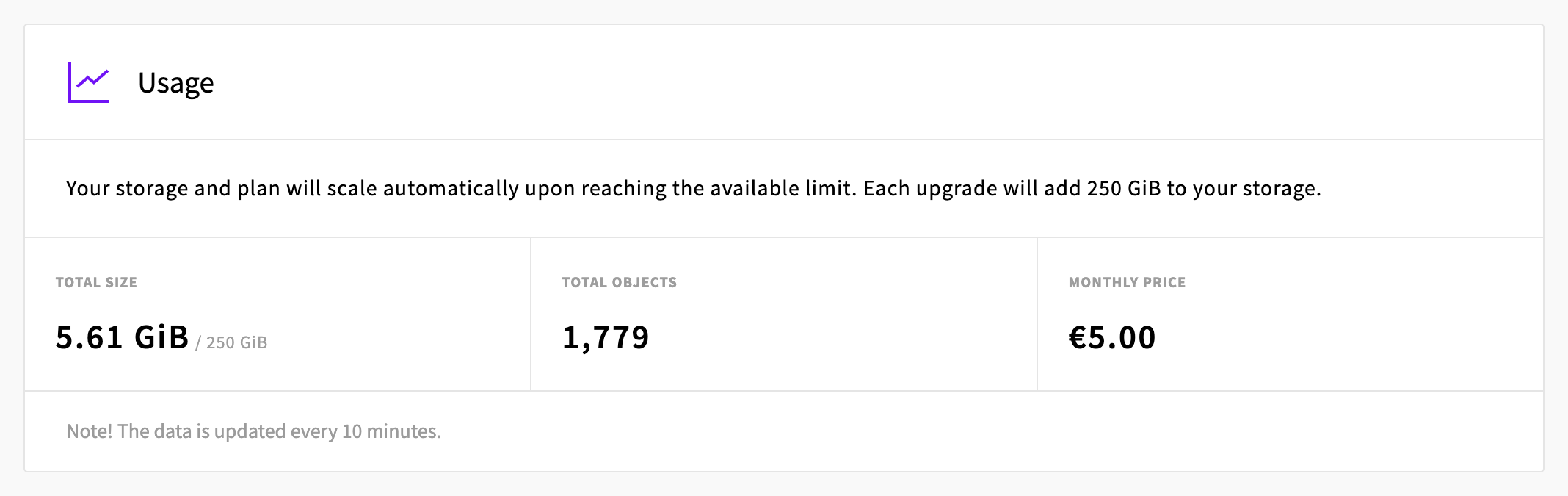
A service's current usage is how much it stores and how many objects it holds. The total size is also what the monthly price is based on, which makes it the main figure to follow for costs. The figures are updated periodically, so a file you've just uploaded or deleted shows after a short delay.
Go to Object Storage. The list shows each service's total size under USAGE and its number of objects under OBJECTS, so you can compare services without opening them.
For more detail, open the service and go to its Usage tab. It shows the TOTAL SIZE and TOTAL OBJECTS, and the MONTHLY PRICE based on them.
Find the buckets that use the space
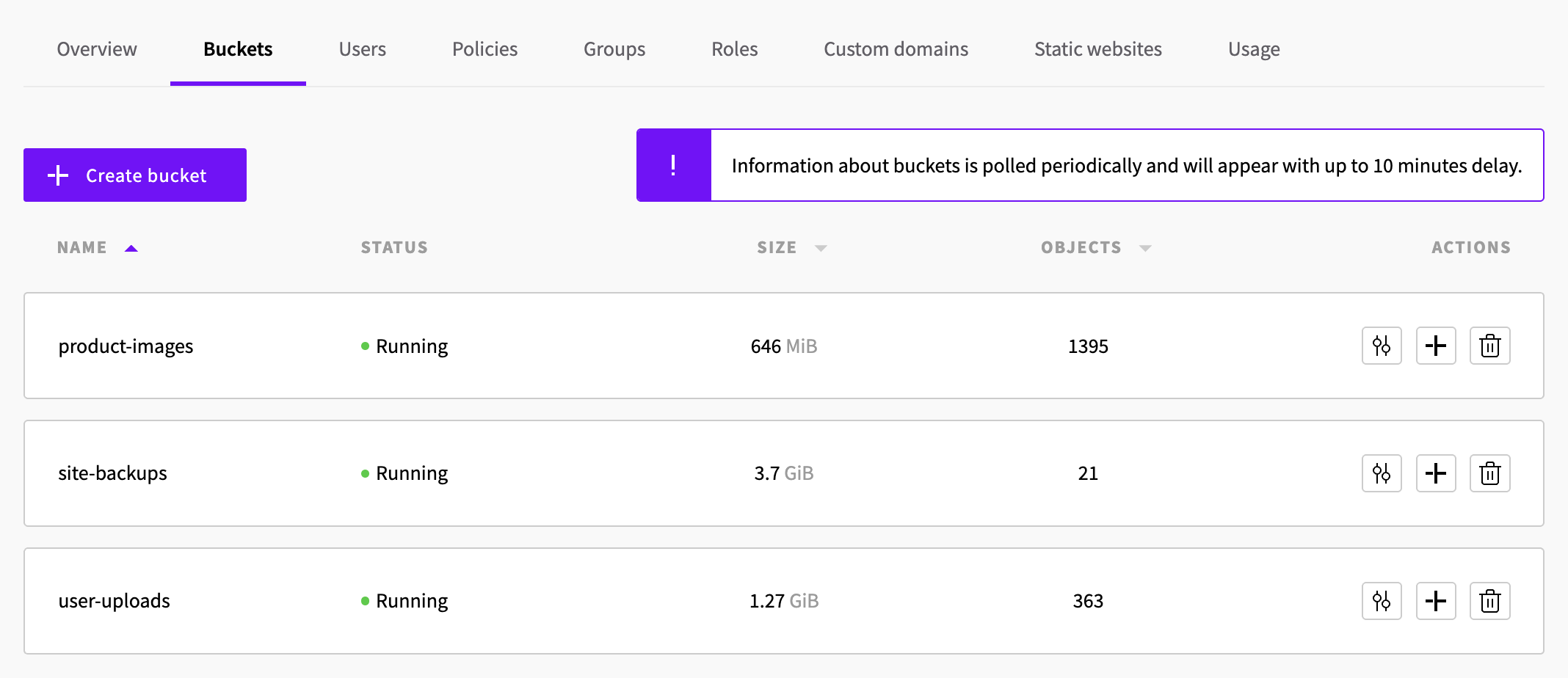
If the total is larger than expected, the bucket figures show where the space is used. Each bucket has its own size and number of objects, and together they add up to the service's totals, so the largest buckets are the first ones to review.
Open the service and go to its Buckets tab, where each bucket's size is under SIZE and its number of objects under OBJECTS.
Follow usage over time
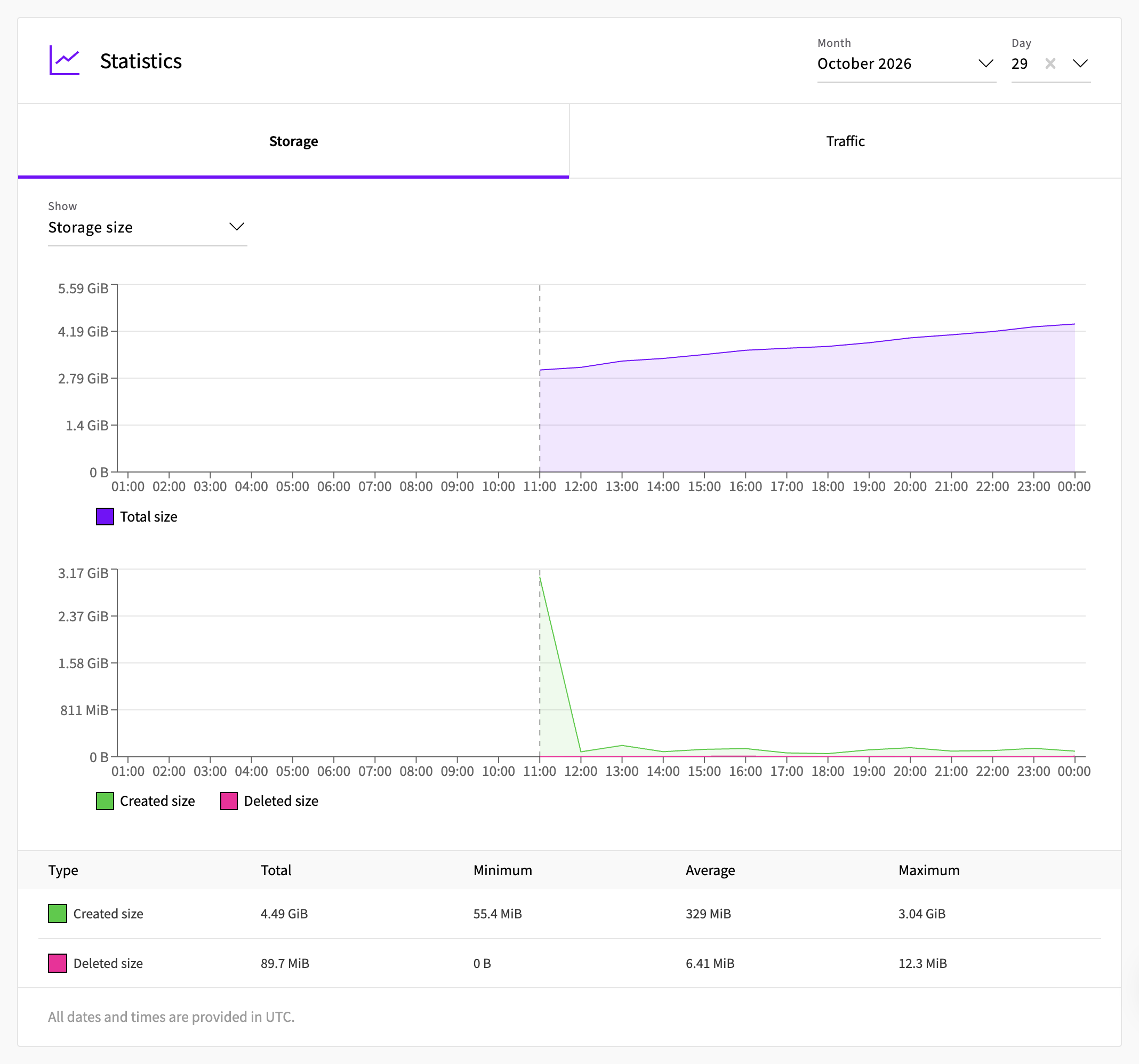
The history shows how a service's usage has changed over time. It records the service's size and number of objects for every hour, along with how much was created and deleted, so you can see how fast the service grows and when. All times in the history are in UTC.
Open the service and go to its Usage tab. The history is under Statistics.
Select a Month to see one point for each day. To see the hours of a single day, also select a Day.
On the Storage tab, use Show to choose between Storage size and Objects count. The first chart shows the service's total, and the second shows what was created and deleted. The table under the charts summarizes both for the month or day.
If the service is new, Statistics says "No statistics available yet." until its first hour has been collected.
Check the traffic
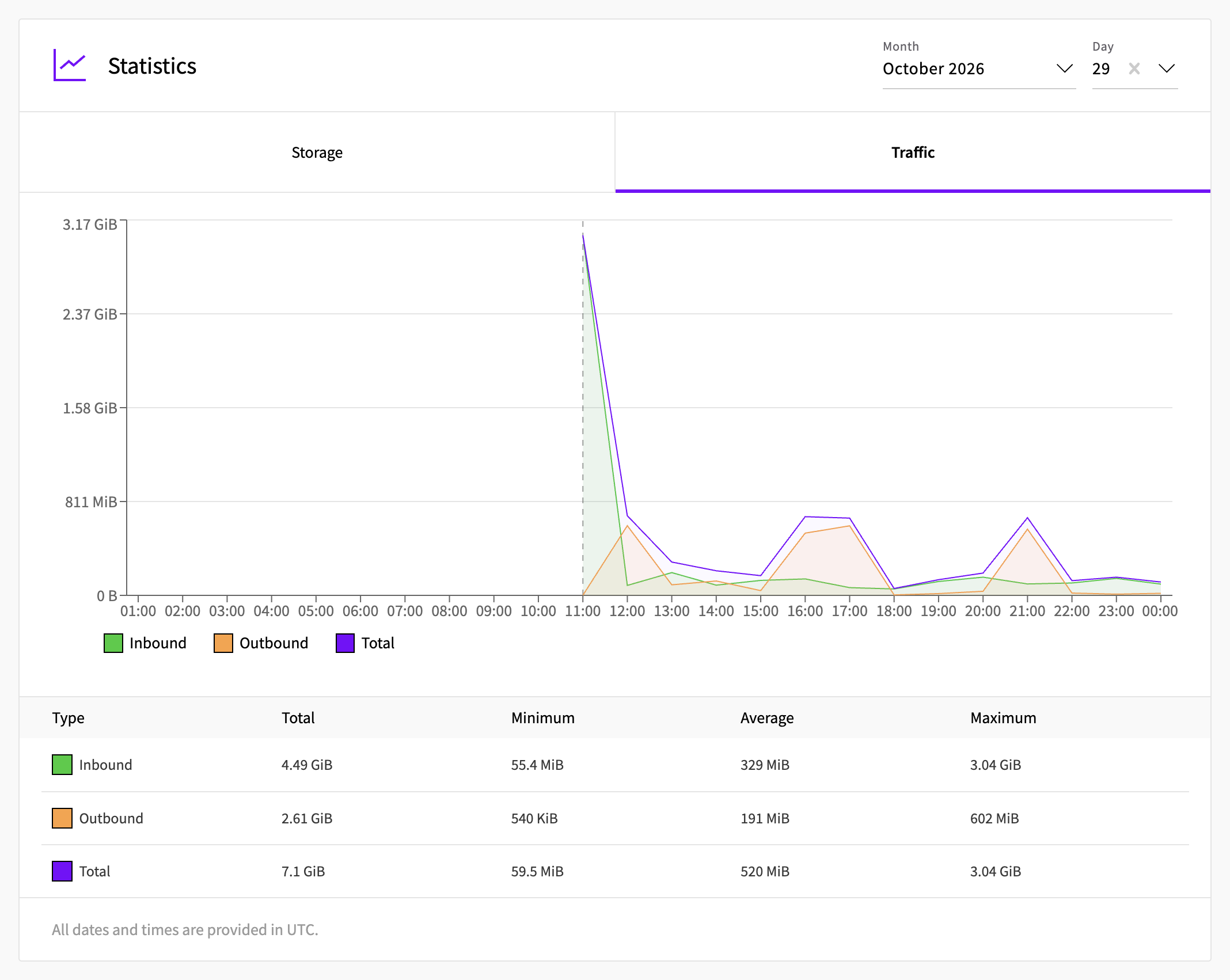
The traffic figures show how much data is uploaded to a service and downloaded from it. Only object data counts: requests such as listing a bucket add nothing, while a part of an upload that's sent again counts each time. For the details, see Managed Object Storage monitoring. Managed Object Storage includes zero-cost egress, and the Fair Transfer Policy applies. For details, see Managed Object Storage billing.
On the service's Usage tab, select Traffic under Statistics, and pick a Month or a Day as you did for storage. The chart shows Inbound for the data uploaded to the service and Outbound for the data downloaded from it, along with their Total.
Print a daily report
The Control Panel suits a quick check. To get the figures in a terminal, for example to compare services or keep a record, you can start from the basic script below and adapt it to your own needs. As it stands, it prints a service's storage and traffic for each of the last 30 days. It requests one point per day from midnight UTC, fetches as many pages as needed and converts the bytes to GiB. Save it as usage-report.sh:
#!/usr/bin/env bash
# Prints a Managed Object Storage service's storage and traffic for each of the last 30 days (UTC).
# Usage: ./usage-report.sh <service-uuid>
set -euo pipefail

service=$1
days=30
from=$(jq -nr --argjson days "$days" 'now | . - (. % 86400) - $days * 86400 | todate')

printf '%-10s  %13s  %8s  %13s  %14s\n' DATE "STORAGE (GiB)" OBJECTS "INBOUND (GiB)" "OUTBOUND (GiB)"
offset=0
while true; do
  page=$(curl -sSf -H "Authorization: Bearer $UPCLOUD_TOKEN" \
    "https://api.upcloud.com/1.3/object-storage-2/$service/metrics/series?from=$from&interval=24h&sort=start_at&limit=100&offset=$offset")
  [ "$(jq length <<<"$page")" -eq 0 ] && break
  jq -r '.[] | [.start_at[0:10], .bytes_total, .objects_total, .bytes_received, .bytes_transmitted] | @tsv' <<<"$page" |
    awk -F'\t' '{ printf "%-10s  %13.2f  %8d  %13.2f  %14.2f\n", $1, $2 / 2^30, $3, $4 / 2^30, $5 / 2^30 }'
  offset=$((offset + 100))
done
Make it executable, set your API token and run it with the service's UUID:
chmod +x usage-report.sh
export UPCLOUD_TOKEN=<your-api-token>
./usage-report.sh <service-uuid>
The output has one line for each day the service has figures for, oldest first:
DATE        STORAGE (GiB)   OBJECTS  INBOUND (GiB)  OUTBOUND (GiB)
2026-10-29           4.41      1601           4.49            2.61
2026-10-30           5.42      1747           1.04            0.75
The last line covers today so far, and its figures grow until the day ends. To cover a longer period, change days at the top of the script. You can also change which figures it prints, for example to add the number of objects created and deleted each day, which are in the same response.
Why usage can be higher than expected
If the total size is larger than the files you can see, one of these is usually the reason:
- Older versions. In a versioned bucket, every older version of an object counts toward the size, and so does every delete marker. Delete the versions you don't need, as described in How to enable and manage S3 object versioning, or expire them with lifecycle rules.
- Daily figures show the day's highest total. A daily point, in the month view or from the API, is the highest of that day's hourly totals, not the size at the end of the day. As a result, a large file that was stored for a few hours and then deleted still counts in that day's figure, even though the current total no longer includes it.
- Recent changes. The figures are updated periodically, so a file you've just deleted can still count for a short while.