How to use OpenSearch Dashboards with Managed OpenSearch
OpenSearch Dashboards is the web interface of your Managed OpenSearch service. Instead of sending API requests, you look at your data in the browser. You can search and filter the documents, chart them and put the charts on a dashboard.
This guide uses the product catalogue from How to index and search data in Managed OpenSearch. You'll make the products index available to Dashboards and search it in Discover. Then you'll chart the products by category, put the chart on a dashboard and send a request from the Dev Tools console.
Before you start
You need:
- A Managed OpenSearch service with public connection on and your computer's public address in the allowed IP list. How to get started with Managed OpenSearch shows how to set this up and log in to Dashboards for the first time.
- The
productsindex from How to index and search data in Managed OpenSearch. If you deleted it at the end of that guide, create it again with the steps in Create an index, Add a document and Add documents in bulk.
Open Dashboards
Open
https://public-<hostname-prefix>-<id>.db.upclouddatabases.comin your browser. In the Control Panel, Go to dashboards on the service's Overview tab opens it in a new tab.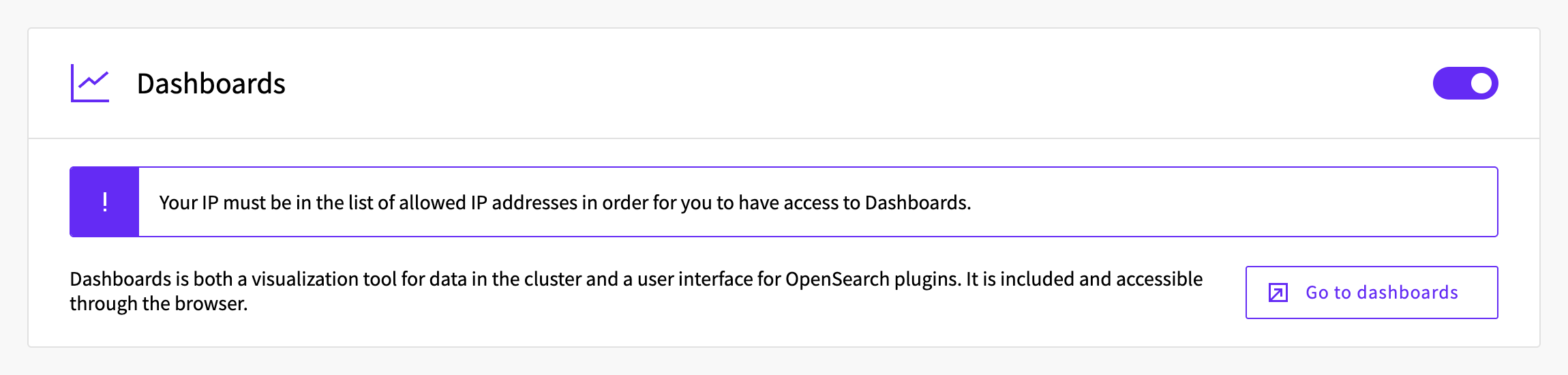
Log in with the username
upadminand the service's password.
The first time you log in, Dashboards asks you to select a tenant and shows a few messages. How to get started with Managed OpenSearch explains them. Everything you save in this guide, such as the index pattern and the dashboard, is kept in the tenant you selected.
Dashboards opens on its home page. Its menu, at the top left, lists the apps that this guide uses. Discover, Visualize and Dashboards are under OpenSearch Dashboards, and Dashboards Management and Dev Tools are under Management.
Make the index available to Dashboards
Dashboards reads indices through index patterns. An index pattern names one index, or several with a wildcard such as logs-*, and lists their fields.
Open the menu, and under Management, click Dashboards Management.
Click Index patterns, and then Create index pattern.
In Step 1 of 3: Configure data source, keep Use default data source and click Next step.
In Step 2 of 3: Define an index pattern, enter
productsas the Index pattern name. Dashboards shows "Your index pattern matches 1 source." Click Next step.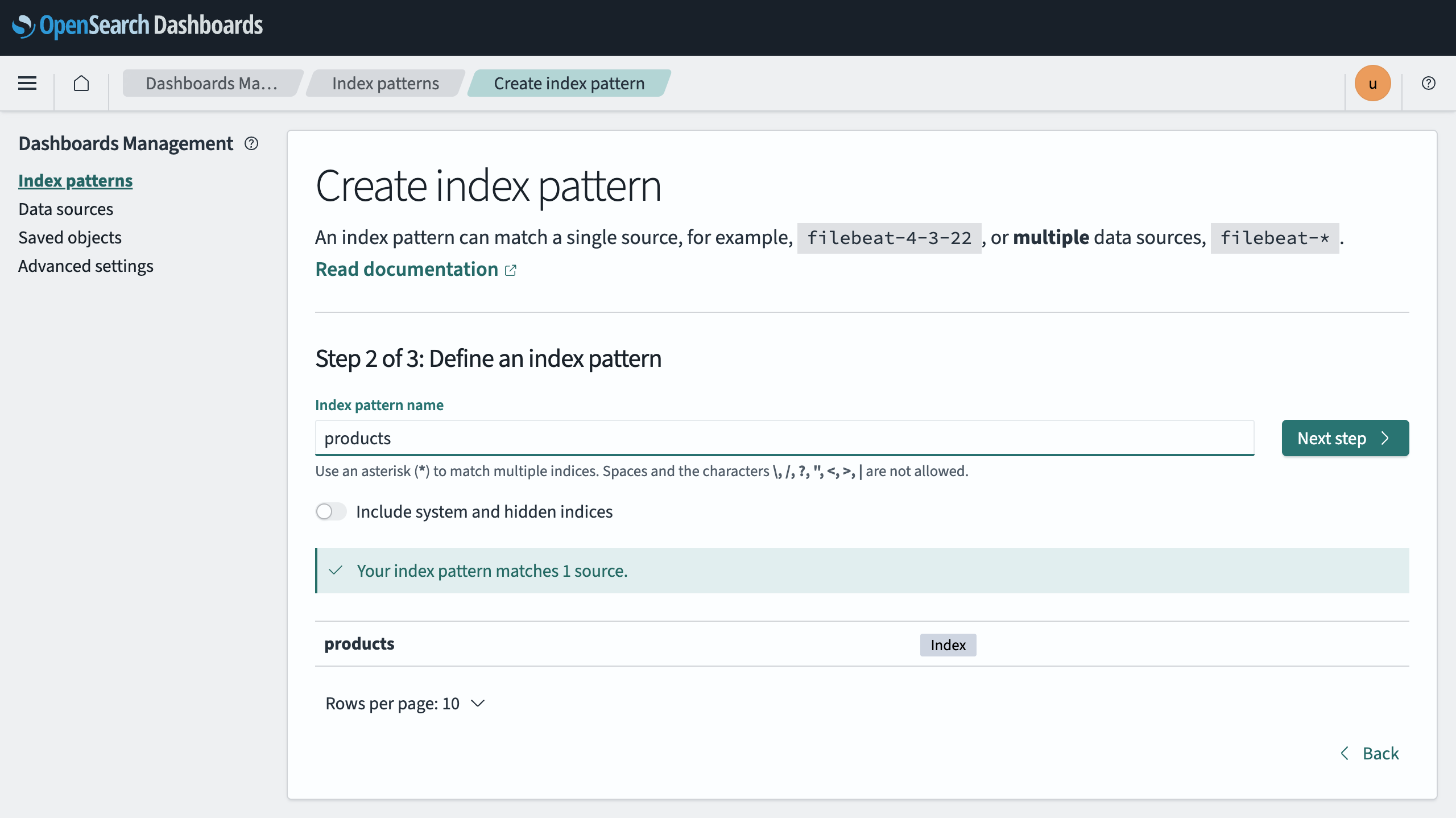
Step 3 of 3: Configure settings says that the index doesn't contain any time fields, because the products have no dates. Click Create index pattern.
Dashboards lists the index's fields with their types. Next to the fields from your mapping, such as category and price, it lists OpenSearch's own fields, such as _id.
Find documents in Discover
Discover lists the documents of an index pattern and lets you search them.
Open the menu, and under OpenSearch Dashboards, click Discover. Discover lists the products. If you have more than one index pattern, choose products in the list at the top left.
In the search box, enter
waterproofand press Enter. A word on its own finds the documents that contain it in any field.To search in a field, use the Dashboards Query Language (DQL). Enter
category:accessories and price < 50and press Enter.category:accessoriesmatches a field's value, andprice < 50compares a number. Withand, a product has to match both.To show only some fields, point at
nameunder Available fields and click the plus icon that appears next to it. Addcategoryandpricein the same way.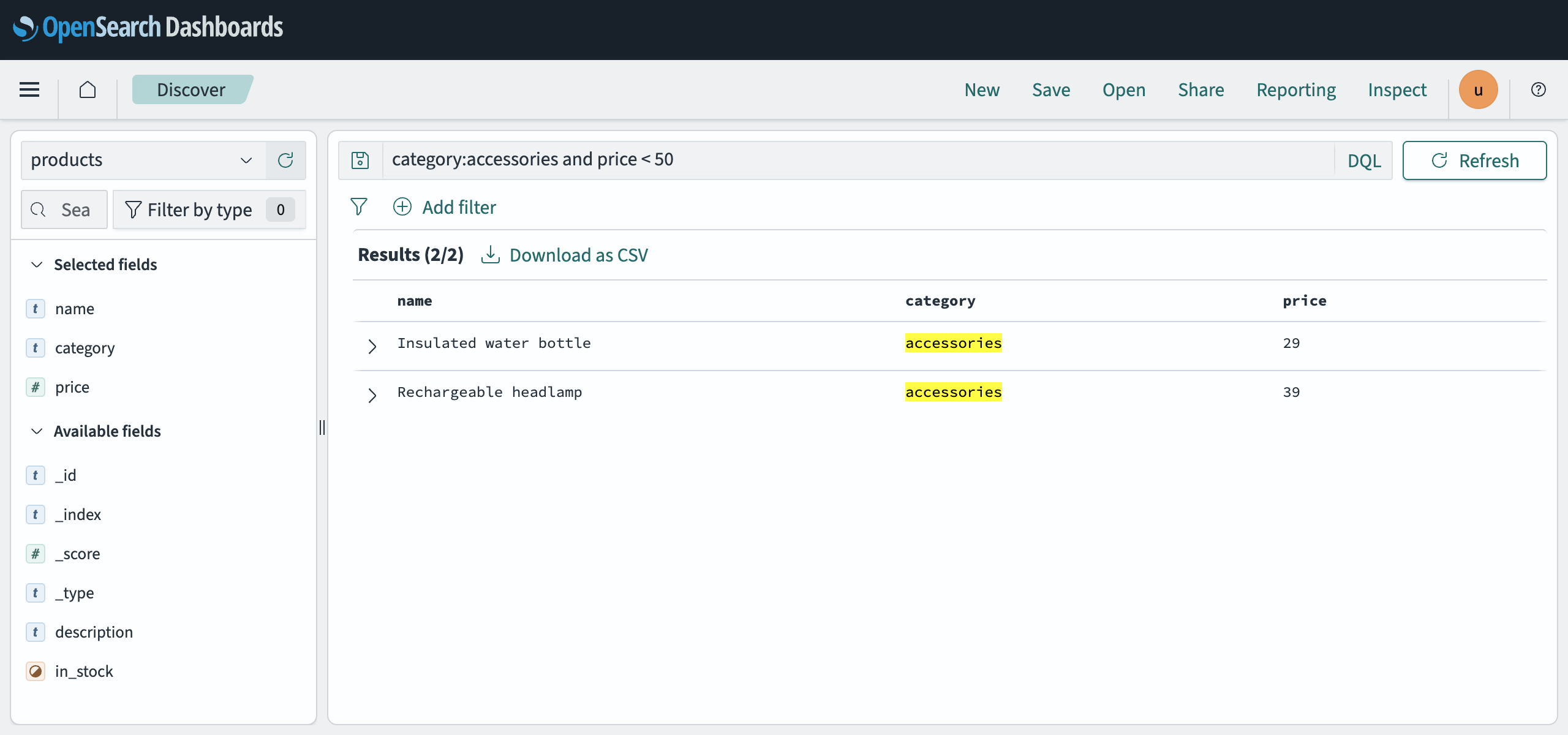
Search for
in_stock:trueto list the products in stock. To keep this search for the dashboard, click Save at the top, enterIn-stock productsas the Title and click Save.
Chart the data
A visualization summarizes documents in a chart. This one counts the products in each category.
Open the menu, and under OpenSearch Dashboards, click Visualize.
Click Create new visualization, and then Pie.
Under Choose a source, click products. The chart starts as one slice that counts all the products.
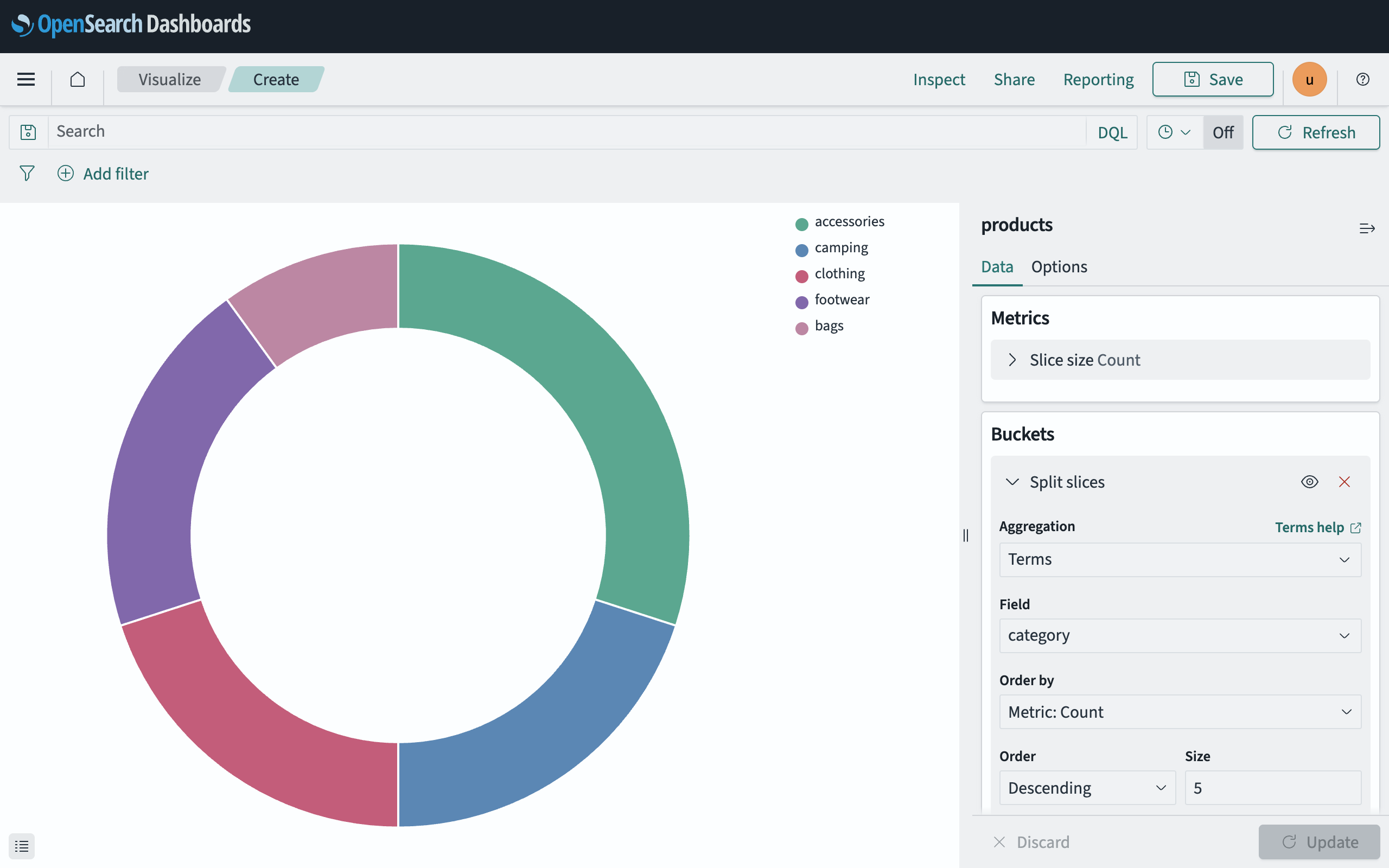
Under Buckets, click Add, and then Split slices.
For Aggregation, choose Terms. For Field, choose
category.Click Update. The chart shows a slice for each category, sized by its number of products.
Click Save at the top, enter
Products by categoryas the Title and click Save.
The Field list offers only the fields that can be counted this way, such as category, price and in_stock. Text fields, such as name, aren't in the list. Size sets how many categories the chart shows, 5 by default.
Put the chart on a dashboard
A dashboard shows saved visualizations and searches together on one page.
- Open the menu, and under OpenSearch Dashboards, click Dashboards.
- Click Create new dashboard.
- Click Add at the top. In Add panels, click Products by category and In-stock products, and then close Add panels.
- Click Save, enter
Shop overviewas the Title and click Save.
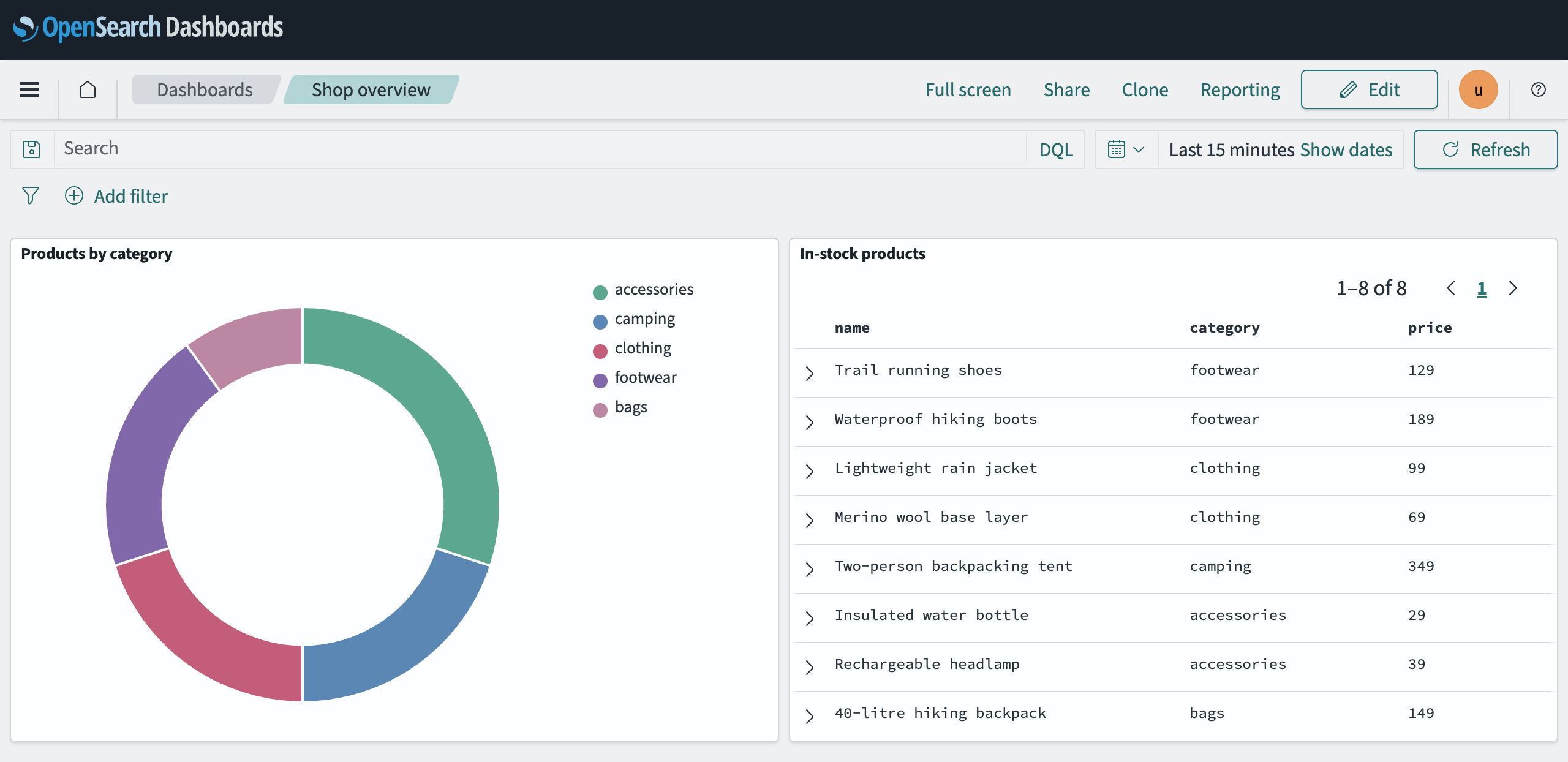
The time filter at the top of the dashboard doesn't change what it shows, because the products have no dates.
Send requests from the Dev Tools console
The Dev Tools console sends requests to the OpenSearch API from your browser. You can try the requests from How to index and search data in Managed OpenSearch without curl, and you don't need the hostname or the password.
Open the menu, and under Management, click Dev Tools. The first time you open it, Welcome to Console describes the console. Click Dismiss. The console shows an example request on the left.
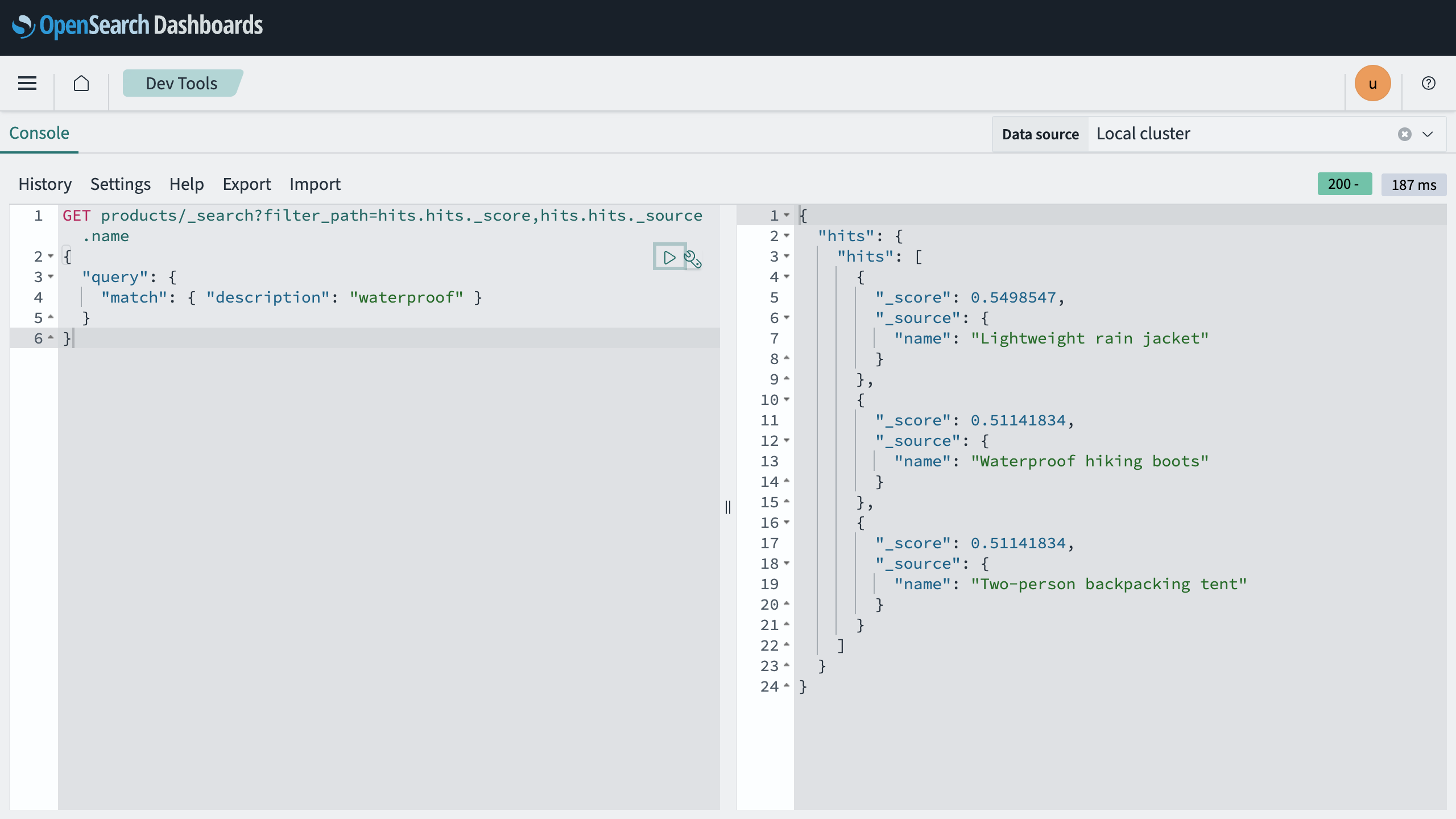
Replace the example with this request:
GET products/_search?filter_path=hits.hits._score,hits.hits._source.name
{
  "query": {
    "match": { "description": "waterproof" }
  }
}
Click Send request, the play button next to the request. The response appears on the right:
Output{ "hits": { "hits": [ { "_score": 0.5498547, "_source": { "name": "Lightweight rain jacket" } }, { "_score": 0.51141834, "_source": { "name": "Waterproof hiking boots" } }, { "_score": 0.51141834, "_source": { "name": "Two-person backpacking tent" } } ] } }
Try the sample data
Dashboards comes with sample data sets, each with its own visualizations and dashboards. To add one, click the home button at the top left, then Add sample data, and then Add data on a card, such as Sample eCommerce orders. To delete the sample data again, click Remove on the same card.
Troubleshooting
Invalid username or password. Please try again.The password is wrong. Copy it again from the service's connection details in the Control Panel.
Your index pattern doesn't match any indicesNo index has the name you entered. Enter the index name exactly, such as
products.There's already an index pattern called productsYou created the index pattern before, for example in an earlier try. Use the one listed under Index patterns.
Discover shows No Results
No document matches the search. A keyword field, such as
category, matches only the exact value, socategory:Accessoriesfinds nothing when the products haveaccessories.
For problems opening Dashboards, see How to get started with Managed OpenSearch.
Next steps
- OpenSearch Dashboards in the OpenSearch documentation covers the other apps in the menu, such as alerting and anomaly detection.
- Dashboards Query Language (DQL) in the OpenSearch documentation lists the operators you can use in the search box.
- Creating visualizations in the Visualize application in the OpenSearch documentation describes the other chart types.
- Using Dev Tools in the OpenSearch documentation describes the console.