How to restore Managed Valkey from a backup
Managed Valkey* backs up your services automatically. When you need data back, for example after keys were deleted or overwritten by mistake, you restore one of those backups. The restore creates a new service with the data as it was when the backup was taken. The original service keeps running unchanged, so you can check the restored data before you switch your application over.
This guide covers finding the right backup, restoring it in the Control Panel or with the UpCloud API, and moving your application to the restored service.
Before you start
You need:
- A Managed Valkey service with at least one backup. To create a service, see How to get started with Managed Valkey.
- For the API steps, an API token. To create one, see How to get started using the UpCloud API.
- To check the restored data,
valkey-clion a computer that can connect to the service. See Connect with valkey-cli.
How backups work
A backup holds the service's data as it was when the backup was taken. Anything written after that isn't in it, so a restore brings back the data up to that backup and nothing newer.
A new service gets its first backup shortly after it's created, and then one every 12 hours. For how long backups are kept, see Backups.
Restore the backup
Choose the newest backup that was taken before the data went wrong. A backup taken after that point already holds the deleted or changed data.
The restored service is created in the same location and on the same plan as the original service. To restore into another location or onto another plan, use the API.
- Go to Databases, open the service and go to its Backups tab. The list shows each backup with the time it was taken, in UTC.
- Click Clone from backups.
- Under Backup, select the backup. Each backup's name includes the time it was taken, in UTC.
- Enter a Service name and a Hostname prefix for the new service, or keep the suggested ones, and click Clone.
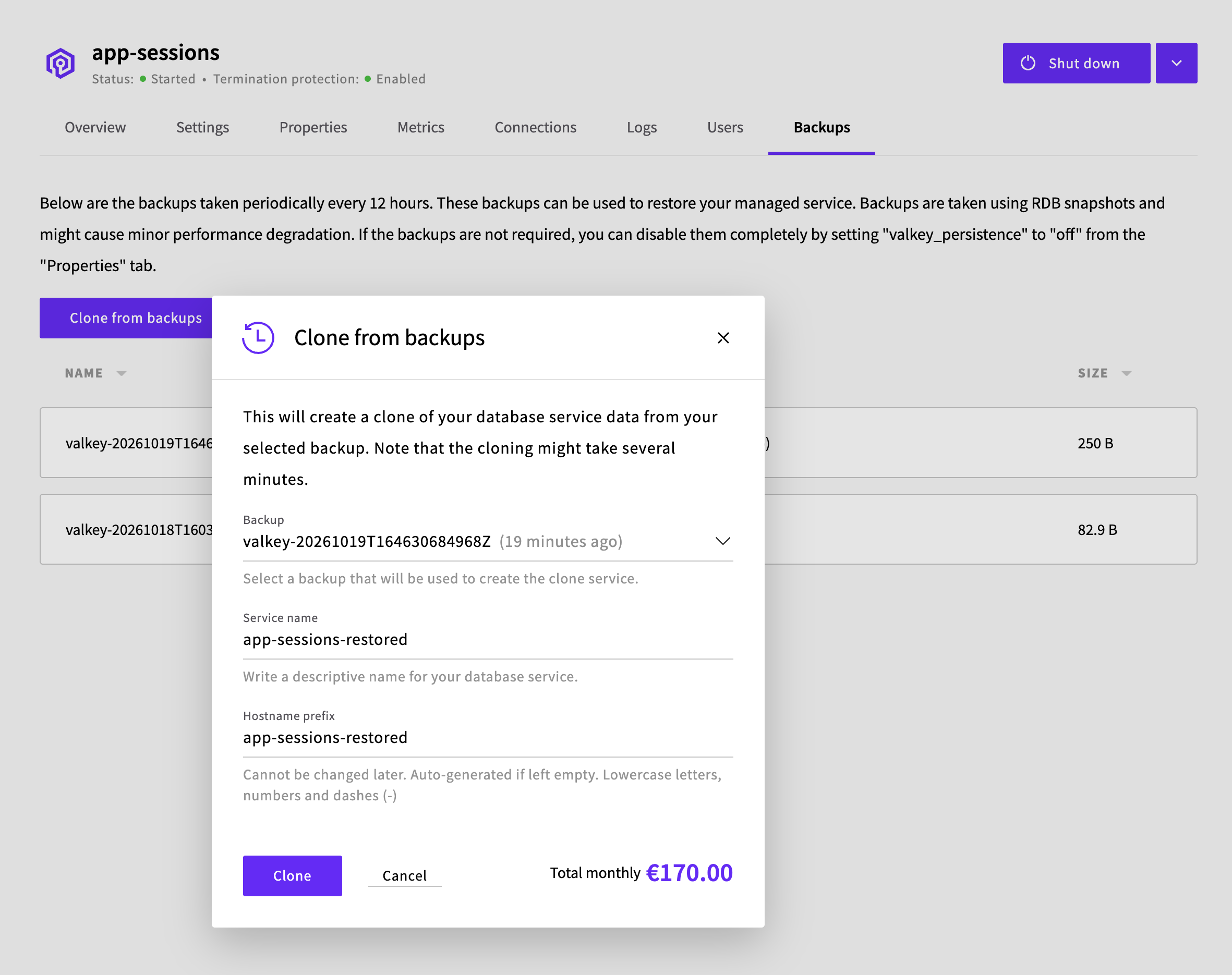
The new service opens in the Control Panel.
What the restored service has
- The data from the backup you chose.
- The same users and passwords as the original service.
- The same properties, allowed IP addresses, termination protection setting and maintenance schedule as the original service.
- The same SDN Private Networks as the original service, unless you list others in the API request.
- The original service's location and plan if you restore in the Control Panel, or the ones you set in the API request.
- A new hostname. Update your application's connection settings to use it.
Check the data and switch over
Wait until the restored service is Started in the Control Panel, or
runningin the API.Connect to it with its own connection URI, from its Overview tab or its
service_uri, and read back a key that you expect the backup to hold:valkey-cli -u 'rediss://default:<password>@<new-hostname>:<port>' GET <key>Change your application's connection settings to the restored service's hostname.
When you no longer need the original service, delete it. See Delete the service. If termination protection is on, turn it off first. The restored service has the same setting, so check it there too.
After you delete a service, its backups can't be restored. The restored service gets backups of its own.
Troubleshooting
Could not connect to Valkey at <new-hostname>:<port>: Name or service not knownThe restored service's hostname doesn't resolve yet. Try again until it connects.
Resource already exists.The hostname prefix in the clone request is already in use, for example by the original service. Choose a different
hostname_prefix.Network '<network-uuid>' not in the same zone as the service.The original service is on an SDN Private Network, and the clone request restores it into another location. Add
networkswith an SDN Private Network in that location.
Next steps
- Backups describes the backup schedule and how long backups are kept.
- High availability describes how standby nodes take over when a node fails.
- How to get started with Managed Valkey covers creating a service and connecting to it.
* Valkey and the Valkey logo are trademarks of LF Projects, LLC. Any rights therein are reserved to LF Projects, LLC. Any use by UpCloud is for referential purposes only and does not indicate any sponsorship, endorsement or affiliation between Valkey and UpCloud. Other names may be trademarks of their respective owners.