How to restrict user access in Managed Object Storage
In How to get started with UpCloud Managed Object Storage, you give your first user the built-in ECSS3FullAccess policy, which lets it read, change and delete every bucket in the service. That's convenient while you try things out. In production, though, a bug in one application or a leaked access key would then put every bucket at risk. Giving each application or person a user with only the access it needs limits what can go wrong.
This guide walks you through restricting users in the Control Panel or with the UpCloud API. It covers a built-in read-only policy, a custom policy that limits a user to one bucket, more policy examples for common cases, groups, changing a policy, and turning off or replacing access keys.
For how users, policies and groups work together, see Managed Object Storage users and access control.
Before you start
You need:
- A Managed Object Storage service with a bucket, and a user with access keys. To create them, see How to get started with UpCloud Managed Object Storage. The examples in this guide use the bucket
product-imagesand the userweb-app. Replace them with your own names. - For the API steps, an API token. To create one, see How to get started using the UpCloud API.
- To check what a user can do, the AWS CLI with a profile for the user, as in Connect with the AWS CLI.
How access works
A user can do only what its policies allow. A new user has no policies, so every request it makes is refused until you attach one. Every service comes with five built-in policies:
ECSS3FullAccessallows everything in every bucket, including creating and deleting buckets.ECSS3ReadOnlyAccessallows listing buckets and downloading files, but no changes.ECSDenyAllrefuses every request, whatever else the user is allowed.IAMFullAccessandIAMReadOnlyAccessallow managing or viewing the service's users and policies through its IAM endpoint. Users that only work with files don't need them.
A user's access is everything its policies allow, together with the policies of any group it belongs to. Adding a narrower policy doesn't take anything away, so to restrict a user, attach the policy it needs and detach the broader one. A policy that denies something always wins over one that allows it.
When you attach or detach a policy, the user's next request already gets the new access. Its access keys stay the same, so applications don't need new keys.
Give a user read-only access
A reporting tool or a backup check usually only needs to read files. The built-in ECSS3ReadOnlyAccess policy allows a user to list every bucket and download files, but not to upload, change or delete anything. In this example, the policy goes to reports, a user for a reporting tool. If the user also has a broader policy, such as ECSS3FullAccess, detach it afterwards.
- Go to Object Storage, open the service and go to its Users tab.
- On the user's row, click POLICY, select ECSS3ReadOnlyAccess under Policy and click Attach.
- If the user has
ECSS3FullAccess, expand the user's row with the arrow to the left of its name. Under the policies, click the Detach icon on theECSS3FullAccessrow, then click Detach to confirm.
Limit a user to one bucket
An application that stores its files in one bucket shouldn't be able to read or delete the files in your other buckets. To limit it, create a custom policy that names the bucket, then give the user that policy instead of ECSS3FullAccess.
Write the policy
Policies are JSON documents in the same format as AWS IAM policies. This one gives a user full access to the files in product-images and nothing else:
{
  "Version": "2012-10-17",
  "Statement": [
    {
      "Effect": "Allow",
      "Action": ["s3:ListBucket"],
      "Resource": ["arn:aws:s3:::product-images"]
    },
    {
      "Effect": "Allow",
      "Action": ["s3:GetObject", "s3:PutObject", "s3:DeleteObject"],
      "Resource": ["arn:aws:s3:::product-images/*"]
    }
  ]
}
The first statement lets the user list the files in the bucket. Listing is an action on the bucket itself, so its Resource is the bucket's name. The second statement lets the user download, upload and delete files. Those are actions on the files, so its Resource ends in /*, which covers every file in the bucket. Replace product-images with your bucket's name in both statements.
The user can't list the service's buckets, create buckets or delete them. Some tools list your buckets before they open one. To let the user see the bucket names, without access to the other buckets' files, add this statement:
{
  "Effect": "Allow",
  "Action": ["s3:ListAllMyBuckets"],
  "Resource": ["arn:aws:s3:::*"]
}
Create the policy
- On the service's Policies tab, click Add policy.
- Enter a Name, for example
product-images-read-write, and a Description. - Paste the policy into Policy document and click Create.
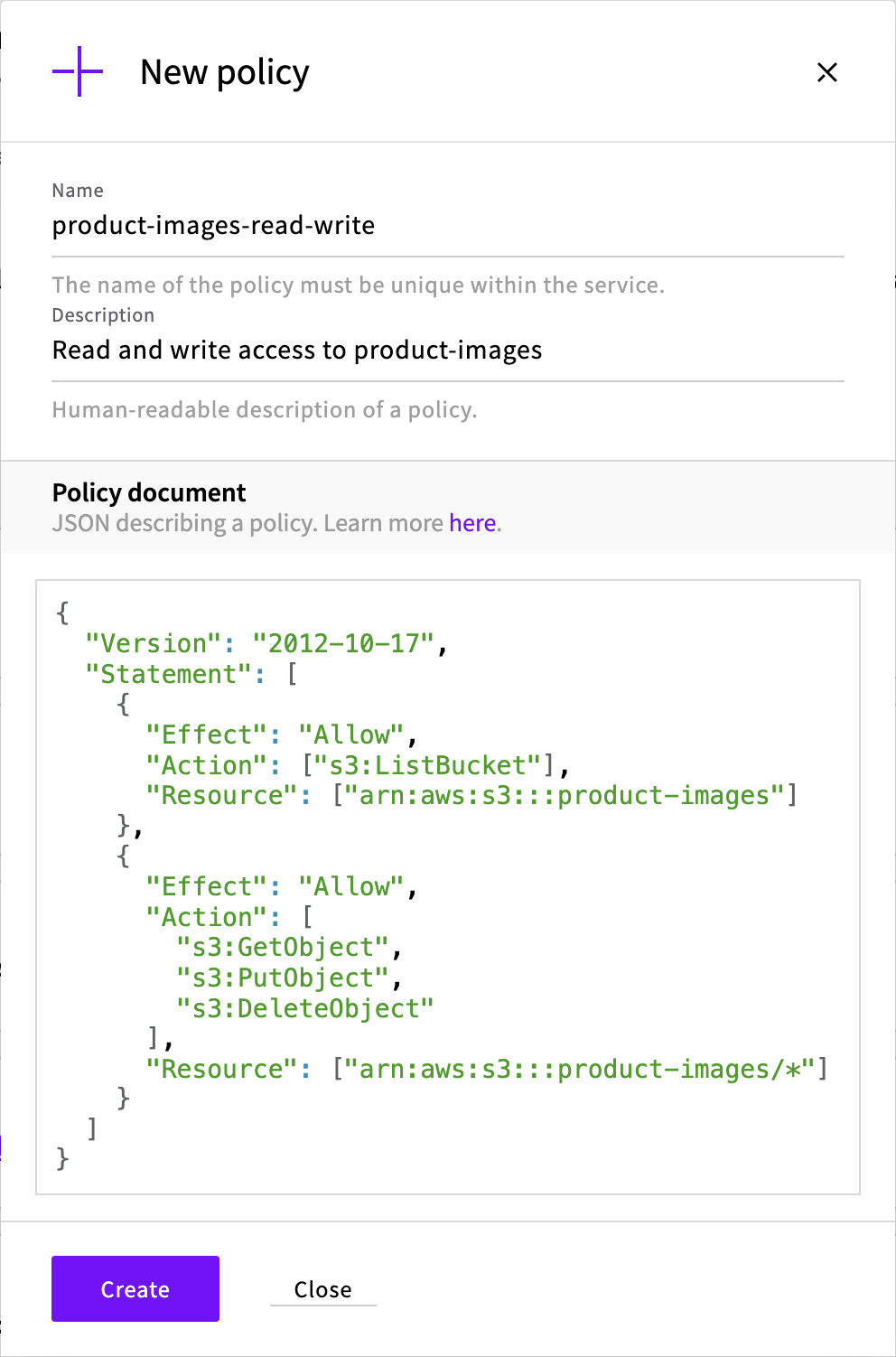
The policy appears on the Policies tab, below the built-in ones.
Give the policy to the user
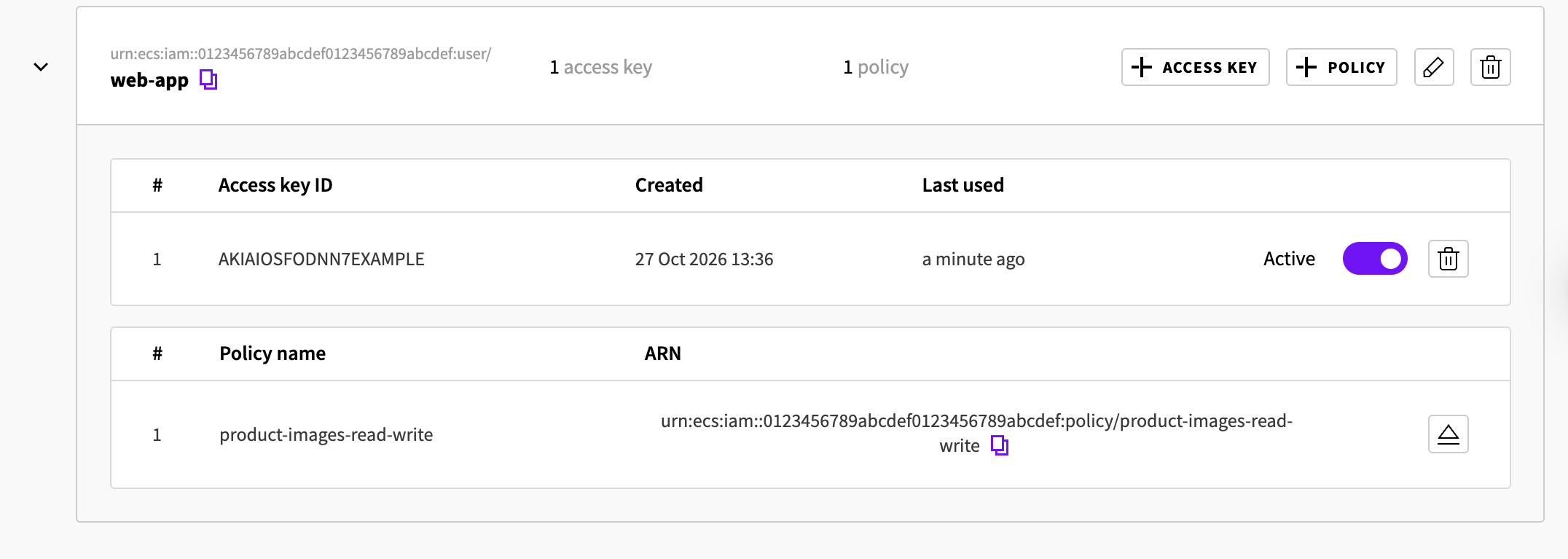
Attach the new policy, then detach ECSS3FullAccess. While the user still has ECSS3FullAccess, it can reach every bucket.
- On the service's Users tab, click POLICY on the user's row, select product-images-read-write under Policy and click Attach.
- Expand the user's row with the arrow to the left of its name. Under the policies, click the Detach icon on the
ECSS3FullAccessrow, then click Detach to confirm.
Check what the user can do
Use the AWS CLI profile with the user's access keys. The user can list, upload and download files in its own bucket:
aws s3 ls s3://product-images/ --profile upcloud
aws s3 cp hello.txt s3://product-images/hello-again.txt --profile upcloud2026-10-27 13:02:35 34 hello.txt
upload: ./hello.txt to s3://product-images/hello-again.txtIt can't list the service's buckets or create a new one:
aws s3 ls --profile upcloud
aws s3 mb s3://site-backups --profile upcloud
aws: [ERROR]: An error occurred (AccessDenied) when calling the ListBuckets operation: Access Denied
make_bucket failed: s3://site-backups An error occurred (AccessDenied) when calling the CreateBucket operation: Access Denied
Requests to any other bucket in the service fail with AccessDenied too.
More policy examples
The policies below cover other common cases. Create and attach them the same way as in Limit a user to one bucket, and replace the bucket names with your own.
Read-only access to one bucket
For an application that serves files from a bucket but never changes them. The user can list and download the files in product-images, but it can't upload, replace or delete them.
{
  "Version": "2012-10-17",
  "Statement": [
    {
      "Effect": "Allow",
      "Action": ["s3:ListBucket"],
      "Resource": ["arn:aws:s3:::product-images"]
    },
    {
      "Effect": "Allow",
      "Action": ["s3:GetObject"],
      "Resource": ["arn:aws:s3:::product-images/*"]
    }
  ]
}
Upload-only access
For a server that sends backups or logs to a bucket. If the server is compromised, the attacker can't read or delete what it has already uploaded. The user can upload files of any size to server-backups, but it can't list, download or delete them.
{
  "Version": "2012-10-17",
  "Statement": [
    {
      "Effect": "Allow",
      "Action": ["s3:PutObject"],
      "Resource": ["arn:aws:s3:::server-backups/*"]
    }
  ]
}
The user can still replace a file by uploading another one with the same name. To keep the earlier copies, turn on versioning for the bucket, as described in How to enable and manage S3 object versioning.
Read and write access without deleting
For an application that adds and updates files but should never delete them. The user can list, download and upload files in product-images, but it can't delete them. Uploading a file with the same name still replaces it.
{
  "Version": "2012-10-17",
  "Statement": [
    {
      "Effect": "Allow",
      "Action": ["s3:ListBucket"],
      "Resource": ["arn:aws:s3:::product-images"]
    },
    {
      "Effect": "Allow",
      "Action": ["s3:GetObject", "s3:PutObject"],
      "Resource": ["arn:aws:s3:::product-images/*"]
    }
  ]
}
Access to one folder in a bucket
For several customers or teams that share a bucket, each with their own folder. The user can list, download, upload and delete files under customer-a/ in shared-files, but not anywhere else in the bucket.
{
  "Version": "2012-10-17",
  "Statement": [
    {
      "Effect": "Allow",
      "Action": ["s3:ListBucket"],
      "Resource": ["arn:aws:s3:::shared-files"],
      "Condition": {
        "StringLike": {
          "s3:prefix": ["customer-a/*"]
        }
      }
    },
    {
      "Effect": "Allow",
      "Action": ["s3:GetObject", "s3:PutObject", "s3:DeleteObject"],
      "Resource": ["arn:aws:s3:::shared-files/customer-a/*"]
    }
  ]
}
The Condition limits listing to names that start with customer-a/. So the user lists its folder with aws s3 ls s3://shared-files/customer-a/, and listing the top of the bucket fails with AccessDenied.
Access to several buckets
List each bucket in both statements. This policy gives full access to the files in product-images and product-videos:
{
  "Version": "2012-10-17",
  "Statement": [
    {
      "Effect": "Allow",
      "Action": ["s3:ListBucket"],
      "Resource": [
        "arn:aws:s3:::product-images",
        "arn:aws:s3:::product-videos"
      ]
    },
    {
      "Effect": "Allow",
      "Action": ["s3:GetObject", "s3:PutObject", "s3:DeleteObject"],
      "Resource": [
        "arn:aws:s3:::product-images/*",
        "arn:aws:s3:::product-videos/*"
      ]
    }
  ]
}
If the buckets' names share a beginning, you can use * in the name instead. For example, arn:aws:s3:::staging-* and arn:aws:s3:::staging-*/* cover every bucket whose name starts with staging-, including buckets created later.
Full access except deleting buckets
For an application that creates buckets and changes their settings, but should never delete a bucket. The user can do everything ECSS3FullAccess allows, except delete buckets.
{
  "Version": "2012-10-17",
  "Statement": [
    {
      "Effect": "Allow",
      "Action": ["s3:*"],
      "Resource": ["*"]
    },
    {
      "Effect": "Deny",
      "Action": ["s3:DeleteBucket"],
      "Resource": ["*"]
    }
  ]
}
Access only from certain IP addresses
For an application that runs on servers with fixed public IP addresses. With a Condition on aws:SourceIp, requests from any other address are refused, even with the right access keys. This policy is the one-bucket policy with that condition added to both statements:
{
  "Version": "2012-10-17",
  "Statement": [
    {
      "Effect": "Allow",
      "Action": ["s3:ListBucket"],
      "Resource": ["arn:aws:s3:::product-images"],
      "Condition": {
        "IpAddress": {
          "aws:SourceIp": ["203.0.113.10", "198.51.100.0/24"]
        }
      }
    },
    {
      "Effect": "Allow",
      "Action": ["s3:GetObject", "s3:PutObject", "s3:DeleteObject"],
      "Resource": ["arn:aws:s3:::product-images/*"],
      "Condition": {
        "IpAddress": {
          "aws:SourceIp": ["203.0.113.10", "198.51.100.0/24"]
        }
      }
    }
  ]
}
Write a single address without a suffix, for example 203.0.113.10. A single address written as 203.0.113.10/32 doesn't match. Address ranges, such as 198.51.100.0/24, work as usual.
Other ways to share files
- To let anyone download files without access keys, use a bucket policy. See How to set up a public read bucket.
- To share one file for a limited time, create a presigned URL. See How to perform basic Object Storage operations using AWS CLI.
Give several users the same access with a group
When several applications or people need the same access, attach the policy to a group and add the users to it. Changing the group's policies then changes the access of every user in it. In this example, the group image-apps gets product-images-read-write.
- On the service's Groups tab, click Add group, enter a Name, for example
image-apps, and click Create. - On the group's row, click POLICY, select product-images-read-write under Policy and click Attach.
- On the group's row, click USER, select a user under User and click Attach. Repeat for each user.
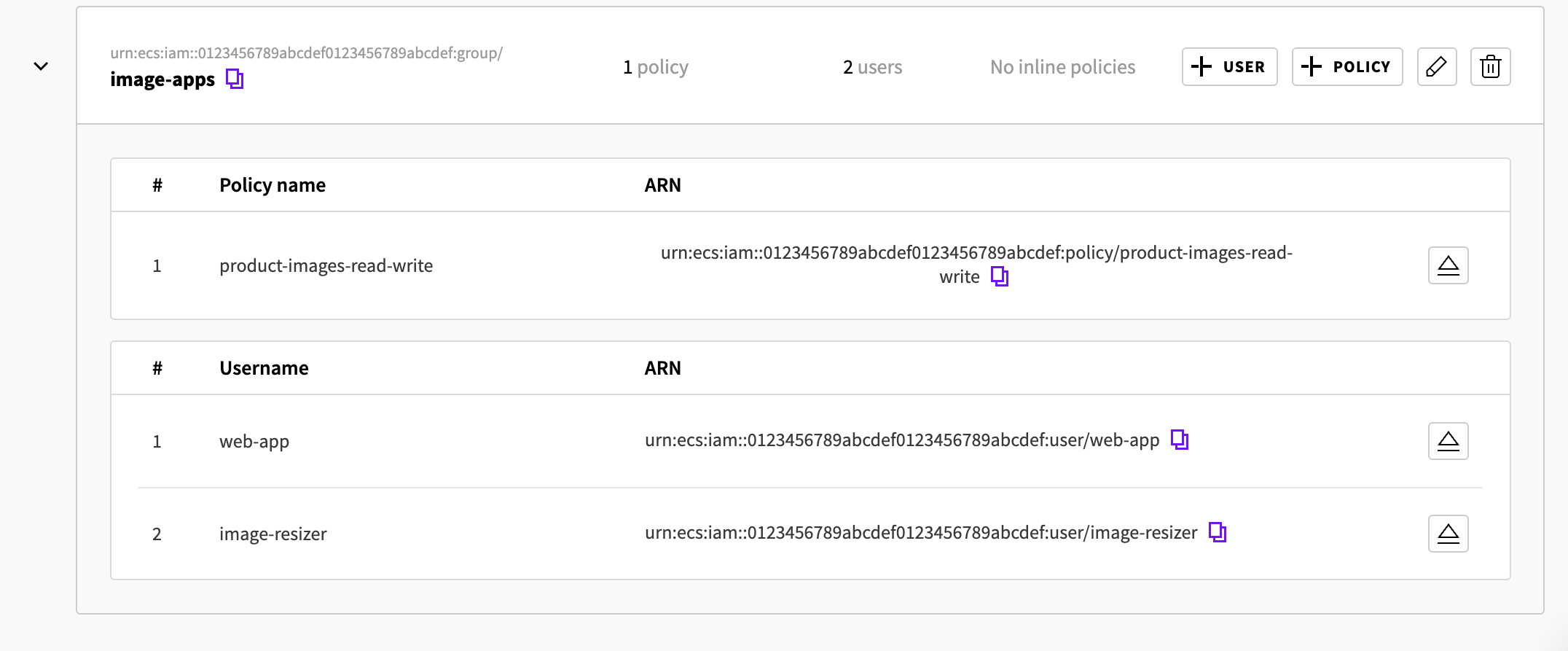
To remove a user from the group, expand the group's row with the arrow to the left of its name, click the Detach icon on the user's row, then click Detach to confirm.
Users in the group get its access with their next request. Because access adds up, detach any broader policies from the users themselves, such as ECSS3FullAccess.
Change or delete a policy
Changing a policy creates a new version of it, and the version marked as the default is the one that applies. A policy can have up to five versions, and you can go back to an earlier one at any time. Built-in policies can't be changed.
A new default version doesn't reach every request straight away. For a while, some of the user's requests still get the previous version's access. To take access away at once, detach the policy from the user or group instead, or attach ECSDenyAll.
- On the service's Policies tab, click DETAILS on the policy's row.
- Click New version. The Policy document shows the current version.
- Change the policy. Keep Set created version as default. selected and click Create.
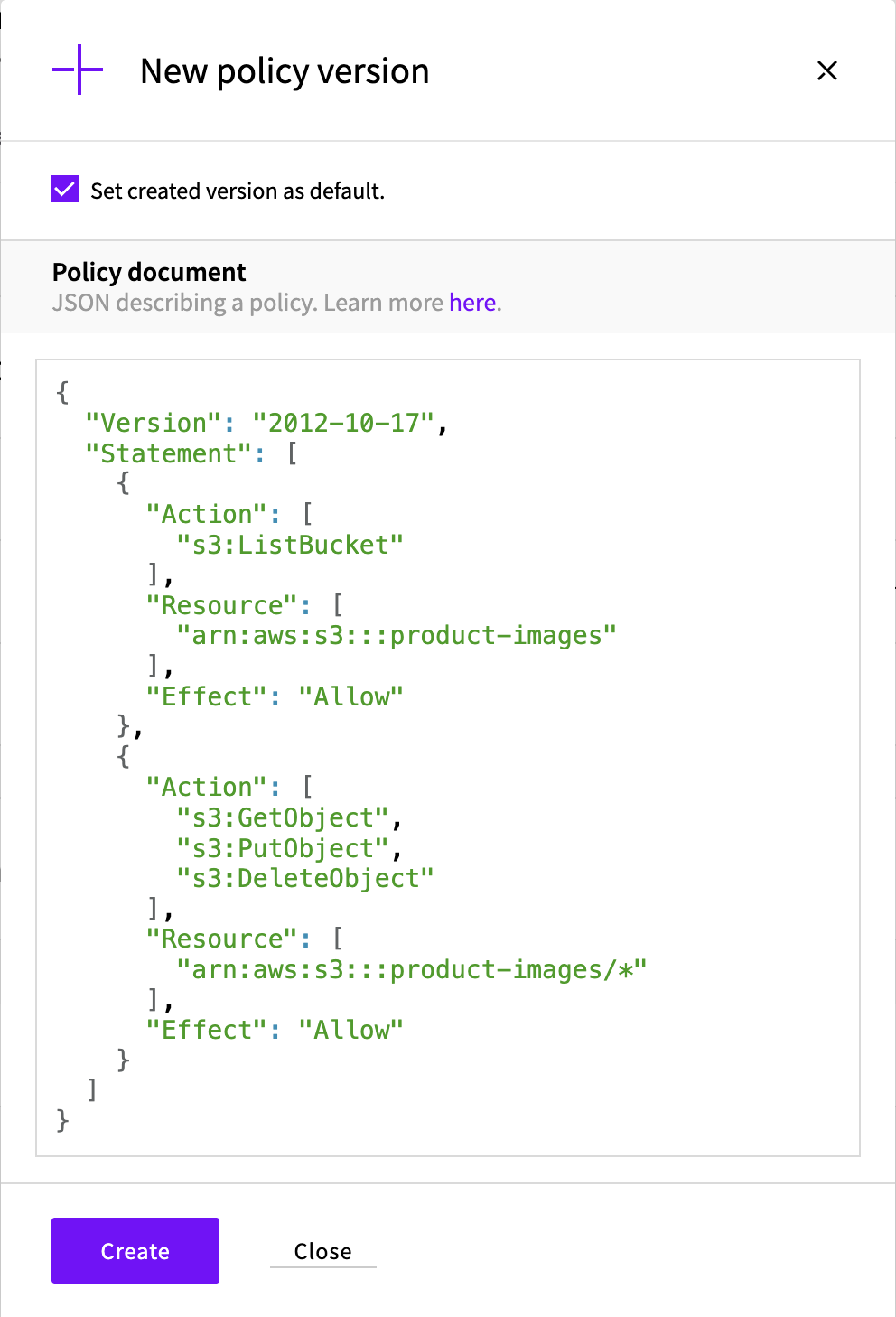
The new version appears in the Versions list with the Default label. To go back to an earlier version, click SET AS DEFAULT on its row. If the policy already has five versions, delete one first: click the bin icon on its row, then click Delete to confirm. The default version can't be deleted.
To delete a policy, click Delete on its row on the Policies tab, then click Delete to confirm. A policy that's still attached to a user or group shows Must be detached first instead, so detach it first.
Turn off or replace an access key
If an access key may have leaked, turn it off straight away. Requests made with a key that's turned off fail, and you can turn it back on later if you need to. To block a user completely, whatever keys it has, attach ECSDenyAll.
On the service's Users tab, expand the user's row with the arrow to the left of its name. Each access key has an Active switch. Switch it off to turn the key off, and on again to turn it back on. To delete a key, click the bin icon on its row, then click Delete to confirm.
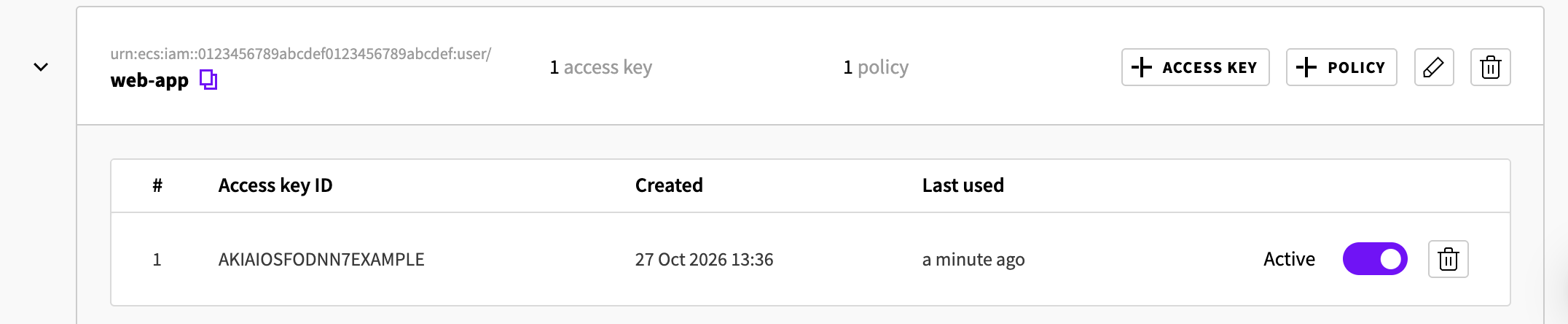
A request with a key that's turned off gets the same error as one with a key that doesn't exist:
aws s3 ls s3://product-images/ --profile upcloudaws: [ERROR]: An error occurred (InvalidAccessKeyId) when calling the ListObjectsV2 operation: The Access Key Id you provided does not exist in our records.To replace a key without interrupting an application:
- Create a new access key for the user, as in Create a user and access keys in the getting started guide.
- Give the new key to the application. For the AWS CLI, run
aws configure --profile upcloudand enter the new access key and secret key. - Turn the old key off and check that the application still works.
- Delete the old key.
Troubleshooting
An error occurred (AccessDenied) when calling the ListBuckets operation: Access DeniedThe user's policies don't allow listing the service's buckets. List the bucket itself instead, for example
aws s3 ls s3://product-images/, or add thes3:ListAllMyBucketsstatement from Write the policy.An error occurred (AccessDenied) when calling the <operation> operation: Access Denied, orfatal error: An error occurred (403) when calling the HeadObject operation: ForbiddenNone of the user's policies, or its groups' policies, allow this request, or a policy denies it. Check that the policy names the right bucket, and that the file actions use a
Resourcethat ends in/*. Downloads that are refused show up as theHeadObjecterror. If you've just set a new default version for the policy, some requests can still get the previous version's access for a while.An error occurred (InvalidAccessKeyId) when calling the <operation> operation: The Access Key Id you provided does not exist in our records.The access key is turned off, has been deleted, or belongs to another service. Turn the key back on, or set up the AWS CLI profile with an active key of a user of this service.
The Policy Document is not valid. Please check the syntax of the policy document.The policy isn't valid JSON, for example because of a missing bracket or a comma after the last item in a list.
Expected string, but got object.With the API, the policy in
documentmust be a string with its quotes escaped, not a JSON object. See the request in Create the policy.Policy has invalid action: '<action>'The policy names an action that doesn't exist, often because of a typing mistake, such as
s3:GetObjects. The message shows the statement with the problem.Maximum limit for version reached for policy <id>.<policy-name>.The policy already has five versions. Delete a version that isn't the default, then create the new one.
Iam managed policy <policy-name> has attached subordinate entities in namespace <id>.The policy is still attached to a user or group. Detach it everywhere, then delete it.
Next steps
- Managed Object Storage users and access control describes how users, policies and groups work together, and the service's IAM and STS endpoints.
- How to set up a public read bucket explains how to share files with anyone through a bucket policy.
- How to perform basic Object Storage operations using AWS CLI shows more AWS CLI commands, including presigned URLs.
- Best practices for UpCloud Managed Object Storage covers security, performance and cost.