How to restrict user access in Managed OpenSearch
When your applications connect to Managed OpenSearch as upadmin, every one of them can read, change and delete every index on the service. A bug or a leaked password in one application then puts all of your data at risk. Giving each application, and each person, a user of its own with only the access it needs limits what can go wrong.
This guide walks you through turning on access control and creating users with limited access in the Control Panel or with the UpCloud API, then connecting as those users and changing or deleting them later. It uses the product catalogue from How to index and search data in Managed OpenSearch and two examples: an application that keeps the catalogue up to date, and a read-only user for the shop's search box.
Before you start
You need:
- A Managed OpenSearch service. To create one, see How to get started with Managed OpenSearch.
- The
productsindex from How to index and search data in Managed OpenSearch. If you don't have it, create it with the steps in Create an index, Add a document and Add documents in bulk. - For the API steps, an API token. To create one, see How to get started using the UpCloud API.
curlon a computer that can connect to the service, and the service's host and port. See How to get started with Managed OpenSearch.
How access works
Each user has a list of rules, and each rule pairs an index pattern with a permission. The pattern is the name of an index, such as products, or a name with *, which stands for any characters. products* covers the products index and every other index whose name starts with products, including indices created later.
The permission decides what the user can do with the indices that the pattern covers:
read: search the documents and read them by ID.write: add, change and delete documents, create indices and change their mappings, but not search or read the documents.readwrite: everything thatreadandwriteallow.admin: everything thatreadwriteallows, and also change index settings and delete indices.deny: nothing.
Rules apply only while Access control is on. A new Managed OpenSearch service starts with it off, and until you turn it on, every user can read, change and delete every index, whatever its rules. Once it's on, a user without rules can't use any index, and that includes upadmin.
When several of a user's rules cover the same index, the user gets everything they allow together. A deny rule doesn't take away what another rule gives, so to keep a user away from an index, make sure none of its patterns covers that index. Rules cover aliases too: a user can use an alias of an index that its rules cover, and a rule that names an alias gives access to the indices behind it.
The Users tab also has a Security plugin switch. It hands users over to OpenSearch Security, which you then manage in OpenSearch Dashboards. It can't be turned off, and once it's on, the Control Panel and the API no longer create users or change their rules. This guide doesn't use it.
For more on users and rules, see Managed OpenSearch users and permissions.
Turn on access control
Turn on access control before you create the new users. While you turn it on, you keep full access for upadmin, so that applications that still connect as upadmin keep working, and the users you create afterwards get only the rules you give them.
- Go to Databases, open the Managed OpenSearch service and go to its Users tab.
- Turn on Access control.
- Tick Allow unlimited access for existing users, and click Enable.
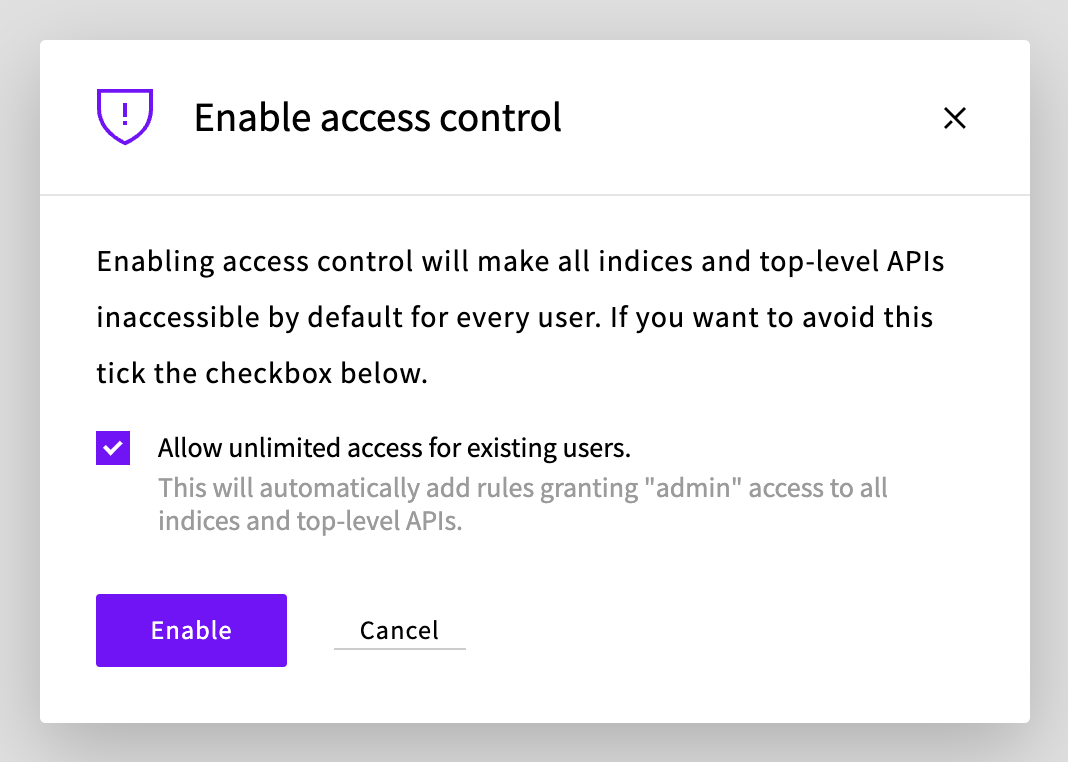
Ticking the box gives upadmin, and any other users that the service already has, full access to every index, so nothing changes for them. Without it, they can't use any index as soon as access control is on.
The users in this guide don't need Extended access control. They can send _bulk, _mget and _msearch requests for their own indices without it.
Create a user for an application
The load.py program from How to index and search data in Managed OpenSearch adds products to the products index. Give it a user called catalog_app with one rule:
- Index glob pattern:
products* - Permission:
readwrite
With readwrite, the application can create indices whose names start with products, and add, change, delete and search products in them. It can't delete indices or change their settings, so those tasks stay with upadmin.
- On the service's Users tab, click Create database user.
- Enter
catalog_appas the Username. The Password field already has a password in it. Click Copy to copy it for your application, then click Next. - Enter
products*as the Index glob pattern, selectreadwriteas the Permission, and click Add. - Click Create database user.
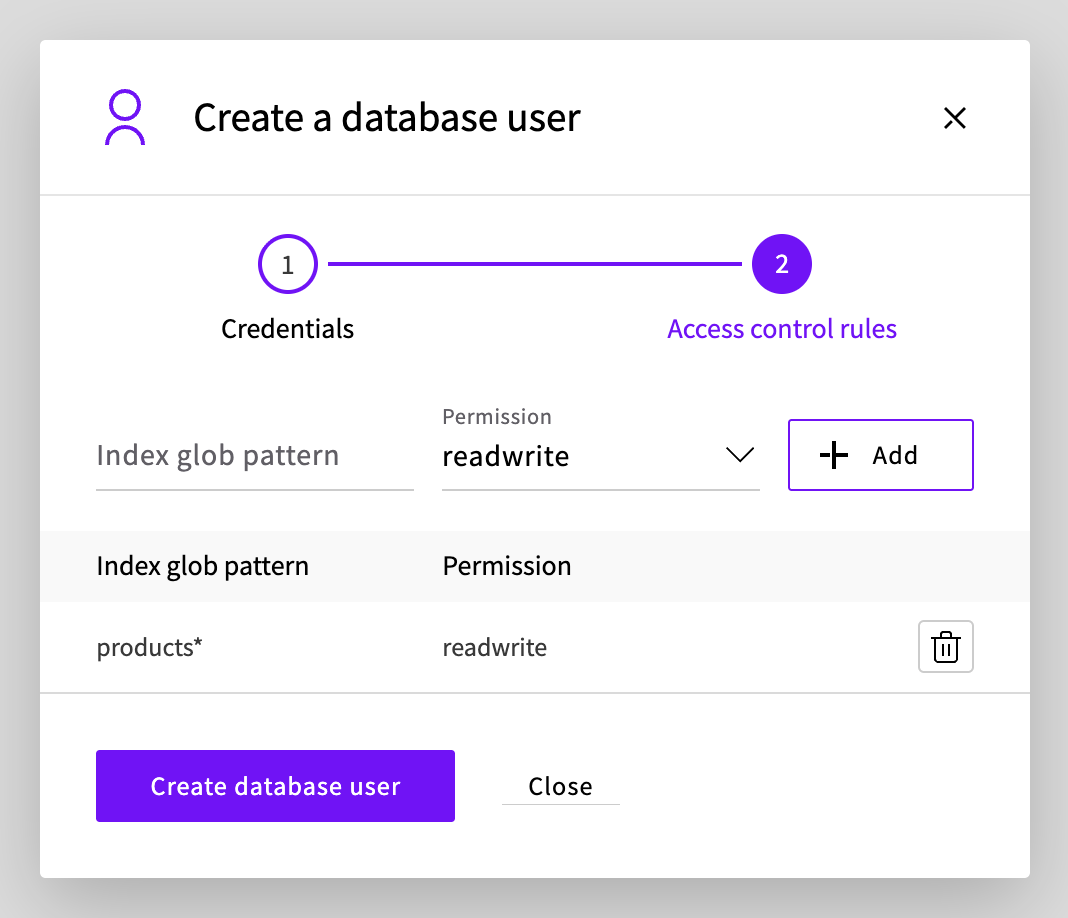
The new user appears on the Users tab. To see its password later, click Show in its row.
Create a read-only user
The shop's search box only needs to search the products. Create its user, for example shop_search, with the same steps and this rule:
- Index glob pattern:
products - Permission:
read
The pattern has no *, so the user can read only the products index.
With the API, send the rule in opensearch_access_control:
{
  "username": "shop_search",
  "opensearch_access_control": {
    "rules": [
      { "index": "products", "permission": "read" }
    ]
  }
}
Connect as the user
Connect the same way as with upadmin, with the new user's name and password. Check that catalog_app can add a product, but can't delete the index:
curl --user catalog_app -X PUT "https://<hostname>:<port>/products/_doc/16?filter_path=result&pretty" -H 'Content-Type: application/json' -d '
{
  "name": "Head torch",
  "description": "A bright head torch for evenings at camp.",
  "category": "camping",
  "price": 39.00,
  "in_stock": true
}'Enter host password for user 'catalog_app':
{
"result" : "created"
}curl --user catalog_app -X DELETE "https://<hostname>:<port>/products?pretty"Enter host password for user 'catalog_app':
{
"error" : {
"root_cause" : [
{
"type" : "security_exception",
"reason" : "no permissions for [indices:admin/delete] and User [name=catalog_app, backend_roles=[], requestedTenant=null]"
}
],
"type" : "security_exception",
"reason" : "no permissions for [indices:admin/delete] and User [name=catalog_app, backend_roles=[], requestedTenant=null]"
},
"status" : 403
}The read-only user can search the products, but not add one:
curl --user shop_search "https://<hostname>:<port>/products/_search?q=name:torch&filter_path=hits.hits._source.name&pretty"Enter host password for user 'shop_search':
{
"hits" : {
"hits" : [
{
"_source" : {
"name" : "Head torch"
}
}
]
}
}curl --user shop_search -X PUT "https://<hostname>:<port>/products/_doc/17?pretty" -H 'Content-Type: application/json' -d '{"name": "Tent pegs"}'Enter host password for user 'shop_search':
{
"error" : {
"root_cause" : [
{
"type" : "security_exception",
"reason" : "no permissions for [indices:data/write/index] and User [name=shop_search, backend_roles=[], requestedTenant=null]"
}
],
"type" : "security_exception",
"reason" : "no permissions for [indices:data/write/index] and User [name=shop_search, backend_roles=[], requestedTenant=null]"
},
"status" : 403
}In your applications, put the user's name and password in the connection string. To run load.py as catalog_app:
export OPENSEARCH_URL='https://catalog_app:<password>@<hostname>:<port>'
python load.pyAdded 5 productsTo use OpenSearch Dashboards as shop_search, log in with its username and password. Dashboards shows the user only the indices that its rules cover, so create the index pattern for one of them, such as products, as in How to use OpenSearch Dashboards with Managed OpenSearch.
Change or delete a user
Changes to a user's rules apply to the requests that its applications send after the change, so they don't need to reconnect. When you change a user's password, its rules stay as they are, but requests with the old password are refused, so update the password in your applications.
On the service's Users tab, in the user's row:
- To change its rules, click Access control, add or delete rules, and click Save.
- To change its password, click Credentials, enter the new password twice and click Save.
- To delete it, click Delete user, then click Delete to confirm.
If you turn off Access control, every user can read, change and delete every index again, and the Control Panel doesn't ask you to confirm. When you turn it on again, leave Allow unlimited access for existing users unticked. Ticking it would give every user full access, including the users you've limited.
Troubleshooting
security_exceptionwithno permissions for [indices:data/read/search] and User [name=<username>, ...]and status403None of the user's rules allows this request on this index. The part in square brackets names what the request tried to do:
indices:data/read/searchis a search,indices:data/write/indexadds a document andindices:admin/deletedeletes an index. Check the user's rules on the Users tab. A request that names several indices is refused if the rules don't cover all of them.Applications that connect as
upadminget403after you turn on access controlupadminhas no rules. In the Control Panel, click Access control in its row on the Users tab, add the rule*withadmin, and click Save. With the API, give it the rules in Turn on access control.A bulk request returns
"errors" : true, or opensearch-py raisesBulkIndexErrorwith'status': 403A bulk request reports a result for each document, so it returns status
200even when the user's rules refuse every document in it. Each refused document has asecurity_exceptionlike the one above.Unauthorizedwith status401The username or password is wrong, the password has been changed, or the user has been deleted.
Invalid input for opensearch_acl_config.acls.<n>.rules.0.permission: '<redacted>' is not one of ['deny', 'admin', 'read', 'readwrite', 'write'].The API accepts only these permissions, in lowercase.
The index pattern you've entered doesn't match any indices. You can match any of your 0 indicesin OpenSearch DashboardsThe index pattern also covers indices that the user's rules don't. Enter an index name or pattern that its rules cover, such as
products, not*.
Next steps
- Managed OpenSearch users and permissions describes what each permission allows and how rules work together.
- How to index and search data in Managed OpenSearch covers the requests that applications send to their indices.
- How to use OpenSearch Dashboards with Managed OpenSearch shows how to search and chart the data in your browser.