How to restrict user access in Managed PostgreSQL
When your applications connect to Managed PostgreSQL as upadmin, each of them can create users and databases, and read and change every table that upadmin owns. A bug or a leaked password in one application then puts every database on the service at risk. Giving each application, and each person, a user of its own with only the access it needs limits what can go wrong.
This guide walks you through creating users in the Control Panel or with the UpCloud API, giving them access with SQL, and changing or deleting them later. It uses three examples: an application that uses only its own database, a read-only user for reports, and a user that can read only a view. It also shows how to give an application that already uses defaultdb a user of its own.
Before you start
You need:
- A Managed PostgreSQL service. To create one, see How to get started with Managed PostgreSQL.
- For the API steps, an API token. To create one, see How to get started using the UpCloud API.
psqlon a computer that can connect to the service, and the service's connection string. For both, see How to get started with Managed PostgreSQL.
How access works
A new user can sign in, but it can't read other users' tables, create tables in defaultdb, or create databases or users. You give it access with SQL GRANT statements. The Control Panel and the API create the user and set its password, but they don't have any access settings.
What a user can do depends on three things:
- Ownership. The owner of a database or a table can do anything with it.
upadminownsdefaultdband every database you create in the Control Panel or with the API. - Grants. A
GRANTstatement gives a user one kind of access, such as connecting to a database or reading a table.REVOKEtakes it away again. PUBLIC. Access granted toPUBLICapplies to every user. By default, every user can connect todefaultdband to every new database, though not read the tables in it. The examples in this guide take that away for their own database.
Run the statements that create databases and give access as upadmin. It has the access of every user created in the Control Panel, with the API or by upadmin itself, so it can grant access to their databases and tables too.
For more about users on the service, see Managed PostgreSQL users and permissions.
Create a user for an application with its own database
In this example, a shop application keeps its data in a database called shop and connects as shop_app. shop_app owns shop, so it can create and change tables there, and other users can't connect to shop unless you let them.
First, create the user:
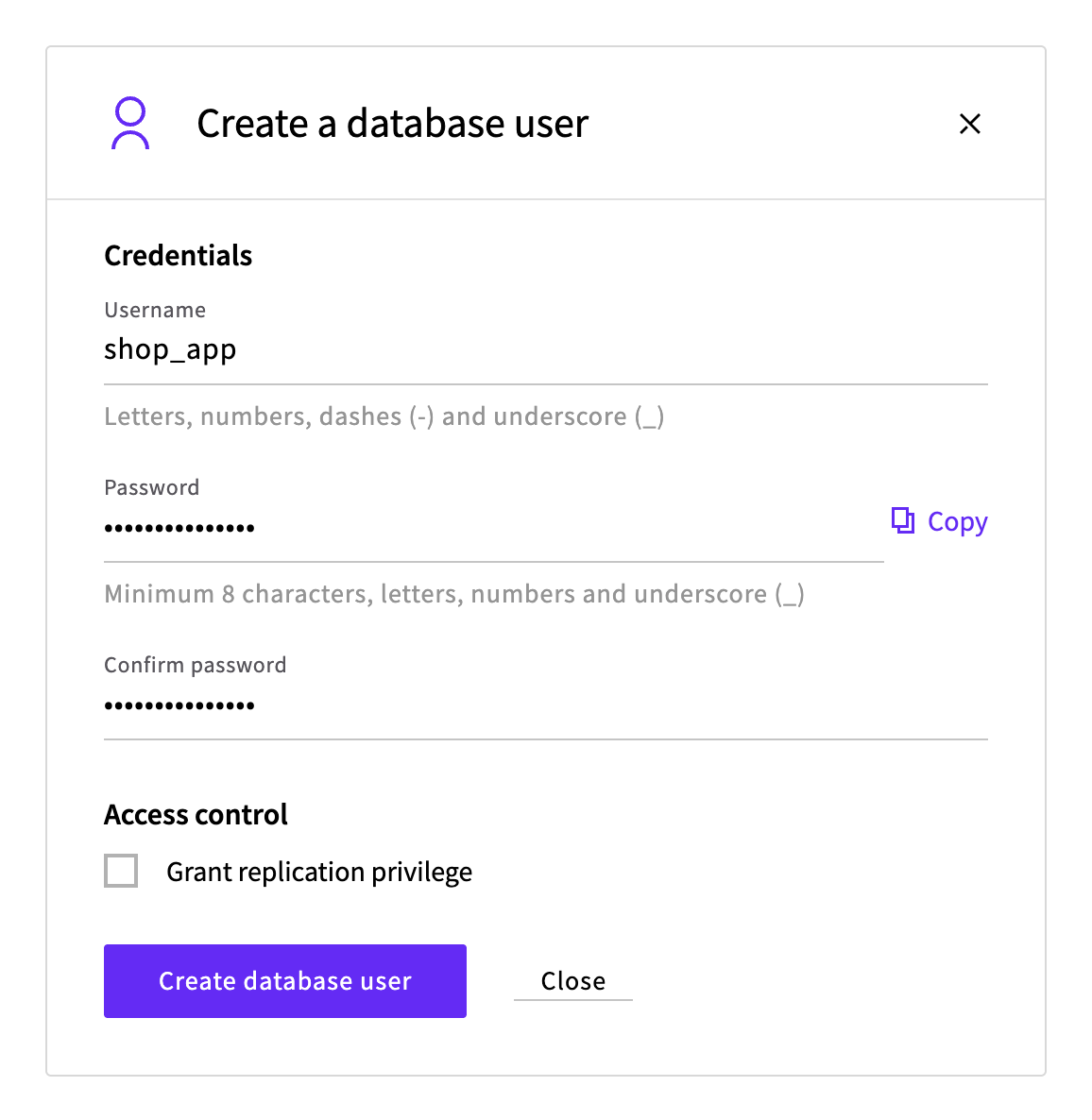
- Go to Databases, open the Managed PostgreSQL service and go to its Users tab.
- Click Create database user.
- Enter a Username, for example
shop_app. The Password field already has a password in it. Click Copy to copy it for your application. - Leave Grant replication privilege unticked. The application doesn't need it.
- Click Create database user.
The new user appears on the Users tab. To see its password later, click Show in its row.
Next, connect to the service as upadmin with the connection string from the service's Overview tab:
psql 'postgres://upadmin:<password>@<hostname>:<port>/defaultdb?sslmode=require'At the defaultdb=> prompt, create the database with shop_app as its owner, and stop other users from connecting to it:
CREATE DATABASE shop OWNER shop_app;
REVOKE CONNECT, TEMPORARY ON DATABASE shop FROM PUBLIC;CREATE DATABASE
REVOKEThe REVOKE statement takes away the access every user has by default: connecting to the database and creating temporary tables in it. shop_app can still connect, because it owns shop, and so can upadmin.
If you created shop in the Databases tab or with the API, it already exists and belongs to upadmin. In that case, make shop_app its owner instead of running CREATE DATABASE, then run the same REVOKE statement:
ALTER DATABASE shop OWNER TO shop_app;Tables are kept in a schema, and public is the schema every database starts with. Switch to shop and make sure that only its owner can create tables in public:
\c shop
REVOKE CREATE ON SCHEMA public FROM PUBLIC;SSL connection (protocol: TLSv1.3, cipher: TLS_AES_256_GCM_SHA384, compression: off, ALPN: postgresql)
You are now connected to database "shop" as user "upadmin".
REVOKEKeep this psql session open, because the next examples continue at the shop=> prompt.
To check the user, connect as shop_app in a second terminal. Use the same connection string, with the user's name and password, and with shop instead of defaultdb as the database. Create a table with two rows, as the application would, and then try to create a database:
psql 'postgres://shop_app:<password>@<hostname>:<port>/shop?sslmode=require' \
  -c "CREATE TABLE orders (id serial PRIMARY KEY, customer_email text NOT NULL, total numeric(10,2) NOT NULL, created_at timestamptz NOT NULL DEFAULT now());" \
  -c "INSERT INTO orders (customer_email, total) VALUES ('[email protected]', 25.00), ('[email protected]', 40.50);" \
-c "CREATE DATABASE reports;"CREATE TABLE
INSERT 0 2
ERROR: permission denied to create databaseshop_app can work with its own tables in shop, but it can't create databases or users. It can still connect to defaultdb, like every user, but it can't read or change the tables there. To close defaultdb as well, see Close defaultdb to other users.
Create a read-only user
A reporting tool or a dashboard usually only needs to read data. Create its user, for example reporting, in the same way as shop_app. Then, at the shop=> prompt, give it read access to shop:
GRANT CONNECT ON DATABASE shop TO reporting;
GRANT USAGE ON SCHEMA public TO reporting;
GRANT SELECT ON ALL TABLES IN SCHEMA public TO reporting;
ALTER DEFAULT PRIVILEGES FOR ROLE shop_app IN SCHEMA public GRANT SELECT ON TABLES TO reporting;GRANT
GRANT
GRANT
ALTER DEFAULT PRIVILEGESCONNECT lets reporting connect to shop. USAGE lets it look up tables in the public schema, and SELECT ON ALL TABLES lets it read the tables that are there now. ALTER DEFAULT PRIVILEGES covers the tables that shop_app creates later, so you don't need to grant each new table. It applies only to tables created by the user named after FOR ROLE.
Check that reporting can read orders, but not add to it:
psql 'postgres://reporting:<password>@<hostname>:<port>/shop?sslmode=require' \
  -c "SELECT count(*) FROM orders;" \
-c "INSERT INTO orders (customer_email, total) VALUES ('[email protected]', 9.99);" count
-------
2
(1 row)
ERROR: permission denied for table ordersGive a user access to a single view
Sometimes a user should see only part of a table. In this example, orders holds customers' email addresses, and a partner that analyzes sales should see only the order totals. A view is a saved query that users can read like a table. Create one that leaves out customer_email, and give the partner access to the view only.
Create the partner's user, for example partner, in the same way as shop_app. Then, at the shop=> prompt:
CREATE VIEW orders_summary AS SELECT id, total, created_at FROM orders;
GRANT CONNECT ON DATABASE shop TO partner;
GRANT USAGE ON SCHEMA public TO partner;
GRANT SELECT ON orders_summary TO partner;CREATE VIEW
GRANT
GRANT
GRANTThe view reads orders with the access of its owner, upadmin, so partner doesn't need access to orders itself. Check that partner can read the view, but not the table:
psql 'postgres://partner:<password>@<hostname>:<port>/shop?sslmode=require' \
  -c "SELECT * FROM orders_summary;" \
-c "SELECT * FROM orders;" id | total | created_at
----+-------+-------------------------------
1 | 25.00 | 2026-10-28 12:31:57.599137+00
2 | 40.50 | 2026-10-28 12:31:57.599137+00
(2 rows)
ERROR: permission denied for table ordersGive an existing application its own user
If you followed How to get started with Managed PostgreSQL, your application connects as upadmin and keeps its greetings table in defaultdb. You can give it a user of its own without moving the table.
Create the user, for example greetings_app, in the same way as shop_app. Then switch to defaultdb at the shop=> prompt:
\c defaultdbWhat to grant next depends on what the application does with its tables.
If the application only reads and writes rows
Give the user access to the rows of the tables in defaultdb, now and in tables that upadmin creates later:
GRANT SELECT, INSERT, UPDATE, DELETE ON ALL TABLES IN SCHEMA public TO greetings_app;
GRANT USAGE ON ALL SEQUENCES IN SCHEMA public TO greetings_app;
ALTER DEFAULT PRIVILEGES IN SCHEMA public GRANT SELECT, INSERT, UPDATE, DELETE ON TABLES TO greetings_app;
ALTER DEFAULT PRIVILEGES IN SCHEMA public GRANT USAGE ON SEQUENCES TO greetings_app;GRANT
GRANT
ALTER DEFAULT PRIVILEGES
ALTER DEFAULT PRIVILEGESThe sequences matter for tables with a serial column, such as id in greetings, because each new row takes its number from a sequence. The application can't create or change tables, so run those changes as upadmin.
If the application creates or changes its own tables
Applications that create their own tables, or change them when they're upgraded, need to own those tables. The application in the getting started guide is one of them. It starts with CREATE TABLE IF NOT EXISTS greetings, which fails for a user that can't create tables, even when the table already exists. The application then stops with psycopg.errors.InsufficientPrivilege: permission denied for schema public.
Let the user create tables in defaultdb, and then make it the owner of the existing table:
GRANT CREATE ON SCHEMA public TO greetings_app;
ALTER TABLE greetings OWNER TO greetings_app;GRANT
ALTER TABLERun ALTER TABLE for each of the application's tables, after the GRANT. The sequence behind a serial column moves to the new owner with its table.
Either way, the application keeps working with its tables in defaultdb, but it can't create databases or users, or connect to databases that are closed to other users, such as shop. In its connection string, change the username and password to the new user's, and keep defaultdb as the database.
Close defaultdb to other users
Every user can connect to defaultdb, though not read or change its tables. To stop that, revoke the access from PUBLIC. Users that need defaultdb, such as greetings_app, lose access too, so grant them CONNECT first. At the defaultdb=> prompt:
GRANT CONNECT ON DATABASE defaultdb TO greetings_app;
REVOKE CONNECT, TEMPORARY ON DATABASE defaultdb FROM PUBLIC;GRANT
REVOKEupadmin can still connect, because it owns defaultdb. Other users now get FATAL: permission denied for database "defaultdb" when they try.
Connect from your application
An application connects as its user with the same connection string as upadmin, with three changes: the username, the password, and the database name at the end. For example, for shop_app:
postgres://shop_app:<password>@<hostname>:<port>/shop?sslmode=requireThe connection details in the Control Panel always show upadmin and defaultdb. If you keep defaultdb for a user that can't connect to it, the connection fails with FATAL: permission denied for database "defaultdb".
If the application connects through a connection pool, use a pool with no user set, or one set to the application's user. A pool set to another user turns the connection away with FATAL: login rejected. For how pools handle users, see Managed PostgreSQL connection pooling.
Change or delete a user
Changing a user's password or deleting the user closes its open connections. Applications that use it need to reconnect, with the new password after a change. A new password doesn't change the user's access.
On the service's Users tab, in the user's row:
- To change its password, click Credentials, enter the new password in Password and Confirm password, and click Save.
- To delete it, click the Delete user icon, then click Delete to confirm.
When you delete a user, the databases, tables and views it owns pass to upadmin, so your data stays. Views keep working for the users you gave access to them. Delete users in the Control Panel or with the API rather than with DROP ROLE, which fails while the user owns anything or has been given access to anything.
Take away some access
To take away part of a user's access, run REVOKE as upadmin, with the same parts as the GRANT that gave it. For example, to stop reporting from connecting to shop:
REVOKE CONNECT ON DATABASE shop FROM reporting;REVOKERevoked access to a table applies to open connections from their next statement. A revoked CONNECT stops only new connections. To close the user's open connections, go to the service's Connections tab in the Control Panel, select the checkbox in each of the user's rows and click Terminate connection. Cancel query stops only the statement that's running and keeps the connection open.
Troubleshooting
FATAL: permission denied for database "<database>"andDETAIL: User does not have CONNECT privilege.The user can't connect to the database at the end of the connection string. If you copied the connection string from the Control Panel, it still ends in
defaultdb, so change it to the user's database. Otherwise, grant the userCONNECTon the database.ERROR: permission denied for table <table>The user has no access of that kind to the table. If the table was created after your grants, check who created it:
ALTER DEFAULT PRIVILEGES FOR ROLEcovers only tables created by the user named afterFOR ROLE. Grant access to the table itself, for exampleGRANT SELECT ON <table> TO reporting;.ERROR: permission denied for schema publicThe user can't create tables in the database. This also happens with
CREATE TABLE IF NOT EXISTSwhen the table already exists. For an application that creates its own tables, see If the application creates or changes its own tables.ALTER TABLE … OWNER TOfails the same way if you run it beforeGRANT CREATE ON SCHEMA public.ERROR: must be owner of table <table>Only the table's owner can change or drop it. Make the user the owner, as in If the application creates or changes its own tables, or make the change as
upadmin.ERROR: permission denied to create databaseOnly
upadmincan create databases. Create the database asupadmin, with the user as its owner.FATAL: password authentication failed for user "<user>"The password is wrong, it was changed, or the user has been deleted.
FATAL: terminating connection due to administrator commandThe user's password was changed, the user was deleted, or the connection was closed with Terminate connection. Reconnect, with the new password if it changed.
FATAL: login rejectedThe connection pool is set to a different user. Use a pool with no user set, or one set to this user.
ERROR: role "<user>" cannot be dropped because some objects depend on itDROP ROLEfails while the user owns databases, tables or views, or has been given access to any. Delete the user in the Control Panel or with the API instead.
Next steps
- Managed PostgreSQL users and permissions describes how users and access work on the service.
- Managed PostgreSQL connection pooling explains how pools work with different users.
- Privileges in the PostgreSQL documentation lists every kind of access you can grant.
- How to get started with Managed PostgreSQL covers creating a service and connecting to it.
PostgreSQL is a registered trademark of the PostgreSQL Community Association of Canada, and used with their permission.