How to restrict user access in Managed Valkey
When your applications connect to Managed Valkey* as default, every one of them has full access to every key, including commands such as FLUSHDB that delete all the keys at once. A bug or a leaked password in one application then puts every application's data at risk. Giving each application its own user, with only the access it needs, limits what can go wrong.
This guide shows how to create users with limited access in the Control Panel or with the UpCloud API, connect as them, and change or delete them later. It uses two examples: an application that can use only its own keys, and a read-only user for a dashboard or a report.
Before you start
You need:
- A Managed Valkey service. To create one, see How to get started with Managed Valkey.
- For the API steps, an API token. To create one, see How to get started using the UpCloud API.
- To check what a user can do,
valkey-clion a computer that can connect to the service. See Connect with valkey-cli.
How access works
A new user can sign in, but it can't run anything until you give it access. You give access with four lists:
- Categories allow or block groups of commands. An entry starts with
+@to allow a group or-@to block it, for example+@read. - Commands allow or block single commands. An entry starts with
+or-, for example+get. - Keys decide which keys the user can read or change. An entry is a pattern such as
cart:*, where*stands for any characters. A user with no key pattern can't read or change any key. - Channels decide which message channels the user can publish to or subscribe to. If you leave this list empty when you create a user in the Control Panel, every channel is allowed.
Entries apply in the order you add them, so add what you allow first and what you block after it. The default user always has full access, and its access can't be changed in the Control Panel.
For more on how the lists work together, see Users and access control.
Create a user that can use only its own keys
In this example, a shopping cart application keeps its data in keys whose names start with cart:. Its user gets these entries, in this order:
- Categories:
+@all, then-@dangerous - Keys:
cart:*
+@all allows every command a user can be given, and -@dangerous then blocks the risky ones. Those include FLUSHALL, which deletes every key on the service, as well as KEYS and INFO. Both entries matter. The key pattern alone doesn't stop FLUSHALL, so without -@dangerous the user could still delete other applications' keys.
- Go to Databases, open the service and go to its Users tab.
- Click Create database user.
- Enter a Username, for example
cart_app. The Password field already has a password in it. Click Copy to copy it for your application, then click Next. - Under Categories, enter
+@alland click Add. Then enter-@dangerousand click Add. - Under Keys, enter
cart:*and click Add. - Click Create database user.
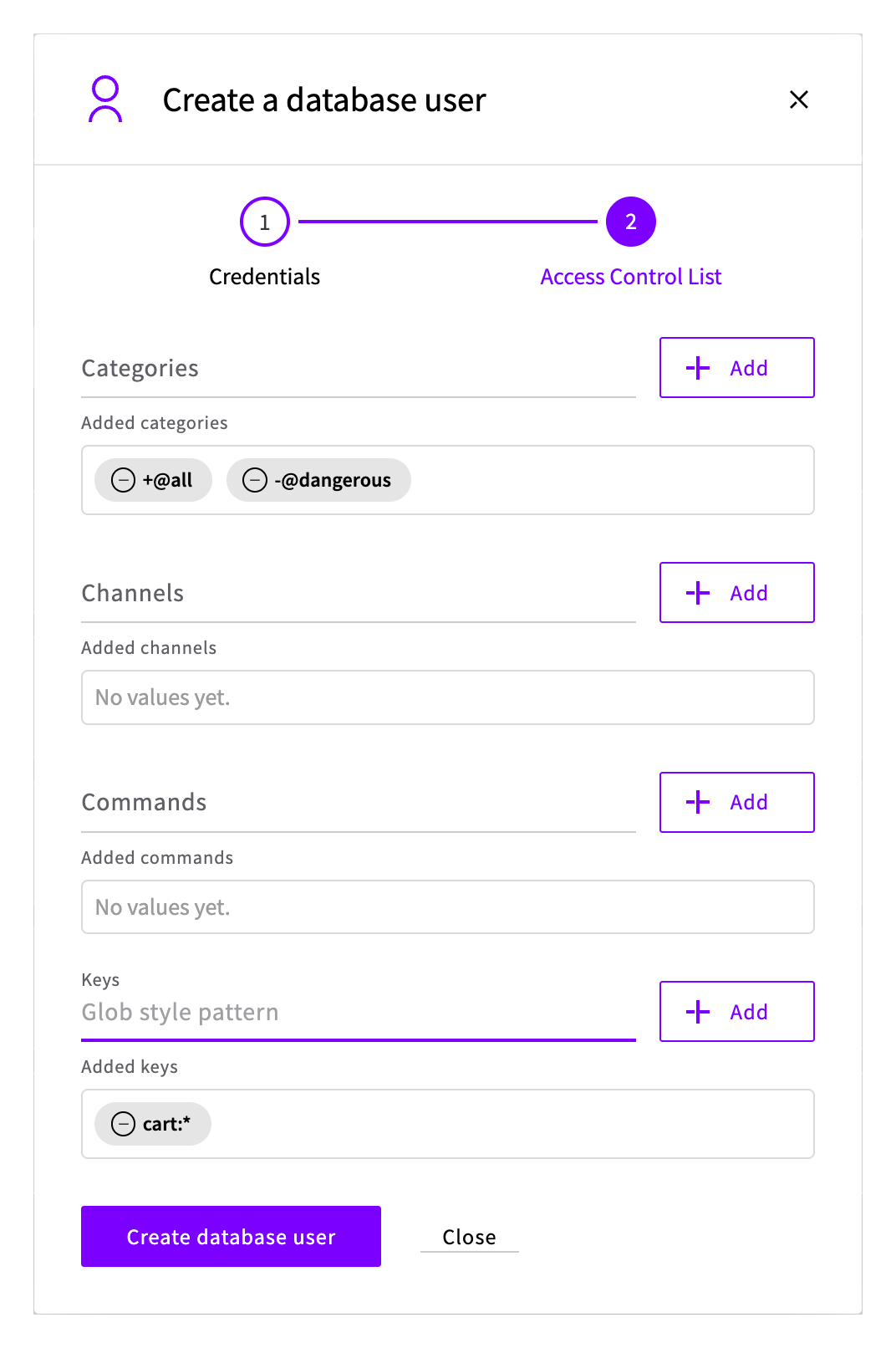
The new user appears on the Users tab. To see its password later, click Show in its row.
The user can still see the names of other keys with SCAN, but it can't read or change them.
Create a read-only user
A dashboard or a report usually only needs to read data. Create its user, for example dashboard, with the same steps and these entries:
- Categories:
+@read, then+@connection - Keys:
*
+@read allows the commands that read data. +@connection allows commands that client libraries use to manage their connection, such as PING and HELLO, so an application that checks its connection with PING keeps working. The key pattern * covers every key. To let the user read only some keys, use a narrower pattern, such as cart:*.
With the API, send the same entries in valkey_access_control:
{
  "username": "dashboard",
  "valkey_access_control": {
    "categories": ["+@read", "+@connection"],
    "keys": ["*"]
  }
}
Connect as the user
Connect the same way as with default, with the new user's name and password in the connection URI. For the hostname and port, see Find the connection details.
Put the URI in single quotes, including when you store it in an environment variable with export. Passwords that the Control Panel creates can contain $, and inside double quotes the shell would treat it as the start of a variable and change the password.
Check that the user can work with its own keys, but not with others:
valkey-cli -u 'rediss://cart_app:<password>@<hostname>:<port>' SET cart:1 apple
valkey-cli -u 'rediss://cart_app:<password>@<hostname>:<port>' GET cart:1
valkey-cli -u 'rediss://cart_app:<password>@<hostname>:<port>' GET orders:1
valkey-cli -u 'rediss://cart_app:<password>@<hostname>:<port>' FLUSHALLWarning: Using a password with '-a' or '-u' option on the command line interface may not be safe.
OK
Warning: Using a password with '-a' or '-u' option on the command line interface may not be safe.
"apple"
Warning: Using a password with '-a' or '-u' option on the command line interface may not be safe.
(error) NOPERM No permissions to access a key
Warning: Using a password with '-a' or '-u' option on the command line interface may not be safe.
(error) NOPERM User cart_app has no permissions to run the 'flushall' commandThe read-only user can read the key, but not change it:
valkey-cli -u 'rediss://dashboard:<password>@<hostname>:<port>' GET cart:1
valkey-cli -u 'rediss://dashboard:<password>@<hostname>:<port>' SET cart:1 pearWarning: Using a password with '-a' or '-u' option on the command line interface may not be safe.
"apple"
Warning: Using a password with '-a' or '-u' option on the command line interface may not be safe.
(error) NOPERM User dashboard has no permissions to run the 'set' commandTo keep the password out of the command, use --askpass instead, as in Connect with valkey-cli:
valkey-cli --tls -h <hostname> -p <port> --user cart_app --askpass GET cart:1Users have the same access through the replica- hostname, which is read-only for everyone.
In your applications, use the same connection URI. Client libraries report refused commands as errors. valkey-py, for example, raises NoPermissionError with the same message.
Change or delete a user
Changes to a user's access also apply to applications that are already connected as that user, so they don't need to reconnect. Deleting a user closes its open connections. Changing a user's password doesn't: applications that are already connected stay connected, and new connections need the new password.
On the service's Users tab, in the user's row:
- To change its access, click Access control, add or remove entries, and click Save.
- To change its password, click Credentials, enter the new password twice and click Save.
- To delete it, click Delete user, then click Delete to confirm.
Troubleshooting
(error) NOPERM User <username> has no permissions to run the '<command>' commandNone of the user's categories or commands allow this command, or a block entry removes it. To allow just that command, add it under Commands, for example
+info. Entries under Commands apply after Categories, so this works even with-@dangerous. Don't add a whole category back to get one command:+@allafter-@dangerous, for example, allowsFLUSHDBagain.(error) NOPERM No permissions to access a keyThe key doesn't match any of the user's key patterns. A command that names several keys is refused if any one of them doesn't match. Also check that the pattern ends with
*:cart:matches only a key named exactlycart:, notcart:1.(error) NOPERM No permissions to access a channelThe channel doesn't match any of the user's channel patterns.
AUTH failed: WRONGPASS invalid username-password pair or user is disabled.The password is wrong, or the user has been deleted. If the password contains
$, put the connection URI in single quotes.Invalid input for access_control.valkey_acl_categories.0: Commands categories entries should be prefixed with either '+@' or '-@'.A category is missing its
+@or-@. Enter it as+@read, not@readorread.Invalid input for access_control.valkey_acl_commands.0: Commands entries should be prefixed with either '+' or '-'. '@' is also forbidden - in order to control commands categories you have to use valkey_acl_categories list.A command is missing its
+or-, for examplegetinstead of+get. Categories, such as+@read, go in Categories, not in Commands.Connections from a new server in the same location time out
A Cloud Server created after the service can take a while to get access over the Utility network. To let it connect straight away, see Troubleshooting in the getting started guide.
Next steps
- Users and access control describes how the access lists work together.
- Command categories in the Valkey documentation lists every category and the commands in it.
- How to get started with Managed Valkey covers creating a service and connecting to it.
* Valkey and the Valkey logo are trademarks of LF Projects, LLC. Any rights therein are reserved to LF Projects, LLC. Any use by UpCloud is for referential purposes only and does not indicate any sponsorship, endorsement or affiliation between Valkey and UpCloud. Other names may be trademarks of their respective owners.