How to scale a Managed Database
As your database grows, you can give your UpCloud Managed Database service more CPU, memory or disk space. You can also scale it down when it needs less. Scaling doesn't change the service's hostname, port or data, so your applications keep using the same connection details.
This guide walks you through scaling a Managed MySQL, PostgreSQL, Valkey or OpenSearch service in the Control Panel or with the UpCloud API. For the API requests, you need an API token. To create one, see How to get started using the UpCloud API.
What you can change
- MySQL and PostgreSQL: you can change the compute plan, storage size, node count and backup retention separately. Compute plans come in the Developer, Standard and High Memory families. A service can run on 1, 2 or 3 nodes, but on a Developer compute plan it runs on a single node with Mini backups.
- Valkey: you can change the plan, which sets the CPU cores and memory of each node, and the number of nodes, from 1 to 3. Valkey keeps its data in memory, so there's no separate storage to change.
- OpenSearch: you can change the plan, which sets the CPU cores, memory and storage, and the number of nodes: 1 or 3, or up to 15 on the largest plans. If you need more disk space than the plan includes, you can add it on top.
For the MySQL and PostgreSQL plans and their limits, see Managed MySQL configurations or Managed PostgreSQL configurations.
How scaling affects the service
The service keeps running while you scale it. How it applies each change depends on which setting you change.
Some changes are made on the nodes that the service already has, so open connections aren't affected:
- adding storage to a MySQL or PostgreSQL service, or additional disk space to an OpenSearch service
- changing the backup retention
- adding nodes to a MySQL, PostgreSQL or Valkey service, which adds a standby node next to the existing ones
- removing nodes from a MySQL, PostgreSQL or Valkey service, which removes standby nodes and keeps the primary
Other changes need new nodes:
- changing the CPU and memory, in either direction
- reducing the storage or the additional disk space
- changing the node count of an OpenSearch service
For these changes, the service creates new nodes with the new resources and copies the data to them. It then switches to a new primary node and removes the old nodes.
Keep your applications connected
A MySQL, PostgreSQL or Valkey service closes the connections that are open when it switches to a new primary node. A query or command sent at that moment fails with a connection error, for example:
- PostgreSQL:
terminating connection due to administrator command - MySQL:
Server shutdown in progress(error 1053) - Valkey:
Connection closed by server.
To keep your application working, catch these errors, reconnect and send the query again. Every write that the service confirmed is kept, whether it was made before or after the switch.
On OpenSearch, requests keep working through the change.
Check that your data fits before you scale down
Before you reduce the storage or choose a plan with less memory, check how much of it your data uses. Your data needs to fit in the smaller size, with room left over for it to grow.
Storage on MySQL, PostgreSQL and OpenSearch: the service's Metrics tab shows Disk space usage as a percentage of the current storage. With the API,
GET /1.3/database/<service-uuid>/metrics?period=hourreturns the same figures indisk_usage.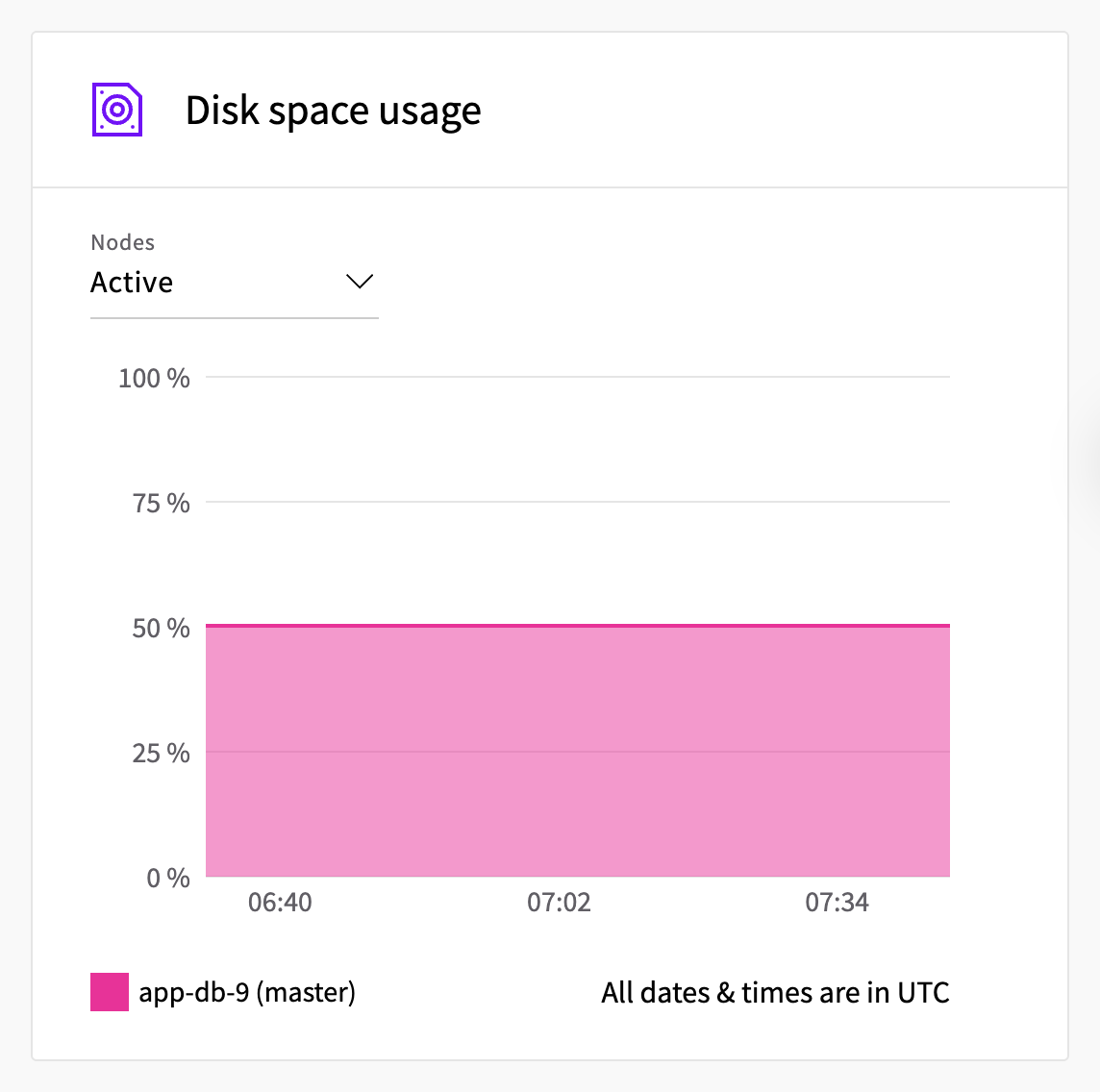
Memory on Valkey: Valkey can't use all of the plan's memory for your data. Check how much memory your data uses in
used_memory_human, and compare it withmaxmemory_human. How to configure Managed Valkey as a cache shows how to check both.
If the data doesn't fit, the change isn't made and the service's status changes to Error. The service keeps its current plan and data, so your applications keep working.
To see why, open the Overview tab, which shows the reason under Setup service. With the API, GET /1.3/database/<service-uuid> shows the reason in state_error.
The status stays at Error until you next change the service. To scale down, first delete data you no longer need, and then save the smaller size again. If you can't remove enough data, choose a larger size and save that instead. With the API, you can also clear the status without scaling the service: send the current values again, and the state changes back to running.
Scale the service
The steps differ for each database engine, so follow the section for yours.
MySQL and PostgreSQL
Open the service and go to its Settings tab.
In the Compute, Storage, Nodes and Backups sections, choose the new resources. Compute has a tab for each plan family. If you choose a Developer plan, Nodes changes to Single node and Backups to Mini.
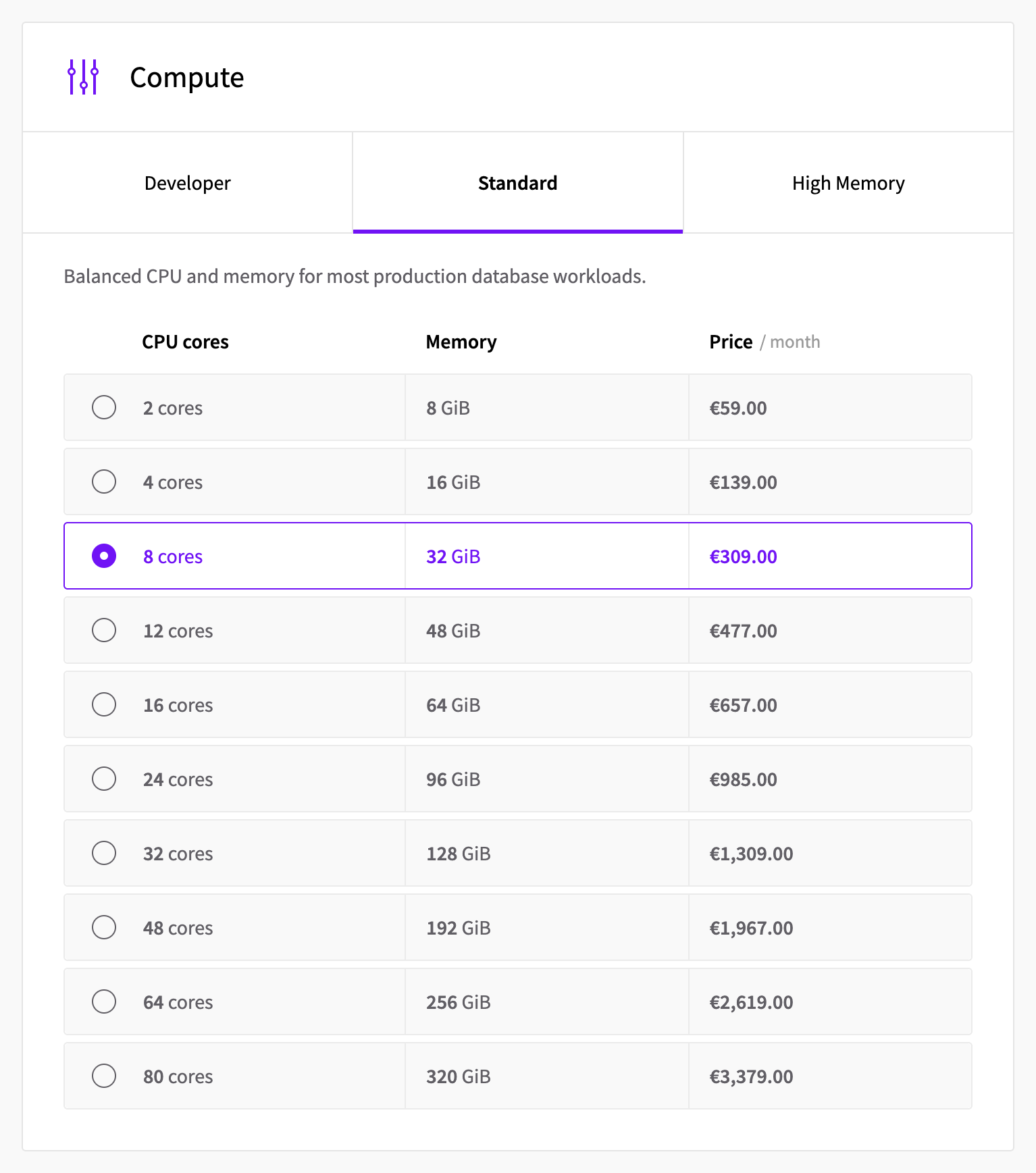
The Summary shows the new resources and the monthly price.
Click Save changes.
Valkey
Open the service and go to its Settings tab.
In the Plan and Nodes sections, choose the new plan and node count.
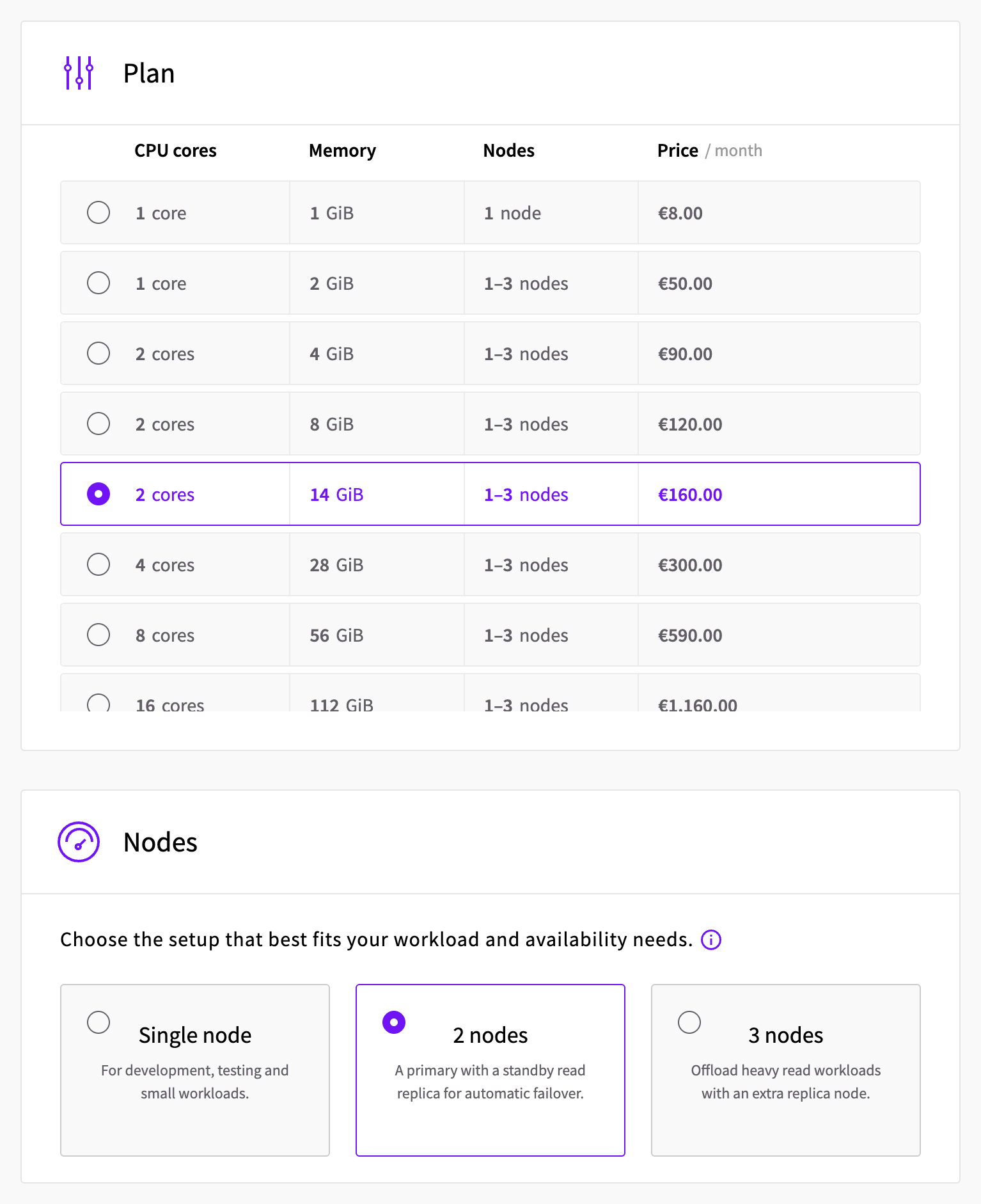
The Summary shows the new resources and the monthly price.
Click Save changes.
OpenSearch
Open the service and go to its Settings tab.
In the Plan and Nodes sections, choose the new plan and node count. If you need more disk space than the plan includes, set Additional disk space afterwards, because choosing another plan or node count sets it back to 0 GiB.
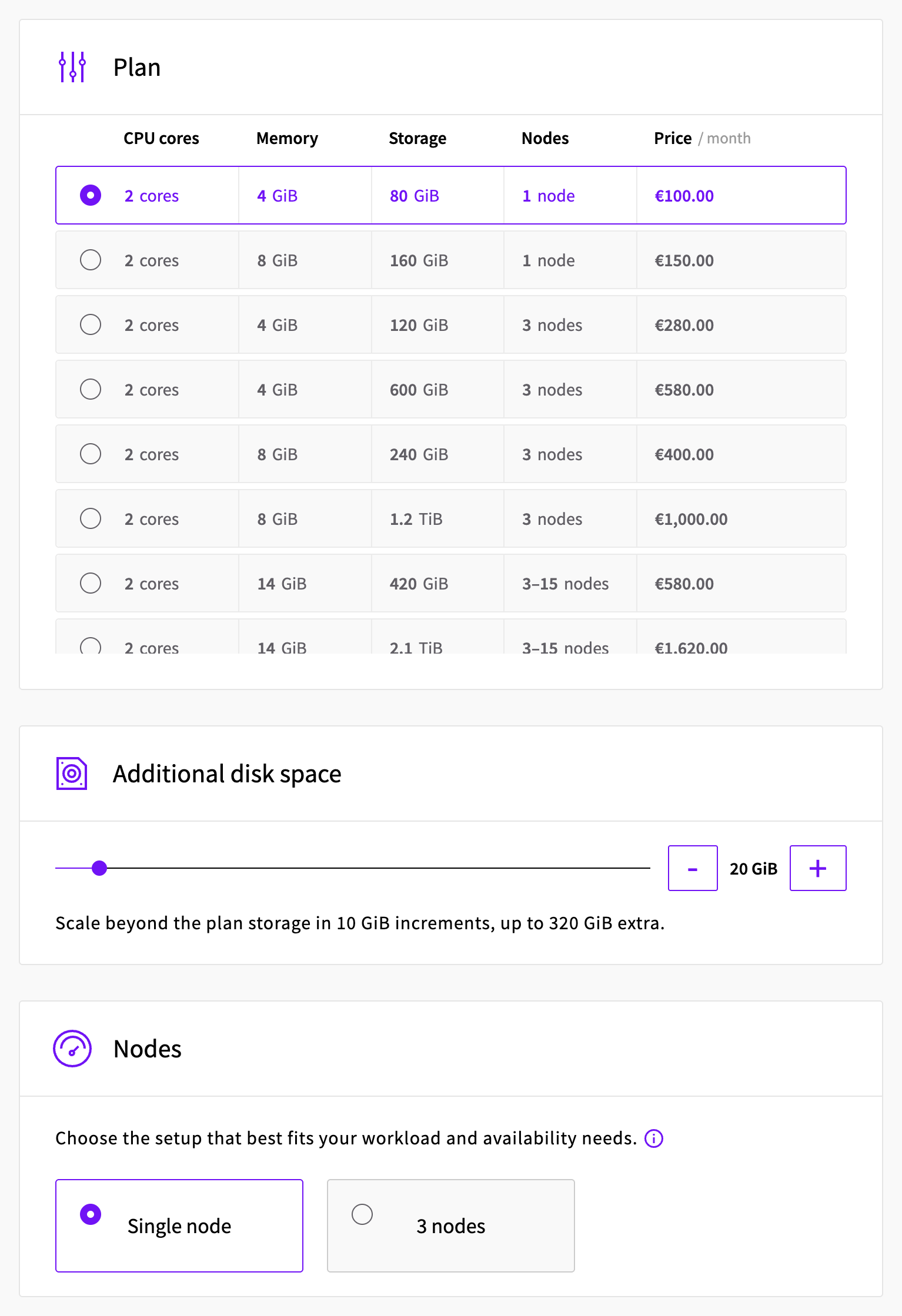
The Summary shows the new resources and the monthly price.
Click Save changes.
Check the new resources
While the service changes, its status shows Rebalancing… or Rebuilding…, or rebalancing or rebuilding in the API. Once it's back to Started, or running in the API, check that the service has the new resources. In the Control Panel, the Databases list shows the nodes, CPU cores, memory and storage of each service.
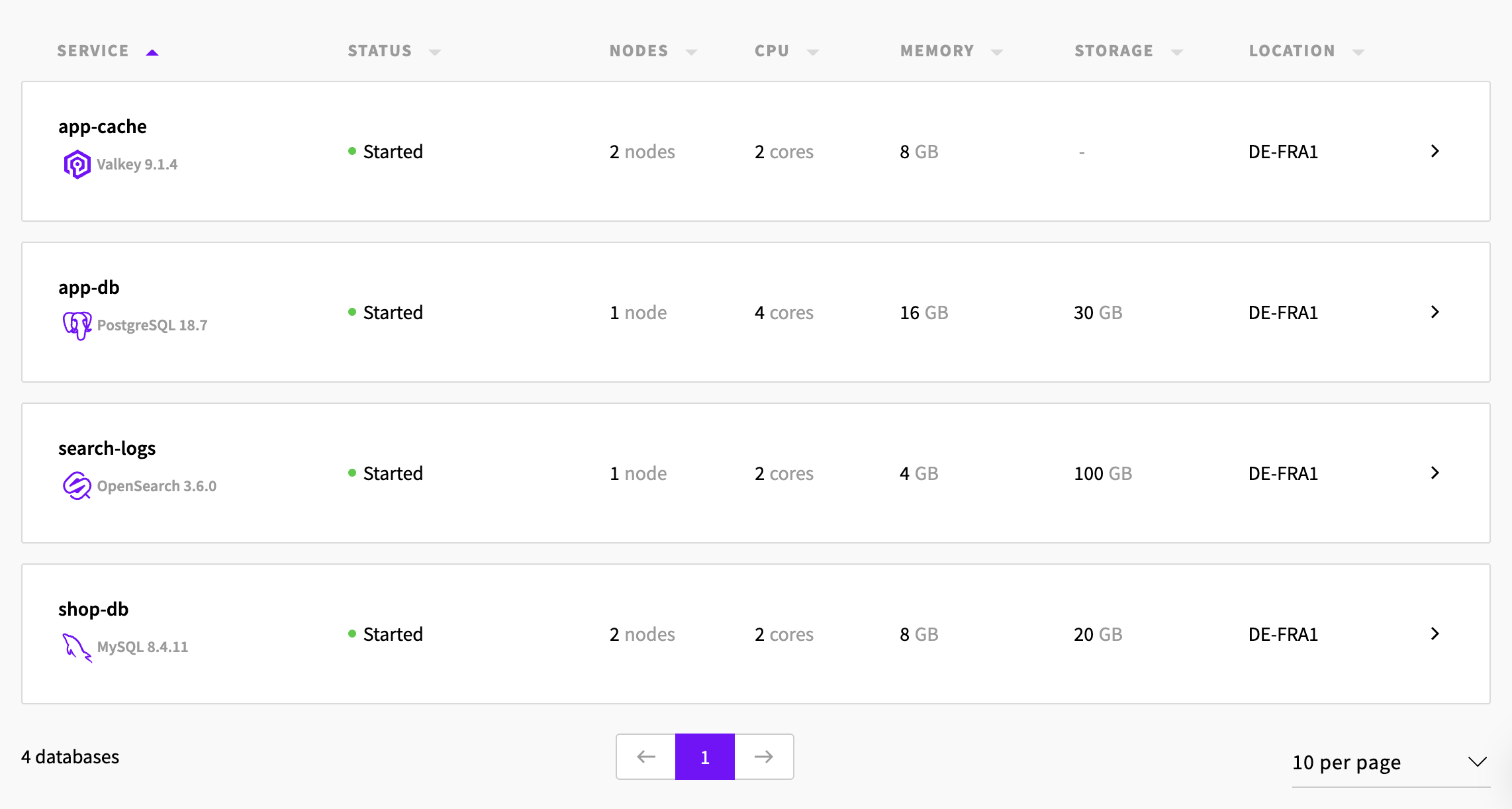
With the API, GET /1.3/database/<service-uuid> shows them in plan and plan_components. For example, a PostgreSQL service on one node with 4 CPU cores, 16 GiB of memory and 20 GiB of storage:
{
  "plan": "rdb.standard.1x-4CPU-16GB-20GB-regular",
  "plan_components": {
    "compute": {
      "name": "rdb.standard.4CPU-16GB",
      "family": "standard",
      "node_count": 1,
      "cpu": 4,
      "memory_gb": 16
    },
    "storage": {
      "dynamic_storage_supported": true,
      "total_gib": 20
    },
    "backups": {
      "name": "regular",
      "retention_days": 15
    }
  },
  "node_count": 1,
  "state": "running"
}
Next steps
- How to customise Managed Database properties explains how to change the settings of the database itself.
- Managed PostgreSQL High availability describes how primary and standby nodes work.
MySQL is a registered trademark of Oracle and/or its affiliates. PostgreSQL is a registered trademark of the PostgreSQL Community Association of Canada, and used with their permission. Valkey and the Valkey logo are trademarks of LF Projects, LLC. Other names may be trademarks of their respective owners.