UpCloud CDN is in closed beta. To request access, contact Customer Support. Features shown in this guide may change before general availability.
How to serve an Object Storage static website through UpCloud CDN
Beta notice
If you host a static website on UpCloud Managed Object Storage, you can serve it through UpCloud CDN. The CDN keeps copies of your website's images, stylesheets, and scripts at edge locations around the world, so they load faster for visitors who are far from the Object Storage region where the website is hosted. With this setup, your website stays on Object Storage, and the CDN fetches it from there.
This guide starts from a website that already works on Object Storage, as set up in How to host a static website on UpCloud Object Storage. It walks you through pointing a CDN at the website, serving it on your own domain, and deploying updates.
Before you start
You need:
- A static website on Managed Object Storage that works on the service's static website domain, which ends in
-static.upcloudobjects.com, because the CDN fetches the website from there. To set one up, see How to host a static website on UpCloud Object Storage. - An UpCloud CDN. To create one, see How to get started with UpCloud CDN.
- The AWS CLI with the
upcloudprofile, as in How to get started with UpCloud Managed Object Storage, to deploy updates. - Access to your domain's DNS records at your DNS provider, and
digandcurlon your computer for the checks in this guide.
This guide uses abcd1-static.upcloudobjects.com for the website's domain, example-website for its bucket, mysite.b-cdn.net for the CDN's default hostname, and www.example.com for your own domain. Replace them with your own.
Point the CDN at the website
To point the CDN at the website, use the Origin URL type with the website's domain.
Object Storage origin type
The Object Storage origin type might look like the natural choice, but it only serves the individual files in your buckets, so your website's pages don't load.
In the Control Panel, open CDN in the left-hand menu and select your CDN.
On the Overview tab, select Edit in the Origin type section.
Select Origin URL, and enter
https://followed by the website's domain, such ashttps://abcd1-static.upcloudobjects.com. Leave Host header empty.Check that Forward Host header and Follow redirects are off.
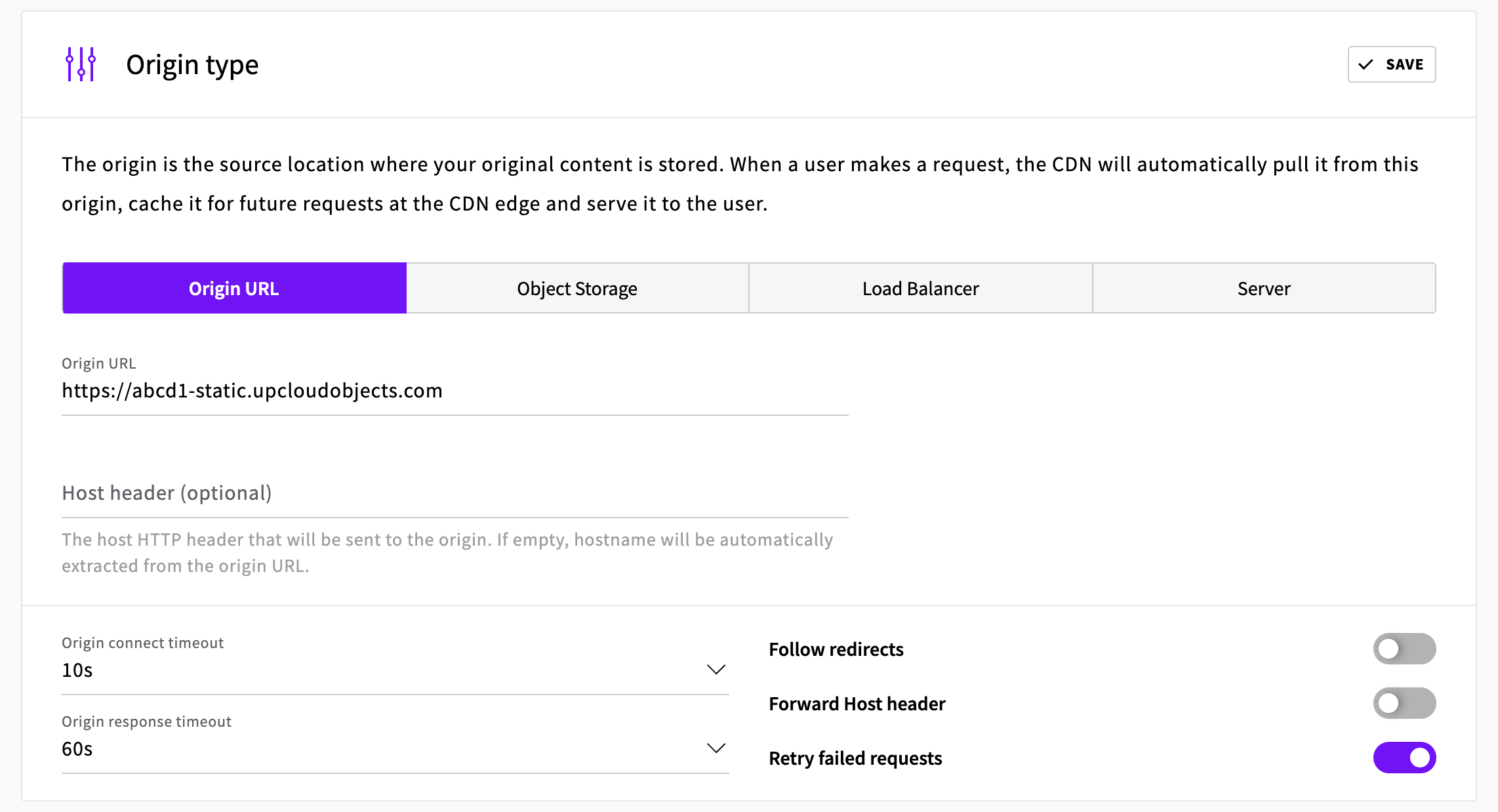
Select Save.
These two settings decide what the CDN asks the website for and what it passes on to visitors. The website answers only to requests for its own domain, so with Forward Host header on, the CDN asks for your visitor's hostname instead, and every request fails with 502 Bad Gateway. With Follow redirects on, a visitor who opens a missing page gets your error page with a 200 status, and the CDN can cache the error page in place of a missing file. With it off, the CDN passes the website's responses to visitors as they are.
Check the website through the CDN
Request the home page through the CDN's default hostname:
curl -sSI https://mysite.b-cdn.net/A 200 response shows that the CDN reaches the website:
Output
HTTP/2 200
content-type: text/html
...
cache-control: no-cache
...
cdn-cache: MISS
...
The cdn-cache header is always MISS for pages, because the CDN never caches HTML and fetches every page from the website. Images, stylesheets, and scripts are cached at the edge, so repeated requests for them show cdn-cache: HIT.
Then open https://mysite.b-cdn.net/ in your browser, and check that the pages, their styles and images, and the links between pages work as they do on the website's own domain.
Serve the website on your own domain
How you move your domain to the CDN depends on whether it already serves the website from Object Storage.
A domain that doesn't serve the website yet
Add your domain to the CDN as a custom hostname and set up its certificate, as described in How to add a custom domain to UpCloud CDN. Also turn on Force SSL as described there, so that the CDN redirects plain HTTP requests to HTTPS. Visitors get the website on your domain as soon as the hostname has its certificate.
A domain that already serves the website from Object Storage
When www.example.com is already a custom domain of the Object Storage service, visitors are using it, so you switch it to the CDN while the website stays up. The CDN can only get a certificate for the domain once the record points at the CDN, so during the switch visitors can briefly see a certificate warning. Following these steps in order, at a quiet time for your website, keeps this as short as possible.
Prepare for the switch
Lower the TTL of the
www.example.comrecord at your DNS provider, for example to 60 seconds, so that visitors pick up the change quickly. Do this at least one current TTL before the switch.Check that Let's Encrypt can issue your certificate. The CDN gets the domain's certificate from Let's Encrypt. If your domain has CAA records, which limit the certificate authorities that can issue certificates for it, they must allow Let's Encrypt as well as Sectigo, which Object Storage uses. To check, run the following command with your domain:
dig +short example.com CAAIf the command returns nothing, your domain has no CAA records, so there's nothing to change. If it returns records and none of them contain
letsencrypt.org, add a CAA record with the value0 issue "letsencrypt.org"alongside the existing ones.Add
www.example.comto the CDN. On the CDN's Overview tab, enterwww.example.comin the Hostnames section and select Add hostname. Close the Set up CNAME DNS record dialog without creating the record. The hostname stays atCNAME missing, and Object Storage keeps serving visitors.
Test the website through the CDN
The following command sends a request for www.example.com to the CDN over HTTP without changing DNS:
curl -sSI --connect-to www.example.com:80:mysite.b-cdn.net:80 http://www.example.com/A 200 response shows that the CDN serves the website for your domain:
Output
HTTP/1.1 200 OK
...
Switch to the CDN
Change the DNS record for
www.example.comso that it points atmysite.b-cdn.netinstead of the Object Storage service. Leave the_acme-challengeand wildcard records that you created for Object Storage as they are for now, so that you can still switch back.Set up SSL straight away. As soon as the hostname shows
Active, select Set up SSL in its row and then Enable free SSL. If it still showsCNAME missing, select Verify CNAME first.Turn on Force SSL for the hostname, so that the CDN redirects HTTP requests to HTTPS.
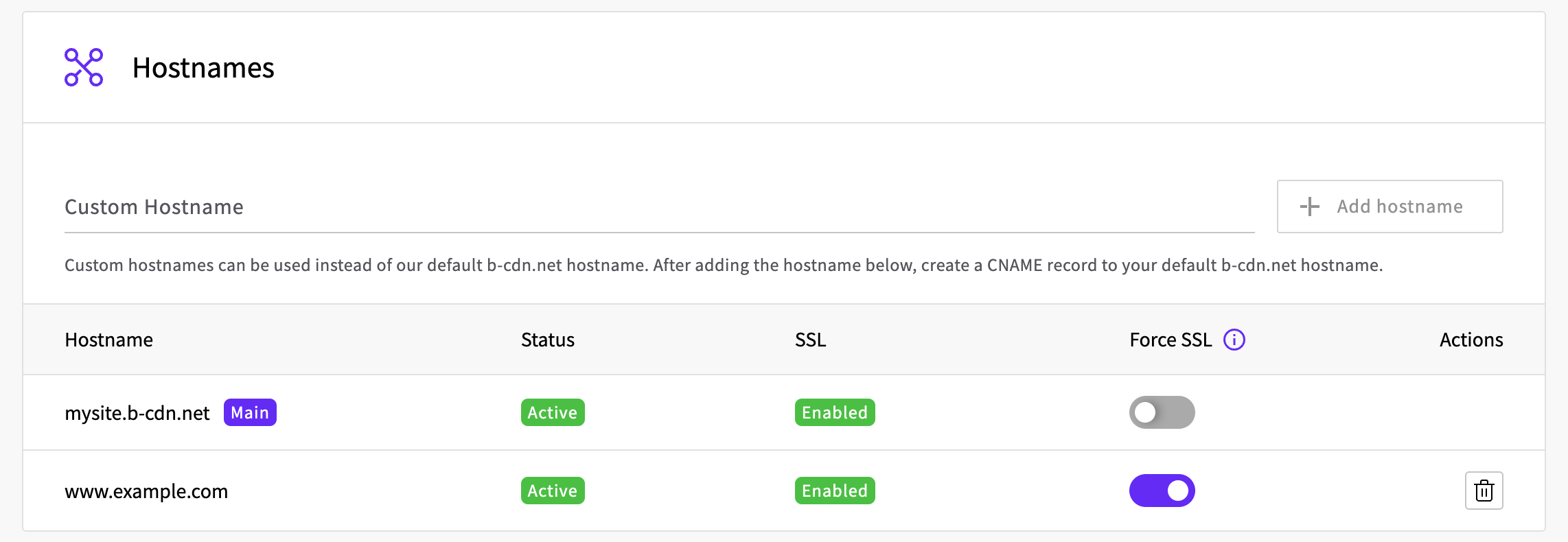
Then check the website on your domain:
curl -sSI https://www.example.com/Output
HTTP/2 200
content-type: text/html
...
cdn-cache: MISS
...
If the response has no cdn-cache header, it still came from Object Storage, because your computer hasn't picked up the new DNS record yet. If curl reports SSL: no alternative certificate subject name matches target host name 'www.example.com', the edge locations aren't serving the hostname's certificate yet. In both cases, run the command again a little later.
To switch back to Object Storage, change the DNS record back to its previous value. This works only while the domain is still on the Object Storage service, so keep it there until you're happy with the website on the CDN.
Remove the domain from Object Storage
When you no longer need to switch back, remove the domain from the Object Storage service:
- On the service's Static websites tab, delete the website on
www.example.com, as described in How to host a static website on UpCloud Object Storage. Keep the website on the service's static website domain, because the CDN fetches the website from there. - Remove the custom domain
www.example.comfrom the service, as described in How to configure a custom domain for Managed Object Storage. - At your DNS provider, delete the
_acme-challenge.www.example.comand*.www.example.comrecords.
Deploy updates
Upload new versions of the website to the bucket as before, for example with aws s3 sync. Add --delete to remove files that are no longer part of the website:
aws s3 sync ./dist s3://example-website --delete --profile upcloudThe --delete option removes every file in the bucket that isn't in the folder you upload, so keep all the files that the website needs, such as error pages, in that folder.
Visitors get the new version straight away, without purging the CDN's cache:
- Pages are never cached at the edge, so every visitor gets the current version of each page.
- Build tools such as Vite put a hash in the names of the scripts and stylesheets they create, such as
index-7MR9s2mR.js. A new build gets new names, and the new pages load the new files.
Files that keep their name when they change, such as favicon.svg or robots.txt, are different. The CDN keeps serving its cached copy, so purge the cache after you change them. To purge it, select Purge cache on any of the CDN's tabs, and then select Purge. If you'd rather not purge after every change, set a Cache-Control header on such files when you upload them, as described in How to host a static website on UpCloud Object Storage. The CDN then fetches them from the website again once that time has passed.
Troubleshooting
Every page returns 502 Bad Gateway.
Forward Host header is on. Turn it off in the Origin type section, as described in Point the CDN at the website.
/ returns 403 with AccessDenied, and other pages return 404 with NoSuchKey.
The CDN uses the Object Storage origin type, which only serves the individual files in your buckets. Use the Origin URL type with the website's domain, as described in Point the CDN at the website.
Pages return 400 Request error.
The files in the bucket aren't publicly readable. Make the bucket publicly readable as described in How to set up a public read bucket. Files that the CDN cached before stay available until you purge the cache.
Missing pages show your error page with a 200 status, or a file that you uploaded still shows your error page.
Follow redirects is on. Turn it off as described in Point the CDN at the website, and then purge the cache to remove error pages that were cached in place of files.
Visitors get an old version of a file after a deploy. The file kept its name, so the CDN serves its cached copy. Purge the cache, as described in Deploy updates.
For problems with your domain's hostname or its certificate, see How to add a custom domain to UpCloud CDN.
Next steps
- CDN edge rules describes how to add redirects, response headers, and other rules to the CDN.
- CDN origins and caching describes the origin settings and how the CDN decides what to cache.