How to set up a public read bucket
The files in a bucket are private by default, so only users with access keys can download them. Files that anyone should be able to open, such as the images and videos on a website, can go in a public read bucket instead. Anyone with a file's URL can then download it. Listing the bucket's files, uploading, changing and deleting still need access keys.
This guide walks you through making a bucket publicly readable in the Control Panel or with the AWS CLI. It also covers sharing a single file and making the bucket private again.
Before you start
You need:
- A Managed Object Storage service with a bucket. To create them, see How to get started with UpCloud Managed Object Storage. The examples in this guide use the bucket
site-assets. - For the AWS CLI steps, the AWS CLI with the
upcloudprofile, as in How to get started with UpCloud Managed Object Storage.
Make the bucket publicly readable
- Go to Object Storage, open the service and go to its Buckets tab.
- Click the bucket's name to open it.
- Click Anonymous HTTPS access at the top right.
- Turn on Allow anonymous HTTPS access, then click Close.
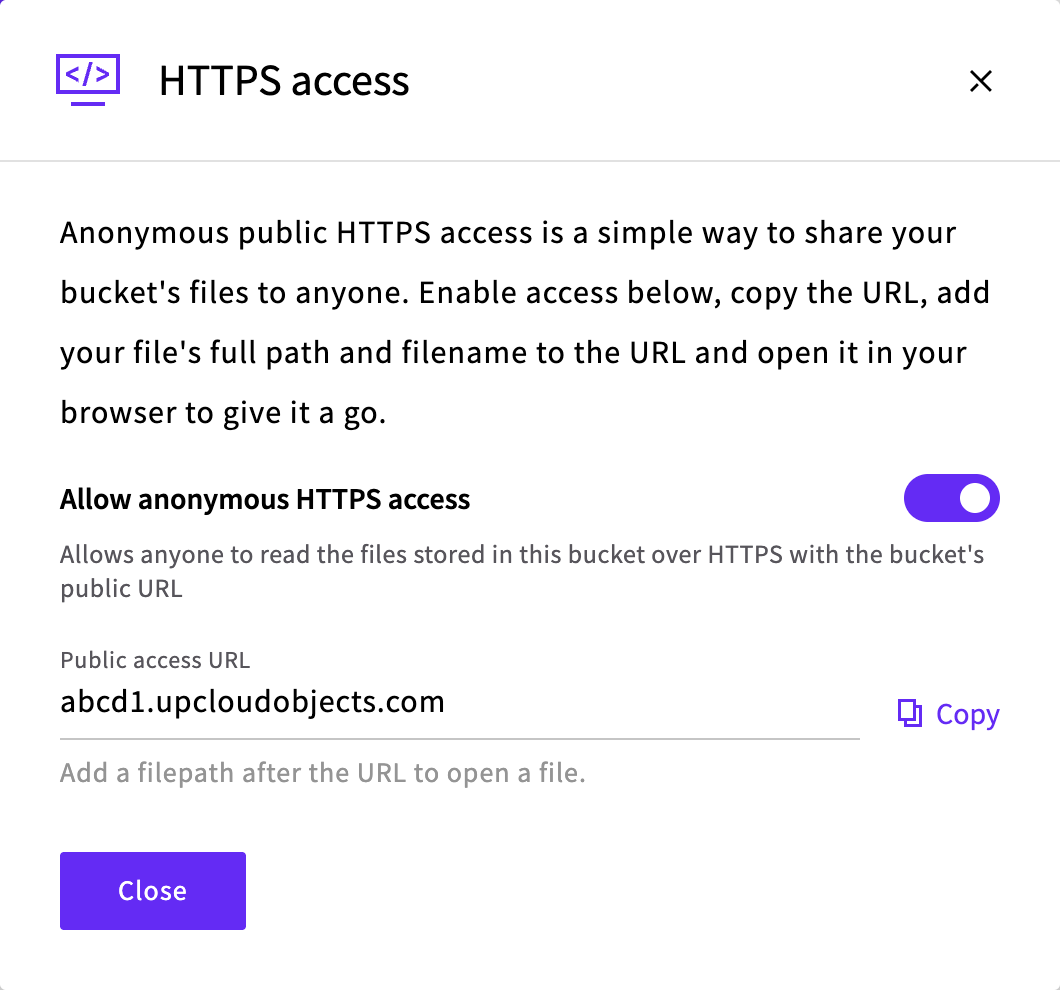
The line under the bucket's name now says HTTPS access enabled.
Turning on anonymous HTTPS access replaces any bucket policy that the bucket already has.
Open a file
Each file in the bucket now has two public URLs:
https://<endpoint>/<bucket-name>/<file-path>
https://<bucket-name>.<endpoint>/<file-path>
<endpoint> is the host name of the service's S3 endpoint, for example abcd1.upcloudobjects.com. You can find it on the service's Overview tab, under Public access. <file-path> is the file's full name in the bucket, including any directories. For example, the file images/logo.png in the bucket site-assets is at both of these URLs:
https://abcd1.upcloudobjects.com/site-assets/images/logo.png
https://site-assets.abcd1.upcloudobjects.com/images/logo.png
The second form doesn't work for bucket names that contain dots, so use the first form for those.
Open one of the URLs in a browser, or check it with curl:
curl -I https://<endpoint>/<bucket-name>/<file-path>HTTP/2 200
date: Wed, 28 Oct 2026 06:57:15 GMT
server: ViPR/1.0
...
content-type: image/png
content-length: 274Visitors still can't list your files. The bucket's own URL, such as https://abcd1.upcloudobjects.com/site-assets/, answers with an AccessDenied error, so visitors need each file's URL.
Public URLs work only while the service has public access. If you turn public access off, as described in How to connect to Managed Object Storage over an SDN Private Network, the files can't be reached from the internet.
Share a single file
To share one file without making the whole bucket public, make only that file publicly readable. It then has the same two URLs as above, and the bucket's other files stay private.
- On the service's Buckets tab, click the bucket's name to open it.
- On the file's row, click ACL.
- Turn on Make object publicly accessible and click Save.
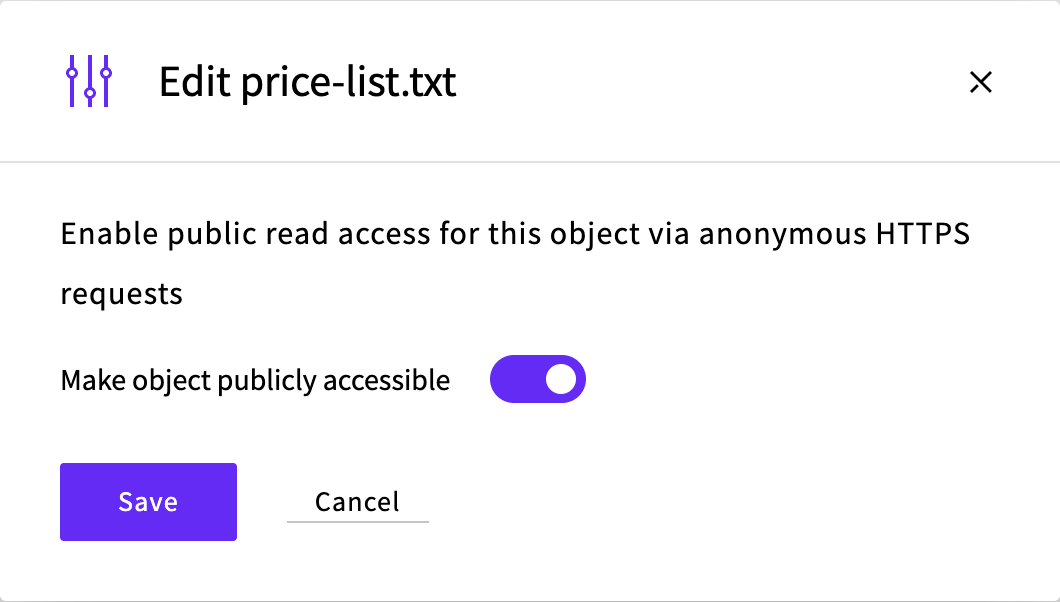
To make the file private again, turn the switch off and click Save.
To share a file only for a while, send a link that expires instead. In the Control Panel, click the copy icon next to the file's name to copy a link that works for one hour. With the AWS CLI, you choose how long the link works, as described in How to perform basic Object Storage operations using AWS CLI.
Make the bucket private again
- On the service's Buckets tab, click the bucket's name to open it.
- Click Anonymous HTTPS access.
- Turn off Allow anonymous HTTPS access, then click Close.
The line under the bucket's name says HTTPS access disabled again. Turning anonymous HTTPS access off deletes the bucket's bucket policy.
Files that you made public one by one stay public until you make them private, as in Share a single file.
Next steps
- How to configure a CORS policy on a bucket explains how to let web pages on other sites load the bucket's files with JavaScript.
- How to configure a custom domain for Managed Object Storage explains how to serve the files from your own domain.
- How to host a static website on UpCloud Object Storage explains how to serve a whole website from a bucket.