
How to set passwords during server deployment with initialization scripts
As UpCloud adopts SSH key authentication for better security, password-based login is no longer available as a deployment option for newer Linux templates.
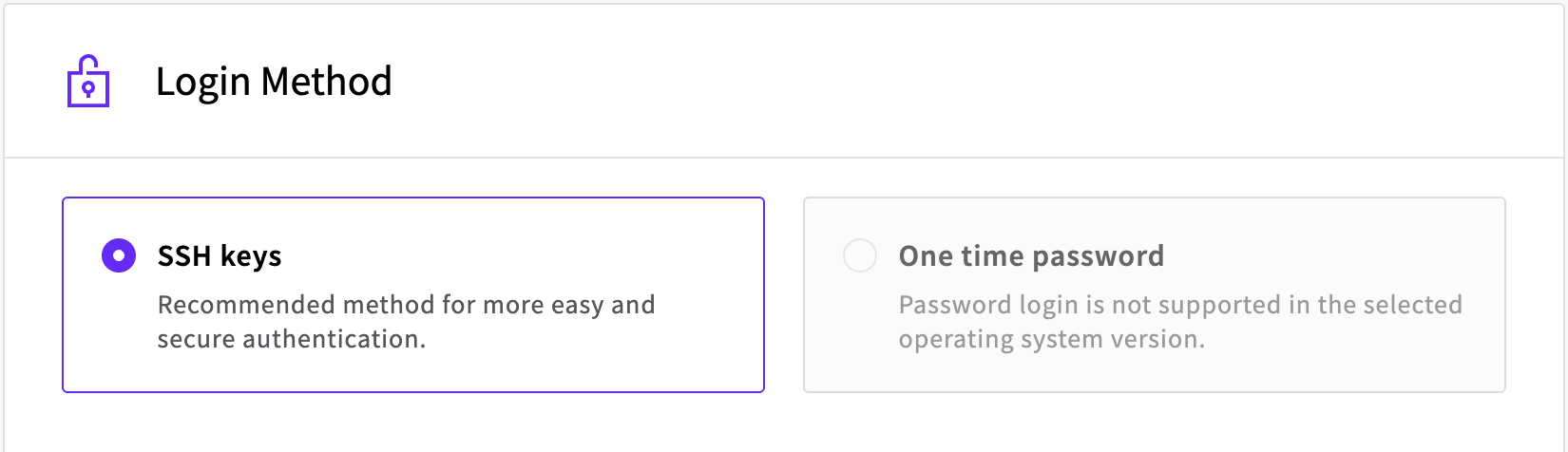
However, you can still configure password access for your cloud servers during deployment using initialization scripts.
To do this, configure your server deployment settings as usual (server size, location, etc.), but you'll need to handle the login method and initialization script differently, as described below.
Login method
Even when setting up password authentication, you'll still need to provide an SSH key during server deployment. If you don't have an SSH key ready, you can use this dummy key temporarily:
ssh-rsa AAAAB3NzaC1yc2EAAAADAQABAAABgQC7S5dY8JqJ6Y8DQ2YXtL8j9fK3nJ2wF5kM1P7vG2rN4qE9bH8z3xW6cV8s9fN2mK7dL3qY8jP9rS4vW6xZ5nA8bC7eR9fT2hU3iV4jK5lM6nO7pQ8rS9tU0vW1xY2zA3bC4dE5fG6hI7jK8lM9nO0pQ1rS2tU3vW4xY5zA6bC7dE8fG9hI0jK1lM2nO3pQ4rS5tU6vW7xY8zA9bC0dE1fG2hI3jK4lM5nO6pQ7rS8tU9vW0xY1zA2bC3dE4fG5hI6jK7lM8nO9pQ0rS1tU2vW3xY4zA5bC6dE7fG8hI9jK0lM1nO2pQ3rS4tU5vW6xY7zA8bC9dE0fG1hI2jK3lM4nO5pQ6rS7tU8vW9xY0zA1bC2dE3fG4hI5jK6lM7nO8pQ9rS0tU1vW2xY3zA4bC5dE6fG7hI8jK9lM0nO1pQ2rS3tU4vW5xY6zA7bC8dE9fG0hI1jK2lM3nO4pQ5rS6tU7vW8xY9zA0bC1dE2fG3hI4jK5lM6nO7pQ8rS9tU0vW1xY2zA3bC4dE5fG6hI7jK8lM9nO0pQ1rS2tU3vW4xY5zA6bC7dE8fG9hI0jK1lM2nO3pQ4 dummy@keyUnder the login method, select SSH keys and click "Add new". This opens the key editing window where you can paste the dummy public key from above. After pasting the key, click "Save the SSH key"
Initialization script
Next, to set a password for your server during deployment, use the following configuration in the initialization script field:
#cloud-config
chpasswd:
  expire: true
  users:
  - {name: root, password: temp_password123, type: text}
ssh_pwauth: true
Replace temp_password123 with your chosen temporary password.
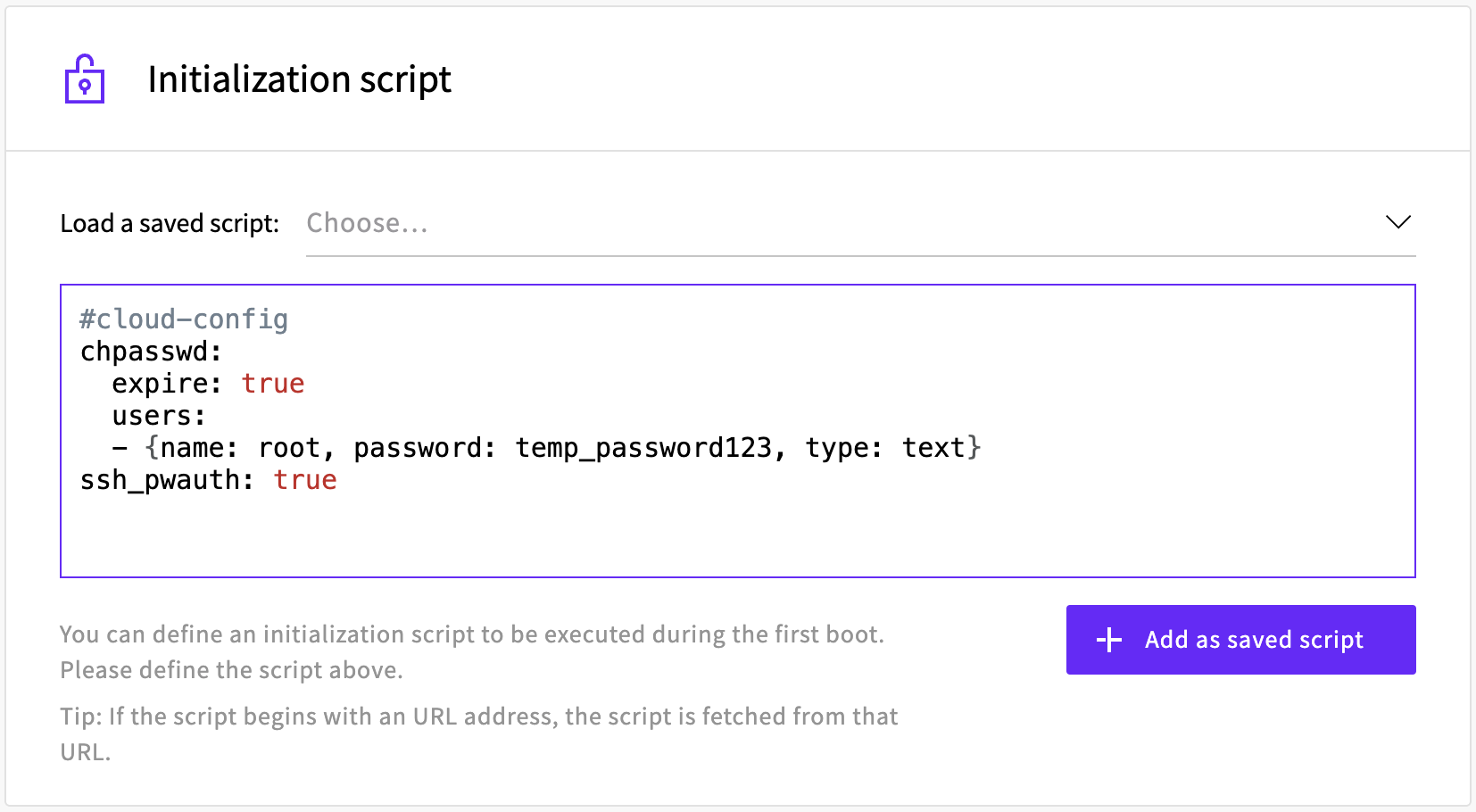
You can save this script for future use by clicking "Add as saved script" after entering the configuration. This allows you to reuse the same setup when deploying additional servers.
First login
After deployment:
- Connect to your server using SSH with the temporary password
- The system will immediately prompt for a new password
- Enter your desired permanent password twice to confirm
- Complete the login process with your new password
❯ ssh [email protected]
[email protected]'s password:
You are required to change your password immediately (administrator enforced).
You are required to change your password immediately (administrator enforced).
Welcome to Ubuntu 24.04.2 LTS (GNU/Linux 6.8.0-63-generic x86_64)

[system information and updates messages...]

Changing password for root.
Current password:
New password:
Retype new password:
root@ubuntu-1cpu-2gb-sg-sin1:~#
Setting up proper SSH key authentication
Once your server is running and you've changed the temporary password, we strongly recommend setting up dedicated SSH key authentication for enhanced security. This involves generating new SSH keys specifically for this server and configuring them properly.
For detailed instructions on generating and configuring SSH keys, see our guide: How to generate and use SSH keys for secure authentication.
After setting up proper SSH keys, you should also consider disabling password authentication entirely to block brute-force attacks.