How to upgrade Managed OpenSearch to a newer version
New OpenSearch versions bring new features and fixes, while older versions are eventually retired. Some versions of UpCloud Managed OpenSearch have an end-of-life date, which the API lists for each version. Upgrading moves your service to a newer version, and the service keeps serving requests while the upgrade runs.
This guide shows how to upgrade a Managed OpenSearch service in the Control Panel or with the UpCloud API, and how to check that the upgrade has finished.
Before you start
You need:
- A Managed OpenSearch service running an earlier OpenSearch version than the one you want.
- For the checks after the upgrade,
curlon a computer that can connect to the service, and the service's hostname and port. To find them, see How to get started with Managed OpenSearch. - For the API steps, an API token. To create one, see How to get started using the UpCloud API.
Before you upgrade, check that your applications, client libraries and tools support the new version, because a new major version of OpenSearch can remove settings and features that older versions supported. The OpenSearch Breaking changes page lists what changes in each version.
How upgrades work
You can upgrade straight to any newer version, so a service on 2.19 can go directly to 3.6. Choose the newest version that your applications support. OpenSearch 3.8 is a preview version, so for production, upgrade to OpenSearch 3.6, the newest version that isn't a preview. An upgrade can't be undone: you can't go back to the earlier version afterwards.
The service keeps running during the upgrade, so your applications can keep reading and writing through the same hostname and port. Behind that hostname, the service first adds a full set of new nodes running the new version and copies your data to them. It then removes the old nodes one at a time.
The upgrade keeps your indices and documents, your users and their access rules, the allowed IP addresses and the service's properties. The nodes, however, are new servers with new names and new IP addresses. Connect to the service by its hostname rather than by the IP addresses of its nodes, so that your applications find the new nodes.
Upgrade the service
- Go to Databases and open the Managed OpenSearch service.
- On the Overview tab, under Details, Type shows the service's current version. Click Upgrade next to it.
- Under Version, select the version to upgrade to, and click Upgrade.
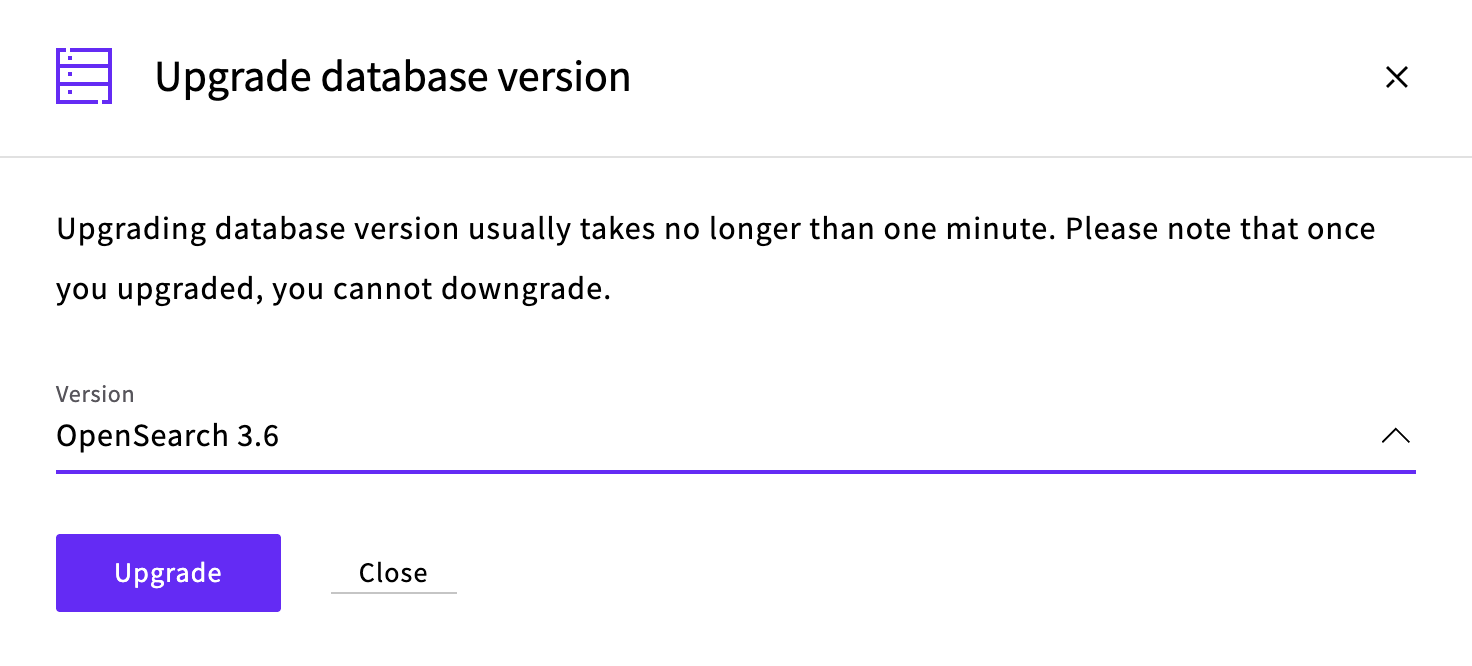
The service's status changes to Rebalancing… while the upgrade runs. Under Nodes, the new nodes appear as Setting up… and then Syncing data…. The old nodes show Leaving… as they're removed. The upgrade is done when the status is back to Started and Type shows the new version.
Check that the upgrade finished
Once the upgrade is done, list the service's nodes and their versions to check that every node runs the new version:
curl --user upadmin "https://<hostname>:<port>/_cat/nodes?v&h=name,version"Enter host password for user 'upadmin':
name version
products-search-5 3.6.0
products-search-6 3.6.0
products-search-4 3.6.0Then check that your indices are all there and that their health is green:
curl --user upadmin "https://<hostname>:<port>/_cat/indices?v&h=health,index,docs.count&s=index"Enter host password for user 'upadmin':
health index docs.count
green .kibana_1 0
green .kibana_2 0
green .opendistro_security 10
green .plugins-ml-config 1
green products 10The indices whose names start with a dot are OpenSearch's own.
Next steps
- How to get started with Managed OpenSearch explains how to connect to the service and send it requests.
- How to restrict user access in Managed OpenSearch explains how to create users that can use only the indices they need.
- Managed OpenSearch Maintenance describes how the service's maintenance window works.
- Managed OpenSearch High availability describes how the nodes keep copies of your data.