How to upgrade a Starter server to a Premium plan
If you've outgrown your Starter plan server, you can upgrade it to a Premium plan. Premium plans use MaxIOPS storage, which offers improved read and write performance compared to the Standard tier storage used by Starter plans.
You can change the plan on its own in the Plan tab, but your Standard tier storage device then isn't part of the Premium plan and is billed separately. To get the MaxIOPS storage that's included in the Premium plan, clone your storage device to MaxIOPS first, swap the devices, and then change the plan.
This guide covers the following steps, all of which you can do in the UpCloud Control Panel:
- Creating an on-demand backup
- Cloning the backup to a MaxIOPS storage device
- Swapping the Standard tier storage device for the MaxIOPS storage device
- Changing the plan
- Increasing the storage size (optional)
- Verifying the server and cleaning up
If you prefer, you can also do the cloning step with the UpCloud API or the UpCloud CLI.
Create an on-demand backup
Start by shutting down the server, so that the backup captures a consistent copy of its storage device. The backup also lets you restore your server to its current state should something go wrong.
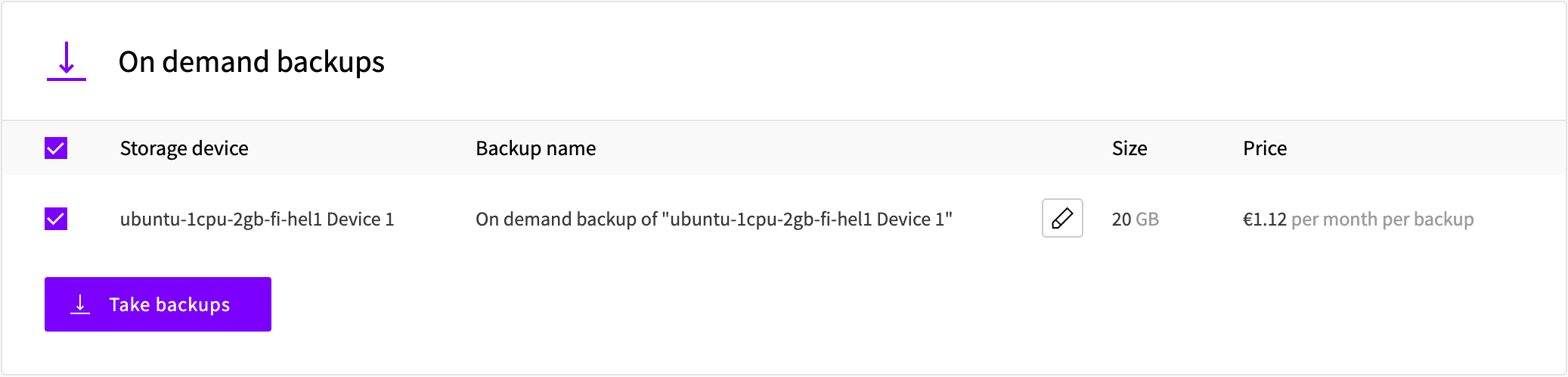
Then, in your server's Backups tab, go to On demand backups, select the storage device and click Take backups. See taking backups for more about on-demand backups.
Clone the backup to MaxIOPS
Go to Block Storage > Backups and click your server's name to show its backups. Click Clone to a storage next to the on-demand backup.
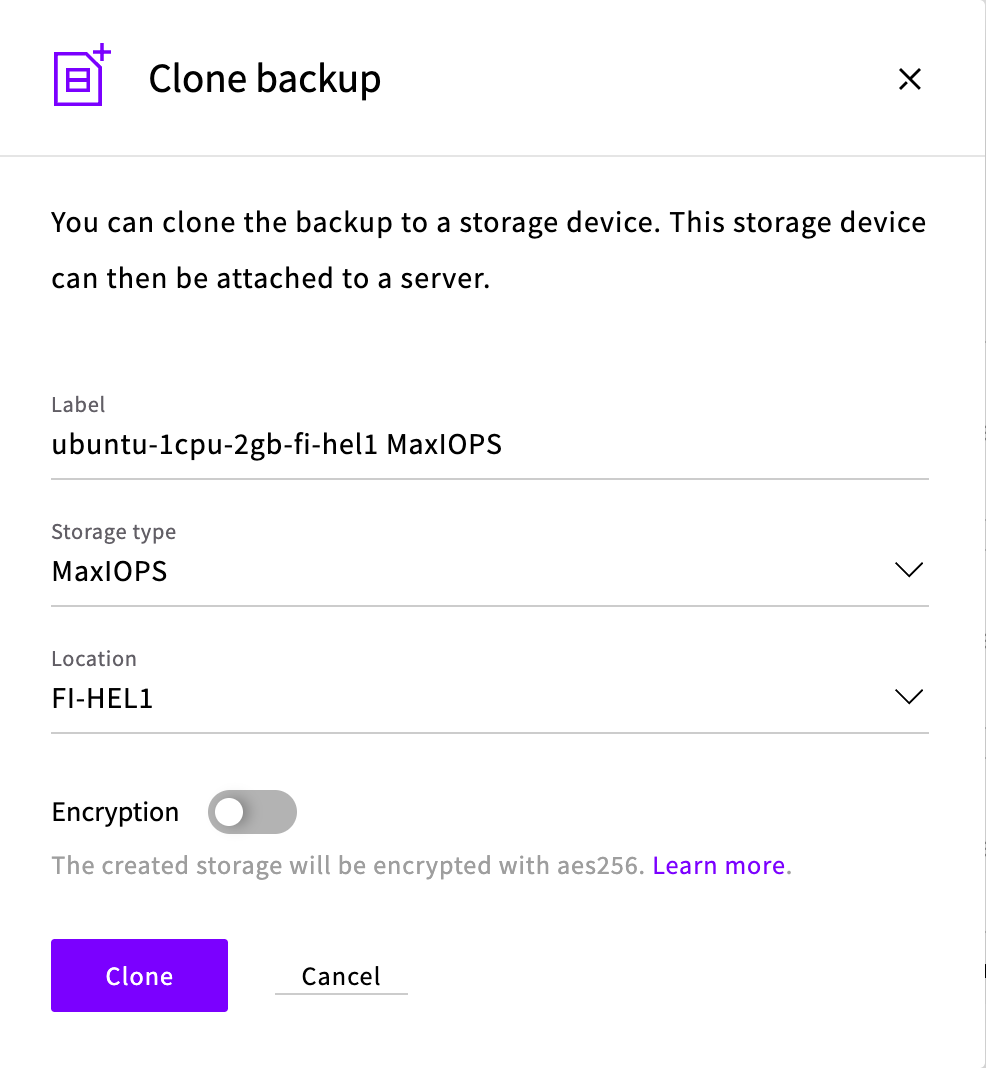
In the Clone backup dialog:
- Give the new storage device a Label you'll recognize, as the Control Panel lists storage devices by their name, size and UUID when you attach them.
- Select MaxIOPS as the Storage type.
- Select the server's location as the Location.
Then click Clone.
Cloning can take a few minutes. While it's in progress, the new storage device shows Syncing… in the list under Block Storage > Devices. It's ready to attach once Syncing… has gone and the storage device's own page shows Online.
Using the API or upctl instead
You can also clone the storage device itself to MaxIOPS. Go to the server's Storage tab and click the UUID below the storage device's name to copy it.
Then send the following request to the UpCloud API, replacing {uuid} with the storage UUID you copied:
POST /1.3/storage/{uuid}/clone HTTP/1.1
{
  "storage": {
    "zone": "fi-hel1",
    "tier": "maxiops",
    "title": "my-server MaxIOPS"
  }
}
Replace fi-hel1 with your server's location. A successful request returns 201 Created. See Clone Block Storage in the API reference for the full list of options.
Alternatively, run the following command with the UpCloud CLI:
upctl storage clone {uuid} --title my-server-maxiops --zone fi-hel1 --tier maxiopsSwap the storage devices
Go back to the server's Storage tab. Click the detach (eject) icon next to the Standard tier storage device, and confirm with Detach.
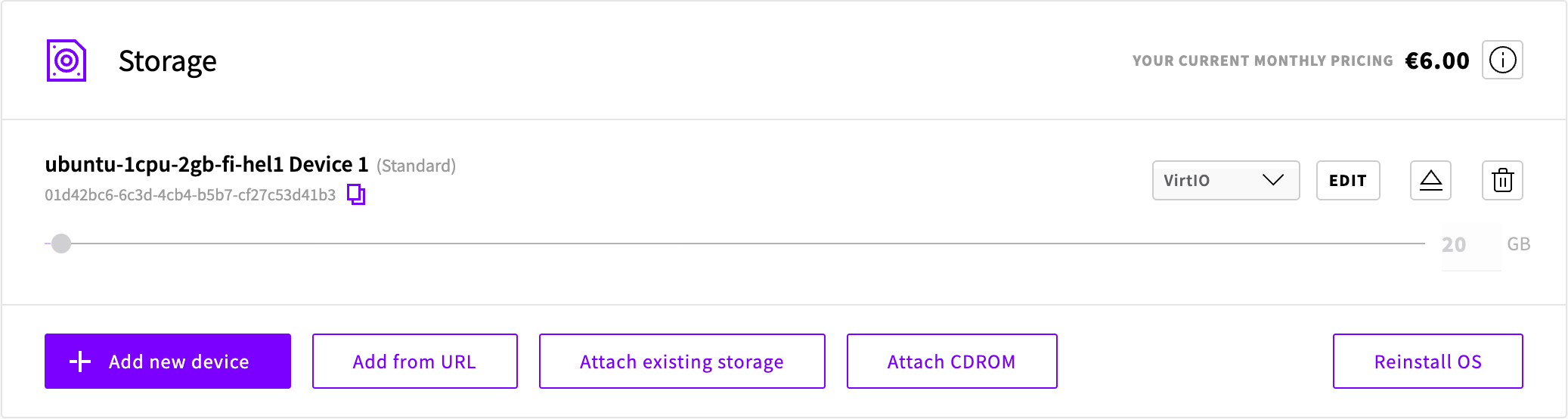
Note: Detach the Standard tier storage device before you start the server. A server started with both storage devices attached can boot from the wrong one.
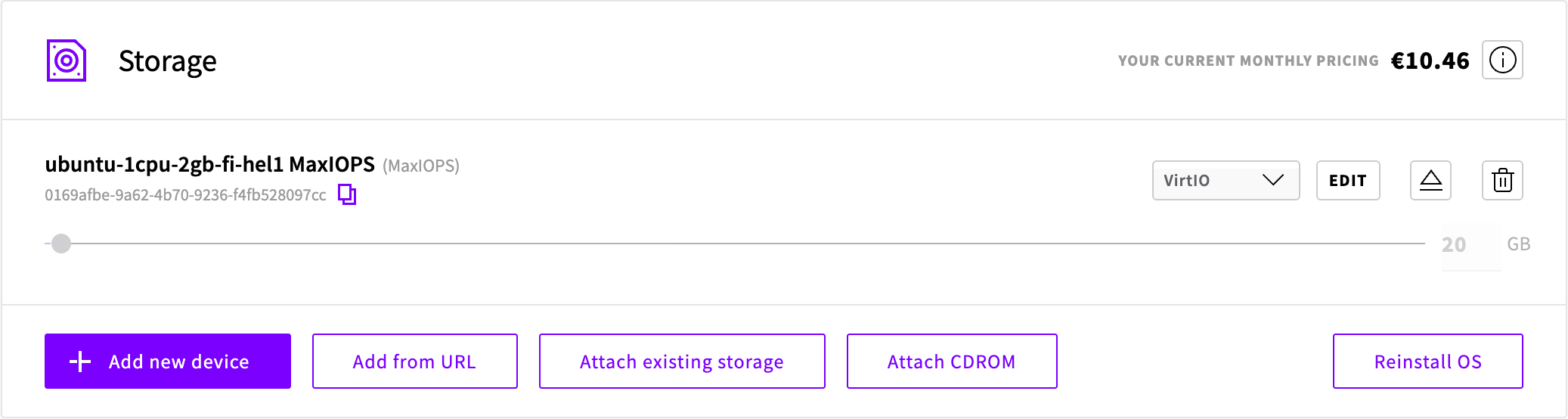
Then click Attach existing storage. In the Attach existing device dialog, select the MaxIOPS storage device from the Device list, keep VirtIO as the Storage controller, and click Add a storage device.
Note: Storage devices can only be attached to servers in the same location. If the new storage device isn't listed, check its location under Block Storage > Devices.
Check that the storage device now shows (MaxIOPS) next to its name, then click Start to start the server. Until you change the plan, the MaxIOPS storage device is billed separately from the Starter plan.
If your server has scheduled backups, check them in the server's Backups tab, under Scheduled backups:
- With Simple backups, the MaxIOPS storage device gets the server's backup schedule when you attach it. You don't need to change anything.
- With Flexible backups, the MaxIOPS storage device has no schedule. Click Flexible, and the storage device shows (no backup schedule set). Click Edit backup rule next to it, set the schedule, and click Save backup rule.
The original storage device keeps its backup schedule while it's detached. Delete it once everything works, as described in Clean up.
Change the plan
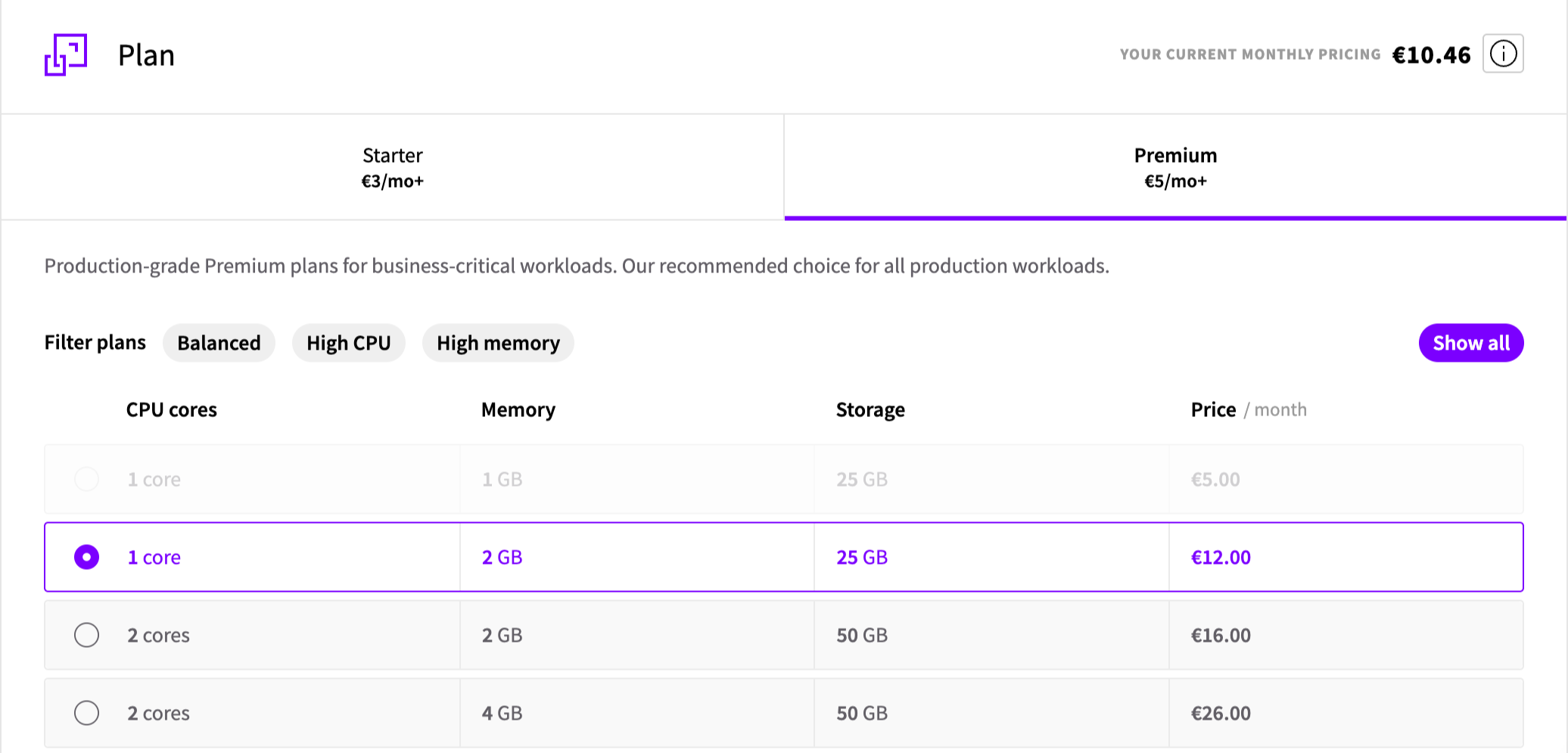
Go to the Plan tab and select Premium. Choose a plan that includes at least as much storage as your storage device, and click Save changes. You can change the plan while the server is running, using hot resize.
Once you've saved the change, the MaxIOPS storage device is part of the plan and the monthly cost shown on the Plan tab is the price of the Premium plan, plus the Windows license on Windows servers.
Increase the storage size
Premium plans usually include more storage than Starter plans. To use the extra storage, go to the Storage tab, click Edit next to the storage device, set the new size and click Save.
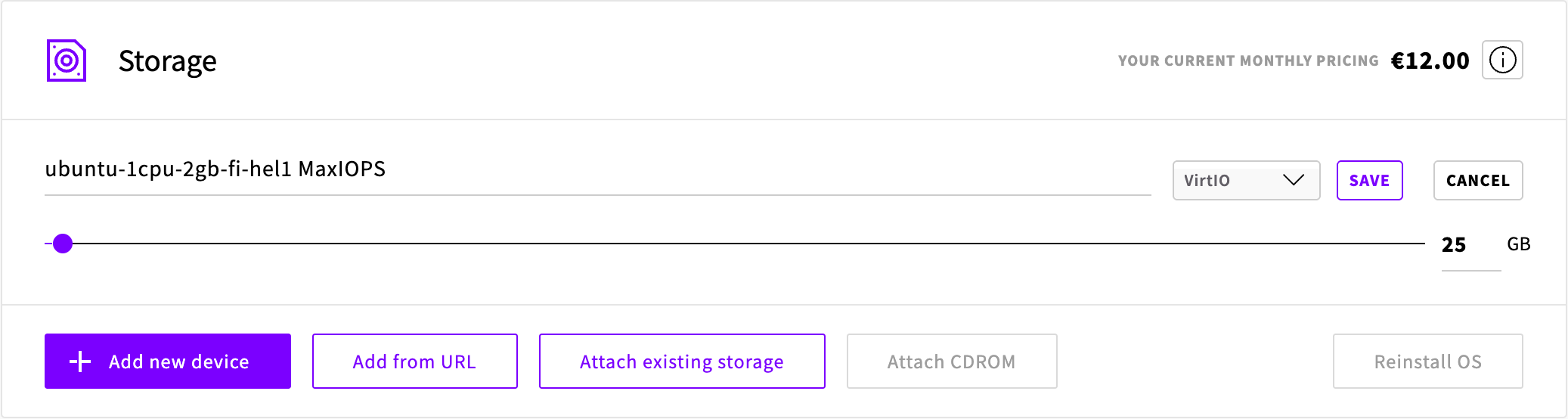
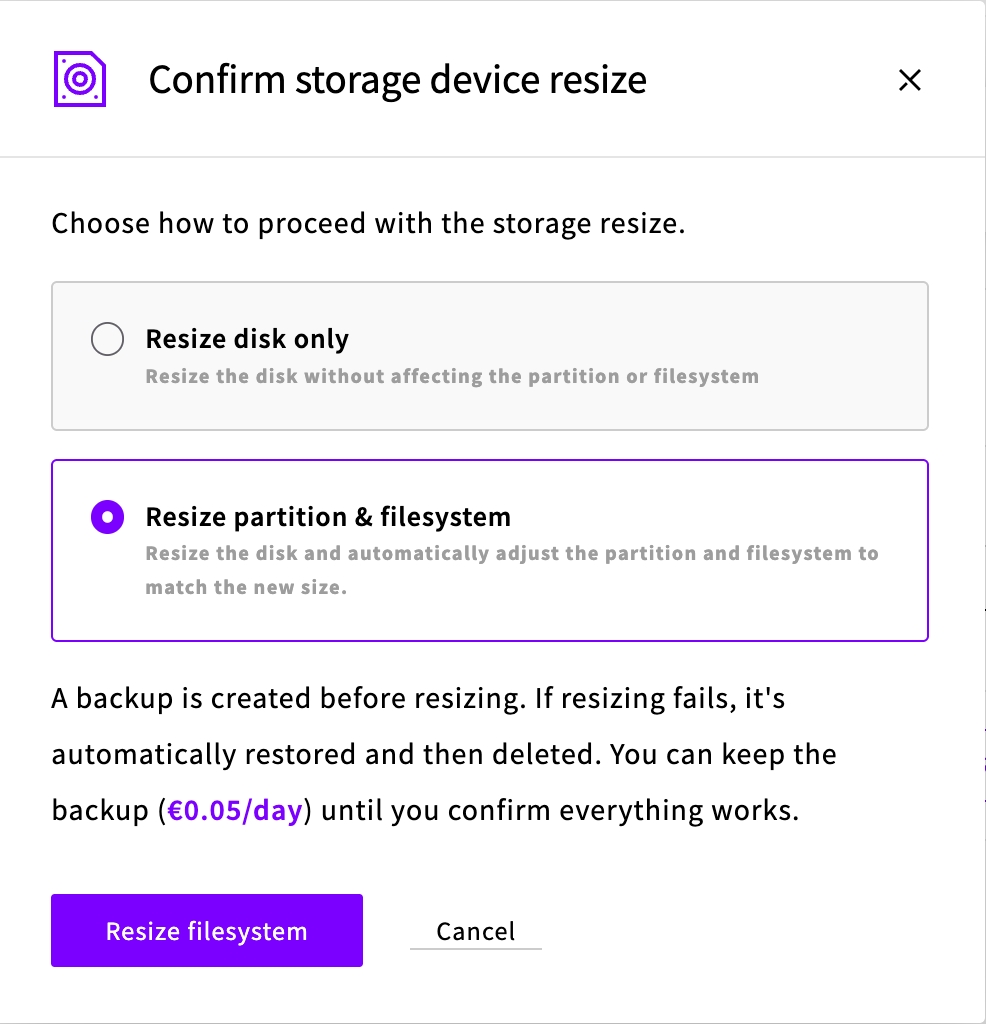
In the Confirm storage device resize dialog, choose how to resize:
- Resize partition & filesystem resizes the disk and extends the partition and filesystem for you. This option is available when the server is shut down. A backup is created before resizing, and the button changes to Resize filesystem. Keep the page open until the dialog closes.
- Resize disk only resizes the disk while the server keeps running. Click Resize disk, then extend the partition and filesystem in the operating system by following our guide for manually extending a partition on Linux and updating the filesystem. On Windows, extend the volume in Disk Management by following manually extending a partition on Windows.
Verify the server
Start the server if it's shut down, and log in. Your server's login credentials remain the same.
On Linux, check that the storage device and filesystem show the new size:
root@my-server:~# lsblk
NAME   MAJ:MIN RM SIZE RO TYPE MOUNTPOINTS
vda    253:0    0  25G  0 disk
├─vda1 253:1    0   1M  0 part
└─vda2 253:2    0  25G  0 part /

root@my-server:~# df -h
Filesystem      Size  Used Avail Use% Mounted on
tmpfs           186M  4.1M  182M   3% /run
/dev/vda2        25G  2.7G   21G  12% /
tmpfs           928M     0  928M   0% /dev/shm
tmpfs           5.0M     0  5.0M   0% /run/lock
tmpfs           186M   12K  186M   1% /run/user/0
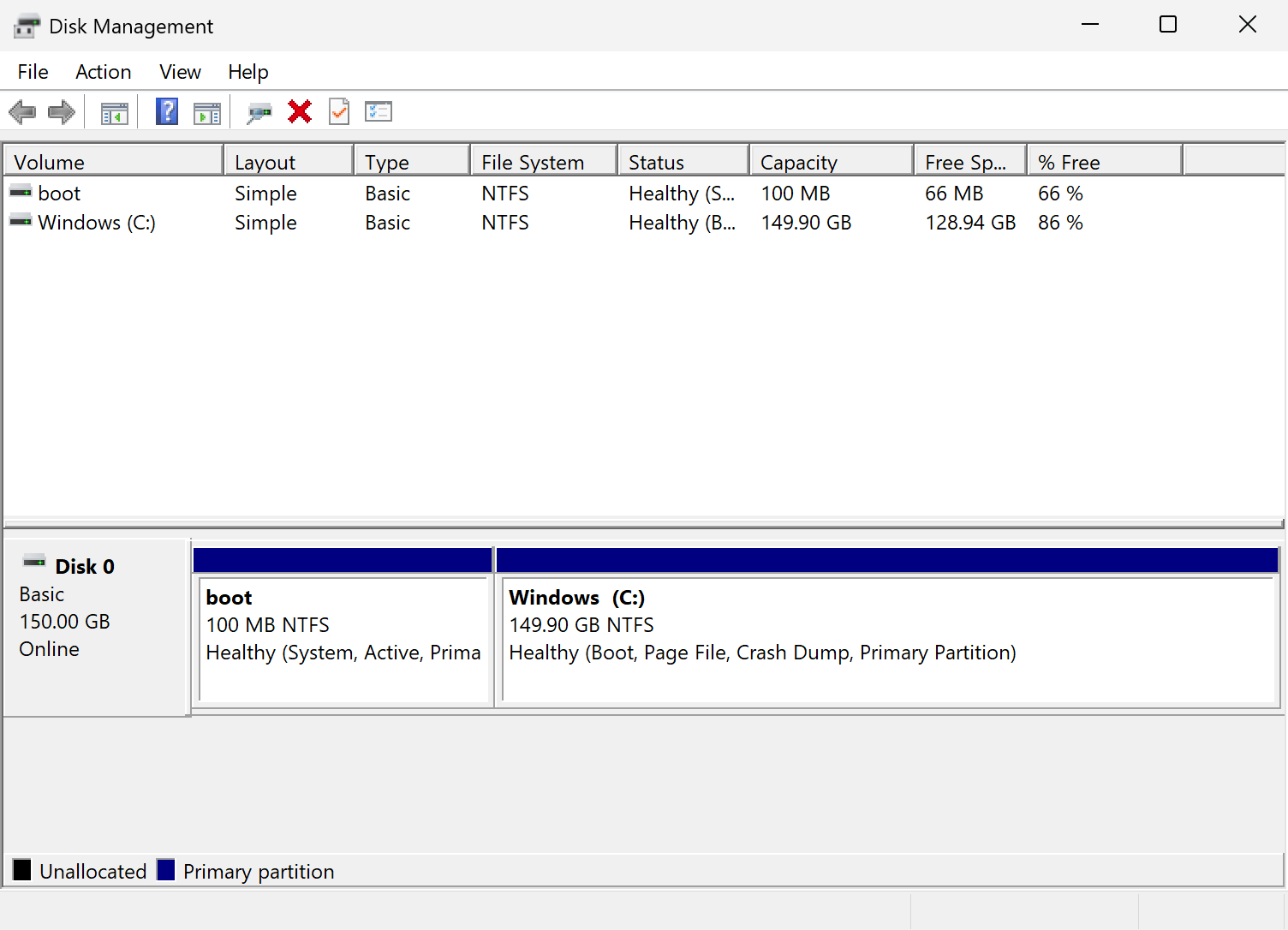
On Windows, open Disk Management and check that the Windows (C:) volume shows the new size, with no unallocated space left on the disk.
Clean up
Once everything works, delete the resources you no longer need. Deleted resources can't be restored.
- Delete the original Standard tier storage device, which is billed for as long as it exists. Go to Block Storage > Devices, open the storage device, click Delete and confirm with Delete.
- Delete the backups you no longer need:
- The on-demand backup is listed under Block Storage > Backups. Once you've deleted the original storage device, its backup is listed under (no server). Click Delete next to the backup and confirm with Delete.
- If you used Resize partition & filesystem, a Resize Backup is listed in the server's Backups tab under History. Click Delete next to it and confirm with Continue.