UpCloud Managed Container Registry is in beta. Features shown in this guide may change before general availability.
How to use Container Registry with Managed Kubernetes
Beta notice
UpCloud Managed Kubernetes clusters can run images straight from your UpCloud Managed Container Registry. The cluster logs in to the registry as a registry user, whose credentials you store in the cluster as an image pull secret, so your images can stay private.
This guide walks you through running an image from your registry on a cluster, moving the image pulls to a private network, and then packaging your app as a Helm chart that you store in the registry next to its images. The examples use the demo/hello-upcloud image, a small web page served on port 80, but you can follow along with your own image.
Before you start
You need:
- An image in your registry, such as the
demo/hello-upcloud:1.0image you push in How to get started with UpCloud Container Registry. - A Managed Kubernetes cluster and
kubectlset up to use it, as described in How to get started with Managed Kubernetes. - For the Helm part, Helm 3.8 or later on your workstation.
- For the private network part, a registry on the Pro plan in a region that includes the cluster's location.
The commands work in the default namespace. To use another one, add -n <namespace> to the kubectl and helm commands.
Create an image pull secret
The cluster only pulls images, so give it a registry user of its own with just the Read permission. On the registry's Users tab, add a user such as k8s-puller with Read and copy its password, as described in How to get started with UpCloud Container Registry.
Then store the user's credentials in the cluster as an image pull secret. Replace my-registry-1b77d021.upcloudcr.com with your registry's endpoint, which is shown on its Overview tab:
kubectl create secret docker-registry upcloud-registry \
  --docker-server=my-registry-1b77d021.upcloudcr.com \
  --docker-username=k8s-puller \
  --docker-password='<password>'
Output
secret/upcloud-registry createdKeep the single quotes around the password, so your shell passes characters such as $ through unchanged.
A secret belongs to a single namespace, and pods can only use secrets from their own, so create the secret in every namespace that runs images from the registry.
Deploy an image
To use the secret, name it under imagePullSecrets in your workload, and the cluster logs in with it whenever it pulls the image. Save the following Deployment as hello-upcloud.yaml. If you're deploying your own app, change image to your image and containerPort to the port your app listens on:
apiVersion: apps/v1
kind: Deployment
metadata:
  name: hello-upcloud
spec:
  replicas: 1
  selector:
    matchLabels:
      app: hello-upcloud
  template:
    metadata:
      labels:
        app: hello-upcloud
    spec:
      imagePullSecrets:
        - name: upcloud-registry
      containers:
        - name: web
          image: my-registry-1b77d021.upcloudcr.com/demo/hello-upcloud:1.0
          ports:
            - containerPort: 80
The examples call the app hello-upcloud throughout. If you use another name, use it in the later commands too.
Apply the file and wait for the rollout:
kubectl apply -f hello-upcloud.yaml
kubectl rollout status deploy/hello-upcloud
Output
deployment.apps/hello-upcloud created
deployment "hello-upcloud" successfully rolled out
Then check that the Deployment is ready and running the image from your registry:
kubectl get deploy hello-upcloud -o wideOutput
NAME            READY   UP-TO-DATE   AVAILABLE   AGE   CONTAINERS   IMAGES                                                      SELECTOR
hello-upcloud   1/1     1            1           2s    web          my-registry-1b77d021.upcloudcr.com/demo/hello-upcloud:1.0   app=hello-upcloud
Use the secret for every pod in a namespace
Instead of naming the secret in each workload, you can add it to the namespace's default service account. Every pod that runs as that service account then gets the secret automatically:
kubectl patch serviceaccount default \
  -p '{"imagePullSecrets": [{"name": "upcloud-registry"}]}'
Output
serviceaccount/default patchedPods that don't set a service account run as default. Only pods created after the change get the secret.
Pull over a private network
On the Pro plan, the cluster can pull images through the registry's private endpoint instead of the public one. The pulls then stay on UpCloud's private network, and since the IP allowlist only applies to the public endpoint, you don't need to add your nodes' addresses to it.
Attach the cluster's network to the registry, as described in How to get started with UpCloud Container Registry. A cluster's network always has an SDN Router, so you can attach it without any changes.
Wait until the network shows as Active and the registry's status is back to Running. The registry's Overview tab then lists its private endpoint, such as
my-registry-1b77d021-private.upcloudcr.com.Nodes created after the attach reach the private endpoint straight away, but nodes that were already running only start using it when they next renew their network settings. Until then, pulls through the private endpoint fail on those nodes with
i/o timeoutand Kubernetes retries them, so a rollout can take longer to finish.Credentials are matched by hostname, so create a second image pull secret for the private hostname:
kubectl create secret docker-registry upcloud-registry-private \ --docker-server=my-registry-1b77d021-private.upcloudcr.com \ --docker-username=k8s-puller \ --docker-password='<password>'Outputsecret/upcloud-registry-private createdIn
hello-upcloud.yaml, switch the image reference to the private hostname and the pull secret to the new one:imagePullSecrets: - name: upcloud-registry-private containers: - name: web image: my-registry-1b77d021-private.upcloudcr.com/demo/hello-upcloud:1.0Apply the change and wait for the rollout:
kubectl apply -f hello-upcloud.yaml kubectl rollout status deploy/hello-upcloudOutputdeployment.apps/hello-upcloud configured deployment "hello-upcloud" successfully rolled out
Store and install the app as a Helm chart
Helm installs an app on Kubernetes from a chart: a package of Kubernetes manifests with settings, such as the image tag, that are filled in when you install it. The registry stores charts next to your images, with the same users and permissions.
Helm runs on your workstation: it downloads the chart from the registry with its own login, fills in the settings, and sends the result to the cluster. The cluster never sees the chart itself, only the images it names, which it pulls with the image pull secret as before.
Create the chart
Create a directory for the chart, named after your app, such as hello-upcloud, and add the following three files to it.
hello-upcloud/Chart.yaml gives the chart its name and versions: version is the version of the chart itself, and appVersion is the image tag it deploys:
apiVersion: v2
name: hello-upcloud
description: A web page served from UpCloud Container Registry
version: 0.1.0
appVersion: "1.0"
hello-upcloud/values.yaml holds the settings you can change at install time, such as which image to run. repository is your image without its tag, because the chart adds the tag for you. If you pull over the private network, point repository at the private hostname and use the upcloud-registry-private secret instead:
replicaCount: 1

image:
  repository: my-registry-1b77d021.upcloudcr.com/demo/hello-upcloud
  tag: ""

imagePullSecrets:
  - name: upcloud-registry
hello-upcloud/templates/deployment.yaml is the Deployment from Deploy an image, with the settings filled in from values.yaml. Because image.tag is empty, the chart uses appVersion as the tag, so each new chart version can move the app to a new image. As before, set containerPort to the port your app listens on:
apiVersion: apps/v1
kind: Deployment
metadata:
  name: {{ .Release.Name }}
spec:
  replicas: {{ .Values.replicaCount }}
  selector:
    matchLabels:
      app: {{ .Release.Name }}
  template:
    metadata:
      labels:
        app: {{ .Release.Name }}
    spec:
      {{- with .Values.imagePullSecrets }}
      imagePullSecrets:
        {{- toYaml . | nindent 8 }}
      {{- end }}
      containers:
        - name: web
          image: "{{ .Values.image.repository }}:{{ .Values.image.tag | default .Chart.AppVersion }}"
          ports:
            - containerPort: 80
Push the chart to the registry
Helm pushes charts as archives, so first package the chart:
helm package hello-upcloudOutput
Successfully packaged chart and saved it to: /home/user/hello-upcloud-0.1.0.tgzThen log in to the registry with Helm as a user that can push, such as the app-developer user from How to get started with UpCloud Container Registry, and enter the password when prompted. Pushing a new chart, or a new version of one, needs the Create permission.
helm registry login my-registry-1b77d021.upcloudcr.com -u app-developerOutput
Login SucceededPush the chart under a prefix such as charts, so your charts are easy to tell apart from your images:
helm push hello-upcloud-0.1.0.tgz oci://my-registry-1b77d021.upcloudcr.com/chartsOutput
Pushed: my-registry-1b77d021.upcloudcr.com/charts/hello-upcloud:0.1.0
Digest: sha256:65f7ced91761c148197f4617eb9d6eeb3398874306af4da03145d45b1f6512c6
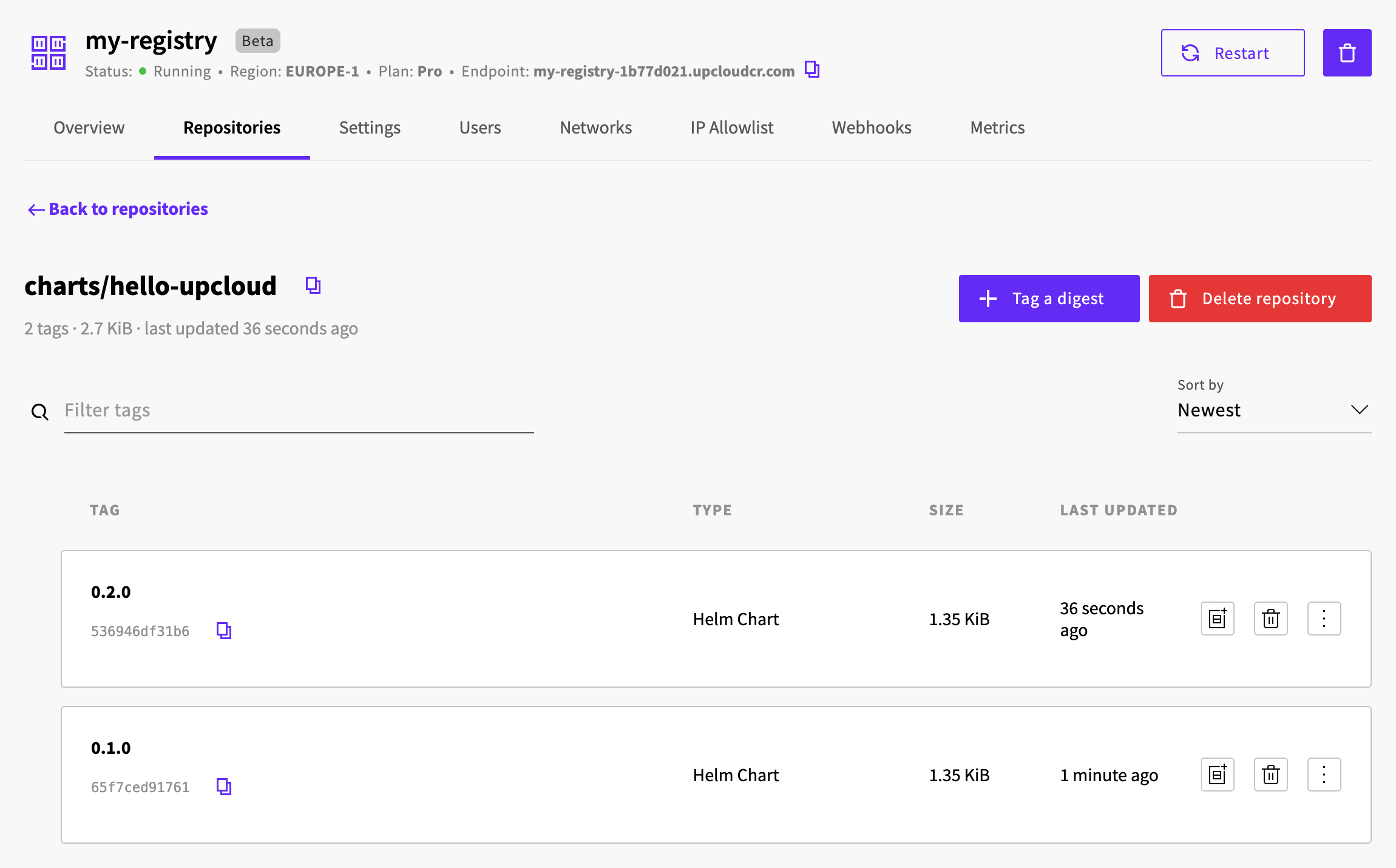
The chart now appears on the registry's Repositories tab as charts/hello-upcloud, with the chart version as its tag.
Install the chart
The chart creates a Deployment called hello-upcloud, so first delete the one you created with kubectl:
kubectl delete deployment hello-upcloudThen install the chart straight from the registry:
helm install hello-upcloud oci://my-registry-1b77d021.upcloudcr.com/charts/hello-upcloud --version 0.1.0Output
Pulled: my-registry-1b77d021.upcloudcr.com/charts/hello-upcloud:0.1.0
Digest: sha256:65f7ced91761c148197f4617eb9d6eeb3398874306af4da03145d45b1f6512c6
NAME: hello-upcloud
LAST DEPLOYED: Thu Oct 22 07:34:25 2026
NAMESPACE: default
STATUS: deployed
REVISION: 1
DESCRIPTION: Install complete
TEST SUITE: None
Wait for the rollout and check the image, as before:
kubectl rollout status deploy/hello-upcloud
kubectl get deploy hello-upcloud -o wide
Output
deployment "hello-upcloud" successfully rolled out
NAME            READY   UP-TO-DATE   AVAILABLE   AGE   CONTAINERS   IMAGES                                                      SELECTOR
hello-upcloud   1/1     1            1           1s    web          my-registry-1b77d021.upcloudcr.com/demo/hello-upcloud:1.0   app=hello-upcloud
Release a new version
Releasing a new version of your app takes two pushes: the new image, with a new tag, and a new chart version that points to it.
Start with the image. If you're using the example image, change the heading in index.html, for example to Hello again from UpCloud Container Registry, and then build and push it as 1.1 from the directory with the Dockerfile:
docker buildx build --platform linux/amd64,linux/arm64 \
  -t my-registry-1b77d021.upcloudcr.com/demo/hello-upcloud:1.1 --push .
Then, in hello-upcloud/Chart.yaml, raise the chart version and set appVersion to the new image tag:
version: 0.2.0
appVersion: "1.1"
Give every change to the chart a new version, even a small one. Each chart version is a tag in the registry, so pushing a version that's already there needs the Update permission and changes what that version installs.
Package and push the new version, and upgrade the installed release to it:
helm package hello-upcloud
helm push hello-upcloud-0.2.0.tgz oci://my-registry-1b77d021.upcloudcr.com/charts
helm upgrade hello-upcloud oci://my-registry-1b77d021.upcloudcr.com/charts/hello-upcloud --version 0.2.0
The last lines of the output show the new revision:
Output
Release "hello-upcloud" has been upgraded. Happy Helming!
NAME: hello-upcloud
LAST DEPLOYED: Thu Oct 22 07:34:55 2026
NAMESPACE: default
STATUS: deployed
REVISION: 2
DESCRIPTION: Upgrade complete
TEST SUITE: None
The registry's Repositories tab now lists both chart versions under charts/hello-upcloud:
Once the rollout finishes, the Deployment is running the new image:
kubectl rollout status deploy/hello-upcloud
kubectl get deploy hello-upcloud -o wide
Output
deployment "hello-upcloud" successfully rolled out
NAME            READY   UP-TO-DATE   AVAILABLE   AGE   CONTAINERS   IMAGES                                                      SELECTOR
hello-upcloud   1/1     1            1           66s   web          my-registry-1b77d021.upcloudcr.com/demo/hello-upcloud:1.1   app=hello-upcloud
Roll back
Helm keeps a numbered revision for every install, upgrade, and rollback:
helm history hello-upcloudOutput
REVISION	UPDATED                 	STATUS    	CHART              	APP VERSION	DESCRIPTION
1       	Thu Oct 22 07:34:25 2026	superseded	hello-upcloud-0.1.0	1.0        	Install complete
2       	Thu Oct 22 07:34:55 2026	deployed  	hello-upcloud-0.2.0	1.1        	Upgrade complete
To go back to the previous version, roll back to its revision:
helm rollback hello-upcloud 1Output
Rollback was a success! Happy Helming!Helm records the rollback as revision 3, and once the rollout finishes, the Deployment is back on the 1.0 image:
kubectl rollout status deploy/hello-upcloud
kubectl get deploy hello-upcloud -o wide
Output
deployment "hello-upcloud" successfully rolled out
NAME            READY   UP-TO-DATE   AVAILABLE   AGE   CONTAINERS   IMAGES                                                      SELECTOR
hello-upcloud   1/1     1            1           72s   web          my-registry-1b77d021.upcloudcr.com/demo/hello-upcloud:1.0   app=hello-upcloud
Troubleshooting
Pods stay in ImagePullBackOff.
Run kubectl describe pod <pod> and look for the Failed to pull image event at the end of the output:
no basic auth credentials: the pod has no image pull secret for the registry. Create the secret in the pod's namespace and name it underimagePullSecrets, or add it to the namespace'sdefaultservice account. If the image reference uses the private endpoint, the secret must use the private hostname too.401 Unauthorized: the username or password in the secret is wrong. Delete the secret withkubectl delete secret upcloud-registryand create it again.not found: the tag in the image reference doesn't exist in the registry. Check the tag on the Repositories tab, or push it.403 Forbidden: the registry's IP allowlist doesn't include the addresses the nodes connect from. Pull through the private endpoint, or add those addresses to the allowlist. For nodes with public IP addresses,kubectl get nodes -o wideshows them underEXTERNAL-IP.i/o timeoutwith the private hostname: the node can't reach the private endpoint. Check that the cluster's network is attached to the registry and Active on the Networks tab. A node that was running before you attached the network starts using the private endpoint when it next renews its network settings, and the pull then succeeds on its own.
Helm fails with basic credential not found.
Helm isn't logged in to the registry on this machine. Log in with helm registry login and a registry user, as in Push the chart to the registry.
helm push fails with 403: denied.
The registry user's permissions don't allow the push. A new chart or chart version needs Create, and a version that's already in the registry needs Update, so give the chart a new version instead.