Self-hosted RAG with GPU Servers
A retrieval-augmented generation (RAG) application answers questions from your own documents. It needs a language model to write the answers, an embedding model to turn documents and questions into vectors, a database to store and search the vectors, a place to keep the original documents, and an application that users sign in to.
This architecture runs both models on one GPU Server and keeps everything else in managed services: Managed PostgreSQL with pgvector for the vectors and the application's data, Managed Valkey for shared application state, and Managed Object Storage for the documents and the model weights. Two Cloud Servers run the application behind a Managed Load Balancer, which is the only way in from the internet. Every other connection stays on SDN Private Networks. The models run on your own GPU Server, so your documents, questions and answers are not sent to a third-party AI service.
The design does not depend on a particular application or model. The build page uses Open WebUI as the application and vLLM to serve the models, so that you can deploy a working example and check it end to end, but any RAG application that talks to OpenAI-compatible endpoints fits the same layout.
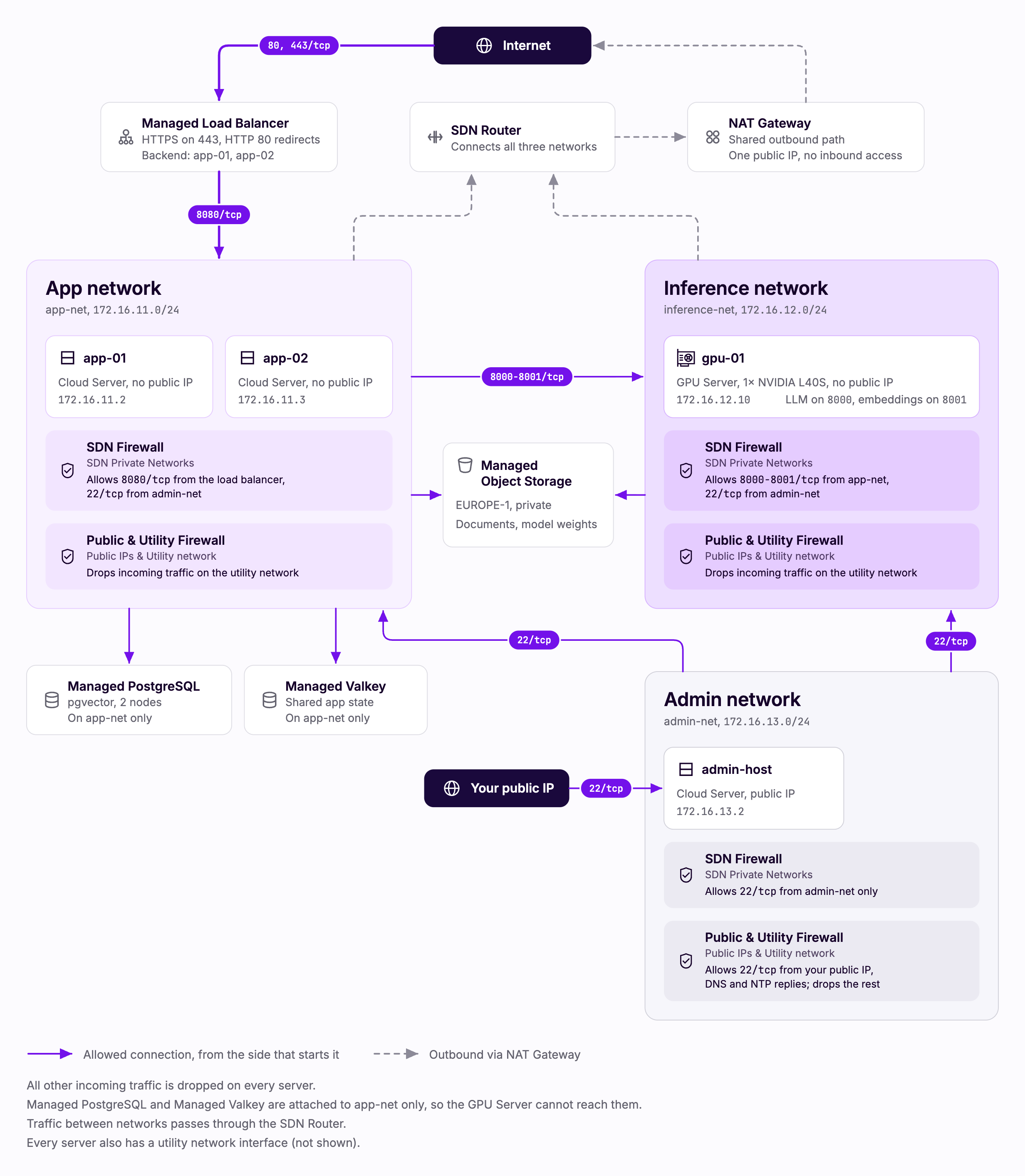
With this design in place:
- Users reach the application only through the load balancer, over HTTPS. Plain HTTP requests are redirected to HTTPS.
- The app servers reach the GPU server's model endpoints on ports 8000 and 8001. Nothing else can reach the GPU server except SSH from the admin host.
- The GPU server cannot reach the databases and has no public IP address. It reaches Object Storage for its model weights, and the internet only outbound through the NAT Gateway.
- The app servers cannot reach each other, and accept their application port only from the load balancer.
- The admin host is the only way to reach the servers over SSH, and accepts SSH only from the address you allow.
When to use this pattern
This pattern fits applications that:
- Must keep documents, prompts and answers on infrastructure you control, for example for data residency or confidentiality.
- Have a steady workload that one GPU Server can serve, such as an internal assistant or a customer-facing help tool with moderate traffic.
- Can be without answers for about ten minutes while a GPU Server is replaced, because sign-in and chat history stay available.
It does not fit workloads with very spiky demand that needs many GPUs for short periods, or applications that cannot be without answers for that long. See Add inference capacity for the next step up.
Products used
| Product | Role in this design | Documentation |
|---|---|---|
| GPU Servers | Runs the language model and the embedding model | GPU Servers |
| Cloud Servers | Two app servers that run the RAG application, and the admin host | Cloud Servers |
| Managed Load Balancer | The only inbound path, with HTTPS and a certificate for your domain | Managed Load Balancer |
| Managed PostgreSQL | Application data and document vectors, using the pgvector extension | Managed PostgreSQL |
| Managed Valkey | Shared state, so that the two app servers behave as one | Managed Valkey |
| Managed Object Storage | Original documents and model weights, reached over a private endpoint | Managed Object Storage |
| SDN Private Networks | One network each for the app servers, the GPU Server and the admin host | SDN Private Networks |
| SDN Router | Connects the networks and carries traffic out to the NAT Gateway | Connect private networks using SDN Router |
| SDN Firewall | Controls which traffic reaches each server on the private networks | Configure the SDN Firewall |
| Public & Utility Firewall | Closes the utility network and opens SSH on the admin host | Firewall |
| NAT Gateway | Shared outbound path, for packages, images and model downloads | Routing using the NAT Gateway |
Build the design
Build the self-hosted RAG design lists everything to create, from the networks to the load balancer, with the configuration of each part and the settings of the example software. Use the sections below to understand what you are building and why.
Design decisions
Every internal connection stays private
Only the load balancer has a public frontend. The app servers and the GPU Server have no public IP address, and they reach each other, the databases and Object Storage over SDN Private Networks. The main reason is exposure: the model endpoints and the databases are not reachable from the internet at all.
Each private network has its own ruleset in the SDN Firewall, and the Public & Utility Firewall closes the utility network on every server. The networks use ranges outside 10.0.0.0/8, for the reason described in Routes over the utility network.
One GPU Server, used fully
GPU Servers are billed while they run, so this design keeps one GPU Server busy rather than a second one waiting as a standby. Both models run on it, and the app servers reach them at a fixed private address, 172.16.12.10.
Instead of a standby, the design makes the GPU Server easy to replace:
- The model weights are kept in Object Storage, and the server copies them over the private network when it is created, so a replacement downloads no model weights from the internet.
- The server is set up entirely by its user data, which installs nothing by hand and starts both model endpoints.
- A replacement server takes the same fixed address, so the app servers need no changes.
- If your preferred GPU model is unavailable, you can stop the server, change its plan to another GPU model and start it again. Choose a model that fits more than one GPU type, so that this is possible.
While the GPU Server is unavailable, users can still sign in and see their chat history, but new questions fail with an error.
Embedding model next to the language model
The embedding model is small and runs on the same GPU as the language model. Both are served through OpenAI-compatible endpoints, on ports 8000 and 8001, so the application only needs two URLs and an API key. Running the embedding model on the GPU keeps embedding work off the app servers.
Two app servers with shared state
Two app servers run the same application behind the load balancer, so you can update or restart one while the other keeps serving users. They share their state through PostgreSQL and Valkey, and they store uploaded files in Object Storage rather than on local disks.
Valkey is a required part of this setup, not an optional cache. The application uses it for its real-time connections and for coordination between the two app servers, and stops serving requests while Valkey is unavailable. See Valkey availability.
PostgreSQL with pgvector on two nodes
One PostgreSQL database holds both the application's data and the document vectors, using the pgvector extension. A two-node plan adds a standby node that takes over if the primary node fails, as described in Managed PostgreSQL high availability, so the database does not become a second single point of failure next to the GPU Server.
The GPU Server cannot reach the databases
PostgreSQL and Valkey are attached to the app network only. A server on that network gets a route to the databases through DHCP, and servers on other networks do not, so the GPU Server has no path to them. See Routes.
Documents and weights in Object Storage
The application stores each uploaded document in an Object Storage bucket before it indexes it. If you later change how documents are split, or move to another embedding model, you can rebuild the index from the originals. A second bucket holds the model weights for the GPU Server. Each bucket has its own user with access to that bucket only.
An admin host on its own network
The admin host is a Cloud Server with a public IP address on its own network, admin-net. It accepts SSH from your public IP address only, and is the only way to reach the other servers over SSH. The rulesets of the app network and the inference network accept port 22 from admin-net. The admin host's own ruleset accepts port 22 from admin-net only, so the other servers cannot reach it on its private address.
Adapt the design
The example is a starting point. The sections below describe common changes.
Add inference capacity
When one GPU Server is no longer enough, add a second one with the same user data and its own fixed address, and put both behind a load balancer frontend on the inference network, so that the application still uses one address. The GPU Servers see health checks and requests from the load balancer's "listen": false addresses, so allow the model ports from those addresses in the inference ruleset, as step 10 of the build does for the app servers. Open WebUI keeps its connection settings in its database after the first start, so change the model addresses in its admin settings.
A second GPU Server also keeps answers available while you replace the other one. Disable that server's member in the load balancer backend before you stop it.
Use OpenSearch for vector search
For large document sets, or to combine keyword and vector search, use Managed OpenSearch with its k-NN search instead of pgvector. Attach it to the app network in the same way as PostgreSQL. The application's data stays in PostgreSQL. Documents indexed before a switch are not found until you index them again.
Run it on Managed Kubernetes
The same layout fits Managed Kubernetes: a node group of Cloud Servers for the application and a GPU node group for the models, with a LoadBalancer service as the entry point. Raise that load balancer's timeout_server as described in Load balancer timeouts, with the service's load balancer configuration annotation. The databases and Object Storage stay the same, with the cluster's network attached to each of them. See Getting started with GPU workloads and GPU time-slicing for sharing one GPU between several workloads.
Keep the application near your users
GPU Servers are available in fi-hel2. If your users and data are elsewhere in Europe, you can run the load balancer, the app servers, PostgreSQL and Valkey in a zone near your users, keep the GPU Server in fi-hel2, and connect the two networks with network peering. Allow the model ports in the inference ruleset from the app network's range in the other zone. The GPU Server does not need the databases, so the app servers' calls to the model endpoints are the traffic that crosses the peering. Connect Object Storage to a network in each zone directly, rather than through the peering; see Managed Object Storage availability for the zones each region can be reached from. Prompts and documents travel to fi-hel2 for processing.
Internal access only
For an application that only your own staff use, put it behind a load balancer that has only a private network, app-net, and connect your office network by adding the VPN Gateway feature to the design's NAT Gateway. Allow port 8080 in the app ruleset from the new load balancer's "listen": false addresses, as for the public one. A load balancer without a public network does not get a dynamic certificate for a single hostname, so use a wildcard certificate, which is validated through DNS, or upload your own certificate. See Managed Load Balancer SSL certificates.
Embedding model on the app servers
You can run the embedding model on the app servers' CPUs instead of the GPU. Retrieval then keeps working while the GPU Server is replaced, provided your application can show search results without an answer. Size the app servers for the embedding work they take on.
Things to know
GPU availability
Each account has a limit on the number of GPUs it can use. See GPU Servers availability. To see which GPU plans you can deploy in a zone right now, use the API:
curl -s -H "Authorization: Bearer $UPCLOUD_TOKEN" \
  "https://api.upcloud.com/1.3/device/availability?zone=fi-hel2&type=gpu" | jq '."fi-hel2".gpu_plans'
The amount of each plan changes during the day. If the plan you need is not listed or shows a low amount, try again later, or use another GPU model that fits your model.
Load balancer timeouts
A backend's timeout_server is 10 seconds by default. A request whose response starts later than that, such as a long answer that is not streamed, gets HTTP 504 from the load balancer. Streamed answers keep data flowing once they start, but a question about documents can take several seconds before the first words arrive. This design sets timeout_server to 300 seconds, as described in step 9 of the build.
Start-up times
With the example configuration, a new GPU Server answers about ten minutes after it is created: it copies the model weights from Object Storage, pulls the vLLM image and loads both models. After a reboot, the models are ready again in about three minutes. Plan replacements around these times.
Replace the GPU Server
A replacement GPU Server takes the fixed address 172.16.12.10, so the address must be free first. Delete the old server, or stop it and remove its private network interface. Then create the new server as in step 8 of the build, with the same user data, ruleset and firewalls. The app servers start using it once its endpoints answer, without any changes.
Reach the servers
The app servers and the GPU Server have no public IP address, so you reach them through the admin host. Connect to the admin host's public IP address and jump to a server's private address in the same command:
ssh -J root@ADMIN_PUBLIC_IP [email protected]ssh -J uses your SSH agent or default key for both connections, and does not pass a key given with -i to the admin host. If your key is not in the default location, add it to your agent first with ssh-add.
Valkey availability
The application stops serving requests while Valkey is unavailable, and recovers on its own once Valkey is back, without restarting the app servers. For production, consider a Managed Valkey plan with more than one node.
Changing the embedding model
Vectors from one embedding model cannot be compared with vectors from another. If you change the embedding model, index all documents again from the originals in Object Storage.
DNS servers and routes
The servers on the private networks resolve names through the DNS servers set on their networks, and the admin host reaches the other networks through routes on admin-net. See DNS servers and Default route.
HTTPS certificate
The load balancer requests the certificate for your domain when you attach it to the HTTPS frontend. Create the CNAME record for your hostname first. See Managed Load Balancer SSL certificates.
Verify it works
Test every path you designed, including the ones that are supposed to fail.
| From | To | Port | Expected |
|---|---|---|---|
| internet | load balancer | 443 | works |
| internet | load balancer | 80 | redirects to HTTPS |
| internet | app servers or GPU Server | any | fails, because they have no public interface |
| internet | admin host | 22 | works from the address you allowed |
| internet | admin host | any other port | fails |
| app-01, app-02 | GPU Server | 8000, 8001 | works |
| app-01, app-02 | GPU Server | 22 | fails |
| app-01 | app-02 | 8080, 22 | fails |
| GPU Server | PostgreSQL, Valkey | their ports | fails, because the databases are attached to app-net only |
| GPU Server | app servers | any | fails |
| admin host | app servers, GPU Server | 22 | works |
| admin host | app servers, GPU Server | 8080, 8000 | fails |
| app-01, app-02 | admin host, over its private address | 22 | fails |
| app servers, GPU Server | internet | 443 | works, through the NAT Gateway's public IP address |
| internet | NAT Gateway public IP | any | fails |
| any server | another server's utility address | any | fails |
Servers get their private addresses by DHCP, in the order they are created, so app-01 and app-02 can have each other's addresses. Use each server's own address in the tests. The admin host always has 172.16.13.2, because it is the first address after the gateway on a network of its own, and the GPU Server keeps its fixed address, 172.16.12.10.
Then check the application end to end:
- Sign in through your domain and upload a short document that contains a fact the model cannot know.
- Ask a question about that fact. The answer quotes it and cites the document.
- Check that the document is in the documents bucket, for example by listing the bucket from an app server.
- Try to sign up a new account through your domain. The sign-up is refused.