Travis CI and UpCloud make a strong pair for deploying modern web applications. Travis CI provides a straightforward continuous integration and deployment (CI/CD) platform that supports Node.js and a variety of other frameworks out of the box, automating your workflow from code commit to production delivery. On the other hand, UpCloud’s high-performance cloud infrastructure gives you the flexibility and speed needed to host scalable applications.
In this guide, you’ll walk through the process of deploying a Node.js app from Travis CI to an UpCloud server. You’ll set up a simple .travis.yml configuration that connects securely to your UpCloud environment and automates deployments to reduce manual effort and ship faster with confidence.
Why Deploy to UpCloud From Travis CI?
Travis CI and UpCloud work well together to help developers build and deploy apps more easily. With Travis CI, you don’t need to do things like upload files or restart your app every time you make a change. Instead, Travis CI runs tests and sends the new version of your app to the server automatically. This kind of setup helps make sure your app is always working and up to date without much extra work.
UpCloud is a fast cloud hosting platform that gives you full control over your server. You can choose the amount of memory and CPU your app needs, and upgrade whenever your app gets bigger. This is great for small teams or solo developers who want good performance but don’t want to manage everything from scratch. UpCloud makes it easy to run and host all kinds of apps, and it gives you the tools to grow your project without having to move to a new platform later.
Putting Travis CI and UpCloud together is a smart choice for developers who want to spend more time writing code and less time worrying about deployments. The setup is simple and doesn’t require a lot of DevOps knowledge. Whether you’re a freelancer building client projects, a SaaS company deploying microservices, or a startup looking to scale your CI/CD workload, this combo helps you move fast and stay focused.
Overview and Prerequisites
In this tutorial, you will first fork this GitHub repository that has a basic Node.js app. After that, you’ll set up a new server on UpCloud where the app will be hosted. Finally, you will deploy the app manually on the server for the first time.
Next, you’ll connect your repository to Travis CI so that it can handle future deployments for you. Every time you make a change and push it to GitHub, Travis CI will automatically update the app on your UpCloud server. This helps you skip the manual steps and keeps your app always up to date.
To follow along, you will need the following:
- A GitHub account. You will use this account to fork your copy of this GitHub repository on which you will set up the CI/CD workflow. You will learn more about this repository shortly.
- A Travis CI account. You can sign up here.
- An UpCloud account. You can sign up for a free trial here.
- Basic understanding of SSH. Here are a few resources to help you out:
Once you have these in place, let’s now take a quick look at the example app that you will deploy through the pipeline in this tutorial. The app in the repository is a random facts generator. It has a list of a few facts in the source code, and it picks and returns a fact from it randomly on each API call:
// contents of index.js
const express = require('express');
const app = express();
const PORT = process.env.PORT || 5001;

// Array of random facts
const facts = [
    "Honey never spoils.",
    "A group of flamingos is called a 'flamboyance.'",
    "Bananas are berries, but strawberries aren't.",
    "Octopuses have three hearts.",
    "Australia is believed to have lost to emus in the Great Emu War of 1932",
    "A jiffy is an actual unit of time: 1/100th of a second.",
    "Cows have best friends and get stressed when they are separated.",
    "The shortest war in history lasted 38 minutes.",
    "The Eiffel Tower can be 15 cm taller during the summer.",
    "A small child could swim through the veins of a blue whale."
];

// Serve static files (HTML, CSS, JS)
app.use(express.static('public'));

// Endpoint to get a random fact
app.get('/random-fact', (req, res) => {
    const randomIndex = Math.floor(Math.random() * facts.length);
    res.json({ fact: facts[randomIndex] });
});

// Start the server
app.listen(PORT, () => {
    console.log(`Server is running on http://localhost:${PORT}`);
});
It also serves a static HTML page on its root path (/). This page contains a heading, a button to get a random fact, a placeholder for the random fact to be displayed to the user, and a footer at the bottom of the page. Here’s the source code for this page:
<!DOCTYPE html>
<html lang="en">
<head>
    <meta charset="UTF-8">
    <meta name="viewport" content="width=device-width, initial-scale=1.0">
    <title>Random Facts Generator</title>
    <style>
        body {
            font-family: Arial, sans-serif;
            display: flex;
            flex-direction: column;
            align-items: center;
            justify-content: center;
            height: 98vh;
            background-color: #f5f5f5;
        }
        button {
            padding: 10px 20px;
            font-size: 16px;
            cursor: pointer;
        }
        p {
            margin-top: 20px;
            font-size: 20px;
            text-align: center;
        }

        #footer {
            position: absolute;
            bottom: 10px;
            font-size: 0.8rem;
        }
    </style>
</head>
<body>

<h1>Random Fact Generator</h1>
<button id="generate">Get a Random Fact</button>
<p id="fact"></p>
<p id="footer">Made in 2024</p>

<script>
    document.getElementById('generate').onclick = async () => {
        const response = await fetch('/random-fact');
        const data = await response.json();
        document.getElementById('fact').innerText = data.fact;
    };
</script>

</body>
</html>
You can try running the app locally using the following commands:
# Clone the repo
git clone https://github.com/krharsh17/random-facts-generator
cd random-facts-generator

# Install dependencies
yarn

# Run the development server
yarn dev
You can now go to http://localhost:5001 to view the app in action:

Once you click the Get a Random Fact button, you will, indeed, get a random fact.

Ensure that you fork a copy of this repo to your GitHub account before moving ahead. This is important because you will need to make changes to the source code of this app to trigger the CI/CD pipeline and update the deployed application.
Now, let’s move on to setting up the UpCloud server where you will deploy this application.
Setting up an UpCloud Server through upctl
You can use either the UpCloud web dashboard or the upctl CLI to set up an UpCloud web server. This section will walk you through creating an UpCloud server through upctl. You can find detailed instructions on how to set it up here based on your operating system.
Once you have set up upctl correctly and authenticated with your UpCloud account, running the following command should print the details of your UpCloud account:
✗ upctl account show

  Username: <your-upcloud-username>

  Credits:  <your-credits>


  Resource Limits:
    Cores:                      100
    Detached Floating IPs:       10
    Load balancers:              50
    Managed object storages:     20
    Memory:                  307200
    Network peerings:           100
    Networks:                   100
    NTP excess GiB:               0
    Public IPv4:                 20
    Public IPv6:                100
    Storage HDD:              10240
    Storage MaxIOPS:          10240
    Storage SSD:              10240
Now you’re ready to create a new server. But before doing that, it is important to understand the various options you will need to supply to the upctl create server command.
Server Location
You’ll need to choose the physical location of your server. You should choose the location closest to you for the least latency when connecting to the server remotely.
You can run upctl zone list to view a list of available zones:
✗ upctl zone list

 ID        Description    Public
───────── ────────────── ────────
 au-syd1   Sydney #1      yes
 de-fra1   Frankfurt #1   yes
 es-mad1   Madrid #1      yes
 fi-hel1   Helsinki #1    yes
 fi-hel2   Helsinki #2    yes
 nl-ams1   Amsterdam #1   yes
 pl-waw1   Warsaw #1      yes
 se-sto1   Stockholm #1   yes
 sg-sin1   Singapore #1   yes
 uk-lon1   London #1      yes
 us-chi1   Chicago #1     yes
 us-nyc1   New York #1    yes
 us-sjo1   San Jose #1    yes
Server Plan
Next up, you’ll need to choose a server plan. The server plan defines the CPU, RAM, and storage space available to your server. UpCloud provides you with a range of options from developer-focused small sizes for testing purposes and personal projects to large and cost-effective cloud native plans that unbundle storage and IPv4 addresses from the plans. You can learn more about the available plans here.
You can list the available server plans by running upctl server plans:
✗ upctl server plans
General purpose
Name Cores Memory Storage size Storage tier Transfer out (GiB/month)
────────────────────────── ─────── ──────── ────────────── ────────────── ──────────────────────────
1xCPU-1GB 1 1024 25 maxiops 1024
1xCPU-2GB 1 2048 50 maxiops 2048
CLOUDNATIVE-1xCPU-4GB 1 4096 0 1024
CLOUDNATIVE-1xCPU-8GB 1 8192 0 2048
2xCPU-2GB 2 2048 60 maxiops 3072
CLOUDNATIVE-2xCPU-4GB 2 4096 0 2048
2xCPU-4GB 2 4096 80 maxiops 4096
CLOUDNATIVE-2xCPU-8GB 2 8192 0 2048
CLOUDNATIVE-2xCPU-16GB 2 16384 0 3072
CLOUDNATIVE-4xCPU-8GB 4 8192 0 2048
4xCPU-8GB 4 8192 160 maxiops 5120
CLOUDNATIVE-4xCPU-16GB 4 16384 0 5120
CLOUDNATIVE-4xCPU-24GB 4 24576 0 6144
CLOUDNATIVE-4xCPU-32GB 4 32768 0 7168
CLOUDNATIVE-4xCPU-48GB 4 49152 0 14336
CLOUDNATIVE-6xCPU-16GB 6 16384 0 5120
6xCPU-16GB 6 16384 320 maxiops 6144
CLOUDNATIVE-6xCPU-24GB 6 24576 0 6144
CLOUDNATIVE-8xCPU-16GB 8 16384 0 6144
CLOUDNATIVE-8xCPU-24GB 8 24576 0 7168
CLOUDNATIVE-8xCPU-32GB 8 32768 0 9216
8xCPU-32GB 8 32768 640 maxiops 7168
CLOUDNATIVE-8xCPU-48GB 8 49152 0 14336
CLOUDNATIVE-8xCPU-64GB 8 65536 0 16384
CLOUDNATIVE-8xCPU-96GB 8 98304 0 26624
CLOUDNATIVE-8xCPU-128GB 8 131072 0 30720
CLOUDNATIVE-12xCPU-24GB 12 24576 0 8192
CLOUDNATIVE-12xCPU-32GB 12 32768 0 9216
12xCPU-48GB 12 49152 960 maxiops 9216
CLOUDNATIVE-16xCPU-32GB 16 32768 0 13312
CLOUDNATIVE-16xCPU-48GB 16 49152 0 15360
CLOUDNATIVE-16xCPU-64GB 16 65536 0 20480
16xCPU-64GB 16 65536 1280 maxiops 10240
CLOUDNATIVE-16xCPU-96GB 16 98304 0 26624
CLOUDNATIVE-16xCPU-128GB 16 131072 0 35840
CLOUDNATIVE-16xCPU-192GB 16 196608 0 46080
CLOUDNATIVE-20xCPU-64GB 20 65536 0 22528
CLOUDNATIVE-20xCPU-96GB 20 98304 0 28672
24xCPU-96GB 24 98304 1920 maxiops 12288
CLOUDNATIVE-24xCPU-256GB 24 262144 0 61440
CLOUDNATIVE-32xCPU-64GB 32 65536 0 25600
CLOUDNATIVE-32xCPU-128GB 32 131072 0 40960
32xCPU-128GB 32 131072 2048 maxiops 24576
CLOUDNATIVE-32xCPU-192GB 32 196608 0 51200
CLOUDNATIVE-32xCPU-256GB 32 262144 0 66560
CLOUDNATIVE-32xCPU-384GB 32 393216 0 76800
38xCPU-192GB 38 196608 2048 maxiops 24576
48xCPU-256GB 48 262144 2048 maxiops 24576
CLOUDNATIVE-48xCPU-384GB 48 393216 0 81920
CLOUDNATIVE-48xCPU-512GB 48 524288 0 92160
CLOUDNATIVE-64xCPU-192GB 64 196608 0 56320
CLOUDNATIVE-64xCPU-256GB 64 262144 0 71680
CLOUDNATIVE-64xCPU-384GB 64 393216 0 87040
64xCPU-384GB 64 393216 2048 maxiops 24576
CLOUDNATIVE-64xCPU-512GB 64 524288 0 97280
CLOUDNATIVE-80xCPU-512GB 80 524288 0 102400
80xCPU-512GB 80 524288 2048 maxiops 24576
High CPU
Name Cores Memory Storage size Storage tier Transfer out (GiB/month)
──────────────────── ─────── ──────── ────────────── ────────────── ──────────────────────────
HICPU-8xCPU-12GB 8 12288 100 maxiops 4096
HICPU-8xCPU-16GB 8 16384 200 maxiops 4096
HICPU-16xCPU-24GB 16 24576 100 maxiops 5120
HICPU-16xCPU-32GB 16 32768 200 maxiops 5120
HICPU-32xCPU-48GB 32 49152 200 maxiops 6144
HICPU-32xCPU-64GB 32 65536 300 maxiops 6144
HICPU-64xCPU-96GB 64 98304 200 maxiops 7168
HICPU-64xCPU-128GB 64 131072 300 maxiops 7168
High memory
Name Cores Memory Storage size Storage tier Transfer out (GiB/month)
──────────────────── ─────── ──────── ────────────── ────────────── ──────────────────────────
HIMEM-2xCPU-8GB 2 8192 100 maxiops 2048
HIMEM-2xCPU-16GB 2 16384 100 maxiops 2048
HIMEM-4xCPU-32GB 4 32768 100 maxiops 4096
HIMEM-4xCPU-64GB 4 65536 200 maxiops 4096
HIMEM-6xCPU-128GB 6 131072 300 maxiops 6144
HIMEM-8xCPU-192GB 8 196608 400 maxiops 8192
HIMEM-12xCPU-256GB 12 262144 500 maxiops 10240
HIMEM-16xCPU-384GB 16 393216 600 maxiops 12288
HIMEM-24xCPU-512GB 24 524288 700 maxiops 12288
Developer
Name Cores Memory Storage size Storage tier Transfer out (GiB/month)
──────────────────── ─────── ──────── ────────────── ────────────── ──────────────────────────
DEV-1xCPU-1GB-10GB 1 1024 10 standard 1024
DEV-1xCPU-1GB 1 1024 20 standard 1024
DEV-1xCPU-2GB 1 2048 30 standard 1536
DEV-1xCPU-4GB 1 4096 40 standard 2048
DEV-2xCPU-4GB 2 4096 60 standard 2560
DEV-2xCPU-8GB 2 8192 80 standard 3072
DEV-2xCPU-16GB 2 16384 100 standard 4096
Since this is a test project, choose the first option in the Developer list (1 CPU core, 1 GB RAM, and 10 GB storage), named DEV-1xCPU-1GB-10GB.
Operating System
After you’ve decided on the hardware configuration, it’s time to choose the operating system for the server. UpCloud provides you with a few popular public templates to choose from, along with the option of a wider variety of distributions through CDROMs and the ability to download and install nearly any other possible operating system using custom images.
You can find a list of available templates here. There are lots of technical considerations, opinions, and personal/project preferences that need to be taken into account before making this choice. However, for this tutorial, you can select AlmaLinux 9 as it is a lightweight option compared to enterprise distributions of Linux.
Note: The commands used in this tutorial have been written with AlmaLinux in mind, so using a different OS might cause you to run into unexpected issues.
SSH keys
You will need to set up an SSH key pair to be able to remotely log into the server. You need to create an SSH key pair and provide upctl with its public key. You can follow this quick guide to generate the SSH key pair based on your local operating system.
You will need to provide the location of the public key file when running the server create command.
Initialization Script
Finally, you have the option to add an initialization script to the deployment.
Normally, right after you set up a cloud server, you will have a list of things to do before you start deploying your applications on it. It can include anything from upgrading installed packages to configuring tools and setting up user accounts. Initialization scripts help you automate these tasks instead of having to manually do them after the server is deployed.
Since you will be deploying a Node.js application to this server, you need to ensure that Node is installed on it. You will also need the git CLI tool to interact with the repository and pull in the code. And, since the project uses yarn to manage dependencies and scripts, you will need to install it as well.
To have the server automatically do all that after it is deployed, save the following script in a file named init-script.sh:
#!/bin/bash
sudo dnf update -y
sudo dnf install curl dnf-plugins-core -y
sudo dnf module install nodejs:22 -y
sudo dnf install git -y
npm install --global yarn
Remember to add the line #!/bin/bash to the top of the script to make sure the OS understands what kind of interpreter it needs to run this script. You will pass the location of this init-script.sh file in the server create command to have UpCloud run this script as soon as the server is deployed.
Creating the server
Now that you understand all of the configuration options for the server and have collected the SSH keys and initialization script, here’s the command you need to run to create the server.
upctl server create \
  --title "Random Facts Generator Server" \
  --zone sg-sin1 \
  --os "AlmaLinux 9" \
  --hostname random-facts-generator-server \
  --ssh-keys id_rsa_fact-gen_ci.pub \
  --plan DEV-1xCPU-1GB-10GB \
  --user-data "$(cat init-script.sh)"
Here’s a quick explanation of the arguments and values used:
title: sets the name of the serverzone: allows you to choose the location of the server.os: allows you to choose the operating system for your server. Not including this would set up the server with Ubuntu Server 24.04hostname: allows you to set up the hostnamessh-keys: allows you to provide the public SSH key for the server as a fileplan: allows you to choose the server plan.user-data: allows you to provide an initialization script to the server. This takes in a string value, so the command above has been configured to access the script stored in the fileinit-scriptthrough thecatcommand.
Once you run the command, you will receive a similar output:
✓ Creating server random-facts-generator-server                                                                                                               9 s

  UUID         004e656c-e8ad-4902-9350-a178e08482c0
  IP Addresses 2a04:3543:1000:2310:78a8:8fff:feba:7cf3,
               10.10.2.65,
               213.163.206.7
You can run upctl server list to view the list of active servers along with their state:
✗ upctl server list

 UUID                                   Hostname                        Plan                 Zone      State
────────────────────────────────────── ─────────────────────────────── ──────────────────── ───────── ─────────
 004e656c-e8ad-4902-9350-a178e08482c0   random-facts-generator-server   DEV-1xCPU-1GB-10GB   sg-sin1   started
Once the state is started, you can SSH into the server using the command ssh root@<server-ip-address>. You can use upctl to retrieve the server IP address by running the command upctl server show <server-name>:
✗ upctl server show random-facts-generator-server

  Common
    UUID:          004e656c-e8ad-4902-9350-a178e08482c0
    Hostname:      random-facts-generator-server
    Title:         Random Facts Generator Server
    Plan:          DEV-1xCPU-1GB-10GB
    Zone:          sg-sin1
    State:         started
    Simple Backup: no
    Licence:       0
    Metadata:      True
    Timezone:      UTC
    Host ID:       4296819331
    Server Group:
    Tags:

  Labels:

    No labels defined for this resource.

  Storage: (Flags: B = bootdisk, P = part of plan)

     UUID                                   Title                              Type   Address    Size (GiB)   Encrypted   Flags
    ────────────────────────────────────── ────────────────────────────────── ────── ────────── ──────────── ─────────── ───────
     01ca6a5e-0221-404d-a4fe-477d7457cec5   random-facts-generator-server-OS   disk   virtio:0           10   no          P

  NICs: (Flags: S = source IP filtering, B = bootable)

     #   Type      IP Address                                      MAC Address         Network                                Flags
    ─── ───────── ─────────────────────────────────────────────── ─────────────────── ────────────────────────────────────── ───────
     1   public    IPv4: 213.163.206.7                             7a:a8:8f:ba:62:98   03800413-da41-4b26-84a3-7d021425603b   S
     2   utility   IPv4: 10.10.2.65                                7a:a8:8f:ba:f1:0a   0372fde3-e376-4e4c-a646-22789035cec0   S
     3   public    IPv6: 2a04:3543:1000:2310:78a8:8fff:feba:7cf3   7a:a8:8f:ba:7c:f3   03000000-0000-4000-8030-000000000000   S
You’re now ready to deploy the application for the first time!
Deploying the Application for the First Time
Before you start deploying the application, make sure you have forked it to your GitHub account.
Once ready, SSH into the server and run the following commands:
# Clone your forked repository
git clone https://github.com/<your-github-username>/random-facts-generator.git

# Change into the cloned directory
cd random-facts-generator

# Install dependencies
yarn

# Start the production server
yarn start:prod
This will start the Node.js application in a background process on the server. The Express app is configured to run on port 5001, so you should now be able to see the deployed app in action on the web address http://<your-server-ip>:5001:

This indicates that your server and app have been deployed successfully! Now, it’s time to set up an automated pipeline that redeploys your app whenever you push a new commit to the main branch.
Creating a Travis CI Pipeline
To create the pipeline, you will first need to install the Travis CI app on your GitHub account and give it access to the forked repository. Here’s what the app configuration page should look like when done:

Now, all you need to do is add a .travis.yml file to your repo, and Travis CI will pick up the new commit and start building!
Creating the Travis CI config file
To make things easier, you should install the Travis CI CLI, which helps quickly initialise a Travis CI config file, easily set environment variables, and more. You can do that by running the following command:
gem install travis
Once installed, clone the forked GitHub repo locally and in the root of the repo directory, run the following command:
travis init
Enter “JavaScript” when prompted for the language used in the repository. This will create a barebones .travis.yml file in the repo.
This is where you will configure the pipeline. Here’s what the workflow will look like:
- Configure the pipeline runner with your UpCloud server’s private SSH key
- Connect to your UpCloud server through SSH from within the pipeline
- Run a
git pullon the local repo on the server to get the latest code - Restart the running PM2 process of the application using the
yarn restart:prodcommand
Some people might prefer using tools like scp to directly copy files into the server instead of relying on fetching from a git repository independently, but since this tutorial uses a publicly accessible git repo, either method works fine.
Also, this pipeline will only contain the deploy stage. This is because Node.js apps do not need to be built most of the time (unless you are using a dialect like TypeScript or CoffeeScript to write the code), and this repo does not contain any tests.
Now, replace the contents of the .travis.yml file with the following:
language: node_js
node_js:
- '24'
dist: noble

branches:
  only:
  - main
env:
  global:
  - SERVER_IP=<your-server-ip-here>
  - UPCLOUD_USERNAME=root
deploy:
  provider: script
  script: bash deploy_script.sh
  on:
    branch: main
The language node defines the language that your app uses. The node_js specifies Node.js version 16 to be used for the build environment. The dist node sets the runner’s Linux distribution to Ubuntu Noble 24.04. If you are using Node.js 18 or above, you will need to target Ubuntu 20 or above, as these Node versions have GLIB requirements that are not backwards compatible with older Linux distributions. You can read more about it here.
branches: only: ['main'] specifies that Travis should only run builds for the main branch. In the env node, two environment variables are defined for the server IP and the username. These will be used in the ssh <user>@<ip> command in the deploy script. Make sure to provide the right server IP in the SERVER_IP field.
The deploy node defines a deploy step, where you’ll supply a script that logs in to your UpCloud server using your SSH private key and redeploy the Node.js app. You will need to provide this script in a deploy_script.sh file in the same directory. Here’s what the file will look like:
eval $(ssh-agent -s)
chmod 400 deploy_key
ssh-add deploy_key
ssh -o StrictHostKeyChecking=no $UPCLOUD_USERNAME@$SERVER_IP /bin/bash << 'EOT'
  cd /random-facts-generator
  git pull origin main
  yarn restart:prod
EOT
This script first checks if the ssh-agent is installed on the build environment (which is true for Travis CI Node.js build runners), then sets the right permissions for the deploy key, adds it to the SSH keys list of the runner, and runs the SSH command using it.
On the UpCloud server, the script does a fresh git pull of the repository and runs the restart:prod script. This redeploys the server.
So, the only thing you need now to make this work is the deploy key. You will use Travis CLI to supply that conveniently to the pipeline.
Supplying the Deploy Key
Travis CI allows encrypting and supplying files to its pipelines. This comes in handy for tasks like supplying credentials or other sensitive data to the pipelines without risking exposure.
The Travis CLI makes it easy to create and add these files directly to a pipeline without having to manually encrypt the file and add it to the Travis CI server.
To do this, you will first need to store your SSH private key in a file named deploy_key in the local repo root. Make sure to add this file to .gitignore so that you don’t push it to the remote repo. Travis CLI will also remind you of the same.
Once you have the private key file in place, run the following command:
travis encrypt-file deploy_key --addEnter y when asked for overwriting the config file. Here’s what the output will look like:
✗ travis encrypt-file deploy_key --add
encrypting deploy_key for krharsh17/random-facts-generator
storing result as deploy_key.enc
storing secure env variables for decryption


Overwrite the config file /Users/kumarharsh/Work/UpCloud/prod/github/random-facts-generator/.travis.yml with the content below?

This reformats the existing file.

---
language: node_js
node_js:
- '24'
dist: noble

branches:
  only:
  - main
env:
  global:
  - SERVER_IP=94.237.16.140
  - UPCLOUD_USERNAME=root
install:
- npm install
deploy:
  provider: script
  script: bash deploy_script.sh
  true:
    branch: main
before_install:
- openssl aes-256-cbc -K $encrypted_189e52c2c347_key -iv $encrypted_189e52c2c347_iv
  -in deploy_key.enc -out deploy_key -d


(y/N)
y

Make sure to add deploy_key.enc to the git repository.
Make sure not to add deploy_key to the git repository.
Commit all changes to your .travis.yml.
You will notice a new deploy_key.enc file and a new node in your .travis.yml file:
# rest of your .travis.yml file
deploy:
  provider: script
  script: bash deploy_script.sh
  on:
    branch: main

# the new node
before_install:
- openssl aes-256-cbc -K $encrypted_189e52c2c347_key -iv $encrypted_189e52c2c347_iv
  -in deploy_key.enc -out deploy_key -d
This before_install script will automatically retrieve the encryption key from the Travis CI environment and decrypt the encrypted deploy_key.enc file. This will allow you to use the SSH private key in your build environments without having to worry about its security.
Your pipeline is now ready. All you need to do now is commit and push the .travis.yml, deploy_key.enc, and the deploy_script.sh files to your repo.
Once you push the commit, you will see a new build get triggered:
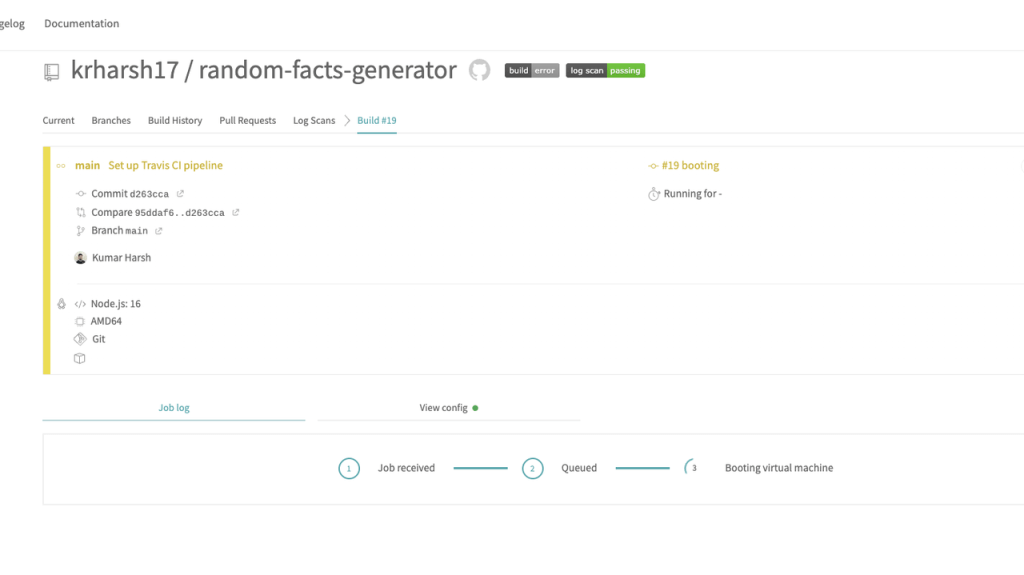
Within a minute, you should see the pipeline complete successfully.
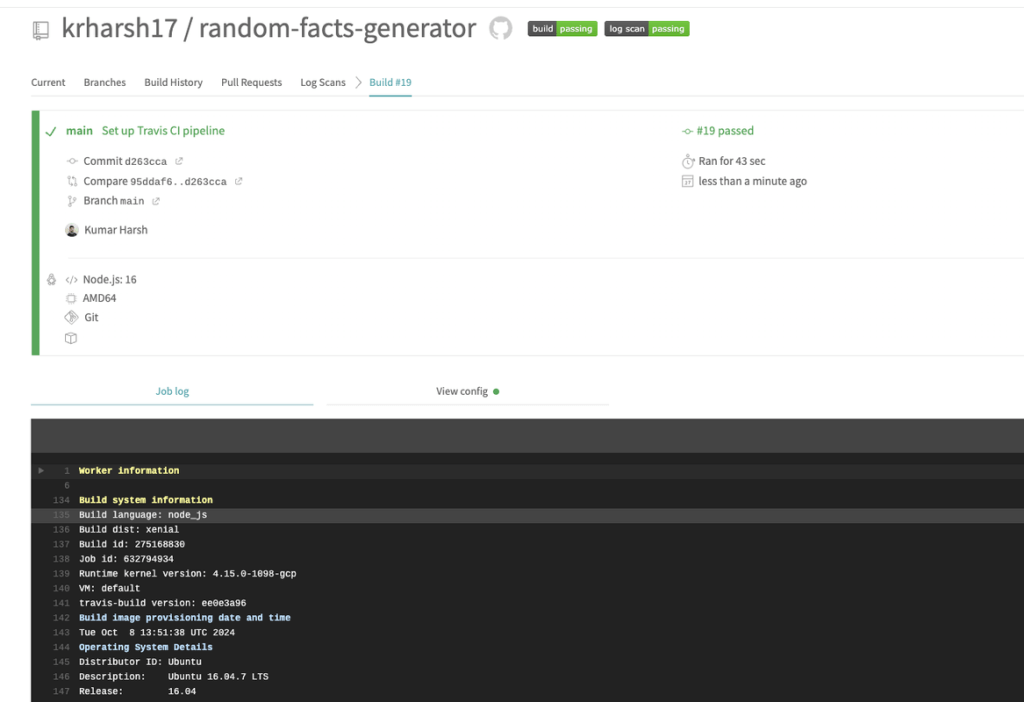
This means that it has been set up correctly!
Running and Testing the Pipeline
The pipeline is now set up and listening for new commits pushed to your repo. To test it out, you can try updating something in the repo, such as the footer text in the public/index.html file that says “Made in 2024” to change it to “Made in 2025”. You will see that a new build gets triggered automatically:
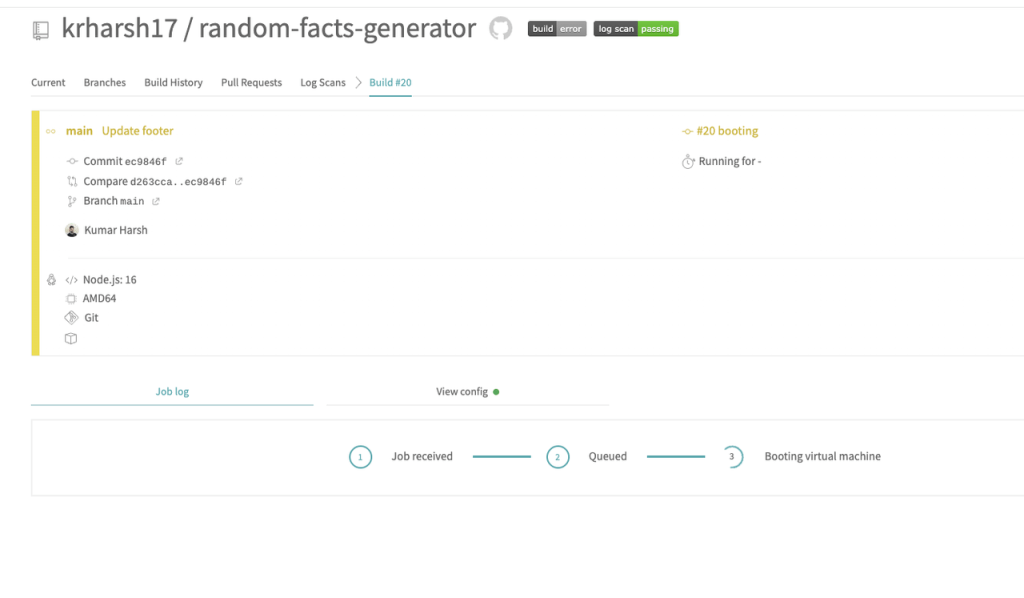
And in a minute or two, the text on your public website will be updated:

This means that your pipeline has been set up and connected to your UpCloud server successfully. This marks the end of the tutorial. You can find the code used in the tutorial in the travis branch of the GitHub repository.
Troubleshooting Some Common Issues
Setting up SSH keys and cloud scripts can sometimes be confusing. Here are a few common problems you might see, along with easy ways to fix them:
Host key verification failed: This means that your Travis runner does not have the host key of the UpCloud server added to itsknown_hostsfile. To avoid this altogether, make sure you’re including the-o StrictHostKeyChecking=nooption in your ssh command in thedeploy_script.shfileError loading key "<key-file-name": error in libcrypto: This means there’s a problem with your private key file. Make sure the file has the full key, with no missing lines, and that it’s in the right format.Permission denied (publickey): If you see this error when Travis tries to SSH into the server, it usually means your private key wasn’t supplied with the SSH command. Make sure the key was added successfully using thessh-addcommand. Also, make sure the key pair matches and has the right permissions.
When you run a cloud init script on a new server, some commands might fail. This can happen if a -y flag is missing for automatic approvals, or if a package version is wrong or not available. To figure out what went wrong, you’ll need to check the logs from when the script ran. You can do this by logging into the server and running sudo grep cloud-init /var/log/messages.
Conclusion
Setting up Travis CI to deploy your Node.js application to UpCloud is a simple yet powerful way to save time and reduce manual work. With every push to your repository, Travis CI can handle the build and deployment steps for you. This means no more logging into servers or copying files by hand. Such an automation is especially helpful for small teams or solo developers who want to move fast without skipping important checks like testing and version control.
UpCloud adds even more value by giving you fast, reliable cloud servers that you can customize as your app grows. You don’t have to start over when you need more memory or CPU; just resize your server with zero downtime. Whether you’re launching your first project or managing multiple apps, this setup lets you stay focused on your code while your infrastructure keeps up behind the scenes.
Ready to get started? Sign up for UpCloud and launch your high-performance server in minutes. Then connect your code to Travis CI using the .travis.yml file from this guide to automate your deployments. As your app grows, take advantage of UpCloud’s flexible infrastructure. UpCloud’s Hot Resize makes it easy to scale without interrupting your users!
Discussion