New - NVIDIA B200 & B300 Dedicated GPU Clusters | Explore GPU clusters
Deploying MariaDB on UpCloud: A Beginner’s Guide
-
About
- Type
- Tutorial
- Categories
- DatabasesIntegrations
Posted on 22 July 2025
Introduction
MariaDB is an open-source relational database that was originally created as a fork from MySQL. Some of the original developers of MySQL created MariaDB with the purpose of keeping it free and open-source under the GNU general public license.
Being created as a fork, MariaDB is highly compatible with MySQL allowing it in some situations to be used as a drop-in replacement for MySQL without requiring much changes. It also maintains compatibility with MySQL APIs, connectors, and commands.
MariaDB offers high-performance, security, and availability features that makes it a perfect fit for many use cases from simple transactional processing systems and web applications, to analytics and data warehouses. It also allows for dynamic horizontal and vertical scalability which makes it suitable for both small-scale and enterprise large-scale applications.
In this guide, we’ll cover the step-by-step process for installing MariaDB on an Ubuntu server from UpCloud. We’ll use the Ubuntu APT package manager to download and install the MariaDB server. Then we’ll harden and secure our installation. After that we’ll create a privileged user which we’ll use to access our MariaDB server. Finally, we’ll test creating a database in our server and issuing some queries with our created user.
Prerequisites
To follow along with this guide, you’ll need to:
- Create an UpCloud account: This gives you access to different UpCloud services using the GUI control panel, command-line interface, or the API.
- Deploy a Cloud server on UpCloud: This is going to be the server where we’ll install MariaDB. For this guide, we’ll be using an Ubuntu OS image.
- Familiarity with using the CLI: We’ll be using some basic commands throughout this guide to install our tools, navigate project directories, and work with SSH.
Installing MariaDB
MariaDB is available in the default APT repositories, so we can use the APT package manager to download and install it on Ubuntu with the following steps:
1. Update the package repository index.
sudo apt update2. Install the MariaDB server and client.
sudo apt install mariadb-server mariadb-client -y3. Verify the installation by checking the MariaDB version.
mariadb --versionYou should see the installed version in the output.
mariadb Ver 15.1 Distrib 10.11.13-MariaDB, for debian-linux-gnu (x86_64) using EditLine wrapper4. Check that MariaDB service is running.
sudo systemctl status mariadb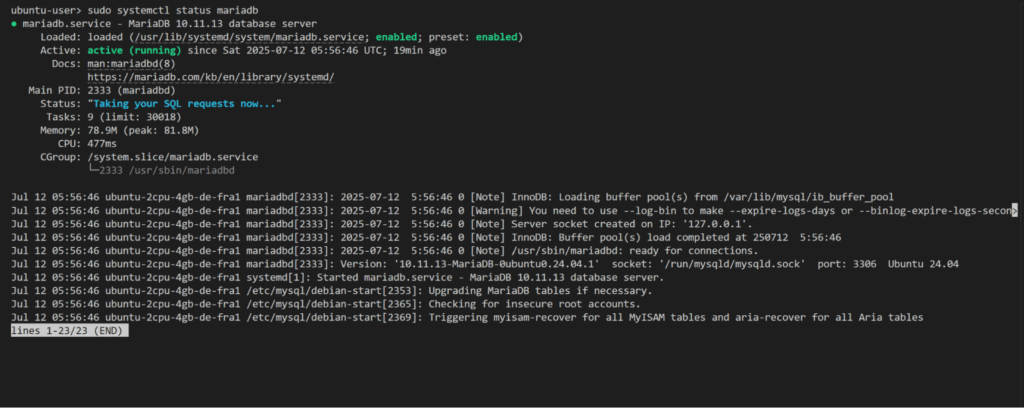
If the above output shows that the mariadb server is not running, you can start it manually with the following command:
sudo systemctl start mariadbAlso if you find the mariadb service is not enabled, you can enable it so that it starts automatically when the server is rebooted with the following command:
sudo systemctl enable mariadbSecuring the MariaDB Installation
The MariaDB installation has some default configurations that are not considered security best practices and are intended for simple development and testing purposes. However, the installation is shipped with a script utility called mariadb-secure-installation that can be executed to improve the security of your installation and fix these security weaknesses.
When executed, the script prompts you for each action to determine whether you want to apply it or not. These actions are as follows:
- Set a password for root accounts.
- Remove root accounts that are accessible from outside the local host.
- Remove anonymous-user accounts.
- Remove the test database, which by default can be accessed by all users including anonymous users.
Now let’s check and apply these recommended security actions:
1. Run the script with the following command:
sudo mariadb-secure-installationThe script will prompt you to enter the root password which is not set by default, so you can just type Enter for an empty password.

2. Starting from MariaDB version 10.4, the unix socket authentication is enabled by default which removes the need to create a root password. So we can safely ignore the first and second prompt from the script:

3. The next prompt asks for removing anonymous users, we should apply that to improve the installation security.

4. The next prompt asks to disable root user remote login from outside localhost, we should also apply that to our installation.

5. The next prompt asks for removing the test database that comes by default with the installation, we should apply that.

6. The final prompt will ask to reload the privilege tables, we need to apply this so that the changes we made take effect immediately.

That’s it! You’ve now improved the security of your MariaDB installation and fixed the weaknesses that come with the default installation.
Create a Privileged User With Password Authentication
In almost any type of server or system it’s always not recommended to use the root user for your operations, and MariaDB is no different. A common practice to avoid this problem is to create another user with administrative privileges to be used instead, and keep the root user only for actions that require it.
Let’s apply this to our MariaDB server by creating an administrative user with the following steps:
1 .Connect to the MariaDB server.
mariadb -u root -pThere’s no default password set for the root user, so you can leave it as empty when prompted for the password.

2. Run the following query to create a new user.
CREATE USER 'username'@'localhost' IDENTIFIED BY 'password';Replace username with the name of the user you want to create, and password with the password you want to set.
3. Grant all the privileges to the user you created so that it has administrative permissions.
GRANT ALL PRIVILEGES ON *.* TO 'username'@'localhost';4. Now that we’ve the admin user ready, exit the current database server connection which we’re using the root user for.
EXIT;Test Database Access With the Admin User
Now let’s try to connect to MariaDB again with our newly created admin user and test its permissions:
1. Connect to MariaDB server.
mariadb -u username -p2. List the current databases in the server with the following command.
SHOW DATABASES;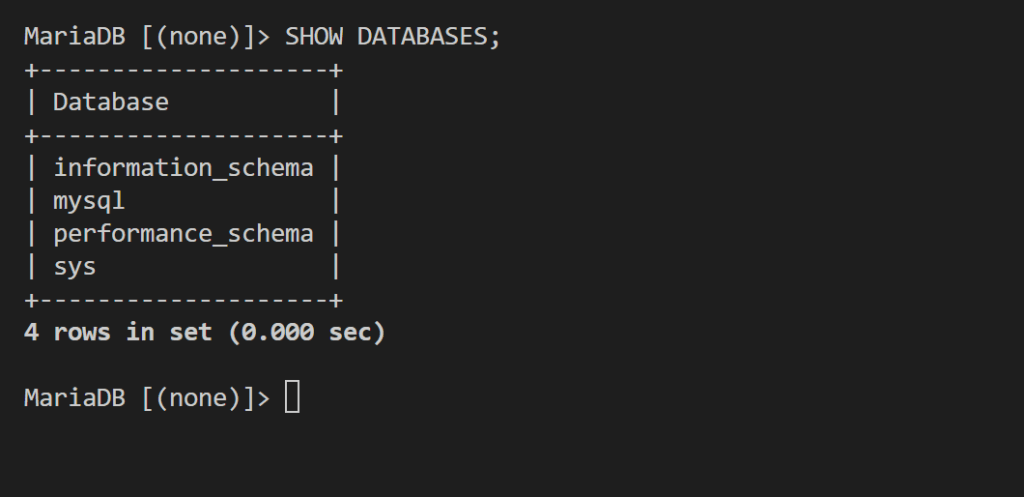
3. List the current existing users with the following query.
SELECT host, user FROM mysql.user;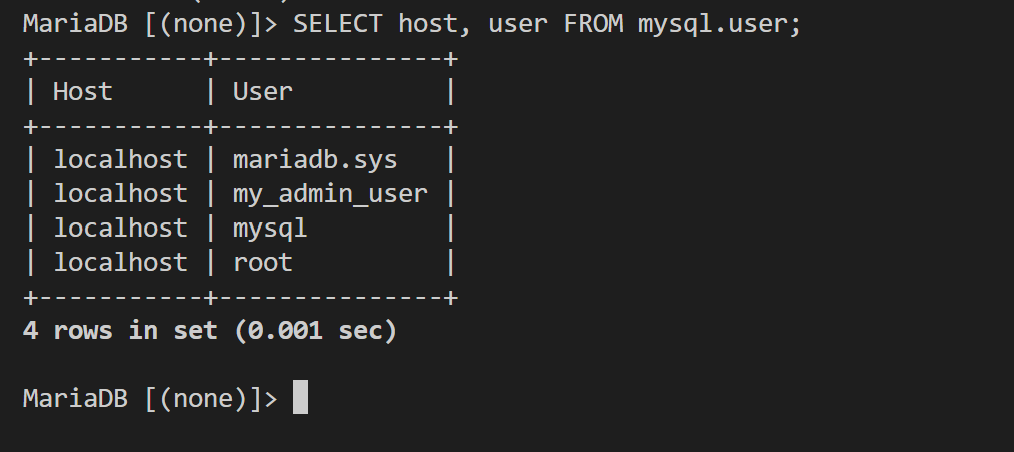
4. Create a new database with the following query
CREATE DATABASE db_name;Replace db_name with the name of the database you want to create.
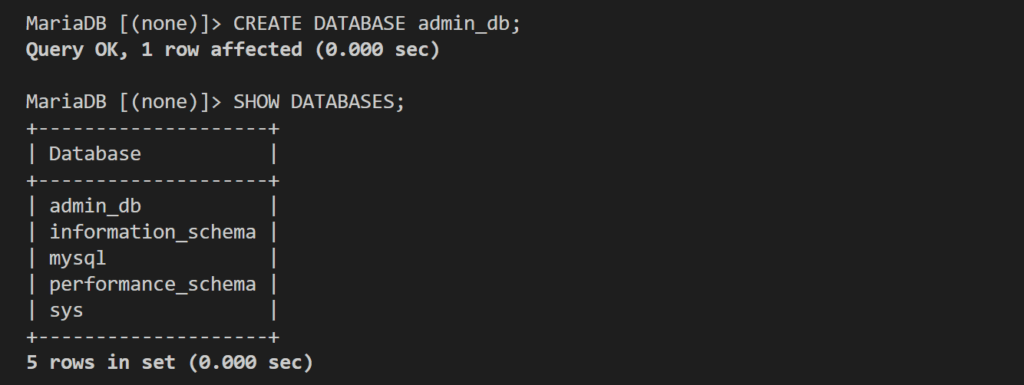
We can see that our new database is now listed in the server, and we’ve verified that our user permissions are working fine.
Conclusion
MariaDB is a popular open-source relational database that offers high-performance, scalability, and security features that match a wide range of use cases including web applications, analytics, and data warehousing. It can satisfy different application needs from small-scale to enterprise large-scale requirements.
MariaDB was created as a fork from MySQL making it highly compatible with its APIs, commands, and connectors. This also made it possible to use MariaDB as a drop-in replacement for MySQL in many setups.
In this article, we covered the steps for installing and configuring MariaDB on Ubuntu. We used the APT package manager to install the MariaDB server package from the default APT repositories. Then we improved the security of our installation by executing the mariadb-secure-installation script. Finally, we created an admin user and tested its permissions by connecting to the MariaDB server and issuing different queries.
Ready to deploy your MariaDB server in the Cloud? Try UpCloud now and get a high-performance and reliable server infrastructure for your deployment.
Discussion