New - NVIDIA B200 & B300 Dedicated GPU Clusters | Explore GPU clusters
Docker Offload – Using the power of the cloud to develop locally
-
About
- Type
- Tutorial
- Categories
- DockerIntegrations
Updated on 1.8.2025
As Docker Captain, I have the privilege of testing the solutions before the public availability of the service or feature. This time, Docker prepared a few huge changes to the product, which made the whole development lifecycle much easier.
The WeAreDeveloper announcement
During the keynote of WeAreDevelopers conference, Docker announced three features to the Docker Desktop, two related to AI, and one related to overall way of work.
In this article, we dig into the general improvement of our work, Docker Offload.
Why is it important to you?
Docker Offload offers functionalities that connect local development with cloud resources. For individuals and companies, the cost of modern GPU chips, cards, and computers (in general, modern GPU-powered compute power) is still expensive. Docker allows users to “delegate” their local work to the cloud, where powerful GPU chips are hosted.
At UpCloud we allow you to use very modern and powerful GPU powered units with Nvidia L40S. Unformtunatelly, Docker Offload works in Docker Cloud only, but you can run your GPU heavy tasks using docker Compose at UpCloud anyway!
The huge improvement for daily work is that you can more flexibly use GPUs, in on-demand and pay-as-you-go schema.
What is Docker Offload?
Docker Offload allows you to move your local workloads to the Docker Cloud. What is most important here is that you don’t “feel” any difference in the way you work. The same CLI commands, the same system’s behaviour, the same operations. The only difference is that you use Cloud-base resources, which are much more powerful than in your laptop.
Enable Docker Offload
Docker Offload is part of Docker Desktop. It can be enabled from the GUI or the CLI. First, ensure you have the most recent Docker Desktop installed. If so, run the command
docker offload startYou should see this screen
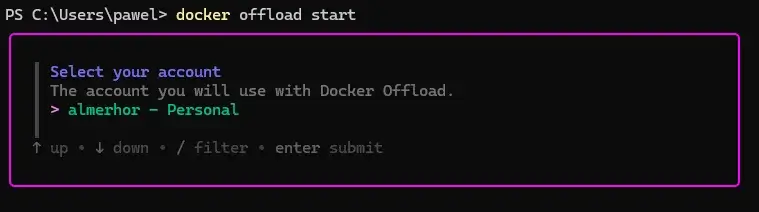
On this screen, you have to select the account you want to use. In other words, you create (or select) another workspace, and after offload is enabled, you work solely there.
The next step is to answer the GPU question.
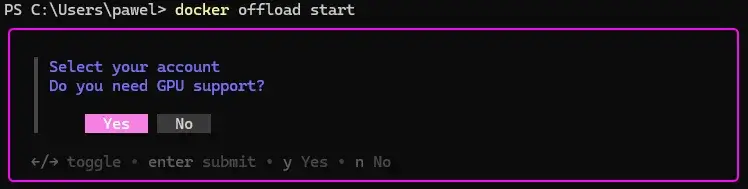
After confirming your selection, you are ready to go!
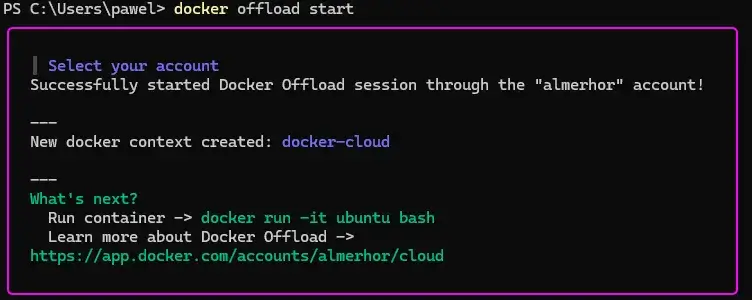
The new context is ready to be used.
The work experience
From the perspective of someone using Docker in CLI or Docker Desktop, nothing will change. The only difference is that everything you do, you do in the cloud. Pulling images, building, running containers, running Compose, managing containers – everything happens in the cloud, and nothing will be stored on your machine locally. Of course, your code, Dockerfiles, Compose files, etc., are still local, everything related to running your workloads goes to the cloud.
Current pricing model
Docker also announced the pricing of this service. Today, we can use Docker Offload for free for 300 minutes. After that time, the price depends on the use of GPUs:
- $0.015 per minute if using a GPU
- $0.01 per minute if a GPU is not used
Let’s run a simple test!
Now that we know what Docker Offload is, how much it costs, and why you should take a look at it. It is time to see how it can be used.
The goal
The goal of this experiment is to see if we really use cloud-based infrastructure. For this, we will check the GPU installed in the hardware we use. We will compare the local run with the offloaded run.
Check local hardware
First, let’s check the status of the Offload service, using
docker offload statusThis is what you should see
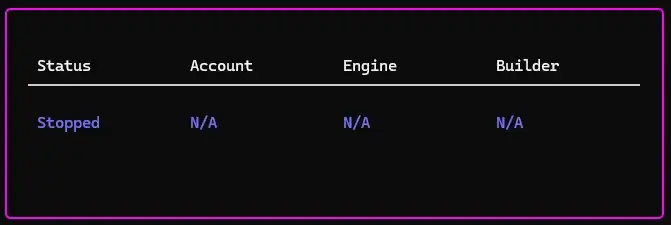
Docker Offload is stopped, which means we use our local hardware. To check what GPU you have installed, run this container:
docker run --rm --gpus all nvidia/cuda:12.4.0-runtime-ubuntu22.04 nvidia-smiThis runs a nvidia/cuda image, with the “nvidia-smi” command, which will provide information about the GPU chip. Also worth noting is the use of the “–gpus all” parameter.
When you run the container for the first time, the huge image must be pulled. It will take a moment, as the image is 2.3GB. When it is finally run, you will see something similar to my output
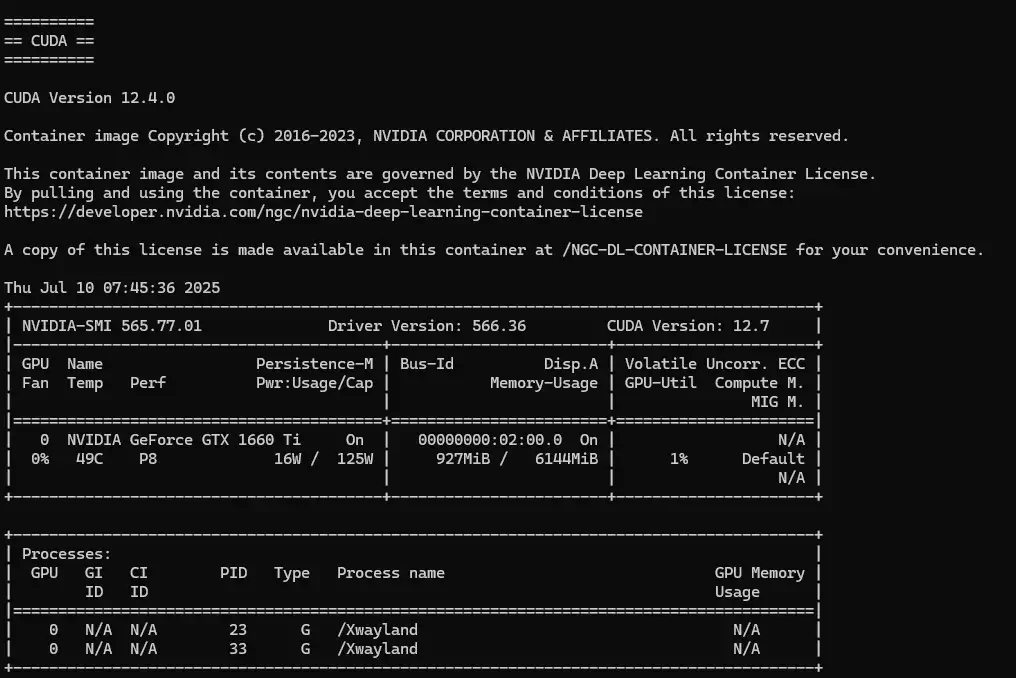
In my case, the GPU is Nvidia GeForce GTX 1660 Ti. Yours will be different (if any).
Run the check in the cloud
It is time to enable Offload again and check the status.
docker offload startdocker offload status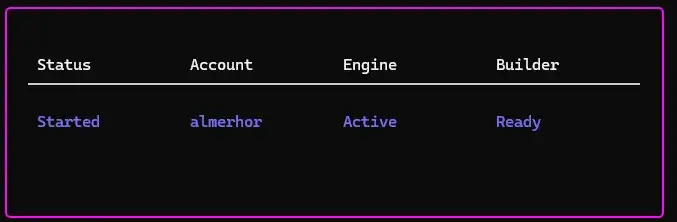
As everything works, we can run the same container again:
docker run --rm --gpus all nvidia/cuda:12.4.0-runtime-ubuntu22.04 nvidia-smiFirst of all, you’ll see that the image is pulled. However, this time it is pulled in the cloud, in your cloud’s context. And you probably noticed that the pull was quicker than in your local laptop (if not, I am jealous!).
What is the result?
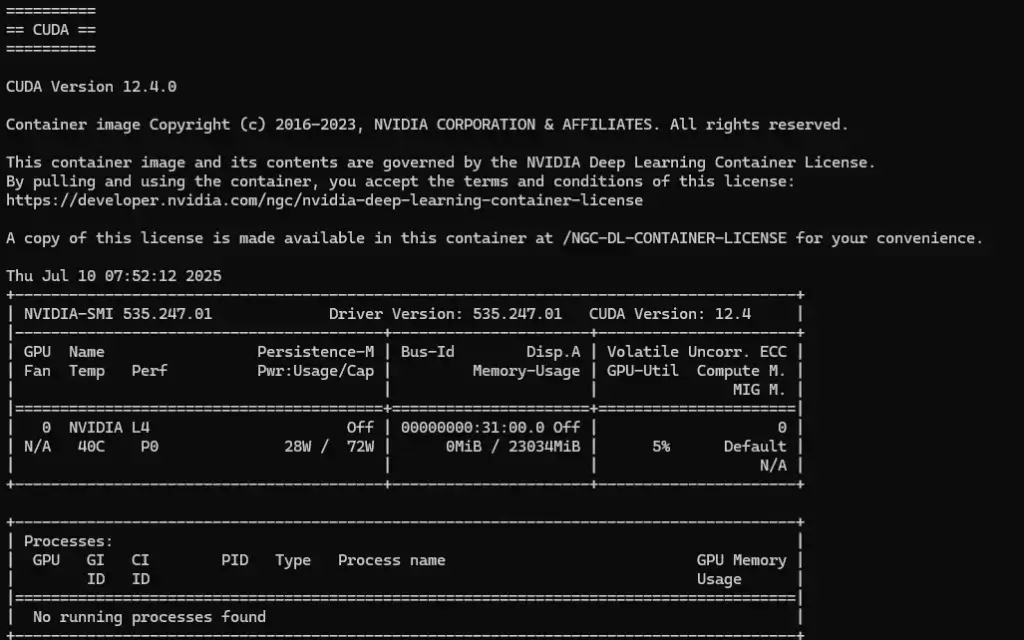
This time, the GPU chip is Nvidia L4. This confirms that we used the cloud infrastructure.
What can you do with Docker Offload?
You can do everything you have done so far locally, but with more resources, power, and better performance. You can run Docker Compose in the same way you did before, just by using the docker compose up command.
As I said, the feel of use is exactly the same as for your local containers; I didn’t exaggerate. When you expose a port, like 3000, for your web app, you put in your browser localhost:3000, and you can check this app, just as you do now. Yes, you still put localhost in your browser, even if the workload exists in the cloud.
How to check what context I use?
There are a couple of ways to know that. First, you can run the command I already provided –
docker offload statusAnother command is
docker context lsWhich will print the following information

You can see the asterisk next to the currently selected context.
In Docker Desktop, there are indicators that provide this information. Like, for example, the top bar change:

The picture above shows how the bar looks when you operate locally, and the picture below shows how it looks when you are using the cloud.

Summary
In this article, we introduced Docker Offload, a significant new feature for Docker Desktop that enables developers to run their Docker workloads in the cloud rather than solely on local machines. This is particularly advantageous for workloads demanding substantial GPU resources.
Developers can continue to use familiar CLI commands and experience the same operational feel, with the key difference being that all actions are executed in the cloud.
Key Takeaways
- Cost-Effective GPU Access: Docker Offload provides an affordable, on-demand solution for accessing high-performance GPU compute power, eliminating the need for expensive local hardware investments.
- Seamless Cloud Integration: Developers can leverage powerful cloud resources without altering their current Docker workflows or command-line habits, ensuring a smooth transition.
- Enhanced Performance: Offloading resource-intensive operations to the cloud can significantly accelerate image pulls, builds, and container execution.
- Flexible Resource Utilization: The pay-as-you-go model allows for efficient and flexible use of cloud GPUs only when they are specifically required.
- Continued `localhost` Accessibility: Even when workloads are executed in the cloud, exposed container ports remain accessible via `localhost` in your web browser, maintaining a familiar development experience and making the development process just as easy but more powerful for developers.
Discussion