This tutorial will guide you through setting up Ollama and running the Mistral-7b model on your UpCloud GPU instance. We’ll focus on a straightforward approach to get you up and running in no time.
Background: Sovereignty, Openness, and AI
“Open weights” in the context of AI refers to large language models (LLMs) where the trained model parameters (the “weights”) are publicly released and accessible. This is distinct from “open source” in software, where the source code is open. While the training code for an LLM might be proprietary, open weights allow researchers, developers, and businesses to:
- Innovate Freely: Build upon, fine-tune, and adapt models for specific use cases without vendor lock-in.
- Promote Transparency: Enable inspection and understanding of how models behave, contributing to explainable AI and responsible development.
- Foster Competition: Democratize access to powerful AI capabilities, preventing a few large corporations from monopolizing the field.
- Ensure Data Privacy: Run models locally or on private cloud infrastructure without sending sensitive data to external APIs.
Mistral AI, a prominent European AI company, has been a key player in advocating for and releasing models with open weights, such as the Mistral 7B and Mixtral models. This approach empowers a broader community to utilize and improve AI technologies.
Why This Matters for Your UpCloud GPU Instance
By combining an UpCloud GPU instance with open-weights models like Mistral run via Ollama, you gain:
- Control and Privacy: You retain full control over your data and the inference process, aligning with data sovereignty requirements.
- Cost-Efficiency: Running models on your own infrastructure can be more cost-effective for sustained use compared to API-based services.
- Customization: The ability to fine-tune and adapt open-weights models to your specific needs is significantly enhanced.
- Performance: Direct access to dedicated GPU resources on your instance provides optimal inference performance
Step-by-Step Tutorial:
1. Deploy an UpCloud GPU instance
Log in to https://hub.upcloud.com and select GPU servers from the left-side panel, then click “Deploy server” from the right side.
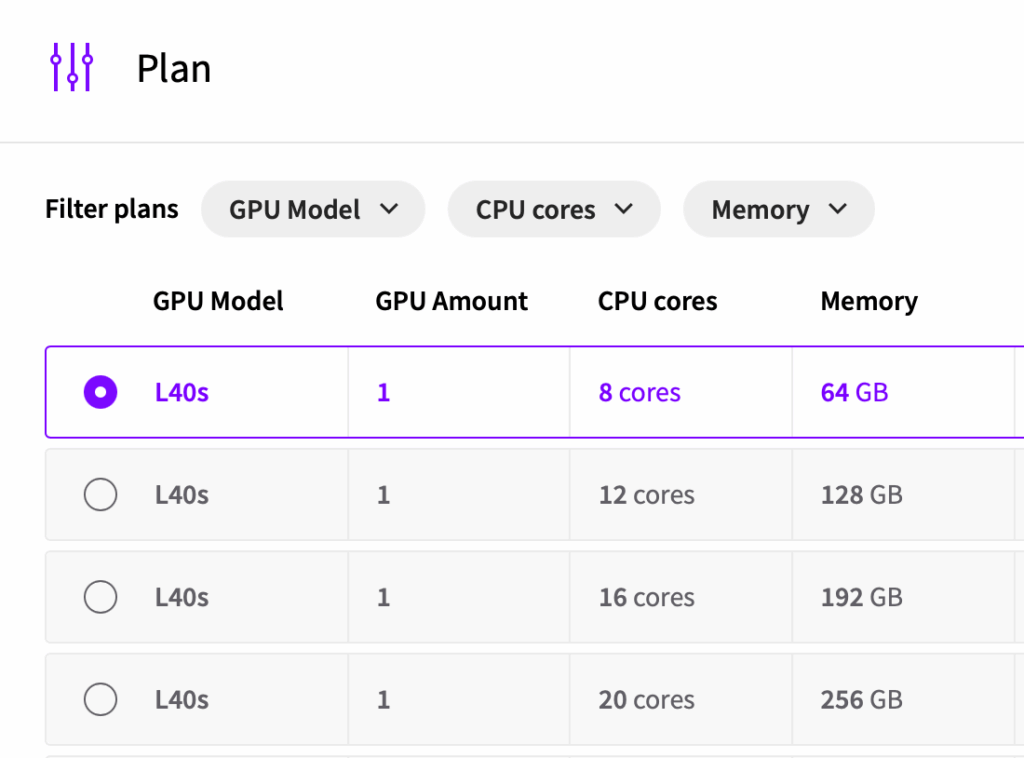
Select a GPU plan that fits your use case. You can choose up to 3 GPUs per Cloud Server, up to 20 cores and 256 GB of RAM.
Select Ubuntu 24.04 (with NVIDIA drivers & CUDA) as the Operating System. This template has built-in capabilities to immediately get started by running GPU workloads.
Remember to add your SSH keys in the process, so you can access the server in the next step.
Finally, press deploy!
2. Connect to Your UpCloud Instance via SSH
Open your terminal and connect to your UpCloud instance using its IP address and your SSH key:
ssh ubuntu@your_instance_ip_addressReplace your_instance_ip_address with the instance public IP address.
3. Pull the Ollama Docker Image
Once logged in, pull the official Ollama Docker image. This is a popular inference runtime for LLMs.
docker pull ollama/ollama3. Run the Ollama Container with GPU Support
Now, run the Ollama container, ensuring it has access to your GPU resources. The --gpus=all flag is crucial for this. We’ll map a local port 11434 (Ollama’s default port) to your host.
docker run -d --gpus=all -v ollama:/root/.ollama -p 127.0.0.1:11434:11434 --name ollama ollama/ollamaAbout the parameters:
-d:Runs the container in detached mode (in the background).--gpus=all: Provides the container access to all available GPUs.-v ollama:/root/.ollama: Creates a Docker volume to persist Ollama’s data (models, etc.) outside the container. This means your downloaded models won’t be lost if you restart or remove the container.-p 127.0.0.1:11434:11434: Maps local port 11434 on your host machine to port 11434 inside the container.--name ollama: Assigns a convenient name to your container.
4. Pull a Mistral Model (e.g., Mistral 7B)
Now that Ollama is running, you can interact with it to pull models. You’ll execute commands inside the running Ollama container.
To pull the popular Mistral 7B model:
docker exec -it ollama ollama pull mistral:7bThe download progress will be shown in your terminal.
5. Run the Mistral Model and Interact
Once the model is downloaded, you can start an interactive session with it:
docker exec -it ollama ollama run mistral:7bYou will now be in an interactive prompt where you can type your questions or prompts to the Mistral model. For example:
>>> If UpCloud were an animal, what animal would it be?

If UpCloud were an animal, it might be a Gray Wolf (Canis lupus). Just like the wolf is known for its adaptability and pack mentality in the wild, UpCloud demonstrates adaptability in providing high-performance cloud services tailored to its clients' needs, while maintaining a strong community spirit within its user base. Additionally, both UpCloud and wolves are renowned for their intelligence and speed.
To exit the interactive session, type /bye and press Enter.
Conclusion
You have successfully set up Ollama and run a Mistral model on your UpCloud GPU instance. This basic setup provides a powerful local inference environment for experimenting with large language models.
You can now explore other models available on Ollama’s library or integrate Ollama with applications via its API. For example, integrate it with Open WebUI.
Discussion