New - NVIDIA B200 & B300 Dedicated GPU Clusters | Explore GPU clusters


Sovereign Cloud.
Lightning Speed.
The high-performance European platform for developers and businesses.
Spin up servers, databases, and scale environments in seconds.
Sign up and receive $500 in cloud credits
Use it to deploy servers, Kubernetes, and storage – risk free.
$500 free credits – Valid for the first 30 days
Teemu, Chief Product Officer
Logos




















UpCloud products
Deploy with ease on UpCloud
Spend more time on your business and less time on maintaining your services with our easy-to-use Control Panel, API, and a host of management tools.
Compute & AI

Cloud Servers
Deploy high-performance servers in seconds

GPU Servers
Run demanding AI, ML, and rendering workloads

Private Cloud
Isolated cloud infrastructure for security and privacy
Data & Containers

Managed Kubernetes
Streamline container orchestration with ease

Managed Databases
Seamlessly manage and scale your databases

File Storage
Fully managed, scalable file system for shared data
Networking

Software Defined Networking
Create private, isolated cloud networks with ease

Load Balancer
Improve service performance and high availability

NAT Gateway
Securely connect your private servers to the internet

Discover Dedicated GPU Clusters
Reserve your NVIDIA B200 and B300 Dedicated GPU Clusters with 8, 16, 32, or 64-node configurations in UpCloud’s upcoming flagship Nordic AI data center.
Success stories
Real businesses, real results
Whether you’re an individual developer, running an eCommerce store, or a digital agency, our cloud infrastructure ensures top-tier performance, cost-efficiency, and flexibility.
“Our main challenges were large fluctuations in monthly expenses due to the significant variance in resource utilization on a week-by-week basis. UpCloud gives us fixed costs and quick upgrades via hot-resize when needed, which also shortens our maintenance windows for upgrades caused by resource starvation.”

Lari Pihlajapuro
Founder and CEO at Shipit




Interactive sandbox
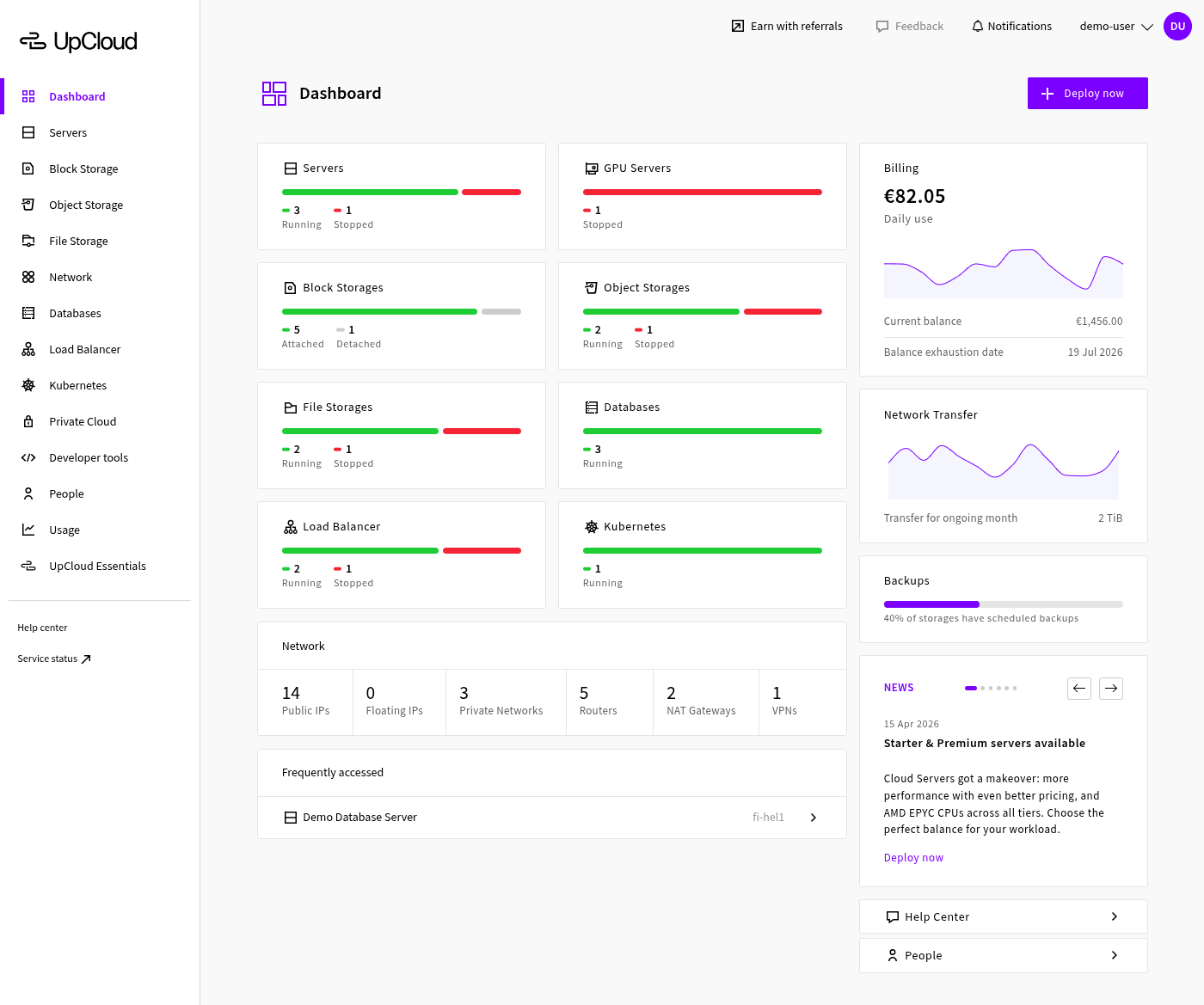
Tour the Control Panel
Jump straight into our Control Panel with a fully interactive live demo. No account or sign-up required.
Resources to get you started
Learn, Build, and Connect
We build simple, powerful cloud tools so you can focus on shipping code, not managing infrastructure headaches.
Documentation
Comprehensive guides and references for using our services.
Most searched
Tutorials
Step-by-step guides to build and deploy projects with ease today.
Trending this month
More resources
Start a new journey
Partner with UpCloud
Join a partner program for exclusive credits, bigger discounts, and dedicated support – whether you’re a scaling startup, reselling infrastructure, or referring clients.
Unlock new opportunities to elevate your offerings
Free cloud credits and support for startups to build and scale
Earn rewards by recommending a cloud developer's trust
Reliability
99.999% SLA
Deliver consistent, high-performance hosting solutions with the support of our robust infrastructure and industry-leading SLAs.
Profit margins
Competitive pricing
We understand your business, and by partnering with us, you gain access to competitive pricing structures that maximize revenue potential and drive business growth.
Build your MVP
Free Credits
Helping startups build their MVP and scale globally.
Expert Support
24/7/365
Always available human support so you can get back to building.
Straightforward reward process
Start earning fast
Earn affiliate commissions for every referral conversion.
High affiliate commission rates
Performance-based
Our Affiliate Program enables total earnings of $160 per customer.
15 data centers in 12 countries
Northern Europe
- Stavanger, Norway NO-SVG1
- Copenhagen, Denmark DK-CPH1
- Stockholm, Sweden SE-STO1
- Helsinki, Finland FI-HEL2
- Helsinki, Finland FI-HEL1
Central Europe
- London, UK UK-LON1
- Warsaw, Poland PL-WAW1
- Amsterdam, Netherlands NL-AMS1
- Madrid, Spain ES-MAD1
- Frankfurt, Germany DE-FRA1
North America
- San Jose, USA US-SJO1
- New York, USA US-NYC1
- Chicago, USA US-CHI1
Asia Pacific
- Singapore, Singapore SG-SIN1
- Sydney, Australia AU-SYD1

Take your business to the next level
Level up the performance of your cloud services by deploying on a state-of-the-art cloud infrastructure.
Sign up for a self-service trial or talk to your UpCloud advisor.