New - NVIDIA B200 & B300 Dedicated GPU Clusters | Explore GPU clusters
Updated on 11.8.2026
Using Large Language Models (LLM) no longer requires you to be forced to use SaaS products like Claude, Cursor, or OpenAI. With decent GPU offerings and the ability to run models on these machines, we gain flexibility, greater security, and the ability to build cheaper solutions.
In this tutorial, you’ll learn how to run LLMs on an UpCloud GPU server, using an open source product from Docker – Docker Model Runner.
Prerequisites
We need to have a few things done before we can start to follow this tutorial.
- GPU instance is up and running. UpCloud offers four GPU models, all from NVIDIA. From the smallest one – NVIDIA L4, through the inference-optimized NVIDIA L40S and the dedicated NVIDIA H100 for heavy inference or machine learning, up to the powerful NVIDIA B200, dedicated for heavy workloads.
- To connect to the machine, we need to have SSH keys provisioned and configured on this machine.
Prepare the machine
GPU Servers from UpCloud already have Docker installed. Also, it is worth noting that UpCloud’s team provides rebaked images with all the NVIDIA tools needed to use this machine to its full potential.
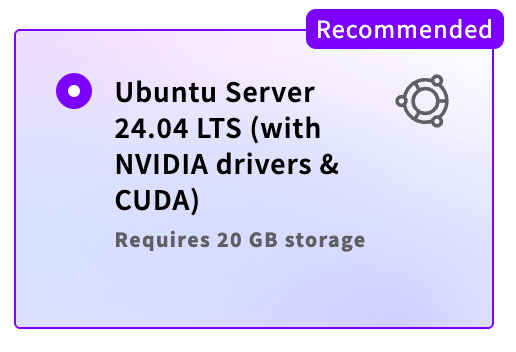
For this tutorial, we are using the smallest NVIDIA-powered machine, using NVIDIA L4.

Log in to the machine
We have SSH keys added, so we can log in using the command below.
ssh root@<server_ip>After logging in, we might want to check whether the GPU is actually available and usable. To do so, NVIDIA provides a set of tools that we will use with nvidia-smi.
nvidia-smiWe should see something similar to the picture below:
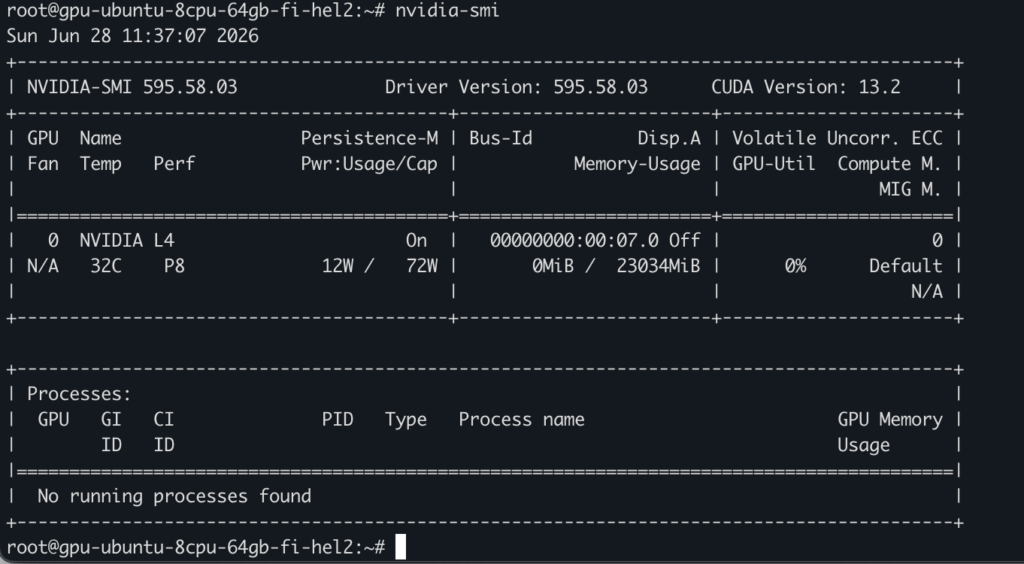
This screenshot confirms that the NVIDIA L4 chip is available, how much power it consumes, and what memory is available.
Checking Docker
Let’s run the docker command to check if Docker is installed:
docker --version
It should be the newest version of the package. It might be different as newer versions are released.
Install Docker Model Runner (DMR)
There is one component missing, though. Docker Model Runner package.
The reason is simple: not everyone needs DMR, so those who do will install the package.
Docker Model Runner is available as a Docker plugin. It is installed as a package, but requires Docker to run.
Let’s execute these commands:
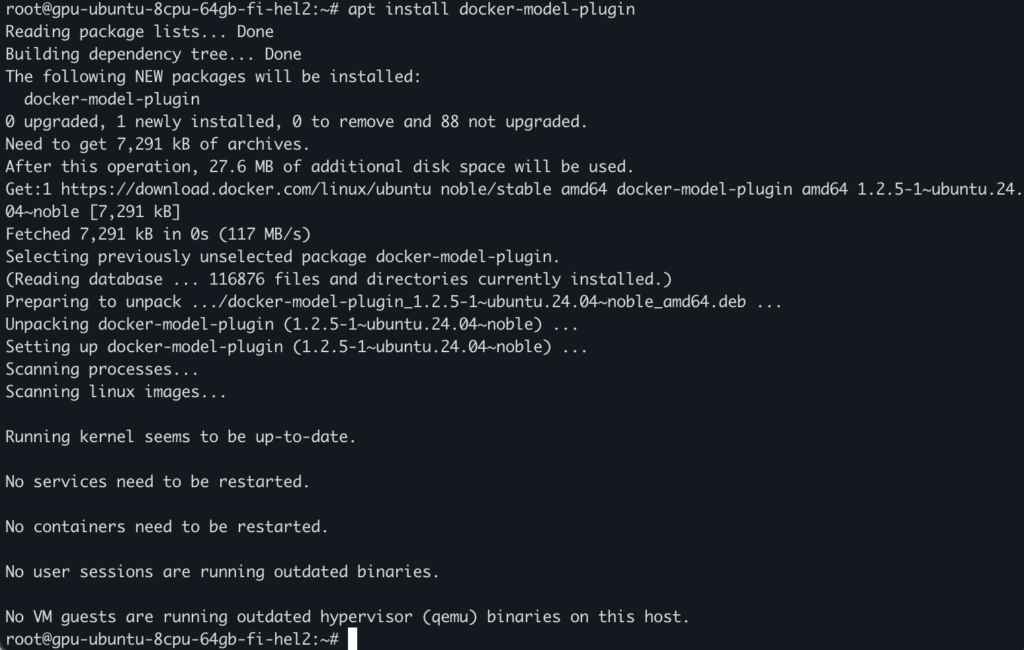
sudo apt updatesudo apt install docker-model-pluginWe don’t need to add any additional registry. As mentioned, UpCloud’s GPU machines already have a proper Docker registry installed.
The picture below shows the installation process.
Let’s finally check if DMR is installed and working:
docker model versiondocker model statusIf a version is returned, it means that the plugin is installed:
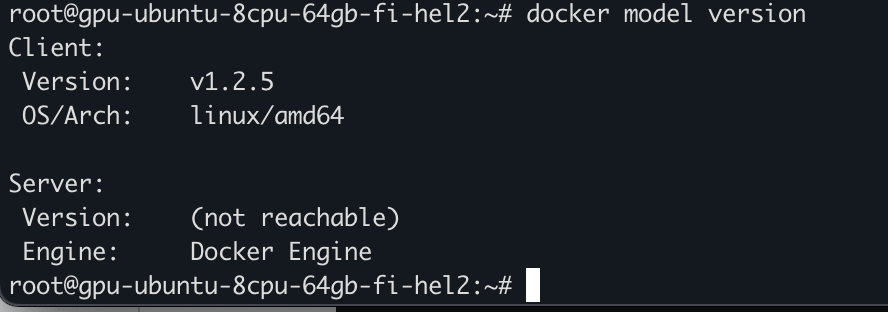
When run for the first time, the command status needs to pull the image for the Docker model runner. This is a one-time execution. After that, we will see if DMR is enabled:
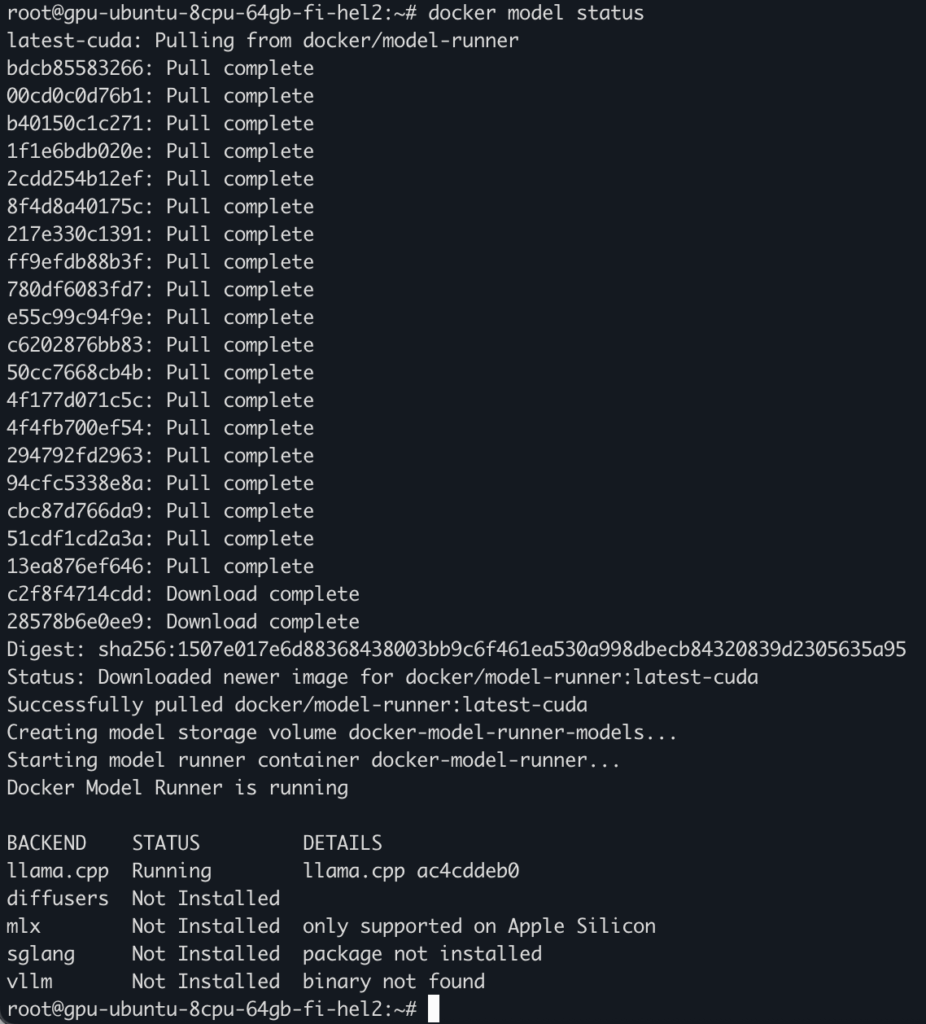
The most important information is “Docker Model Runner is running”.
Note: Sometimes we can find information that we should use the command docker model install-runner –gpu=cuda, but it is not needed. Using the way we followed, it will be enabled.
Pulling the first model
Now that we have DMR ready and running, it is time to pull our first LLM. Docker provides its Hub, which offers literally hundreds of models to pull. This registry is available on the Hub and allows us to search for models and view their information.
We will use the qwen3 model with 8b parameters.
Docker Hub gives us the specific command to use. We type in our CLI:
docker model pull ai/qwen3:8B-Q4_0The pull process for models is very similar to that for images.
After some time, depending on our connection speed and quality, the model will be stored locally.

Let’s check what we have, running:
docker model listThis command gives us the list of pulled models, like in the image below:

What do we see here:
We see all models pulled so far and not removed. In our case, we have only one, qwen3. Let’s understand each field in this list.
- Model name – this is simple. It is the name of the model.
- Parameters – this tells us how many parameters the model has. It describes the number of trainable weights in the neural network. To put it simply, it tells us how big the model’s brain is. Not how smart it is.
- Quantization – describes precision. In simple terms, it means how much we compress the brain to fit the available memory. FP16 provides better reasoning but requires 16 bits per parameter. INT4 will reduce the amount of reasoning compared to FP16 but requires 4 bits per parameter.
- Architecture – internal design of the neural network and processing information.
- Model ID – like for image ID. It pinpoints the specific version of the model.
- Created – when the model was prepared and stored in the hub.
- Context – provides information about the maximum context window available for this model.
- Size – How much space the package takes on the disk.
Use the model
Finally! We know how to get the DMR and models, and we are ready to run our first inference!
Let’s run this command:
docker model run ai/qwen3:8B-Q4_0 "Explain how Docker Model Runner Works"With L4, the model’s response starts almost immediately.
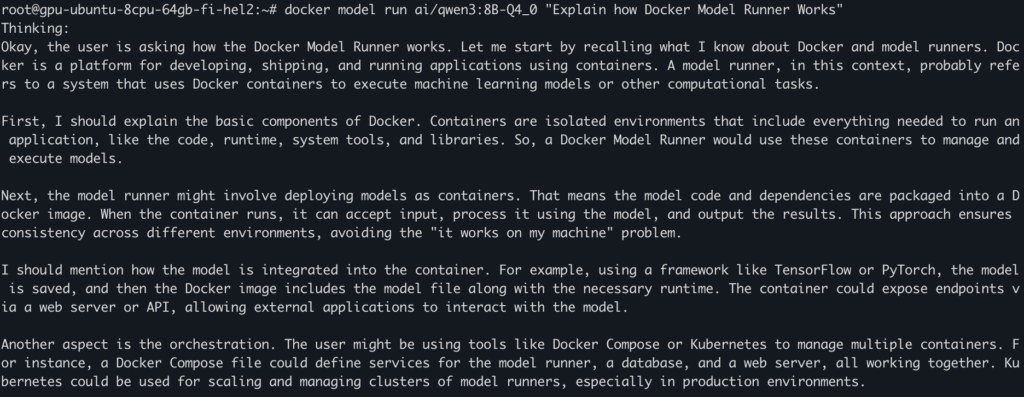
And now we are equipped with the local tool to run our own inference!
If you want to learn more about Docker model Runner, then… well… you know how to learn it locally!
Conclusion
Upcloud’s GPU offering gives us an opportunity to run powerful hardware for our local inference applications. Docker Model Runner is a tool we can use to run inference locally in a very convenient way.
Read more about our GPU offering on our GPU landing page. Contact our team if you wish to know more!
What will you build with this approach? Let us know!
Discussion